

iPhone error -18 can happen during updates or restores when communication with Apple servers fails or corrupt files are in play. Common causes include server downtimes, poor internet, faulty USB connections, outdated iTunes/Finder, or security software interference.
Let’s now move to the solutions that have previously helped others!
Table of contents
How to fix iPhone Error -18?
1. Check Internet Connection and Network Settings
- Check Apple’s Server status and make sure all services are up and running.
- Make sure your network connection is strong.
- Avoid VPNs or proxies that may block Apple’s servers.
- Try another network or restart your router.
- Temporarily disable firewalls or antivirus programs.

2. Reset and Hard Reboot the iPhone
- On your iPhone, go to Settings > General > Transfer or Reset iPhone.
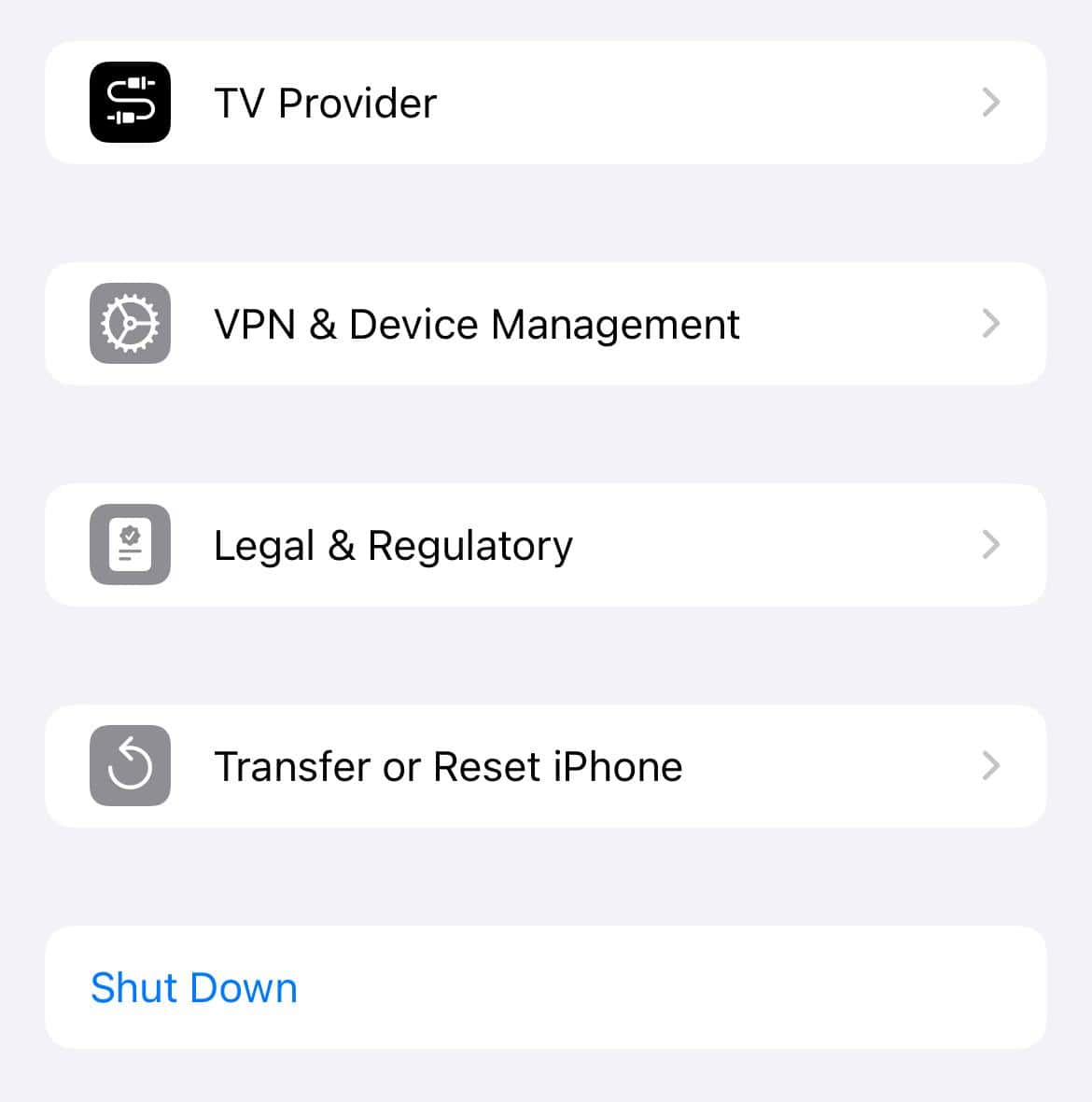
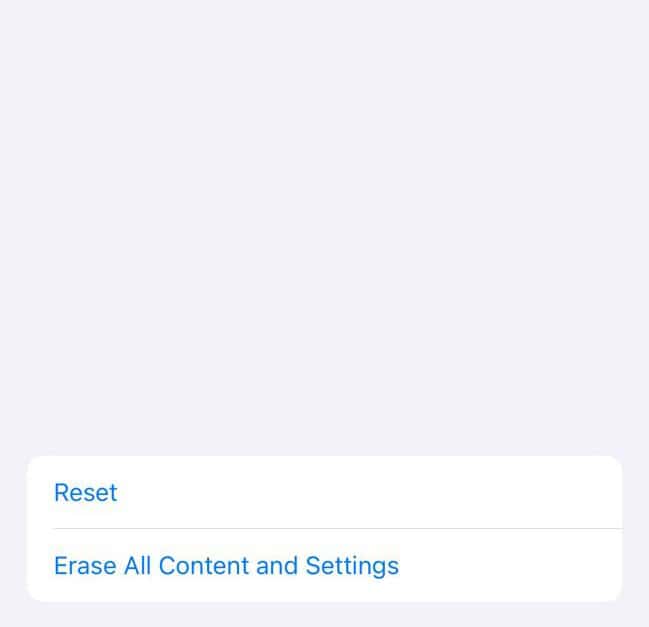
- Select Erase All Content and Settings (note: “Reset All Settings” alone does not work).
- After the reset, perform a hard reboot by holding the Home button and Sleep/Wake button together until the Apple logo appears.
- Once the iPhone restarts, connect it to iTunes and attempt the restore again.


3. Update iTunes or Finder and Computer Software
- Ensure you’re running the latest iTunes on Windows or using the most up-to-date Finder on Mac.
- Update your computer’s OS as well, since system updates can fix compatibility issues.
Updating iTunes/Finder also fixes similar issues like iPhone Error 2003.
Don’t miss the best of The Mac Observer
Set us as a preferred source and our Apple reporting ranks higher in your Google Search results and Discover feed — one tap, no account changes.
4. Try a Different USB Cable or Port
- Use an Apple-certified cable and plug directly into your computer’s USB port.
- Avoid USB hubs.
- Swap cables or ports if needed, since connection issues often trigger these errors.
These tricks also help with iPhone Error 2009.
5. Use a Different Computer
- If the error persists, try restoring or updating your iPhone on another computer.
- This can isolate computer-specific issues like driver conflicts or software restrictions.
6. Contact Apple Support
- If nothing works, the issue may be hardware-related. Contact Apple Support and let the professionals diagnose it, especially if it involves internal components.
Tips
- Always back up your iPhone before attempting restores.
- Ensure your device has enough battery or stays connected to power.
- Check if Apple’s system status shows any outages on restore or update services.
Frequently Asked Questions
It usually means the update or restore process was abruptly interrupted, often due to network issues, a bad connection, or a software mismatch.
Yes. DFU restores wipe your data. Always back up before starting this step.
Yes. Some security tools block communication with Apple’s servers, causing errors like -18. Turning them off temporarily during the restore can help.
Possibly. If all common fixes fail, the issue may lie inside your device. Let Apple diagnostics confirm.
Summary
- Ensure a stable internet and disable VPN or firewall if needed.
- Update iTunes or Finder and your computer’s operating system.
- Use a reliable Apple USB cable and avoid hubs.
- Restart both your iPhone and computer.
- Try another computer to isolate issues.
- Force restart, then restore via DFU mode if needed.
- Seek professional help if the error continues.
Conclusion
When it comes to iPhone error -18, it is mostly a connection or software update problem that you can fix at home. Take it step by step, and you will likely sort it out. If it still fails, Apple support is the best place to go. Do not lose hope, your iPhone is still fixable!


Discussion