

If you see iPhone Error 53, it usually means your Touch ID hardware failed a security check after a repair or during a restore. This happens when the home button or its cable is replaced, damaged, or not recognized.
The fixes include updating iOS, using the original hardware, reinstalling iTunes, or contacting Apple for service. Below are the causes and solutions explained with clear steps!
How to Fix iPhone Error 53?
1. Restore Using the Latest iOS Version
Apple released an update, iOS 9.3, that allows devices disabled by Error 53 to be restored. Touch ID will remain off if it was already broken.
Don’t miss the best of The Mac Observer
Set us as a preferred source and our Apple reporting ranks higher in your Google Search results and Discover feed — one tap, no account changes.
- Connect your iPhone to a computer using a Lightning or USB-C cable.
- Open Finder on Mac or iTunes on Windows.
- Select your device when it appears.
- Click Check for Update and install the latest iOS version.
- If the update fails, choose Restore iPhone.

Restoring also helps fix iPhone Error 75.
2. Use Original Home Button and Flex Cable
Error 53 often occurs when the Touch ID sensor is replaced with non-original parts.
- Power off your iPhone.
- If you had the home button replaced, ensure the original part is reinstalled.
- Check that the flex cable is properly connected to the logic board.
- Try restoring again after reconnecting the parts.
3. Update or Reinstall iTunes / Apple Devices App
Outdated or corrupt software can trigger Error 53 on a computer.
- On Windows, uninstall iTunes or Apple Devices Support from the Control Panel or Settings.
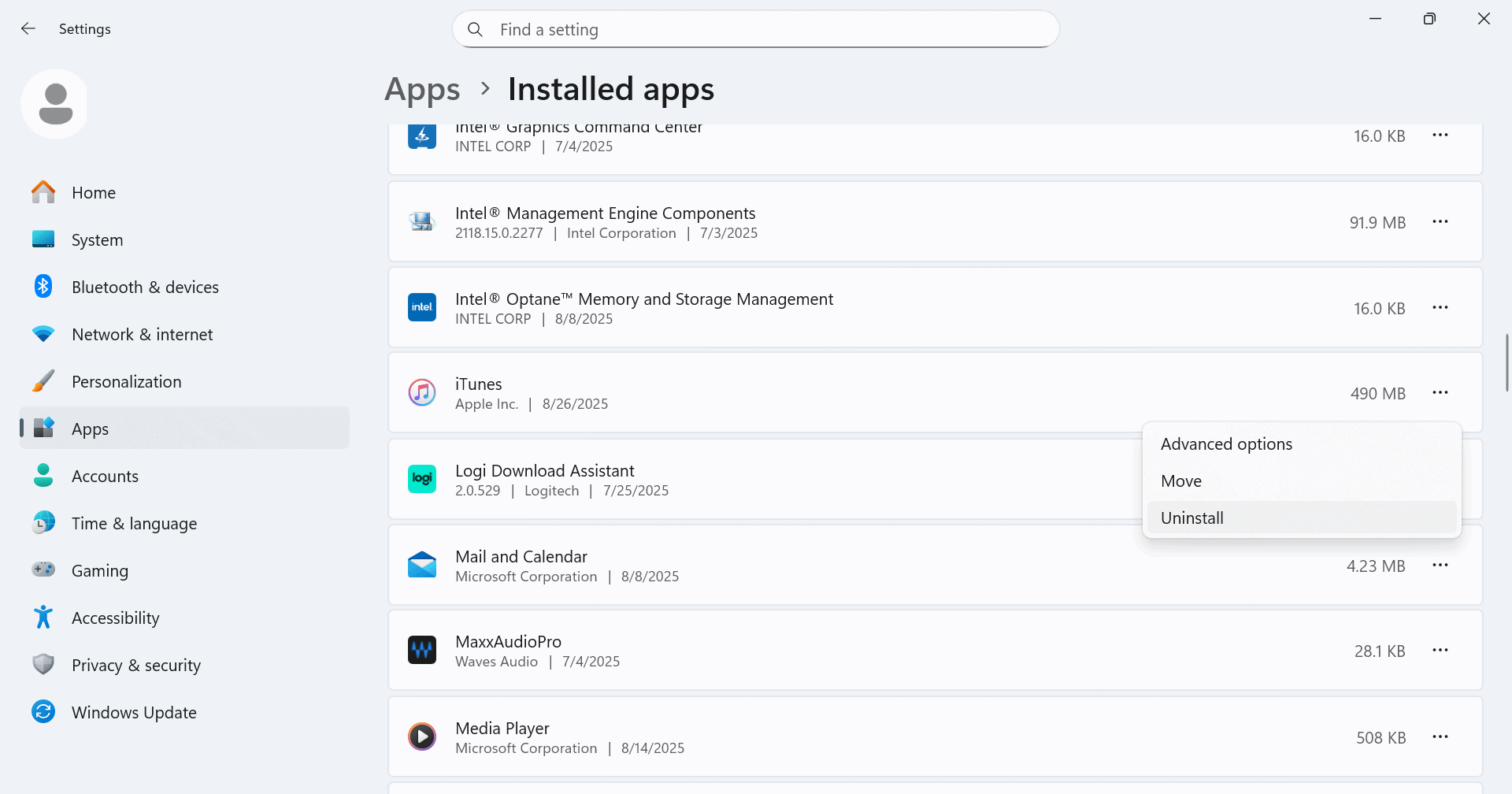
- Restart your computer.
- Download and install the latest version from Apple’s official site or the Microsoft Store.
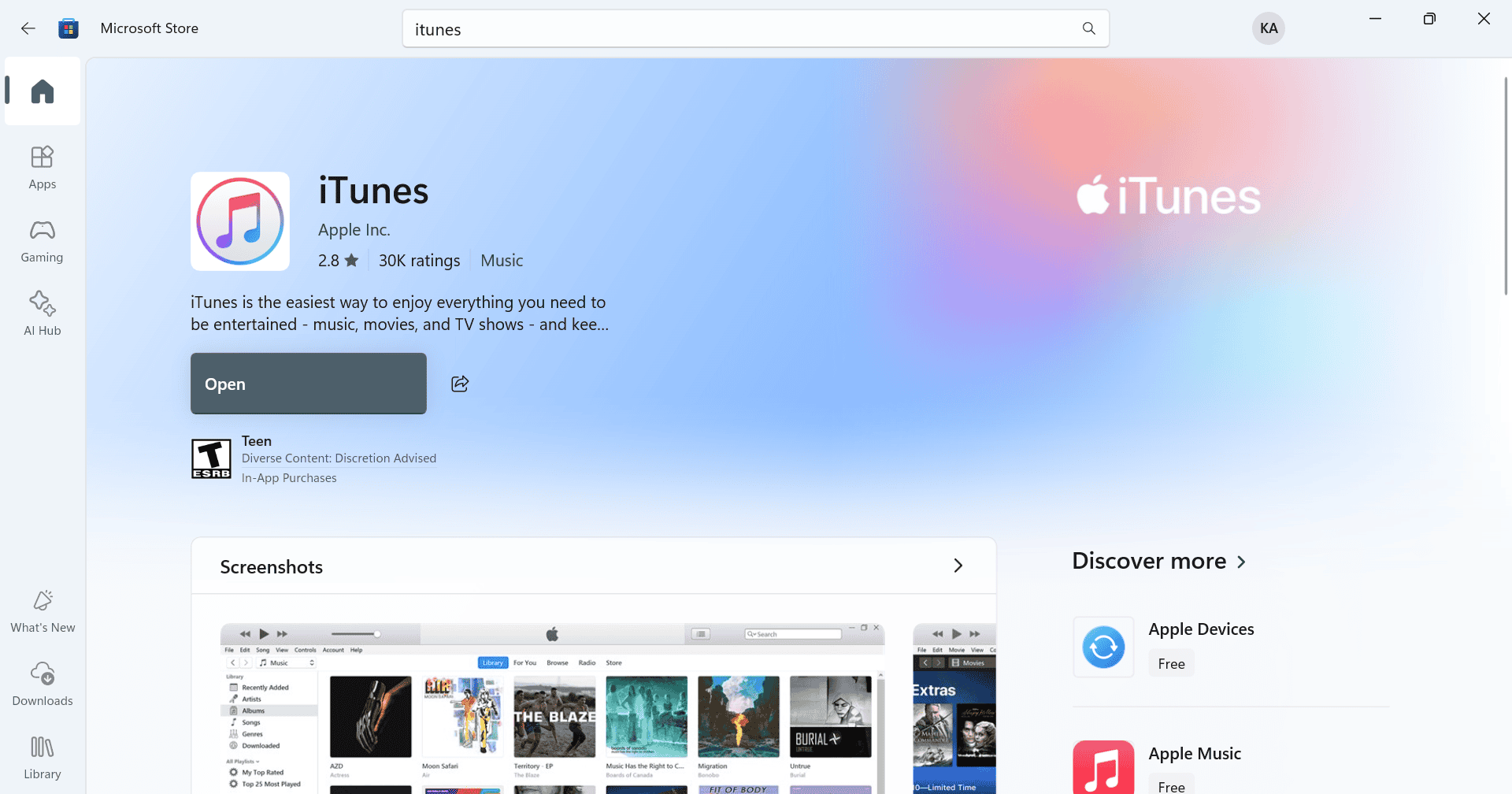
- Connect your iPhone and attempt the restore again.


4. Try a Different USB Cable, Port, or Computer
A faulty cable or port can cause connection drops during restore.
- Use an official Apple Lightning or USB-C cable.
- Try another USB port on your computer.
- If possible, use a different computer to restore your iPhone.
Using another cable also helps fix iPhone Error 1109.
5. Restore with Finder on Mac or Third-Party Tools
Sometimes Windows iTunes fails while macOS Finder or other tools succeed.
- On a Mac, open Finder and connect your iPhone.
- Select your iPhone and click Restore iPhone.
- If you use a third-party tool like 3uTools, follow its on-screen restore instructions.
6. Contact Apple if Touch ID Needs Revalidation
After a valid repair, Apple can revalidate Touch ID at service centers. If Touch ID stopped working before the error, contact Apple support for service options.
Tips
- Always update to the latest iOS version before restoring.
- Use only original or authorized repair parts for Touch ID.
- Keep original parts even if you get third-party repairs.
- Back up your iPhone before attempting to restore or repair.
- Try restoring on a Mac if Windows fails repeatedly.
Frequently Asked Questions
It is an iPhone error that appears when Touch ID fails a security check during restore or update.
If Touch ID was not functioning, the restore process disables it permanently for security reasons and triggers Error 53.
Most cannot. Only Apple can revalidate Touch ID pairing, and using non-original parts can trigger the error again.
You may need Apple service to replace or validate Touch ID. If restore still fails, ask Apple Support for further options.
Summary
- Restore with the latest iOS version using Finder or iTunes.
- Reconnect or reinstall the original Touch ID home button and cable.
- Update or reinstall iTunes or Apple Devices on your computer.
- Use a different USB cable, port, or computer.
- Try restoring on a Mac or with alternative tools.
- Contact Apple for Touch ID revalidation or replacement.
Conclusion
When you see iPhone Error 53, it usually points to a problem with Touch ID hardware or the restore process. Most people solve it by updating iOS, reinstalling iTunes, or reconnecting the original parts. If issues continue, Apple can revalidate or replace the Touch ID system.
To avoid future problems, always back up your device, update iOS regularly, and use original or authorized repair parts. That way, your iPhone stays secure, and restore errors can be avoided.
Before you leave, discover the top hidden features in iPhone and make the most out of your Apple device!



Discussion