

Every Mac mini has a unique serial number that identifies the device for warranty verification, service requests, and ownership confirmation. Whether you want to check the warranty, contact Apple Support, or prepare a device for resale, knowing how to look up the serial number Mac mini is important.
Fortunately, Apple provides multiple easy ways to find it, through macOS settings, on the physical device, or by using your Apple ID account. So, these are the 5 tested ways to lookup the serial number of your Mac mini.
Table of contents
Here’s how to Look Up the Serial Number of a Mac mini
Apple provides multiple methods to find the serial number of a Mac mini. Depending on whether the computer is powered on or off, you can locate it through the software interface or the physical device.
Don’t miss the best of The Mac Observer
Set us as a preferred source and our Apple reporting ranks higher in your Google Search results and Discover feed — one tap, no account changes.
1. Check in macOS Settings
If your Mac mini is powered on, the easiest way to find the serial number is directly within macOS settings.
- Click the Apple menu in the top-left corner of the screen.
- Select System Settings (or System Preferences if using an older macOS version).
- Choose General, then select About.
- The Serial Number will be listed along with your Mac mini’s hardware information.
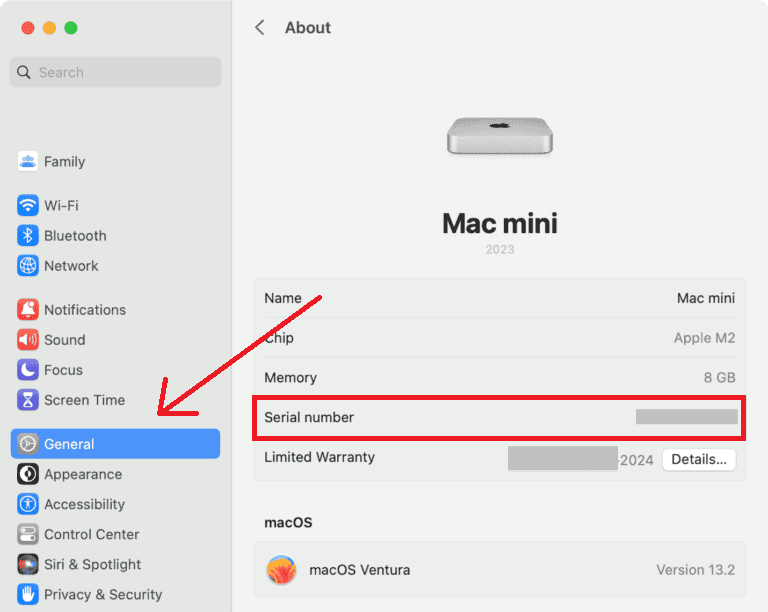

This is the most convenient way to look up the serial number Mac mini users need for warranty and support.
2. Find It on the Device
The serial number is also printed directly on the Mac mini itself.
- Shut down the device and disconnect all cables.
- Turn the Mac mini upside down carefully.
- Look near the outer edge of the circular base.
- The serial number is etched into the metal surface near the regulatory markings.
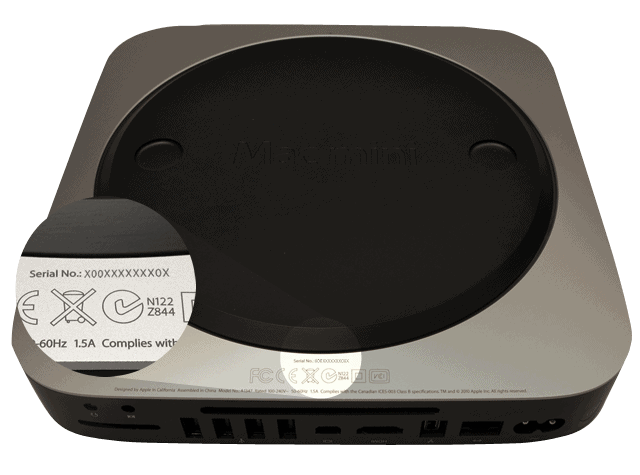

If the text is faint or hard to read, shine a small flashlight across the surface to improve visibility.
Those who are setting up or upgrading their system can also refer to the Mac mini full guide on choosing and configuring models for more detailed information about configurations.
3. Look Up Using Apple ID
If you cannot access your device directly, you can still look up Mac mini serial number information using your Apple ID account. This is helpful if the device is lost, under repair, or not functioning properly.
- Visit https://account.apple.com/ in your browser.
- Sign in using the Apple ID linked to your Mac mini.
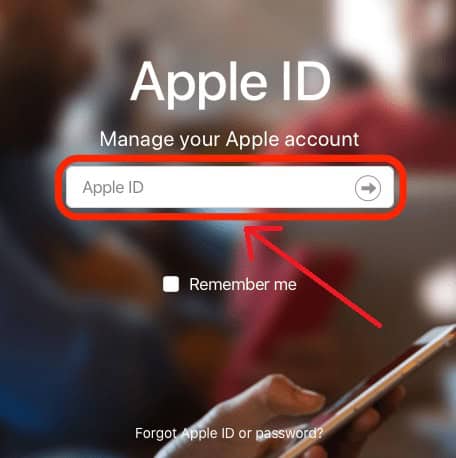
- Scroll to the Devices section in your account dashboard.
- Select your Mac mini from the list to view its serial number and model details.

This method is secure and can be accessed from any device, including an iPhone, iPad, or another computer.
4. Using Terminal Commands
Users comfortable with command-line tools can retrieve the serial number through Terminal.
- Open Terminal from Applications > Utilities or through Spotlight search.
- Type the following command: system_profiler SPHardwareDataType | grep Serial
- Press Enter to execute the command.
- The serial number displays in the Terminal window.
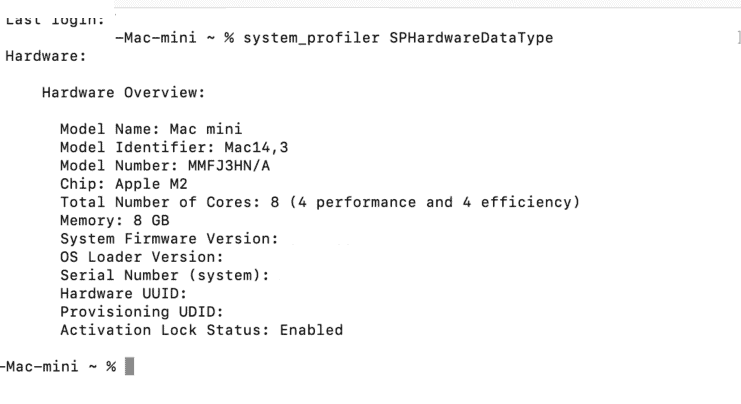

This method offers a quick way for technical users to access system information without navigating through multiple menus.
5. Check Purchase Details or Packaging
If your Mac mini is unavailable and you do not have internet access, the original packaging or purchase documents can help you locate the serial number.
- Find the original Mac mini box you received at purchase.
- Look for the barcode label on the side or bottom of the box.
- The serial number will be printed near the barcode.

- If you purchased online, check your Apple order confirmation email or retailer invoice, which usually includes the serial number as well.

If you plan to trade in or resell your Mac mini, it’s also a good idea to review how to reset Mac mini to factory settings before transferring ownership.
Additional Tips for Looking Up the Serial Number
- Record the serial number safely: Keep it noted somewhere secure for quick reference during service or support calls.
- Use Apple’s support site: You can verify your warranty or AppleCare status using your serial number on the official Apple Support website.
- Avoid confusion with model numbers: The serial number is unique to your specific Mac mini, while the model number represents the general version.
- Troubleshooting Help: If your Mac mini experiences connection issues, refer to this guide on Mac mini M2 Wi-Fi issues.
- Considering other Macs? Read this detailed comparison of Mac mini vs MacBook Air to see which one best fits your needs.
Final Thoughts
It’s easy to look up the serial number of a Mac mini using the aforementioned various steps. Whether accessed through macOS settings, directly on the device, or online via Apple ID, each option provides access to accurate details necessary for technical support or warranty checks. By keeping this number safe, you can make future repairs, warranty claims, or resale transactions much easier.
FAQs
It helps verify ownership, access warranty details, and get the correct support from Apple.
Yes. It’s printed on the device’s underside and can also be accessed through your Apple ID account.
No. The model number represents the product line, while the serial number is unique to each device.
Go to Apple’s Check Coverage page and enter your serial number to view your Mac mini’s warranty or service status.
It’s printed near the barcode label along with the model and configuration details.


Discussion