
Personal Hotspot is one of those features you don’t think much about, until it stops working. After the iOS 26 update, many iPhone users have noticed their hotspot either won’t turn on, keeps disconnecting, or doesn’t appear on other devices. If that sounds familiar, don’t worry. Here’s how to get your iPhone’s hotspot working again.
Table of contents
Why Your Hotspot Might Not Be Working
A few things can break your hotspot connection after an update. It could be a temporary network glitch, an outdated carrier setting, or even something simple like a disabled toggle in Settings. The good news is, most of these issues are easy to fix once you know where to look.
Basic Fixes for iOS 26 Hotspot Problems
1. Check if Personal Hotspot Is Turned On
Start with the obvious.
Don’t miss the best of The Mac Observer
Set us as a preferred source and our Apple reporting ranks higher in your Google Search results and Discover feed — one tap, no account changes.
- Go to Settings > Personal Hotspot, then make sure it’s switched on.

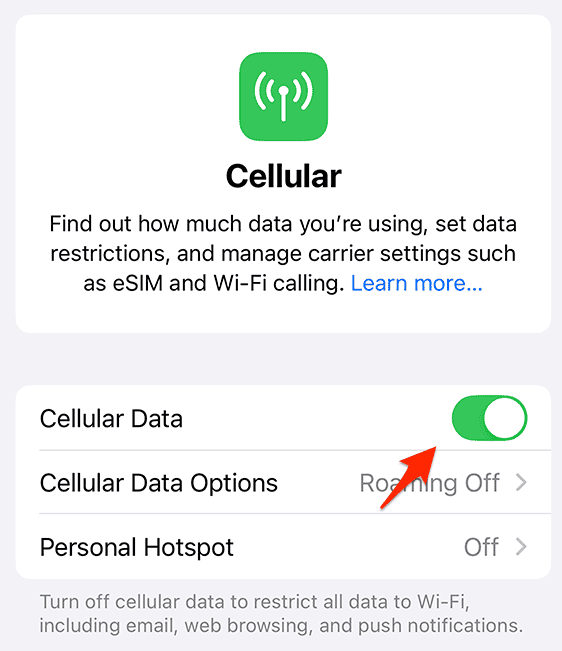
- If you don’t see the option, your carrier might need to enable it—check with them or toggle Cellular Data off and back on to refresh it.


2. Restart Your iPhone
Sometimes your phone just needs a reboot. Hold down the Side button and volume button, slide to power off, then turn it back on after a few seconds. Restarting can clear temporary glitches that block the hotspot.
3. Update iOS
Apple pushes small updates after major releases to fix bugs like this. Head to Settings > General > Software Update and install any pending updates. Even minor patches can solve hotspot issues caused by system errors.
4. Toggle Cellular Data
Turn Cellular Data off for a few seconds, then back on. This can reset your connection to your carrier’s network and often brings the hotspot back online.
5. Keep Devices Close
If another device can’t find your iPhone’s hotspot, make sure they’re close together; within a few feet, ideally with no walls or obstructions between them.
Advanced Fixes When the Basics Don’t Work
6. Reset Network Settings
If the hotspot still refuses to cooperate, reset your network settings. This clears saved Wi-Fi passwords, VPNs, and cellular connections that might be interfering.
- Go to Settings > General > Transfer or Reset iPhone > Reset > Reset Network Settings.
- Your iPhone will restart, and you’ll need to reconnect to Wi-Fi afterward.
7. Check for Carrier Settings Update
Your carrier occasionally updates its connection settings to work with Apple’s latest iOS versions.
- To check, go to Settings > General > About.
- If there’s an update available, you’ll see a prompt—install it right away.
For Dual SIM or eSIM Users
If you use two lines, your iPhone chooses one to share data through Personal Hotspot. Go to Settings > Cellular, check which line is set for data, and disable Cellular Data Switching if necessary. That ensures your hotspot stays connected to the correct line.


Mine was greyed out. I asked Siri to switch it on. It did. Then I could get to the settings options!
that worked for me, too, thanks