

When your device refuses to move past the estimation phase, it usually indicates a communication breakdown between the iPhone and Apple servers. This can be caused by network congestion or local software hang-ups. Understanding how iCloud works is the first step in identifying whether the problem lies with your connection or the service itself. It is also important to recognize the difference between iCloud Drive and iCloud to ensure you are restoring the correct data sets during the setup process.
Table of contents
Troubleshooting iCloud Restore Performance Issues
1. Perform a Forced Restart
A simple restart can often clear the temporary cache that causes the setup process to hang. This forces the device to re-initiate the handshake with the iCloud servers, which can resolve minor software loops that prevent the estimation from finishing.
- Press and quickly release the Volume Up button.
- Press and quickly release the Volume Down button.
- Press and hold the Side button until the Apple logo appears.

- Attempt the restore process again.

2. Reduce Network Traffic
If your home network is crowded with many active devices, the bandwidth available for the restore may be insufficient. Lowering the load on your router ensures that the iPhone receives the priority connection needed to calculate the backup size and download speed.
Don’t miss the best of The Mac Observer
Set us as a preferred source and our Apple reporting ranks higher in your Google Search results and Discover feed — one tap, no account changes.
- Disconnect other smartphones, tablets, and computers from your Wi-Fi.
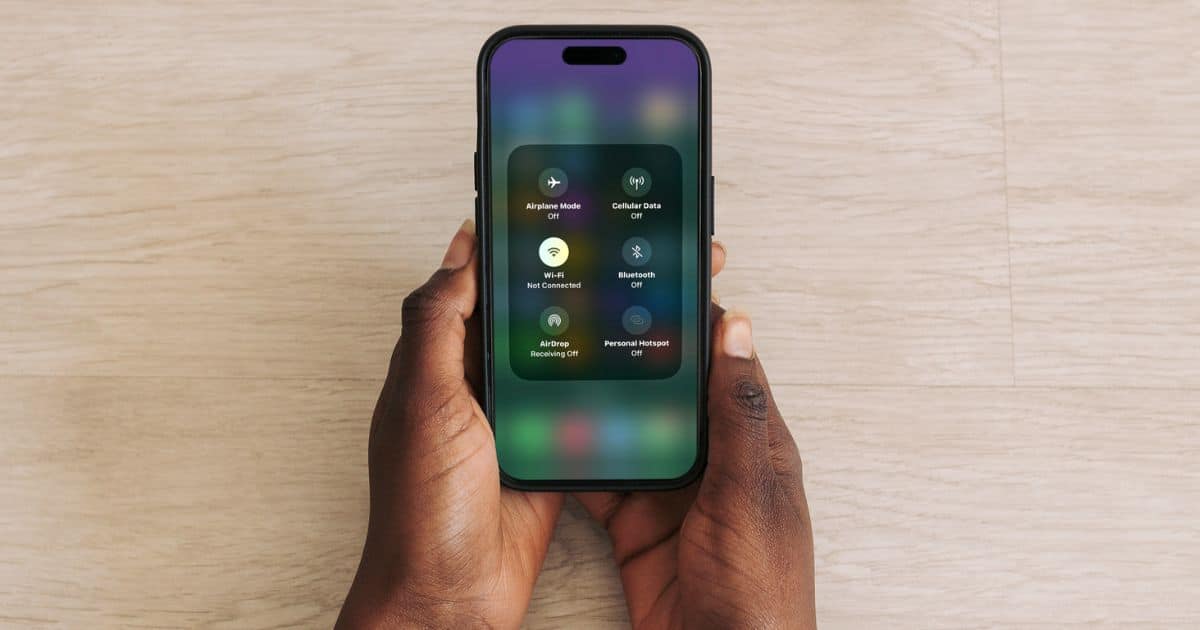
- Pause any active downloads or streaming services on other devices.
- Move the iPhone closer to your router to ensure a strong signal.
- Wait for the estimation to update.

3. Use a Different Wi-Fi Connection
Sometimes, the specific DNS settings or security protocols on a router can interfere with Apple’s restoration process. Switching to a completely different network can bypass these localized connectivity issues and trigger the download immediately.
- Cancel the current restore attempt if possible.
- Navigate to the Wi-Fi selection screen.
- Connect to a high-speed, stable network at a different location.
- Start the restore from the backup list again.
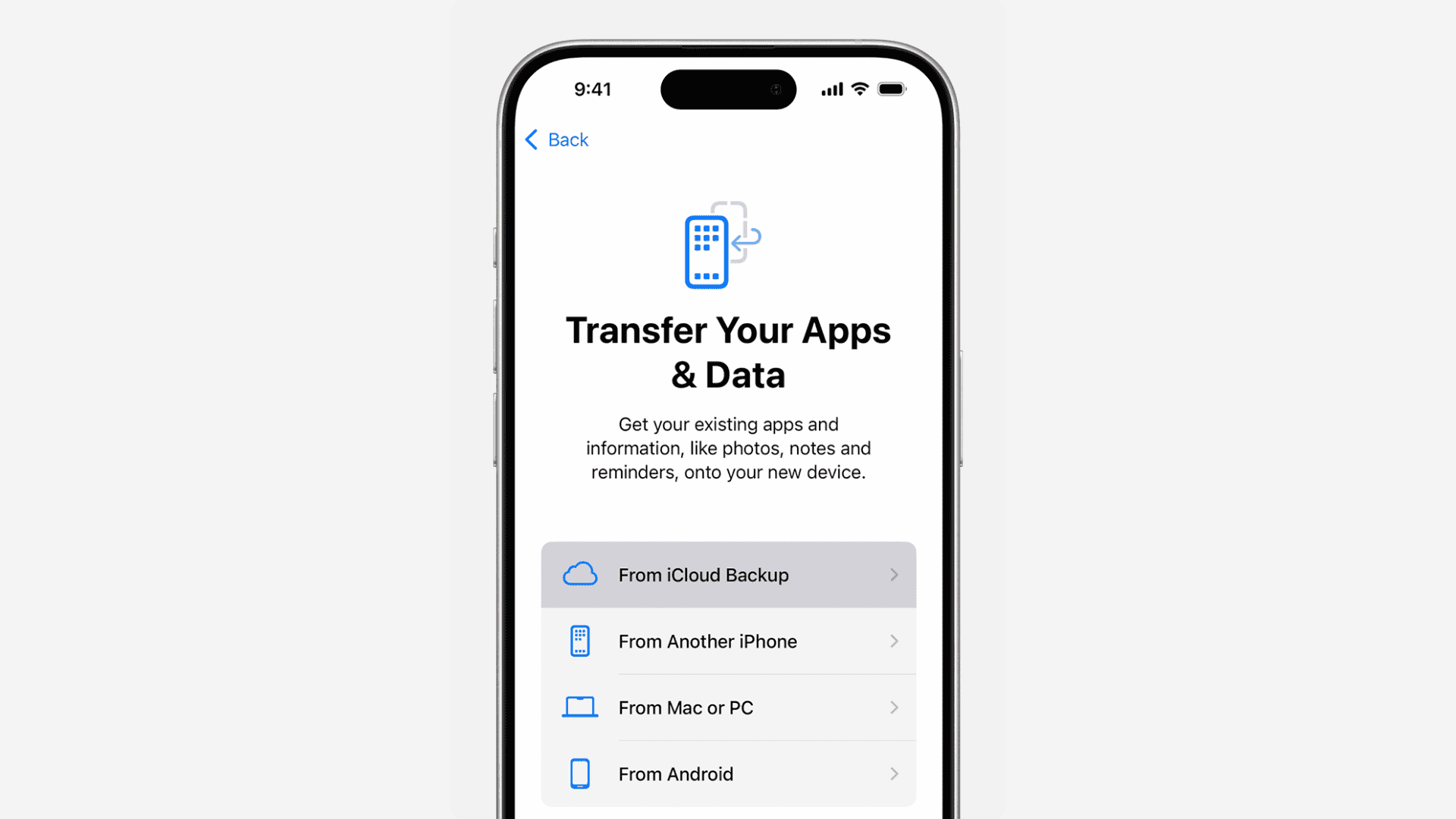

4. Charge While Restoring
Restoring a large amount of data is a power-intensive task that may pause if the device detects low battery levels. Keeping the phone plugged into a wall outlet prevents the system from entering a low-power mode that might throttle background data transfers.
- Connect your iPhone to an official Apple power adapter.
- Ensure the charging icon is visible on the screen.

- Keep the device plugged in throughout the entire estimation process.
- Leave the phone undisturbed to allow the software to process the data.

5. Reset and Start Over
If the estimation screen has been visible for several hours without change, the setup process may be corrupted. Sometimes errors occur if an iCloud account is disabled or if the backup file is incomplete. Wiping the device and starting the process from scratch is often the fastest way to resolve persistent hanging issues.
- Go to Settings, then General, then Transfer or Reset iPhone.

- Select Erase All Content and Settings.
- Follow the on-screen prompts to return to the Hello screen.
- Select your iCloud backup again and monitor the progress.

FAQ
Typically, the estimation phase should last between one and five minutes. If it exceeds thirty minutes, the process is likely stuck.
No, restarting during the estimation phase does not delete data from your iCloud backup. It simply stops the current attempt so you can try again.
Yes, if you have hundreds of gigabytes of data, the system must index the files before providing a time estimate, which can extend the waiting period.
Resolving Persistent iPhone Setup Delays
Persistence is key when dealing with cloud-based restoration errors. If one network fails, trying another or reducing the load on your current router usually clears the bottleneck. Once you have successfully restored your data, you may find it helpful to clear iCloud storage to ensure your future backups remain lean and efficient.


Discussion