
If macOS Tahoe has turned your Save As and Open dialogs into sluggish, stuttering messes, you’re not imagining it. Many users are seeing those file picker windows freeze for a second or two before appearing, crawl through folder navigation, or hang when switching views. It’s especially noticeable in apps like VSCode, Slack, Chrome, Adobe tools, and other Electron-based or GPU-heavy software. The issue ties into the same rendering and WindowServer slowdowns that plague Tahoe in general.
Let’s break it down and get you some fixes.
Table of contents
- Why Save As and Open Windows Feel Slow
- Fix 1: Disable AutoFill Heuristics (addresses input lag that affects dialogs)
- Fix 2: Disable window shadows for Electron apps
- Fix 3: Restart WindowServer (fast relief when dialogs start lagging)
- Fix 4: Reduce visual overhead
- Fix 5: Let indexing finish after the update
- Fix 6: Update macOS and your apps
- Fix 7: Clean up login items and background processes
- Fix 8: Reset NVRAM
- When to Take It Further
- Bottom Line
Why Save As and Open Windows Feel Slow
Tahoe introduced new rendering behavior that leans harder on the GPU. Under normal conditions that’s fine, but right now WindowServer is working way harder than it should, especially when apps use custom window decorations or Electron frameworks.
Don’t miss the best of The Mac Observer
Set us as a preferred source and our Apple reporting ranks higher in your Google Search results and Discover feed — one tap, no account changes.
Here’s what’s happening under the hood:
- WindowServer spikes GPU usage every time an app asks macOS to draw or update a dialog window.
- Electron apps make the issue worse because they trigger more redraws and rely heavily on the new shadow and transparency effects.
- When GPU load rises, the entire system slows down. File pickers are especially sensitive because they load previews, icons, and metadata on the fly.
- After a few hours of uptime, input lag builds up across the system, making dialogs feel sticky or delayed.
Even new Apple Silicon Macs see it, though Intel machines feel it harder.
Fix 1: Disable AutoFill Heuristics (addresses input lag that affects dialogs)
This one targets the slow, sticky cursor and delayed clicks that build over time and hit Save As and Open dialogs especially hard.
Run this in Terminal: defaults write -g NSAutoFillHeuristicControllerEnabled -bool false
Restart your Mac or log out and back in.
If you want to undo it later: defaults delete -g NSAutoFillHeuristicControllerEnabled
Keep in mind this affects macOS autofill system-wide, but for many users the performance gain is worth it.
Fix 2: Disable window shadows for Electron apps
Electron apps are one of the biggest triggers for the dialog slowdown. Their window shadows cause WindowServer to burn GPU cycles when rendering any modal popup, including file dialogs.
Try this: launchctl setenv CHROME_HEADLESS 1
This disables shadow rendering and reduces the GPU spikes that make the dialogs freeze.
Note:
You have to run it after every reboot unless you automate it with a Launch Agent.
If you change your mind, a restart resets everything.
Fix 3: Restart WindowServer (fast relief when dialogs start lagging)
When Save As and Open dialogs suddenly become unbearably slow after a few hours of use, resetting WindowServer clears the built-up state.
Run: sudo killall -HUP WindowServer
You’ll be logged out, so save your work first.
Performance usually resets to normal for a while.
Fix 4: Reduce visual overhead
Dialog windows draw previews, icons, and animations. Tahoe’s Liquid Glass look adds even more visual weight. Dialing it down helps:
- Open System Settings.
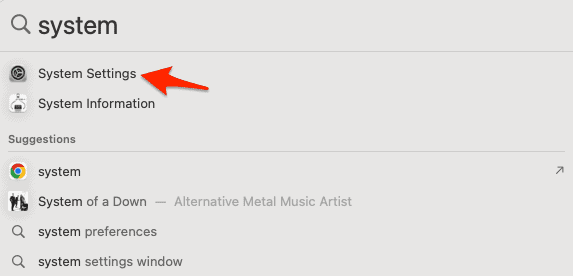
- Go to Accessibility.
- Open Display.
- Turn on Reduce Motion and Reduce Transparency.
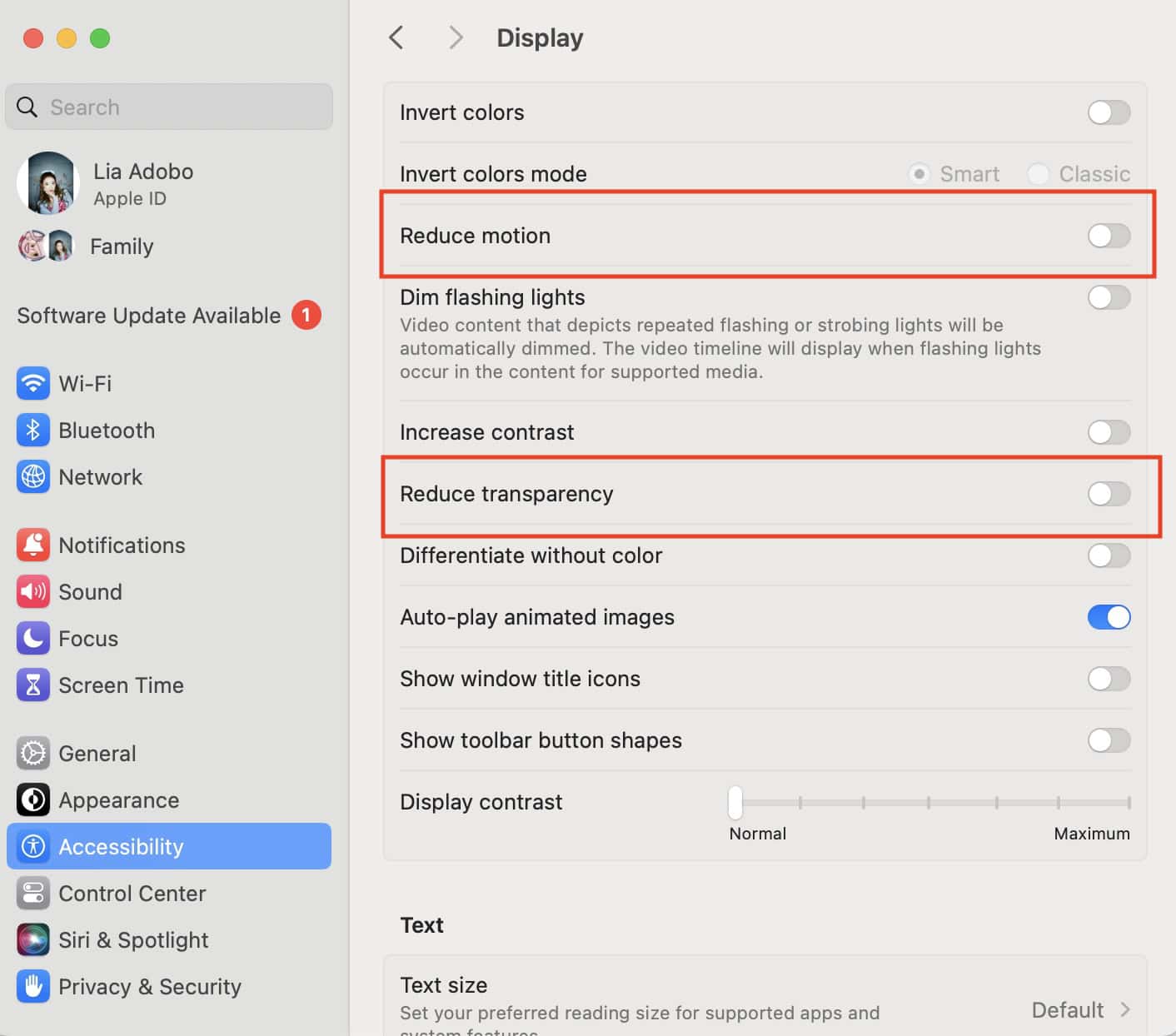
It doesn’t gut Tahoe’s look, but it cuts GPU demand noticeably.
Fix 5: Let indexing finish after the update
Right after installing Tahoe, Spotlight goes into overdrive. File dialogs feel slow because they depend on the same file metadata and search systems Spotlight touches.
Open Activity Monitor and check if mds or mdworker processes are running hard.
If they are, let them work.
Performance usually improves after a day or two.
Fix 6: Update macOS and your apps
Tahoe 26.0.1 and later patches include fixes for WindowServer load and rendering bugs. Some apps, especially Electron ones, also needed updates to adjust to Tahoe’s new APIs.
Make sure to update both:
- System Settings > General > Software Update
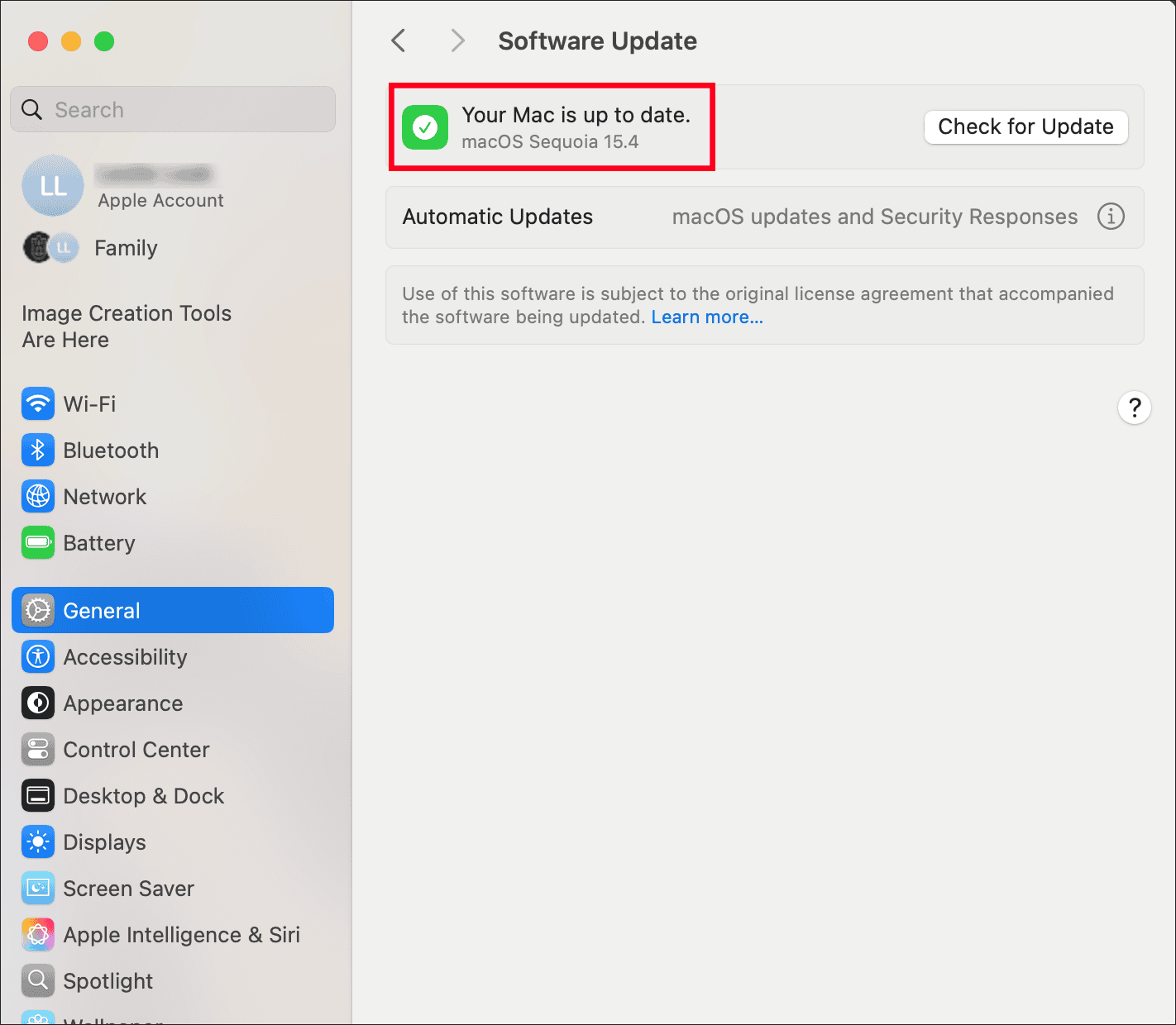
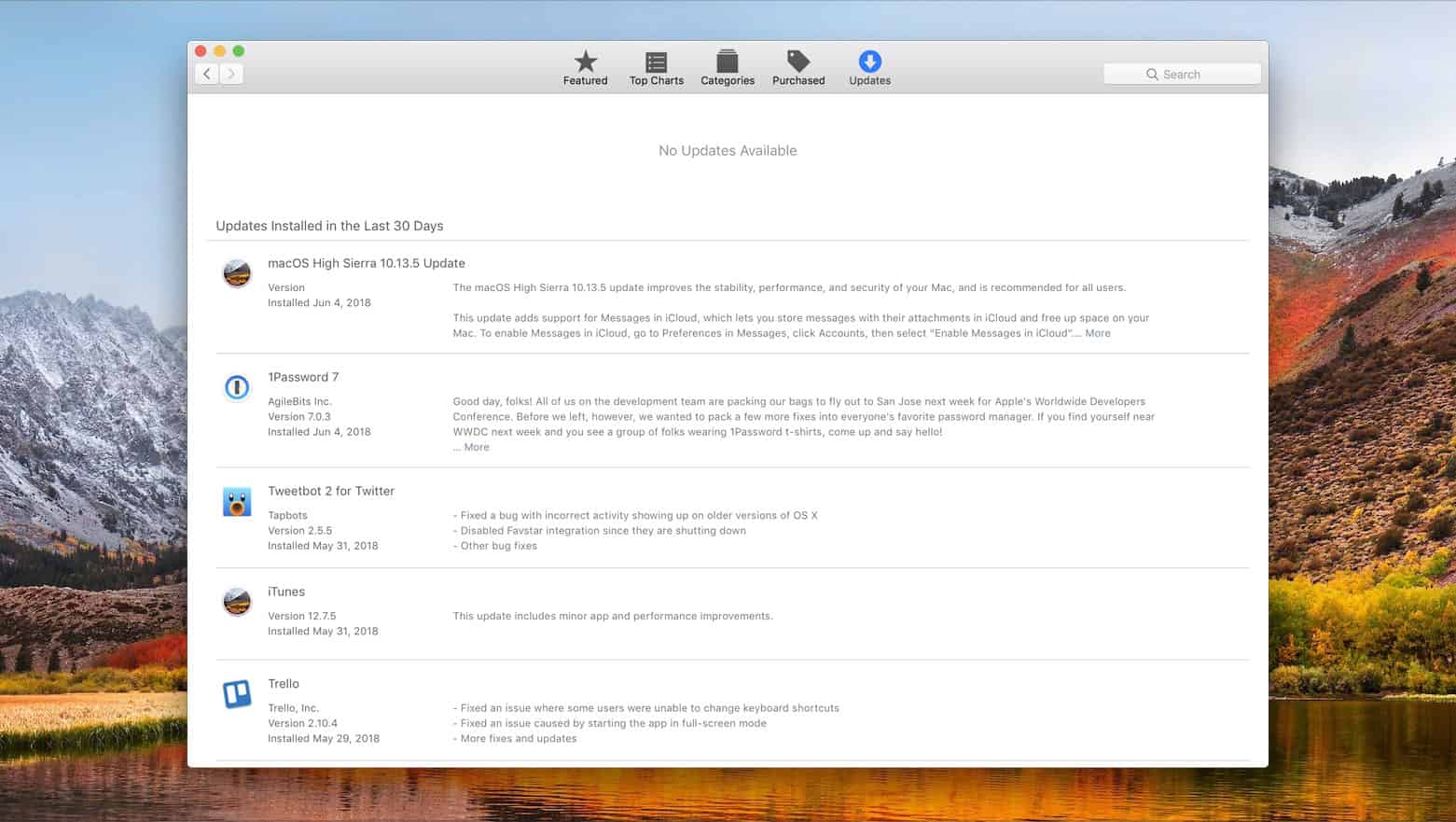
- App Store > Updates (plus developer websites for third-party apps)
Fix 7: Clean up login items and background processes
Too many background helpers can slow down core UI tasks, including dialog windows.
Go to System Settings > General > Login Items and remove anything you don’t need launching at startup.
Then open Activity Monitor and look for apps eating CPU or GPU unnecessarily. Quit them if they’re not essential.
Fix 8: Reset NVRAM
Users report better thermal behavior and slightly faster UI responsiveness after a fresh NVRAM reset on Tahoe.
On Intel Macs:
Restart and hold Option Command P R until you hear the second chime.
On Apple Silicon:
Just restart. It resets automatically.
When to Take It Further
If Save As and Open dialogs stay slow even after all these tweaks, you may be dealing with:
- an app not yet updated for Tahoe
- a corrupted update
- a deep WindowServer or GPU issue
Reinstalling macOS Tahoe (non destructive) from Recovery Mode often clears these without touching your files.
Bottom Line
Slow Save As and Open dialogs in macOS Tahoe aren’t your imagination. They stem from GPU overuse, WindowServer bugs, and quirks in apps that rely heavily on custom rendering. The fixes above bring most Macs back to normal, and Apple is already rolling out patches to clean things up.




Discussion