

You can scan a document on your iPhone quickly in less than a minute. Whether you want to digitize receipts, contracts, or handwritten notes, your iPhone (16, 15, 14, 13, and the previous generations) can do it all.
In this guide, I will show you the most effective methods to scan documents and share tips for the best results.
Table of contents
How to scan a document on an iPhone?
1. Using the Notes app
The Notes app is one of the easiest ways to scan documents on your iPhone.
Don’t miss the best of The Mac Observer
Set us as a preferred source and our Apple reporting ranks higher in your Google Search results and Discover feed — one tap, no account changes.
- Open the Notes app and create a new note or select an existing one.
- Tap the Clip icon above the keyboard and choose Scan Documents.
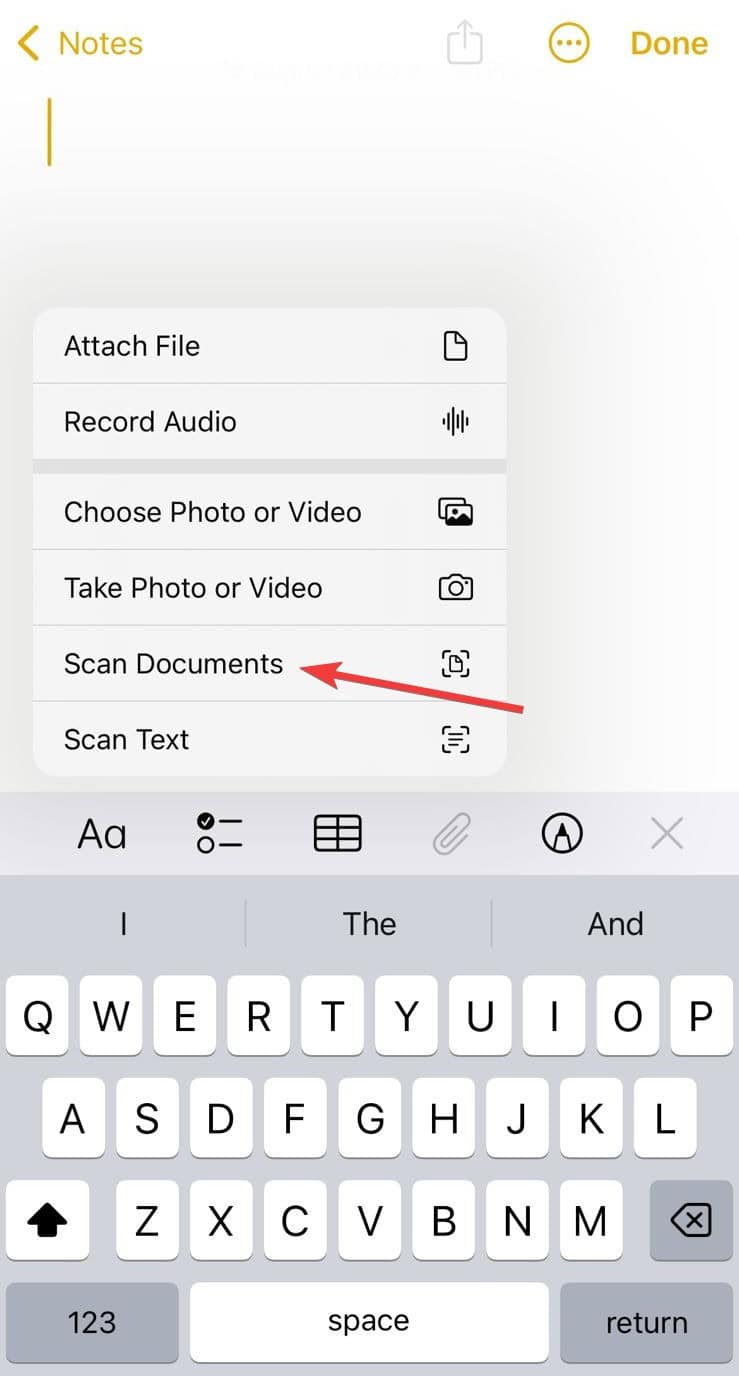
- Position your document in view of the camera. Your iPhone will automatically detect and scan it.
- If needed, tap the shutter button or press a volume button to manually capture the scan.
- Adjust the corners to fit the page, then tap Keep Scan.
- Tap Save to store the scan in your note.

You can also scan text directly into a note by selecting Scan Text. This allows you to insert scanned text into your note.
Did you know you can send a fax using the Notes app on iPhones?
2. Using the Files app
If you want to store scans as PDFs in the Files app, follow these steps:
- Open the Files app and navigate to the folder where you want to save the scan.
- Tap the three dots in the upper-right corner and select Scan Documents.

- Position your document in view of the camera. Your iPhone will automatically detect and scan it.
- Tap the shutter button or press a volume button if you want to capture it manually.
- Adjust the corners to fit the page, then tap Keep Scan.
- Tap Save to store the scan as a PDF in your chosen folder.

3. Using third-party scanning apps
For advanced features, third-party apps are useful:
- Adobe Scan: Offers automatic text recognition, multiple file formats, and cloud storage integration.
- Genius Scan: Provides batch scanning, document organization, and export options.
- iScanner: Features enhanced scanning, PDF editing, and file management tools.
These apps are helpful for business or frequent scanning needs. They often include text recognition, batch scanning, and cloud storage support!
Tips for better scans
- Use natural light to reduce shadows and glare.
- Keep your iPhone steady by using both hands or a tripod.
- Flatten your document to avoid distortion.
- Use a contrasting background to help your iPhone detect edges.
- Clean your camera lens to avoid blurry scans.
Frequently Asked Questions
Yes, you can use third-party apps like Adobe Scan or Genius Scan for scanning. They offer features such as text recognition and cloud storage integration.
Some apps allow scanning from existing photos. Open the app, select the photo, and follow the prompts to scan and save the document.
Yes, after scanning in the Notes app, use the Markup feature to add a signature. Tap the Share button, select Markup, and then add your signature.
Notes and Files apps save scans as PDFs by default. Third-party apps usually offer an export or save as PDF option.
Summary
- Your iPhone comes with a built-in feature to scan documents and auto-generate PDFs.
- Use the Notes app for quick scans with automatic edge detection.
- Go with the Files app to save scans as PDFs in your desired folder.
- Use third-party apps like Adobe Scan or Genius Scan for advanced features.
- Follow tips such as using natural light, keeping your iPhone steady, and using a contrasting background for better scan quality.
Conclusion
Scanning documents on your iPhone is convenient and efficient. Whether you use the Notes or Files app or explore third-party options, you have several tools to digitize your documents. By following these steps and tips, you can get clear and high-quality scans every time. And if the device is running low on storage, you can reduce the size of scanned documents on iPhone.


Discussion