
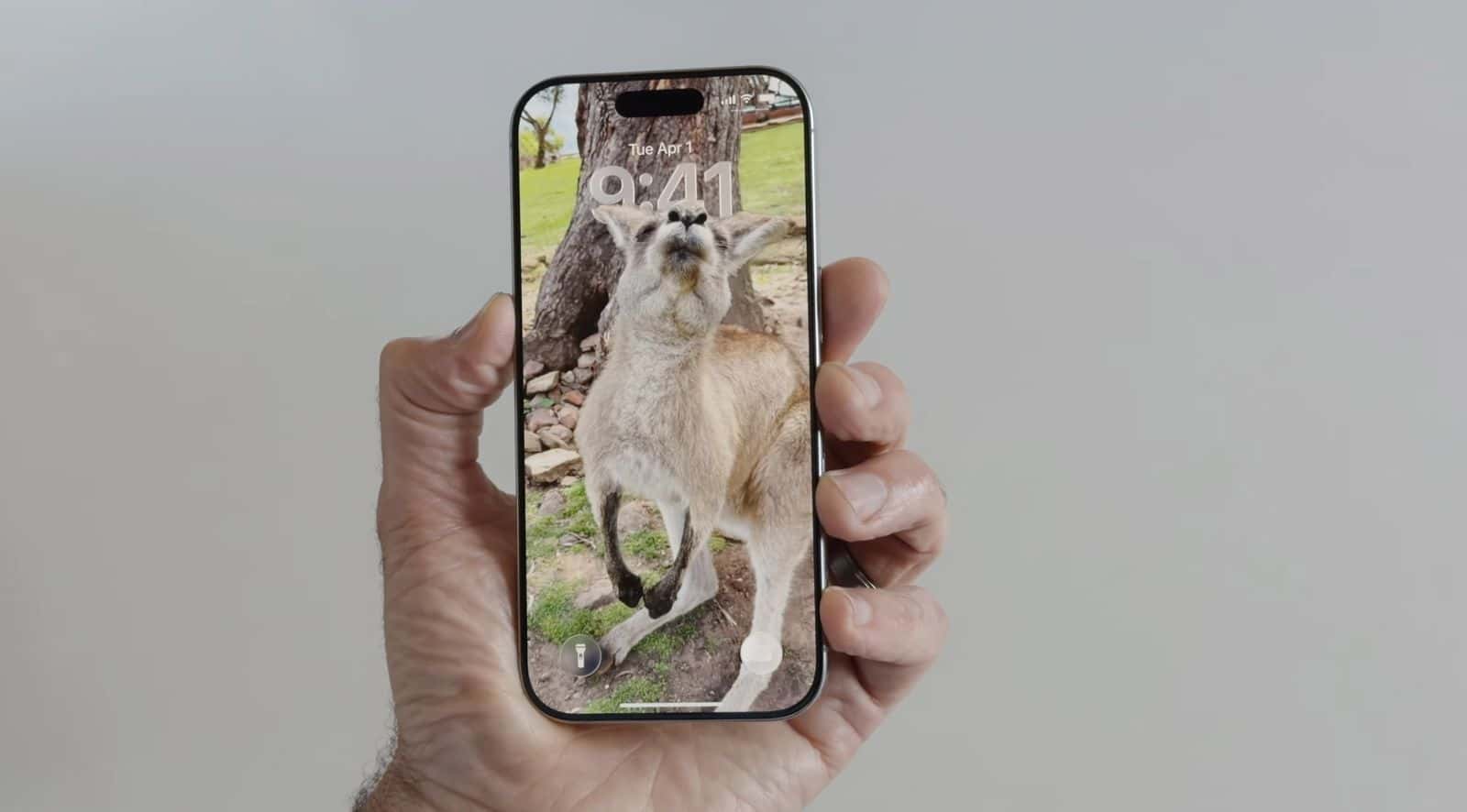
The new Spatial Scene feature in iOS 26 turns your lock screen and photos into dynamic, depth-aware visuals that shift as you move your phone. It’s one of those small details that make your iPhone feel alive. But lately, many users have noticed that the effect stops working; wallpapers stay flat, 3D motion disappears, and the Spatial toggle seems broken. The problem usually comes down to settings, compatibility, or a minor iOS glitch. Let’s break it down step by step.
What Is Spatial Scene in iOS 26?
Spatial Scene is Apple’s way of adding depth and motion to your lock screen and wallpapers. It uses the iPhone’s LiDAR sensor and depth mapping to simulate layers in an image, so when you tilt or move your phone, the scene shifts naturally, almost like looking through a window.
This feature works best on newer iPhones that support LiDAR, such as iPhone 13 Pro, 14 Pro, 15 Pro, and the latest models. It’s also built to pair beautifully with Apple Vision Pro, which can display these scenes in full 3D.
Don’t miss the best of The Mac Observer
Set us as a preferred source and our Apple reporting ranks higher in your Google Search results and Discover feed — one tap, no account changes.
If you’re using an older iPhone, you might still see some visual motion effects, but not the full Spatial Scene experience.
How to Fix Spatial Scene Not Working on iOS 26
Here are the most reliable fixes if your Spatial Scene or 3D photos stopped working.
1. Check for iOS Updates
Sometimes Spatial Scene bugs are fixed in minor updates. Go to Settings > General > Software Update and install the latest iOS 26 build. A simple update often restores depth effects and spatial motion.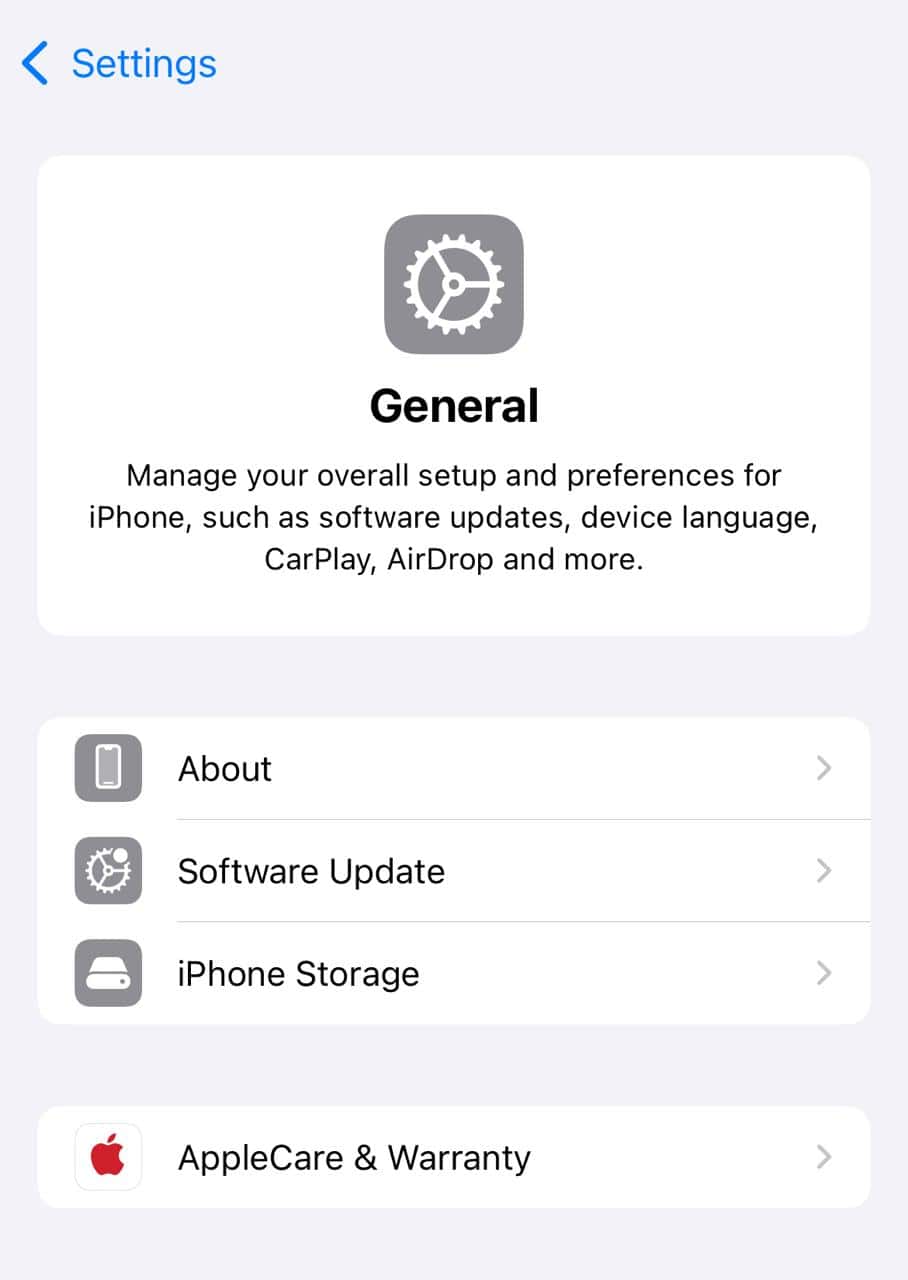
2. Restart or Force Close the Photos App
If Spatial Photos or wallpapers appear flat, close and reopen the Photos app.
- Swipe up from the bottom of the screen, remove Photos from the app switcher, and reopen it.
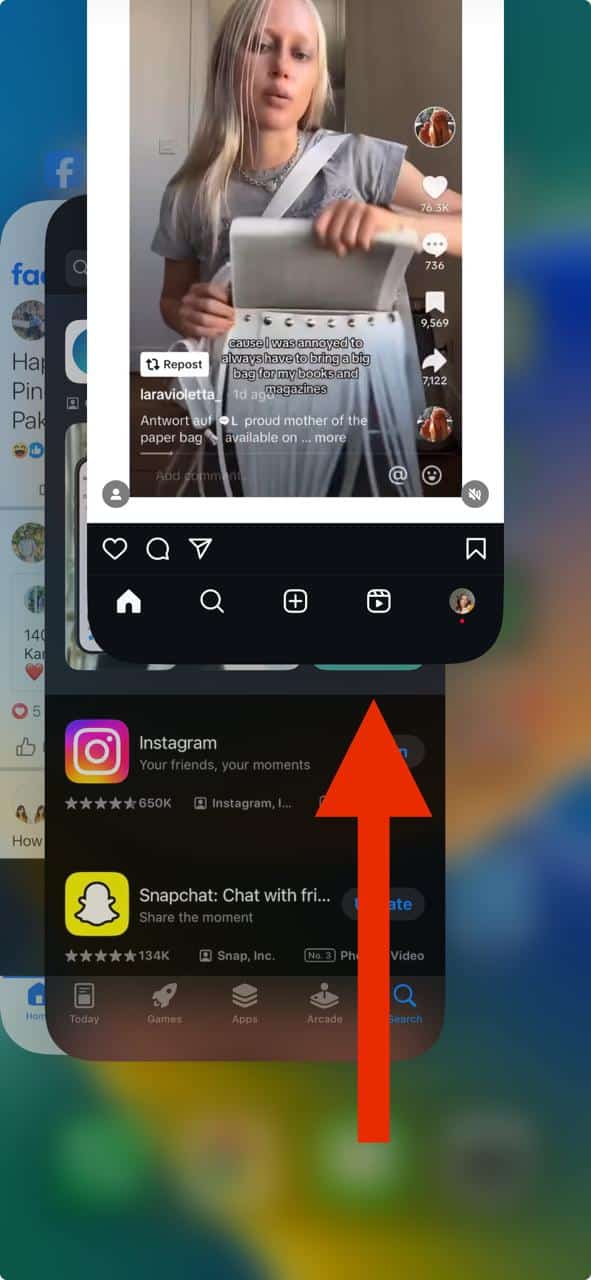
- Then lock your phone and check the lock screen again.
Restarting clears small cache or memory errors that may block the 3D rendering engine.
3. Reset All Settings
If none of the above fixes work, reset all your iPhone settings. This won’t erase your data, it just restores system preferences.
- Go to Settings > General > Transfer or Reset iPhone > Reset All Settings.
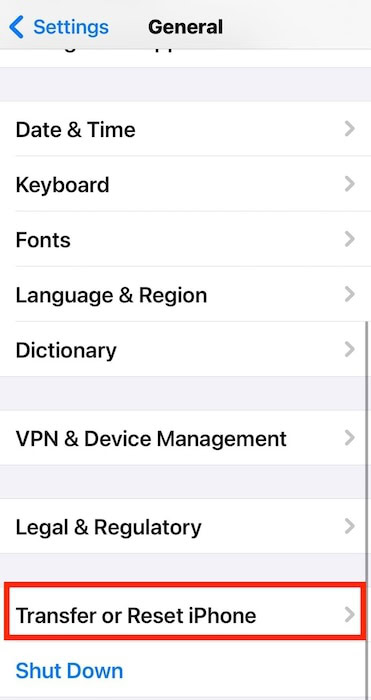
- After the reset, turn Spatial Scene back on and test it again.
4. Re-set the Wallpaper with Depth Effect
If the Depth Effect is missing from your wallpaper, it may not have been applied properly. To fix this:
- Go to Settings > Wallpaper > Add New Wallpaper.
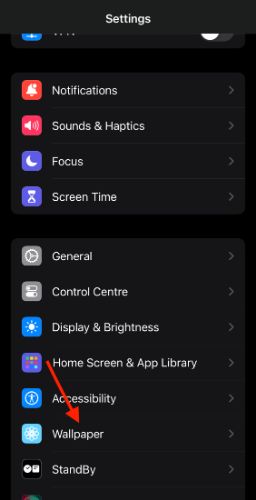
- Choose a photo with a clear subject and background (Portrait photos work best).
- Tap the Depth Effect icon in the lower-right corner.
- Save it as your lock screen wallpaper.
Make sure no widgets overlap your photo, they can disable Depth Effect automatically.
Why Spatial Scene Might Not Work
If you’ve tried everything and it still doesn’t work, here are the common reasons:
- Incompatible device: Only newer Pro models with LiDAR support full Spatial Scene effects.
- Outdated software: Missing the latest iOS 26 build can disable some 3D features.
- System glitches: Corrupted files from updates or crashes can interrupt Spatial Scene.
- Disabled camera or motion settings: Check Camera > Preserve Settings and Formats to ensure depth data is enabled.
- Vision Pro integration: Some spatial effects appear only when viewed through Apple Vision Pro.




Discussion