

Some users may find themselves wanting to turn off SharePlay for their Apple TV. While SharePlay can be a great feature for those looking to enjoy content with others, it may not be for everyone. Whether you find yourself wanting to enjoy your Apple TV by yourself, or you simply need to turn off SharePlay for whatever reason, I’m going to show you a couple of different methods to accomplish this.
SharePlay is a feature that allows users to share content with each other through FaceTime. Users can watch a streaming movie together, and discuss what is happening directly with one another. SharePlay can be a great way to share movies and TV shows with friends and family members that are too distant to see in person.
Of course, some users may not want to implement SharePlay, and may find themselves wanting to turn it off. Whatever your reasoning, turning off SharePlay is rather simple. There is also a way to turn off SharePlay invites, so that other users are unable to send you requests to watch content through the feature.
Don’t miss the best of The Mac Observer
Set us as a preferred source and our Apple reporting ranks higher in your Google Search results and Discover feed — one tap, no account changes.
What is Apple SharePlay?
SharePlay allows users to stream content together while on a FaceTime call. Using SharePlay, you can watch a show on Apple TV, and then invite a friend to watch it with you. Additionally, SharePlay also works with several different streaming services, including Apple TV+, SHOWTIME, Disney+ and more.
This can be great for catching up with an old pal, or getting together with a friend to discuss the season one finale of Severance. When it comes to SharePlay, it is preinstalled on devices running at least iOS 15.1 or macOS Monterey 12.1 or later. Apple TVs utilizing tvOS 15.1 or later also support SharePlay.
How to Turn Off SharePlay from Your iPhone or iPad
You also have the option of turning SharePlay off from your iPhone or iPad, should you not want to use the feature. This will also stop SharePlay on your device if you are using the same Apple ID. This can be a rather easy way to turn off SharePlay, without the need of even going to your streaming device. Since you do not need to be near your Apple TV to turn off SharePlay, this may be the best method for users.
To turn off SharePlay from an iPhone or an iPad, follow these steps.
Time needed: 1 minute
Turn off SharePlay from an iPhone or an iPad.
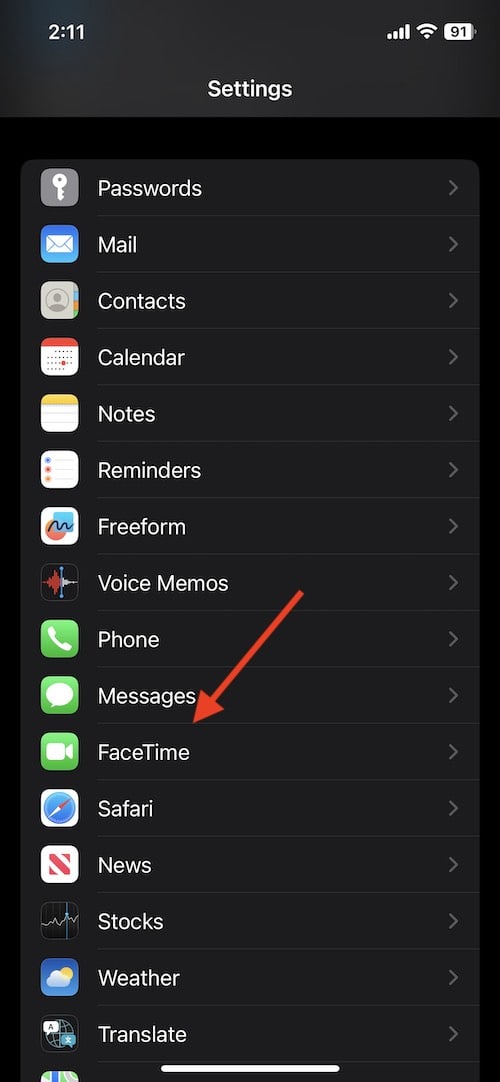
- Go to Settings > FaceTime
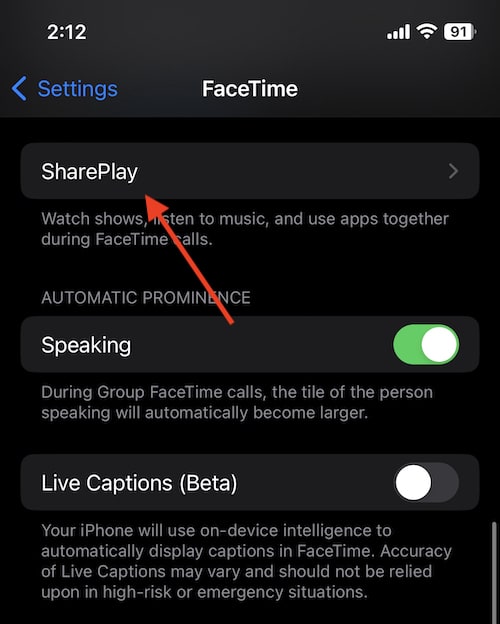
- Select SharePlay > SharePlay
You will need to scroll down to see the first SharePlay option.
- Set SharePlay to Off
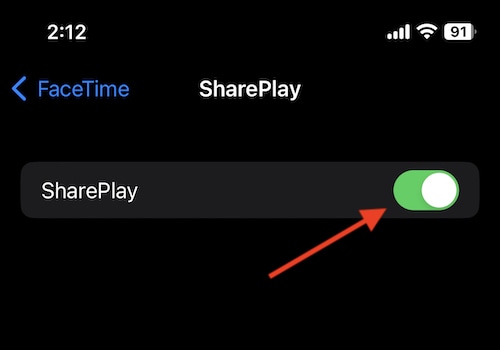


Of course, if you want to turn SharePlay back on, you are able to follow mostly the same steps you took to turn it off. Turning SharePlay back on from either your iPhone, iPad or Apple TV simply requires following the same steps you implemented to turn the feature off. While some users may want to always keep the featured turned off, knowing how to turn it back on can be rather handy.
Conclusion
SharePlay can be an incredibly useful feature for some users. Through FaceTime, users can interact with each other while they view streaming content together. While it only works with certain services, it can still be a great way to connect with those that may not live anywhere near you. It can also be great if you want to show someone something, but don’t necessarily feel like leaving your house.
However, some users may not want SharePlay on their Apple TV. If you do not want others bothering you with SharePlay requests, there are ways of ensuring that you no longer receive invites. Following this guide, you can also disable SharePlay altogether.
While you may want to eventually turn SharePlay back on, as it is a rather useful feature, you can follow these steps to ensure that not only is SharePlay off, but that you no longer receive notifications for those that want to SharePlay with you. Be sure to give these tips a try if you’re looking for a bit of serenity in your life.


There’s nothing on the actual TV that allows me to turn off the SharePlay.
SharePlay is controlled from your iPhone or iPad, not directly from tvOS. You can disable it by going to Settings → FaceTime → SharePlay on your iPhone/iPad, which prevents SharePlay sessions from starting on Apple TV as well.