

Updating your Apple Watch is essential for new features, bug fixes, and smoother performance. In this blog, you’ll get step-by-step instructions to install the latest watchOS on your Apple Watch!
Table of contents
How to Update Your Apple Watch?
Prepare your devices
- Make sure your iPhone has the latest iOS installed.
- Ensure your Apple Watch is at least 50% charged or better, and keep it on its charger.
- Connect your iPhone to Wi-Fi and keep both devices close together.
1. Update via your iPhone (the usual method)
- Open the Watch app on your iPhone and go to the My Watch tab.
- Tap General, then Software Update.
- Tap Download and Install if an update is available. If asked, enter your iPhone or Watch passcode.
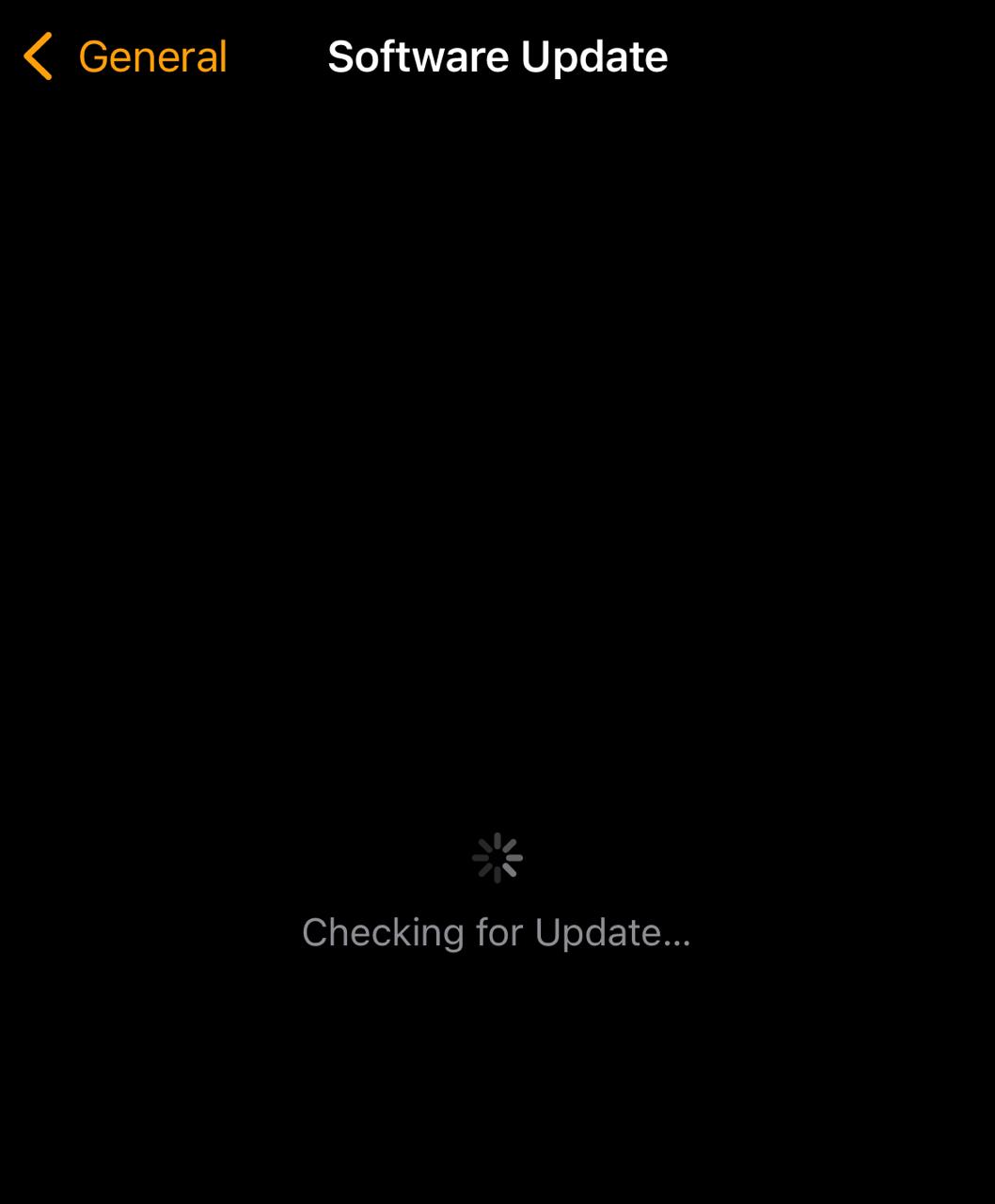
- Wait for the progress wheel to appear on your Apple Watch. Do not restart your devices or quit the Watch app until it finishes. Your Watch restarts on its own when the update is done.

2. Update directly on your Apple Watch (if you have watchOS 6 or later)
- Make sure the Watch is connected to Wi-Fi.
- Open Settings on the watch.
- Tap General, then Software Update.
- Tap Install if there is an update available and follow the on-screen instructions. Keep your watch on its charger until done.


3. Use “Update Tonight” for convenience
- If your Apple Watch notifies you of an update, you can tap Update Tonight in the notification. Then confirm on your iPhone. Leave both devices charging overnight, and the update will install while you sleep.
Troubleshooting when things go wrong
If the update does not start or gets stuck:
- Check that the Watch is properly on its charger and that Wi-Fi is active.
- If the Apple Watch update is stuck, restart both the Apple Watch and the paired iPhone.
- If the update file is corrupted, open the Watch app, go to General > Storage, delete the update file, then retry.
- If storage is full, delete apps, music, photos, podcasts, or audiobooks to make space.
- As a last resort, unpair your Apple Watch and re-pair it to resync. Often, this clears persistent update problems.
Tips
- Place your watch on the charger before starting the update.
- Keep your iPhone connected to Wi-Fi, not mobile data.
- Be patient, the process can take 15 minutes to an hour depending on update size and connection speed.
- Disable Bluetooth for other devices during the update to improve speed.
- Free up storage before updating to avoid errors.
- Try restarting devices if the update is stuck.
- Use “Update Tonight” so the Apple Watch updates when you are not using it.
Frequently Asked Questions
Depending on your internet speed and update size, updates can take anywhere from 15 minutes to an hour or sometimes longer if your connection is slow.
No. Apple requires Wi-Fi to download watchOS updates. Some users try workarounds like using a hotspot, but that is not officially supported.
Common reasons include insufficient battery, poor Wi-Fi, full storage, or a corrupted download. Restarting devices, freeing storage, or deleting the update file often resolves the issue.
Older Apple Watch models may not support the newest watchOS. For example, some of the latest updates only work on Series 6 or newer.
Summary
- Prepare: Battery, Wi-Fi, iPhone iOS up to date, keep devices close.
- Use the Watch app or update directly from the Watch.
- Try Update Tonight if you prefer it to run while charging overnight.
- If problems come up, restart devices, clear storage, delete the update file, or unpair and re-pair.
- Be patient, updates may take some time.
Conclusion
Updating your Apple Watch does not have to be hard. With a bit of preparation and the right steps from deciding between updating via iPhone or Watch directly, to using the handy Update Tonight feature, you can keep your watch fresh and running smoothly.
Don’t miss the best of The Mac Observer
Set us as a preferred source and our Apple reporting ranks higher in your Google Search results and Discover feed — one tap, no account changes.
If you hit a snag, simple fixes like restarting, clearing space, or removing a broken update file often do the trick. Now you are all set with confidence to keep your Apple Watch up to date and enjoy the latest features.



Discussion