

iMessage is Apple’s built-in messaging system that works across iPhone, iPad, Mac, Apple Watch, and Vision Pro. It lets you send texts, photos, videos, and more using Wi-Fi or mobile data instead of standard SMS.
If you’re just getting started or want to unlock hidden tricks, this blog will help you use iMessage like a pro!
Table of contents
How to Use iMessage?
1. Turning On iMessage
- Open Settings.
- Tap Messages.
- Turn on iMessage.
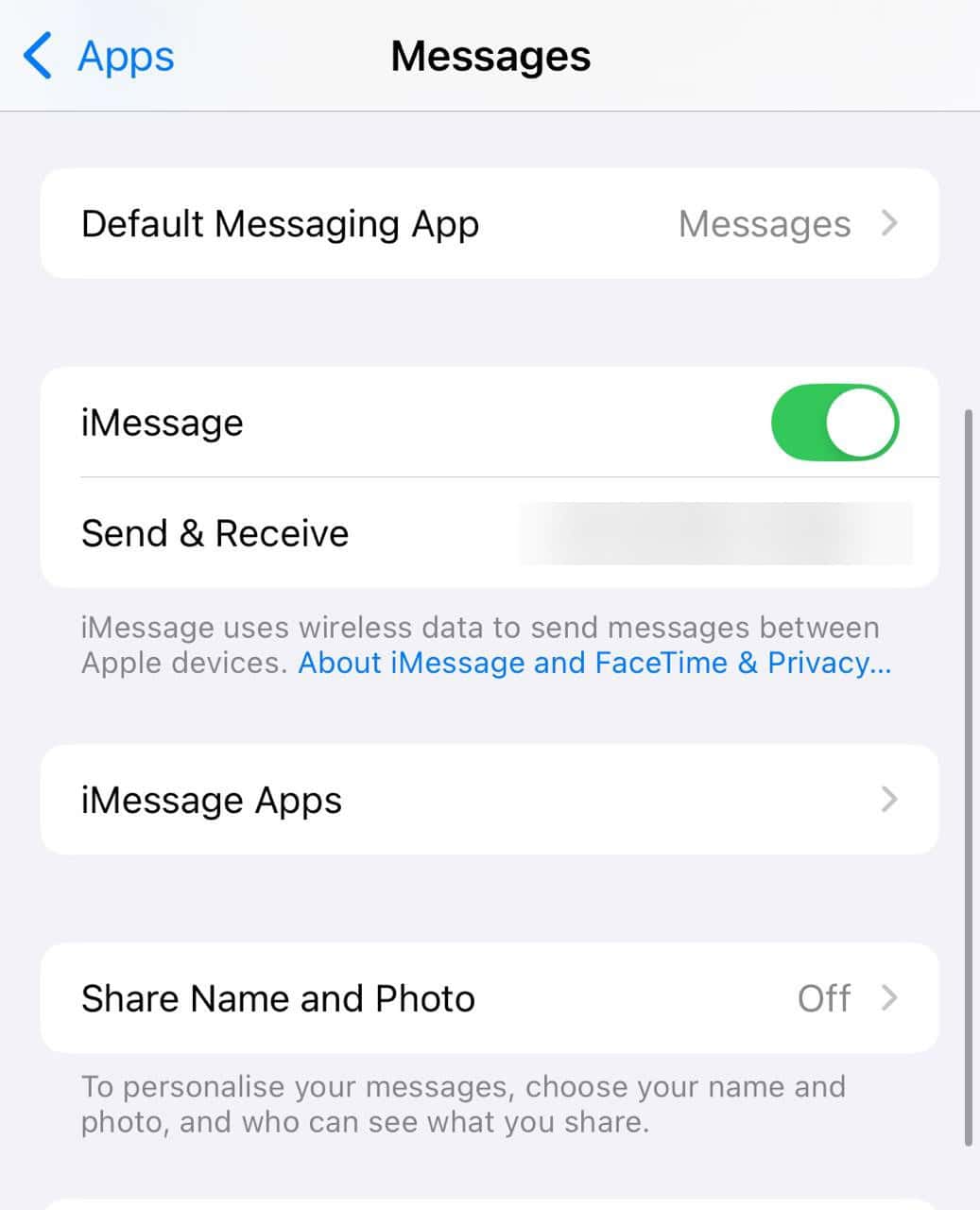
- Tap Send & Receive to choose which phone numbers or email addresses you want linked.

For more details, check our guide on enabling iMessage on Apple devices.
Don’t miss the best of The Mac Observer
Set us as a preferred source and our Apple reporting ranks higher in your Google Search results and Discover feed — one tap, no account changes.
2. Syncing Messages Across Your Apple Devices
- Go to Settings > [your name] > iCloud.
- Turn on Messages in iCloud.
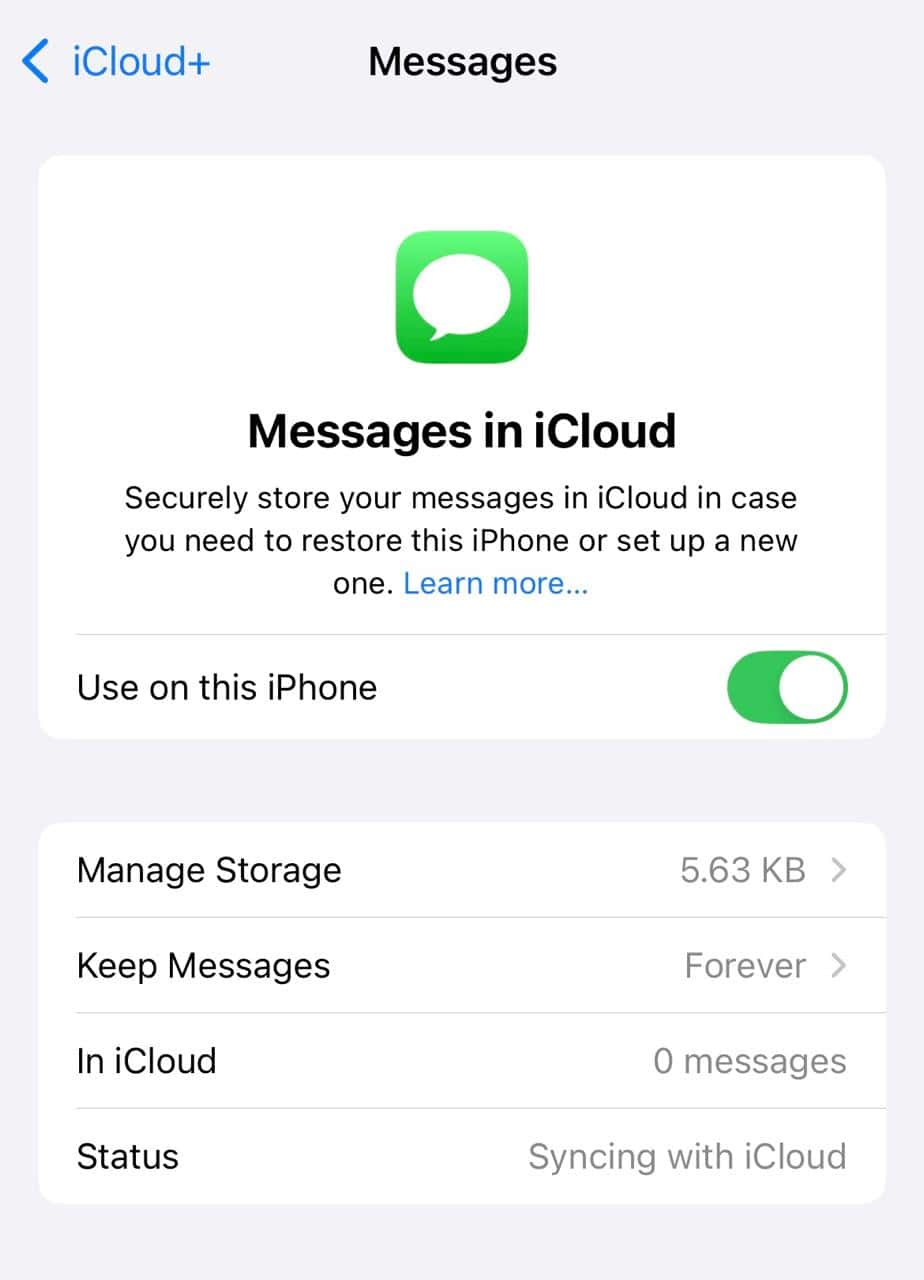

This keeps your messages consistent across iPhone, iPad, Mac, and deletes synced messages everywhere if you delete on one device.
3. Sending Texts, Media, and Other Content
- Open the Messages app
- Choose a contact or start a new conversation
- Tap the text field to type or tap the camera icon to send photos, videos, or audio
- You can also share your location, contacts, or use Apple Pay in supported regions
4. Recognizing iMessage vs SMS
- Blue bubbles mean messages are sent via iMessage using the internet.
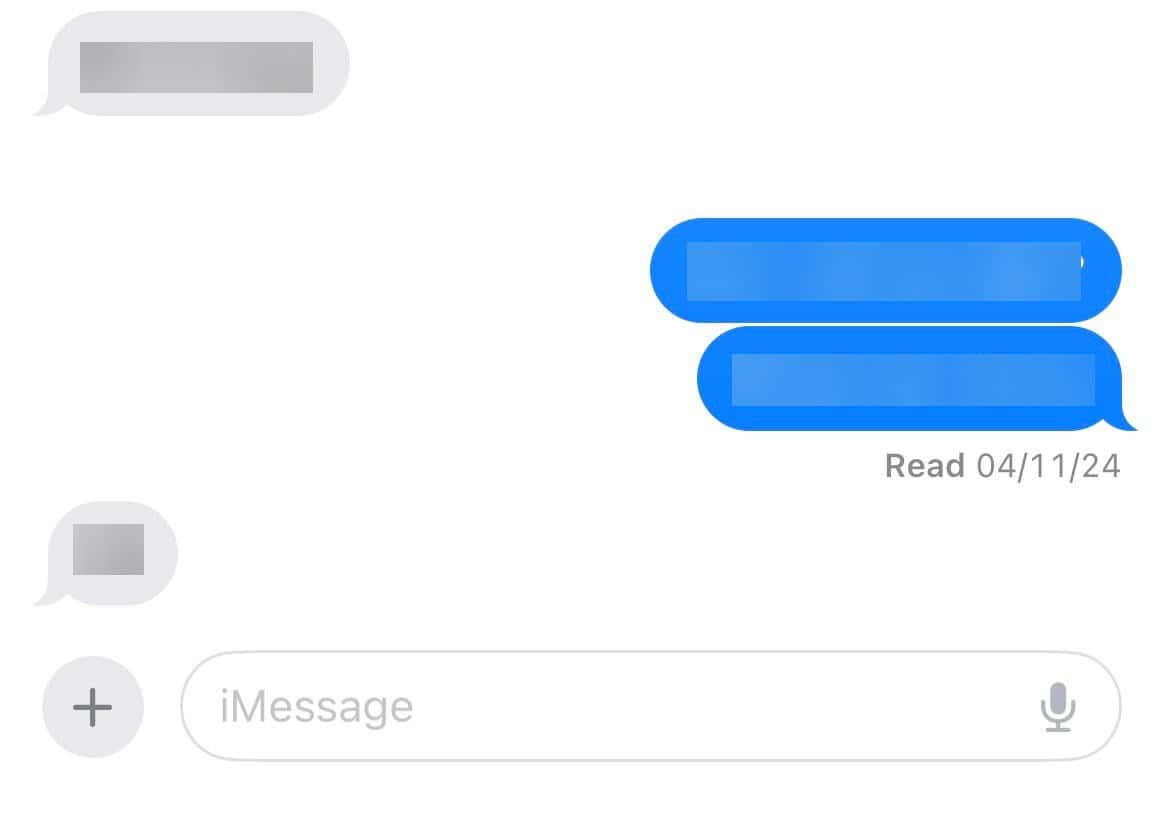
- Green bubbles mean standard SMS or MMS through the carrier network or RCS on iOS 18 and later.


The text field also lists whether the message will be sent as an iMessage or a simple text. You might also want to learn more about the differences between iMessage and SMS.
5. Using Effects, Formatting, and Stickers
- In older iOS versions (iOS 10 and above), send bubble or screen effects, handwritten notes, full-screen animations, or stickers.
- In iOS 18 and above, you get text formatting (bold, italics, underline, strikethrough), animated effects on words, Tapbacks with any emoji or sticker, message scheduling, and satellite messaging, where available.
Did you know that you can schedule iMessages on iPhone? It’s super easy and fun!
6. Hidden Fun Features Many People Miss
- Emoji stacking: Send an emoji, then tap, hold, and drag another onto it. You can resize and rotate by pinching and twisting.
- Invisible Ink: Type a message, hold the Send button, and choose Invisible Ink from the menu. The message stays blurred until tapped.

7. Syncing iMessage on Android (non-Apple workarounds)
- iMessage is not officially on Android. But there are workarounds, like:
- Beeper: A cloud-based app combining iMessage with other messaging platforms.
- AirMessage: Requires a Mac as a server to relay messages to an Android or a web client.
Tips
- Manage storage by setting messages to auto-delete after 30 days or 1 year.
- Turn read receipts on or off for specific contacts.
- Use @mentions in group chats to get someone’s attention.
- Pin important conversations to the top for quick access.
- Schedule messages to send later in iOS 18 and above.
- Hide message previews for more privacy in notifications.
- Use the search bar in Messages to quickly find texts, images, or links.
- Turn off “Low Quality Image Mode” to send photos in higher quality.
Frequently Asked Questions
Green means the other person is not using iMessage or is offline. It is sent as SMS, MMS, or RCS in iOS 18 and later.
Yes. In iOS 16 and later, you can edit within 15 minutes or unsend within about 2 minutes.
Yes, if you enable Messages in iCloud, all messages stay in sync across your devices.
iMessage uses the internet and offers encryption, effects, syncing, and read receipts. SMS uses a carrier network and lacks those extras.
Summary
- Turn on iMessage and choose the right contact info
- Enable Messages in iCloud for syncing
- Send texts, photos, videos, location, and use Apple Pay
- Enjoy effects, formatting, stickers, Invisible Ink, emoji stacking
- Know the blue vs green bubble meaning
- Edit or unsend messages if needed in newer iOS
- For Android users, use tools like Beeper or AirMessage
- Keep your Apple ID consistent across devices
Conclusion
iMessage is a powerful, flexible messaging tool packed into your Apple devices. From syncing across phones to lighting up chats with effects, you have everything you need right in the Messages app.
Keep exploring hidden tricks like emoji stacking or Invisible Ink, and your conversations will stay secure, fun, and seamless across your devices.
If you have a Windows PC, learn how to get iMessage on Windows!


Discussion