

When your Beats refuse to connect, it’s frustrating, especially when you’re ready to tune out the world and they decide not to cooperate. Whether you’re pairing them to an iPhone, iPad, Mac, or another device, the fix is usually simple once you know where to look. Let’s walk through what’s going on and how to get your Beats working again.
Table of contents
Check the Basics First
Before you start digging into settings or resets, make sure your Beats and device are both charged and powered on. Bluetooth won’t work well if either one is running on fumes.
Also, keep your Beats and device within about 30 feet of each other. Bluetooth range isn’t unlimited, and things like walls, microwaves, and routers can mess with the signal. If you’ve got multiple Bluetooth devices nearby, move them out of range to avoid interference.
Don’t miss the best of The Mac Observer
Set us as a preferred source and our Apple reporting ranks higher in your Google Search results and Discover feed — one tap, no account changes.
Make Sure Bluetooth Is On
Sometimes the issue is as simple as Bluetooth being turned off. On your iPhone:
- Open Settings > Bluetooth and make sure it’s toggled on (the switch should be green).
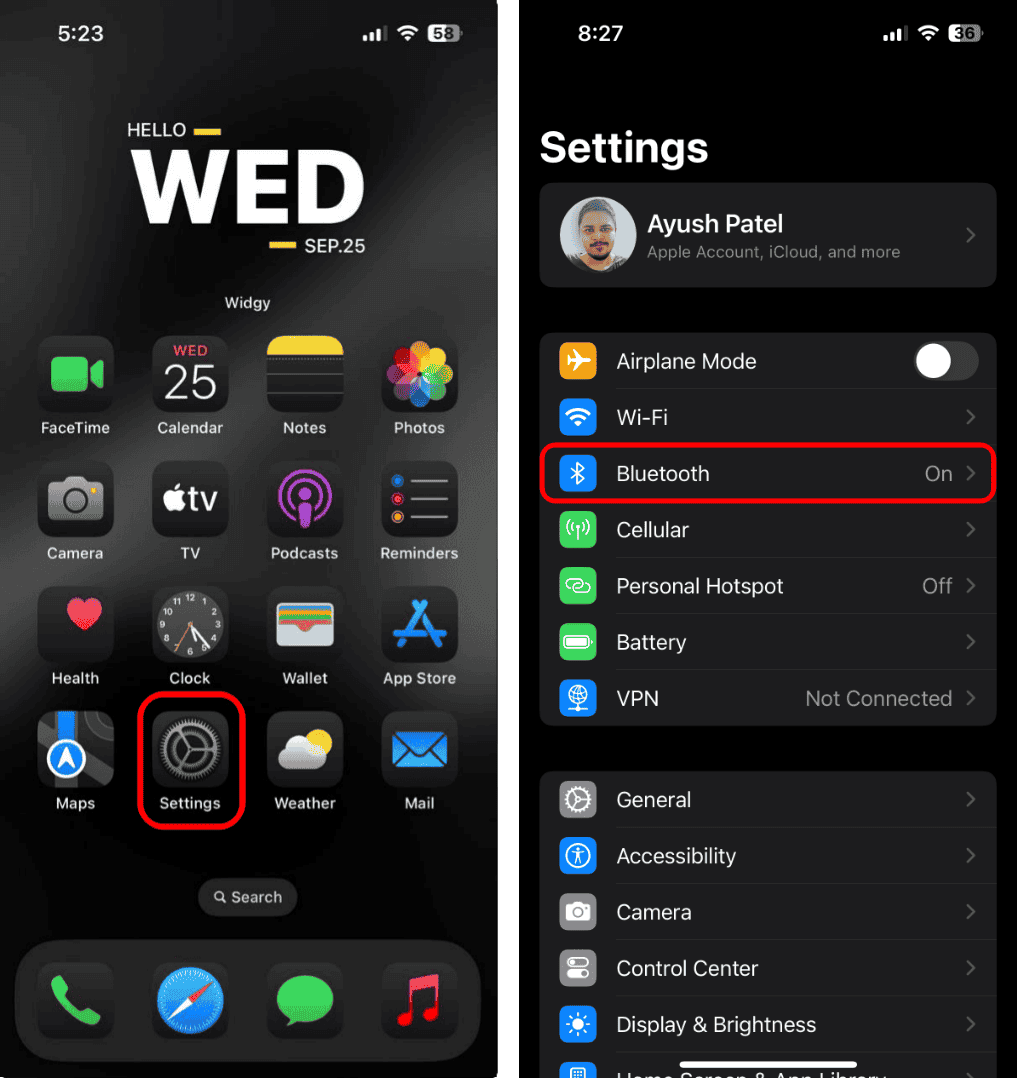
- If your Beats show up in the list but won’t connect, tap the “i” icon next to the name and select Forget This Device. Then try pairing again.
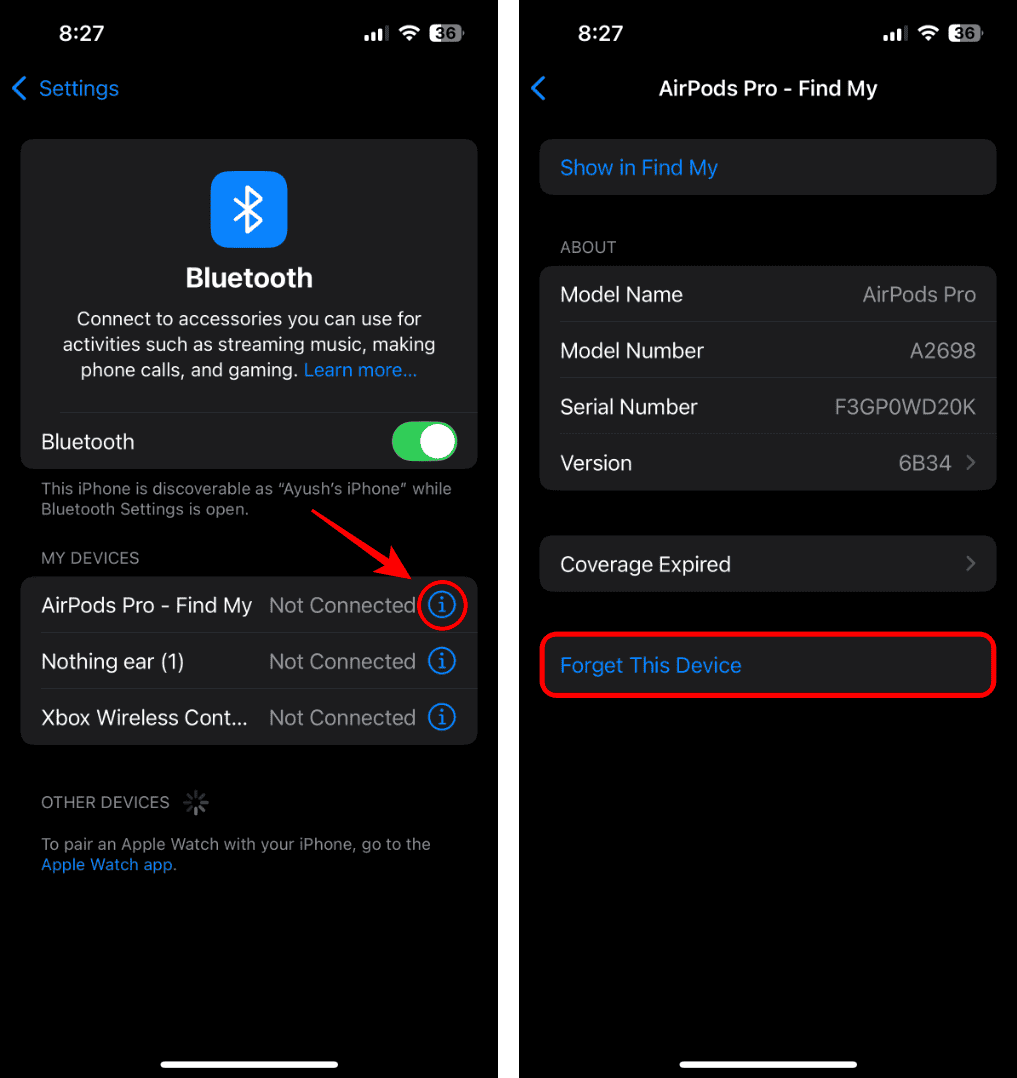


On a Mac:
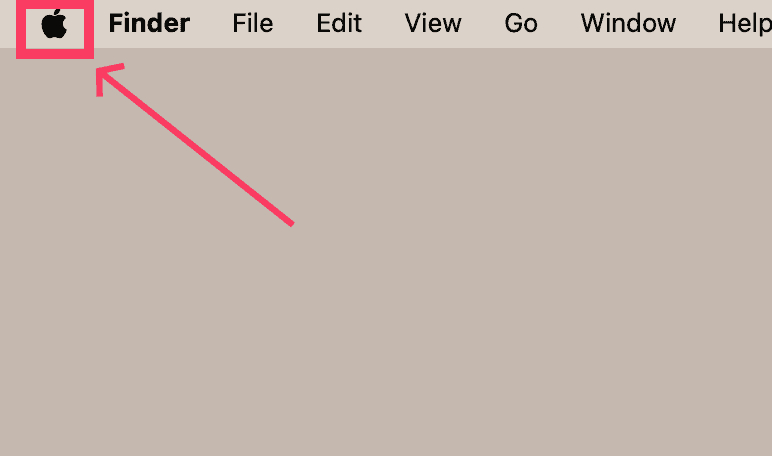
- Go to Apple Menu > System Settings > Bluetooth, find your Beats, and click the X to remove them.
- Then reconnect them like they’re new.

Check Sound and Volume Settings
If your Beats appear connected but there’s no sound, your device might be sending audio somewhere else.
- On iPhone or iPad, go to Settings > Bluetooth and make sure your Beats are the selected output.
- On Mac, head to System Settings > Sound, then choose your Beats in both the output and input lists.
Also, turn the volume up on both the Beats and your device. It sounds obvious, but sometimes it really is that simple.
Try Pairing Again
If your Beats still won’t connect, try putting them back into pairing mode. Hold down the power button until the light starts flashing; this means they’re ready to pair. Then go back into your Bluetooth settings and reconnect them.
If they don’t show up, it’s worth restarting your iPhone or whatever device you’re using before trying again.
Reset Your Beats
Sometimes a quick reset is the best fix. The process depends on your model, but in general:
- Hold down the power button (and volume down on some models) for about 10 seconds.
- When the LED light flashes, release the buttons.
- Put them in pairing mode and connect again through Bluetooth.
After a reset, your Beats should appear as a new device ready to connect.
When Nothing Works
If you’ve tried everything and your Beats still won’t connect, the issue could be with your phone’s software. Updating to the latest iOS or macOS version can clear out any Bluetooth bugs.
Still stuck? As a last resort, you can use Apple’s support tools or visit a repair center to check for hardware issues.
The Bottom Line
When your Beats won’t connect, it usually comes down to one of three things: distance, Bluetooth confusion, or needing a reset. Go through the steps above one by one and you’ll likely be back to your playlist in minutes.



Discussion