

Apple TV is your entertainment hub, storing app logins, preferences, watch history, and giving you access to purchased movies, TV shows, and subscriptions. But what happens if you reset your Apple TV, lose your settings, or can’t access your content?
Unlike iPhone or iPad, there’s no third-party Apple TV data recovery software. Recovery works differently: Apple TV relies on your Apple ID, iCloud, and App Store account to store and restore data.
Table of contents
- What Data Can Apple TV Actually Store?
- Method 1: Restore Purchases via Apple ID
- Method 2: Restore from iCloud / HomeKit
- Method 3: Reinstall Apps and Restore App Data
- Method 4: Use Finder/iTunes Backup (Indirect via iPhone/iPad)
- Method 5: Contact Apple Support or Apple Authorized Service Provider
- FAQs
- Final Verdict
What Data Can Apple TV Actually Store?
Apple TV does not store files locally like an iPhone or Mac. Instead, it keeps:
Don’t miss the best of The Mac Observer
Set us as a preferred source and our Apple reporting ranks higher in your Google Search results and Discover feed — one tap, no account changes.
- Apple ID & iCloud data: logins, subscriptions, purchases
- App data: streaming app settings, watch history (stored in the cloud, tied to your account)
- System settings: Wi-Fi, audio, display, HomeKit integration
- Purchases: movies, TV shows, apps purchased via iTunes Store or App Store
Because this data is stored in the cloud, “data recovery” usually means re-downloading, re-signing in, or restoring settings from iCloud/HomeKit.
Method 1: Restore Purchases via Apple ID
If you’ve lost purchased movies, TV shows, or apps, you can re-download them anytime on Apple TV.
- On Apple TV, open the Apple TV app or App Store.
- Go to the Purchased or the Recent Purchases tab.
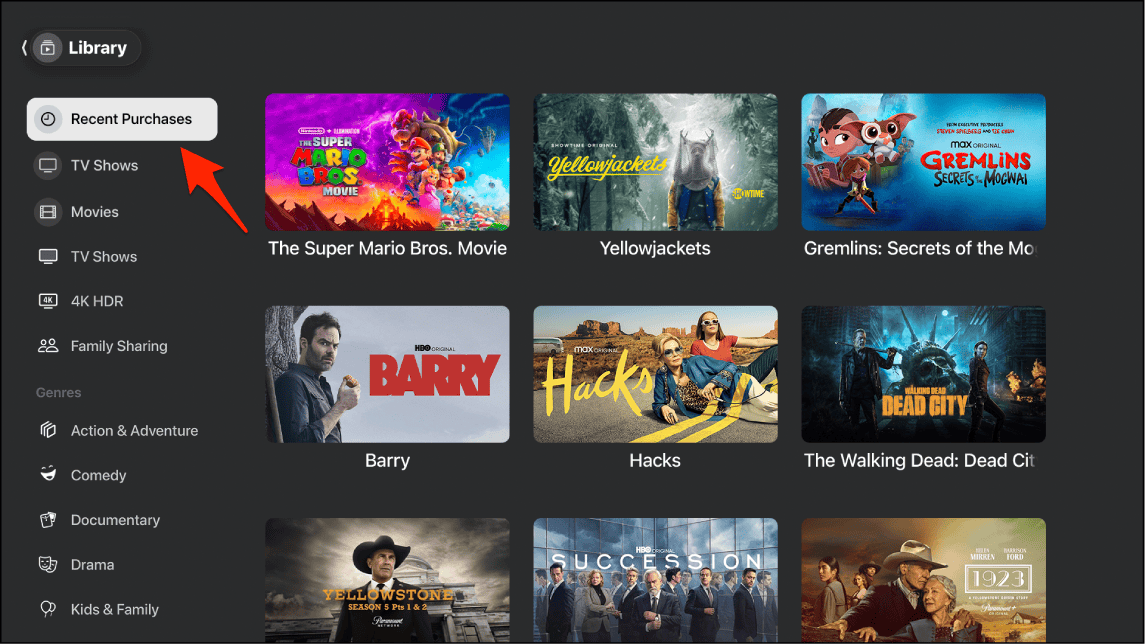
- Select the movie, show, or app you want to re-download.
- Tap Download or Play.

Method 2: Restore from iCloud / HomeKit
If you use Apple TV with HomeKit or iCloud Keychain, your settings and configurations are stored in iCloud. This includes Wi-Fi networks, screen savers, and HomeKit automation.
- Sign in to your Apple ID on Apple TV after reset.
- During setup, enable iCloud and HomeKit sync.
- Your Home app scenes and automations will reappear.
- Apple TV settings like Wi-Fi passwords will be restored via iCloud Keychain.
Method 3: Reinstall Apps and Restore App Data
Most Apple TV apps (Netflix, Disney+, YouTube, etc.) keep your history, subscriptions, and preferences in the cloud, tied to your app account.
- Open the App Store on Apple TV.
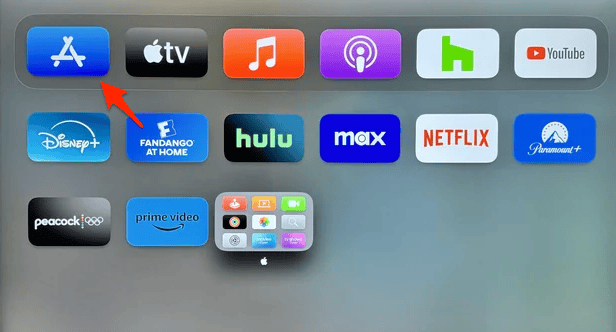
Image credit: Reddit - Go to Purchased Apps.
- Reinstall any app you previously downloaded.
- Sign in to the app with your credentials.
- Your history and data should reappear.

If you’re also trying to recover files on your iPhone, check out the best data recovery software for iOS.
Method 4: Use Finder/iTunes Backup (Indirect via iPhone/iPad)
Apple TV itself cannot be backed up like an iPhone. However, if you use AirPlay, Apple TV app, or Home Sharing linked with your iPhone, some data (like playlists, watch history, or HomeKit automations) is indirectly backed up with your iPhone’s iCloud/Finder backup.
Using specialized software such as Stellar Data Recovery can help you recover data from your iPhone or iPad in just a few minutes, and then you can proceed to restore it to your Apple TV.
- Restore your iPhone or iPad from iCloud/Finder backup.

- Log into Apple TV with the same Apple ID.
- Sync via Apple TV app, Home Sharing, or iCloud.
- Your watch history, playlists, and HomeKit automations will carry over.

Read more about how to restore your iPhone from a backup.
Method 5: Contact Apple Support or Apple Authorized Service Provider
If your Apple TV has hardware failure, corrupted OS, or you can’t access your purchases, Apple Support can help. They can:
- Walk you through recovery steps
- Reset Apple TVOS and re-link your Apple ID
- Diagnose hardware problem
FAQs
Yes, you can still recover purchased content through your Apple ID, but personal settings may be lost.
Not in the same way as iPhone/iPad. Apple TV syncs settings (like Wi-Fi and HomeKit) but not full system images.
No. Apple TV does not support external recovery software. Any app claiming to do this is misleading.
Yes, if it was purchased. You can re-download it from the Purchased section. Rentals cannot be recovered once expired.
That’s tied to your Netflix account, not your Apple TV. Once you reinstall the app and log in, your data comes back.
Final Verdict
When it comes to Apple TV, recovery doesn’t mean plugging it into a computer and running software. Instead, it’s about relying on Apple’s ecosystem:
- For purchases: Re-download from the App Store or Apple TV app.
- For settings: Restore through iCloud/HomeKit.
- For apps: Reinstall and log in to restore watch history and preferences.
- For complex issues: Contact Apple Support.
The best way to protect your Apple TV data is simple: always use iCloud, sign in with your Apple ID, and keep your apps linked to your accounts. That way, even if you reset or replace your Apple TV, your content and settings can always come back.


Discussion