

You won’t buy an M5 MacBook Air to stare at the default setup. You will buy it because it’s fast, quiet, light, and finally powerful enough to handle real work without pretending to be a Pro. The good news is you can get a lot more out of it in about thirty minutes. Here’s how to start strong.
Table of contents
1. Set Up Touch ID Immediately
Let’s break it down. Touch ID saves you time every single day. Logging in. Approving downloads. Unlocking system settings. It adds up fast.
- Go to System Settings, then Touch ID.
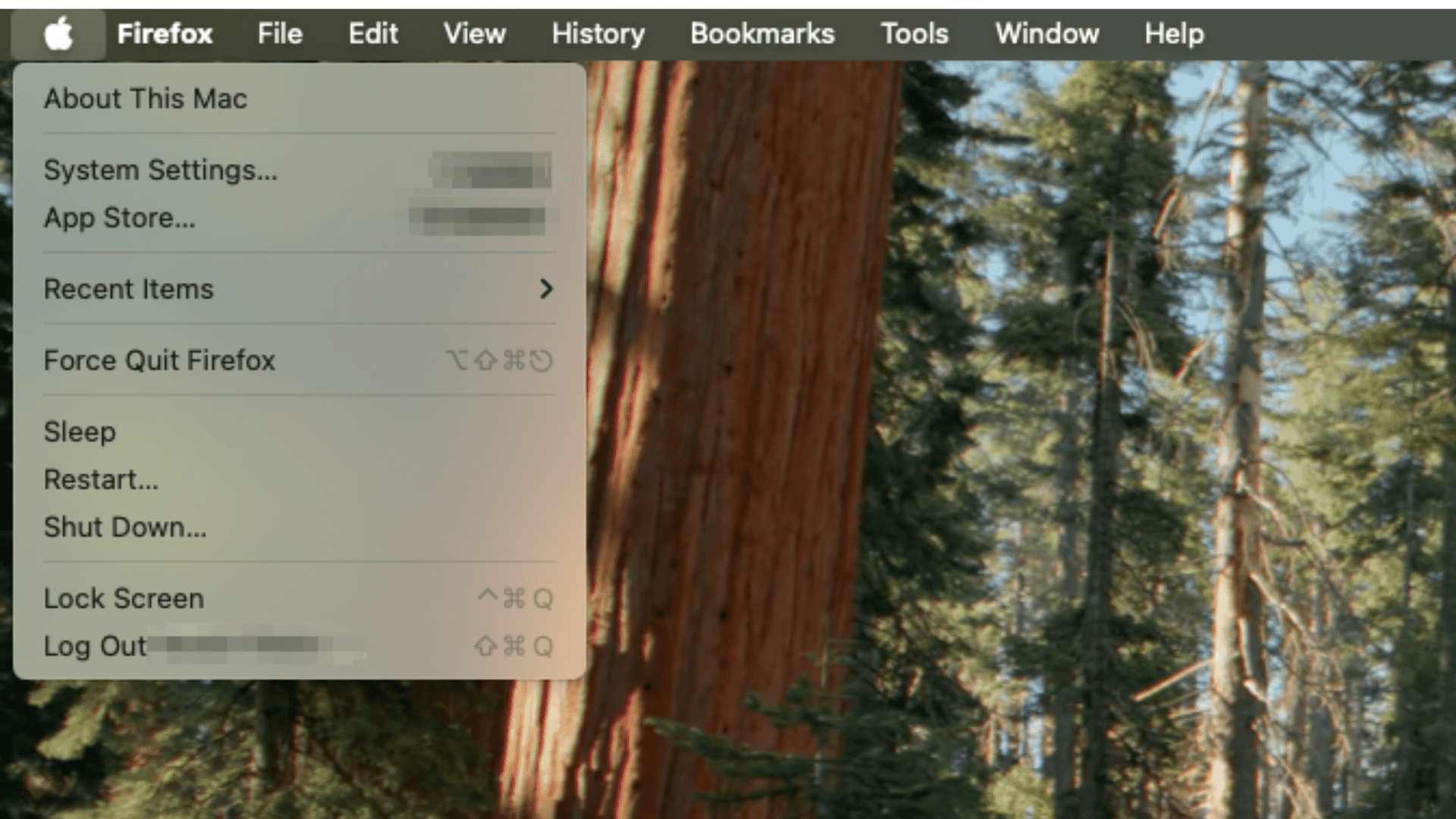
- Add at least one fingerprint.

Two is better. Apple stores this data locally, not in the cloud, and it’s tied to the Secure Enclave. This is one of those rare cases where convenience and security actually agree.
Don’t miss the best of The Mac Observer
Set us as a preferred source and our Apple reporting ranks higher in your Google Search results and Discover feed — one tap, no account changes.
Once it’s on, you’ll wonder how you ever tolerated typing passwords.
2. Make Desktop Widgets Actually Useful
Widgets used to be a novelty. Now they’re practical.
- Right click on your desktop and choose Edit Widgets.
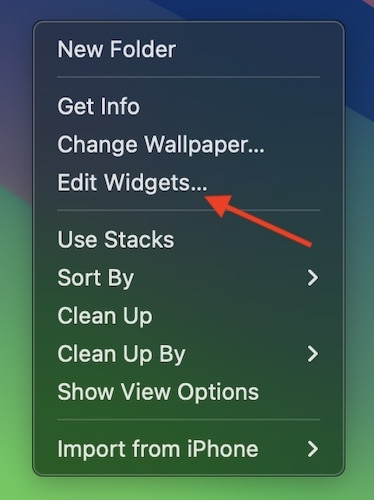
- Pull in what you actually check daily.

Calendar. Reminders. Weather. Notes. Battery.
Here’s the thing. On macOS, widgets fade when you’re working and reappear when you’re not. They stay out of your way until you need them. Set this up early and your desktop becomes a quiet control panel instead of visual clutter.
3. Fix the Trackpad Before It Fixes You
Apple’s default trackpad settings assume everyone thinks the same way. They don’t.
- Head to System Settings, then Trackpad.

- Start with scrolling direction. If natural scrolling feels wrong to your brain, flip it.

No moral victory points for suffering through muscle memory.
While you’re here, adjust tracking speed and click pressure. The M5 Air’s trackpad is sure to be excellent. Tuning it makes it disappear, which is the goal.
4. Customize Hot Corners Like a Power User
Hot Corners are one of macOS’s best hidden tools.
- Go to System Settings, Desktop & Dock, then scroll down to Hot Corners.
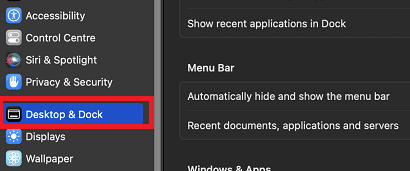
- Assign actions you’ll actually use.

Mission Control. Desktop. Quick Note.
Avoid putting Lock Screen or Sleep here unless you enjoy accidental interruptions. A good Hot Corner setup turns tiny movements into saved seconds, and those seconds add up fast.
5. Clean and Tailor the Dock
The default Dock is optimistic. It assumes you love every Apple app equally. You don’t.
Remove what you won’t use. Add what you will. Then decide if you want the Dock visible all the time or hidden until needed. Most people end up hiding it.
This is about friction. A clean Dock means fewer distractions and faster launches. Simple, but effective.
Final Thought
The M5 MacBook Air won’t need heavy tweaking. It will just need intention. Spend a little time setting it up and it stops feeling like a new computer and starts feeling like yours. That’s when the real value shows up.




Discussion