

The iPhone 17 Pro Max is a premium device, but some users have reported an issue: a distinct static, buzzing, or hissing sound emanating from the speaker area when the device is actively charging. This static noise is often a sign of electrical interference, a software glitch, or a hardware communication error triggered by the charging process. Fortunately, most instances of this problem can be resolved through simple troubleshooting steps before contacting Apple Support.
Table of contents
Isolating the Cause of Charging Static on Your iPhone
Pinpointing the exact source of the static noise requires a process of elimination. The issue usually stems from either the accessories used, the electrical environment, or the device’s software. If you are considering how the iPhone 17 Pro experience compares overall, read this review of two weeks with the iPhone 17 Pro.
1. Inspect Your Charging Accessories
The charger and cable are the most common culprits, often introducing electrical noise or experiencing communication issues with the iPhone’s internal components. Using non-certified or worn-out accessories can lead to inconsistent power delivery, which in turn manifests as an audible hum or hiss.
- Use an Apple Certified Cable and Adapter: Ensure the cable and power adapter are MFi certified or are the original Apple accessories that came with your phone. Third party charging gear, while functional, may lack the necessary shielding to prevent electrical noise.
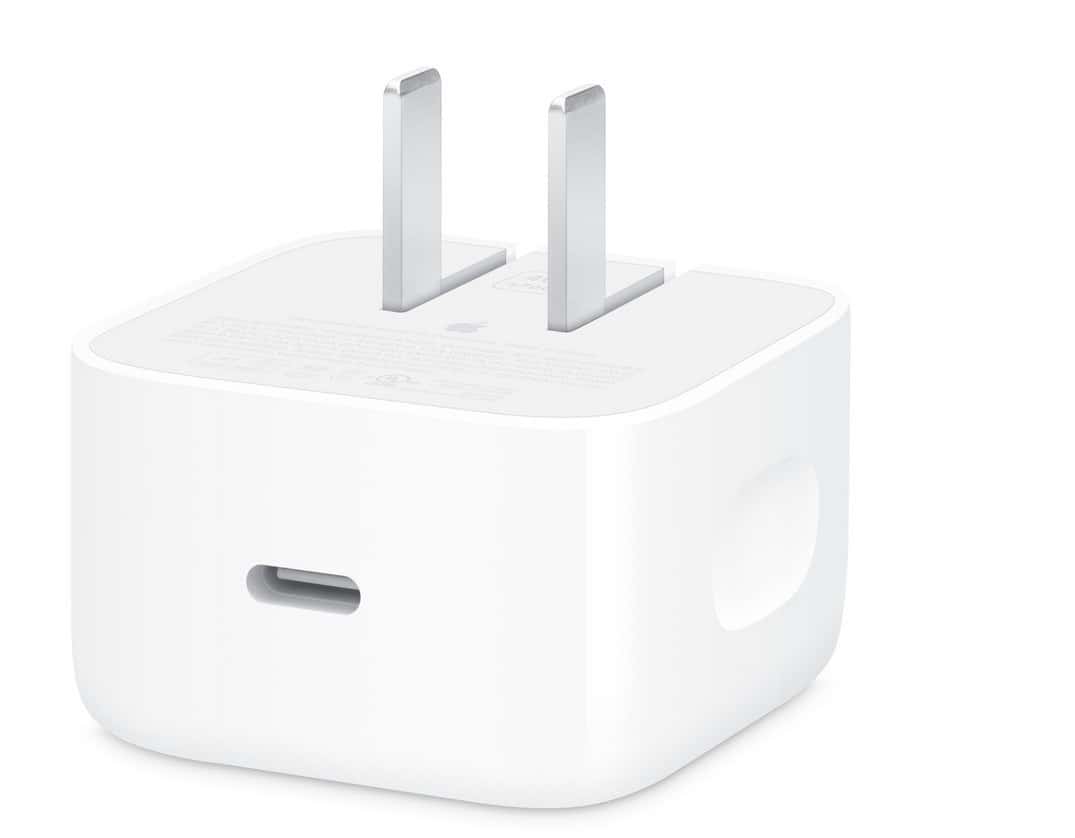
- Try a Different Power Adapter and Cable: Swap your current accessories for a completely different set to determine if the noise persists. If the static stops, the original adapter or cable needs replacing.

2. Check for Electrical Interference
The environment in which you charge your phone can introduce noise, especially if the electrical circuit is poorly grounded or is shared with high-powered electronics. Sometimes the charging noise is a form of ground loop interference picked up by the speaker components.
- Move to a Different Outlet: Plug your charger into an outlet in a different room or building, preferably one not connected to heavy appliances like refrigerators or washing machines, to test the quality of the electrical source.
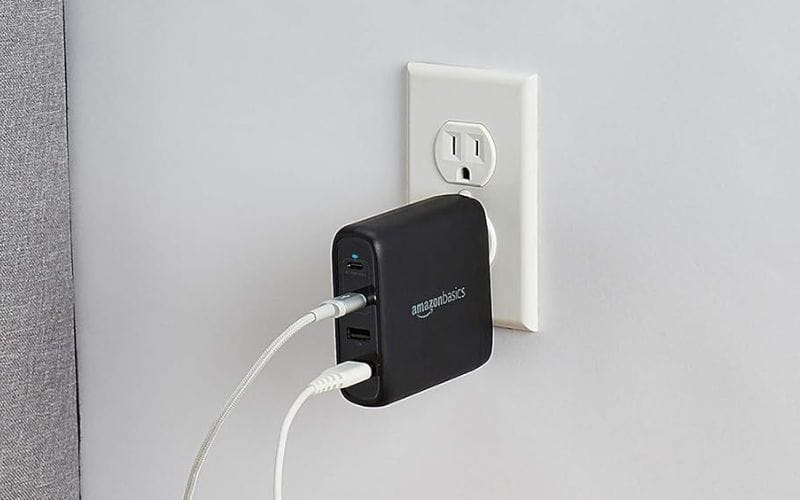
- Unplug Other Devices: If you are using a surge protector or power strip, temporarily unplug all other devices from it while the phone is charging to see if they are the source of the electrical feedback.

3. Clean the Speaker and Charging Ports
Microscopic debris, lint, or dust trapped in the charging port or speaker grilles can sometimes affect electrical conductivity or acoustic performance, causing audio artifacts when charging commences. When troubleshooting sound issues, it’s also worth seeing how the base models compare, such as in the iPhone 17 Air versus iPhone 17 Pro feature breakdown.
- Use Compressed Air Gently: Direct a short, gentle burst of compressed air across the speaker grilles and into the Lightning or USB C charging port to dislodge any loose debris.
- Clean Port with a Non-Metallic Tool: Carefully use a wooden or plastic toothpick to scoop out any compressed lint from the charging port. Be gentle to avoid damaging the internal pins.
4. Perform a Software Restart
Software bugs or minor glitches can sometimes cause peripherals like the speaker to behave erratically, especially during the sophisticated charging handshake process. A simple power cycle often clears these temporary errors from the operating system’s memory without affecting data.
- Restart the iPhone 17 Pro Max: Turn the phone off completely, wait about 30 seconds, and then power it back on.
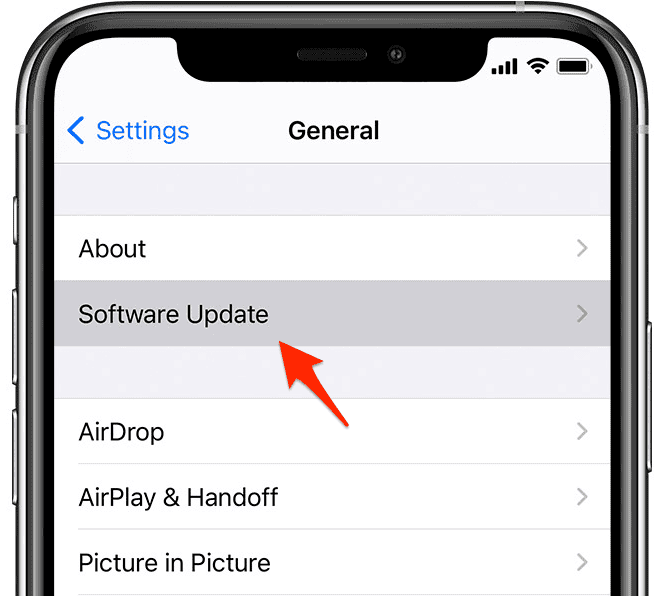
- Check for iOS Updates: Go to Settings > General > Software Update and install any available updates. Apple often releases minor updates to address device stability and component communication.

FAQ
In most cases, the static noise is merely an annoyance and not an immediate safety hazard. If the phone is excessively hot, or if there is visible smoke or melting, stop charging immediately and seek professional assistance.
Often, yes. Since wireless charging bypasses the physical port connection and cable, it eliminates many of the common causes of electrically induced static noise related to faulty cables or outlets.
It is best practice to first complete all the basic troubleshooting steps listed above. If the noise persists even after trying different certified accessories and power sources, then contacting Apple Support is the necessary next step.
Maintaining Optimal Sound Quality on Your iPhone 17 Pro Max
Resolving the static noise typically requires ensuring clean power and proper device maintenance. Effective fixes include swapping certified charging accessories, changing the power outlet, performing a software restart, cleaning the ports, or utilizing a wireless charger. By addressing these conflicts, you can restore quiet charging performance. If problems persist, consider professional help or the long term value, as you might decide to skip the 17 Pro Max for the iPhone 18.


