

Widgets have been a feature in macOS for a while, and they again appear in the notifications menu in Big Sur. There are a couple of ways to access and edit them.
Use Widgets in macOS Big Sur
The two ways to access widgets in macOS Big Sur are:
- Click on the time and date in the top right-hand corner.
- Two-finger swipe-left on your trackpad.
They will then show in the notification center on the right-hand side of your display.
How to Edit
- Open widgets as described above.
- Click ‘Edit Widgets’
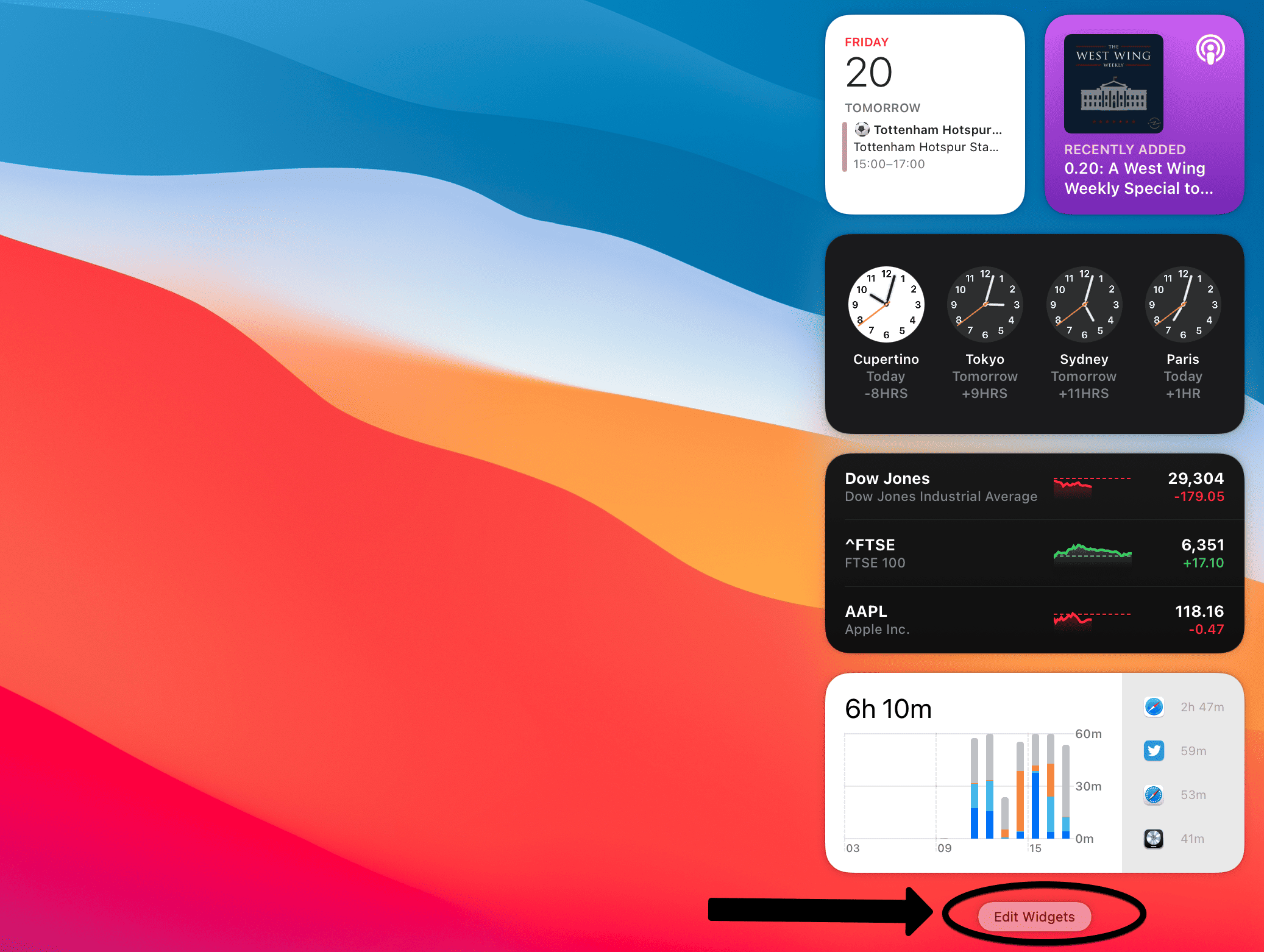
- Click the ‘-‘ sign next to items you no longer want to be available in the Notification Center.
- Press ‘+’ sign next to any items you want to add. This can be moved by holding and dragging.
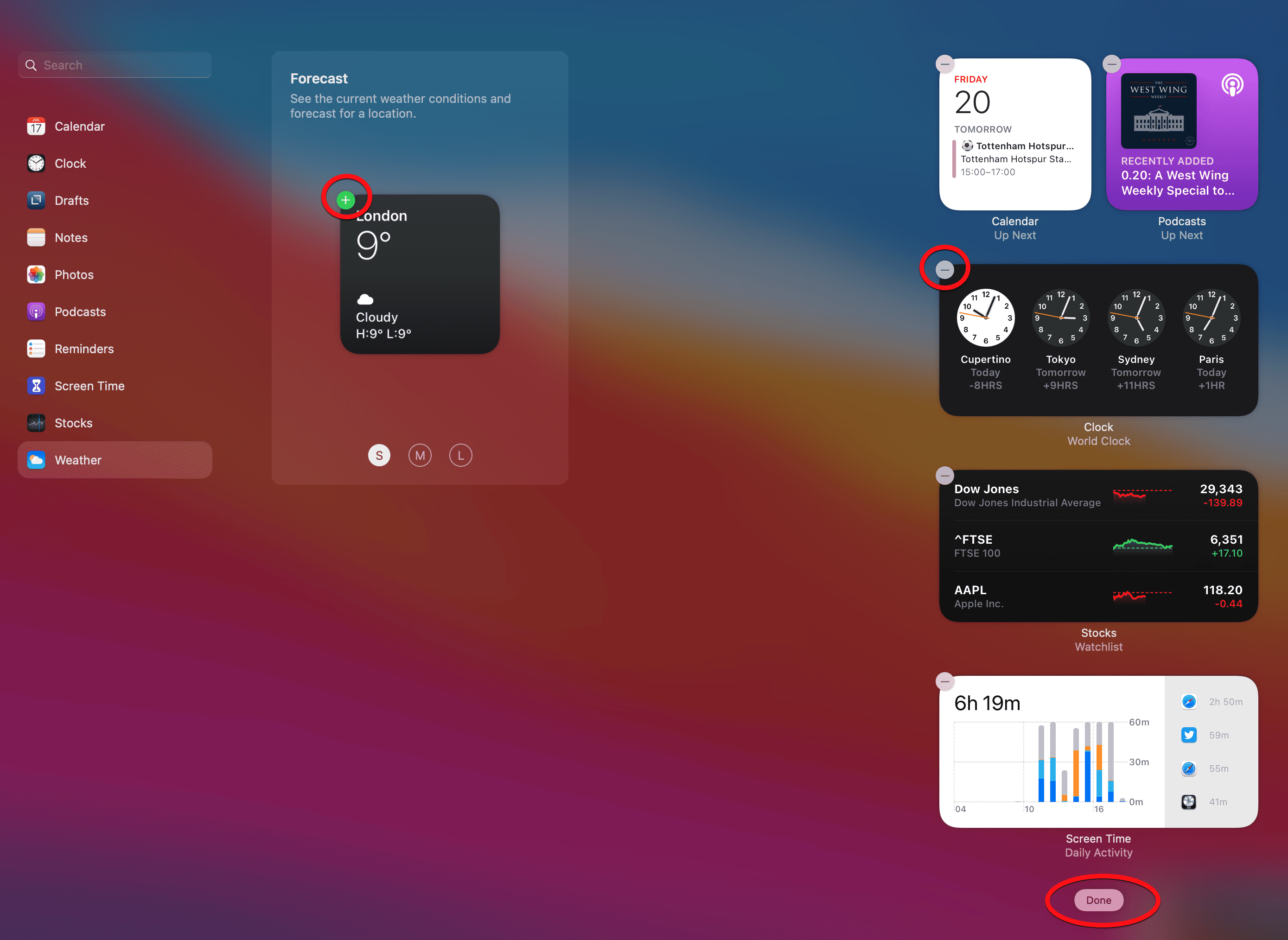
- When you’re happy with the arrangement, click ‘Done’


Don’t miss the best of The Mac Observer
Set us as a preferred source and our Apple reporting ranks higher in your Google Search results and Discover feed — one tap, no account changes.


Discussion