

Apple’s AirTag tracking device has been around for quite some time now. While most users find it useful, there might be times when an AirTag malfunctions. It may not connect nor show up in the Find My app on your iPhone, for example. If that’s the case, here’s what you need to do to fix it.
How to Fix AirTag Is Not Connecting
1. Change Your AirTag’s Battery
The main reason why your AirTag is not connecting is a low or depleted battery. In this case, you will have to simply change the battery.
Unfortunately, since you currently can’t find it on Find My, you have no way of checking the battery status. So, the next time your AirTag shows up again in Find My, be sure to check if the battery needs to be replaced. You can check the battery status by following the steps below.
- Open Find My.
- Click the Items tab, then tap the AirTag.
- If your AirTag’s battery is running low, there will be an alert next to the indicator. This alert will say, “Low Battery.”
If your AirTag’s battery needs to be replaced, you can follow our directions to replace it and ensure the new one works.
Don’t miss the best of The Mac Observer
Set us as a preferred source and our Apple reporting ranks higher in your Google Search results and Discover feed — one tap, no account changes.
2. Restart Your Device
Since the AirTag is connected to your iPhone, the only way that you can reset it is by restarting your iPhone. Hopefully, by doing so, it will show up again in Find My. So, there’s no harm in doing so.
3. Update Your iPhone to the Latest iOS Version
Unlike other Apple devices, you can’t force update your AirTag’s firmware. Therefore, updating your iPhone to the latest iOS version could make it show up again in Find My. That’s because Apple may have rolled out updates with the Find My app that address the issue at hand.
4. Reset Location & Privacy on Your iPhone
Occasionally, an iPhone will be unable to connect to an AirTag because of problems with Location Services on the handset. The only way to cure this particular issue is by resetting the Location & Privacy settings on your iPhone.
Time needed: 1 minute
To reset your iPhone’s Location & Privacy settings, follow these steps:
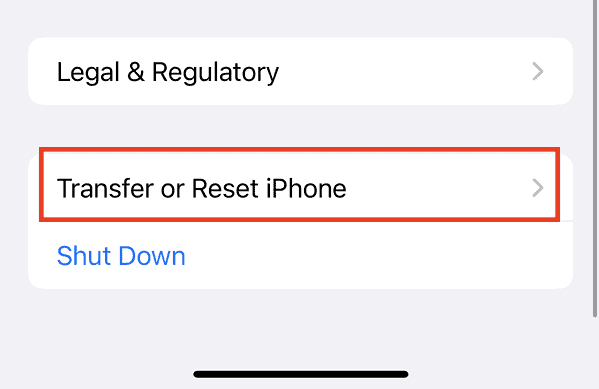
- Tap Settings > General > Transfer or Reset iPhone > Reset.
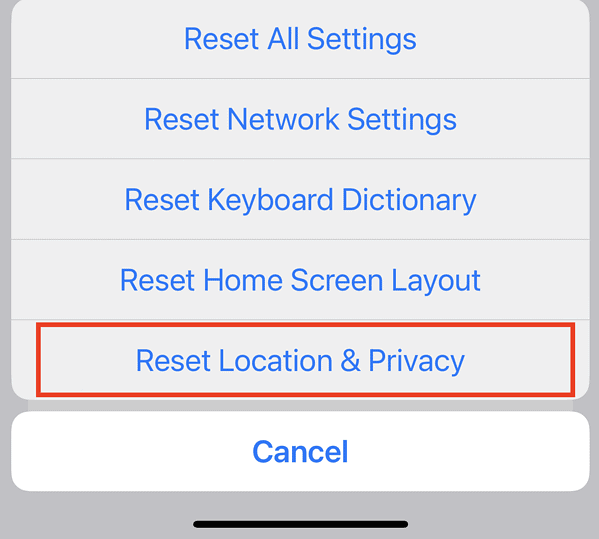
- Tap Reset Location & Privacy.
- Enter your passcode, then tap Reset Settings.


5. Make Sure You’re Not Using a Managed Apple ID
If you’re using an iPhone or iPad with a Managed Apple ID, you won’t be able to use AirTag. Managed Apple IDs are typically used by schools and businesses and have certain restrictions. One of those limitations is the inability to pair AirTags.
To use AirTag, you’ll need a personal Apple ID, which allows access to all of Apple’s consumer features and services.
You can, however, share your AirTag with others using a private Apple ID account.
6. Manually Reset Your AirTag
If you’re not aware of this, you can manually reset your AirTag by simply removing its battery. If you have successfully replaced the battery, you can easily reset your AirTag manually as well. Try removing the battery and placing it back again at least four times to completely reset your AirTag. After resetting, you need to set it up again on your iPhone.
- Place your AirTag near your iPhone.
- Tap Connect when it appears on your iPhone’s screen.
- Tap Finish once the setup process is done.
Hopefully, after manually resetting your device, it will show up again in Find My. If not, the next tip might solve the problem.
7. Check Location Settings on Your iPhone
Most of the time, users may overlook the fact that Location Services on their devices are disabled. If that’s the case, you won’t see your AirTag showing up in Find My. So, make sure Location Services is turned on. On your iPhone simply go to Settings > Privacy & Security > Location Services > Find My > While Using the App.
Apple estimates that the CR2032 coin cell battery in an AirTag should last about one year under normal usage conditions. You’ll receive a “Low Battery” notification in the Find My app when it’s time for a replacement.
A Managed Apple ID is typically created and owned by an institution, like a school or business, to restrict access to certain consumer features. AirTag usage is blocked because pairing requires a personal, private Apple ID to ensure security and tracking is tied to an individual user, not an organizational account.
Yes, manually resetting your AirTag requires removing and re-adding it to your account. This effectively deletes the previous pairing and settings, and you will need to complete the entire setup process again, including naming the AirTag and linking it to your personal Apple ID.
Restoring Your Tracking Peace of Mind
When your AirTag stops connecting, the fix is often a simple troubleshooting step like changing a depleted battery or confirming your Location Services are active. Applying these seven fixes, from restarting your iPhone and updating iOS to performing a manual reset, can quickly resolve most connectivity errors. Remember to use a personal Apple ID. Taking these actions helps restore your AirTag’s functionality, ensuring the device returns to the Find My network promptly.


Discussion