

For those looking to update Safari on an Old Mac, I don’t really have the best news. I was looking to update the Safari browser on an older system, and what I discovered was a bit of a letdown. While you have some options, they’re a bit limited. Continue reading to learn more about Safari on an old Mac.
How to Update Safari on an Old Mac
If you need to update Safari on an old Mac, unfortunately, Safari is connected to whatever version of macOS you’re using. If you are unable to update to the latest version of macOS, you will only be able to use the version of Safari that supports your operating system. However, there is a way to check to see if you can update Safari.
1. Check for Safari Update
If you want to check to see if you can update Safari, then you will want to check your System Preferences/Settings the same way you would if you were updating macOS. Note that the photos below are just examples of the steps you will take.
Don’t miss the best of The Mac Observer
Set us as a preferred source and our Apple reporting ranks higher in your Google Search results and Discover feed — one tap, no account changes.
Time needed: 2 minutes
To check for an update to Safari.
- From your desktop, navigate to the Apple logo and select System Settings/Preferences.

- Select General > Software Update. You may see a notification for an update within the Settings menu.
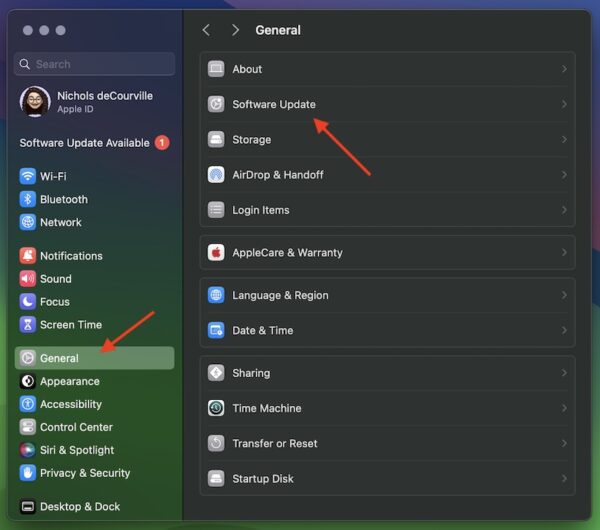
- When you’re on the Software Update screen, you will either see an option to update Safari or to update your system entirely. If you don’t see these, you’re not able to update Safari or macOS.


Unfortunately, this is likely to be your only option in terms of specifically using Safari on your Old Mac.
2. Use a Third-Party Browser
If you are unable to update Safari, remember that there are plenty of third-party browsers available, even for older devices. Some users recommend WaterFox for its similarity to Safari and ease of use on older machines. Of course, Firefox is also incredibly popular and is available on the Apple App Store. Personally, I am a big fan of Google Chrome and it is also available on the Apple App Store.
While this may not be the best news, you still want to do your best to keep your browser as up-to-date as you can. This is especially true if you are using an older machine that is no longer receiving security updates. In fact, you may want to consider how to protect an old Mac. You may also want to look at the best antivirus for an old Mac.


What if the third party browsers are saying they need to be updated or you cannot use them?
That usually means you’ve hit a hard API limit—modern websites require engine features that your current browser version can’t support, and the browser itself can’t update because your macOS version is considered “vintage.” The best workaround is to sideload Chromium Legacy (a GitHub project that backports the latest Chromium builds to run on older OS X versions) or switch to Firefox ESR (Extended Support Release), which officially supports older hardware much longer than Chrome or Safari.
Yeah Apple has purposely restricted the older Macs’ from updating so you are forced to lay out some big bucks well over a grand for a new desktop in order to get up to date.