

Want to locate your downloaded files on an iPhone fast? You can usually find them inside the Files app—specifically in the Downloads folder under iCloud Drive or On My iPhone. In this guide, you’ll learn exactly how to find Safari downloads, saved files from apps like Mail and WhatsApp, and even offline media such as PDFs or videos stored locally. You don’t need any extra apps—just follow the steps below.
Table of contents
How to Find Downloaded Files on iPhone
The steps below will walk you through where to find different types of downloads on your iPhone. We’ll cover browser downloads, third-party app files, and offline content.
Step 1: Check the Downloads Folder in the Files App
The most common place iPhone saves downloads is the Files app.
Don’t miss the best of The Mac Observer
Set us as a preferred source and our Apple reporting ranks higher in your Google Search results and Discover feed — one tap, no account changes.
Time needed: 2 minutes
- Open the Files app.
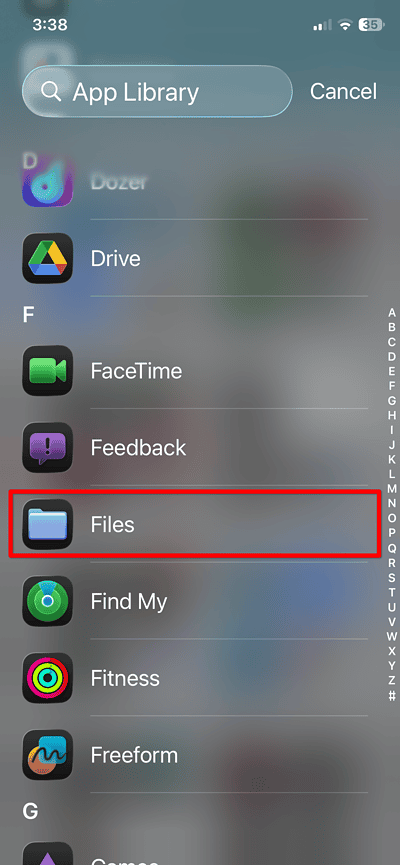
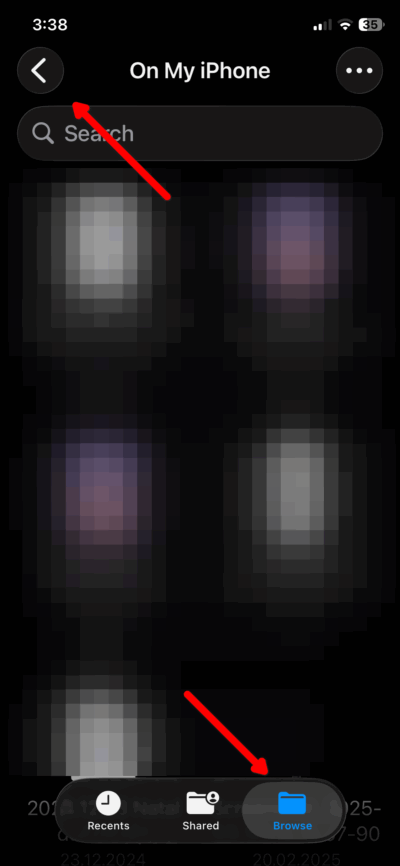
- Tap Browse in the bottom-right corner, then the back arrow in the top-left corner.
- Choose either iCloud Drive or On My iPhone.
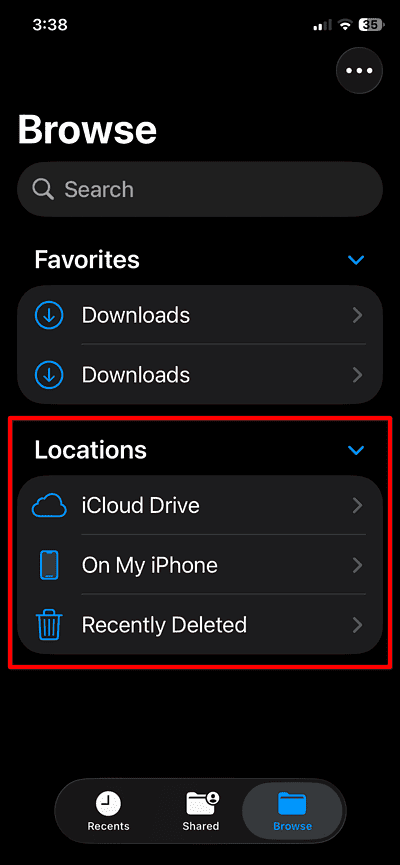
- Tap the Downloads folder to see your recently saved files.


If you’re wondering where to find downloaded files on your iPhone, this is the most reliable location.
Step 2: Search for Files by Name

If you saved a file but forgot where, search for it.
- Open the Files app.
- Use the Search bar at the top.
- Type in the filename or part of it.
Step 3: Check Downloads from Other Apps
Some apps like WhatsApp or Gmail save files in their own folders.
- In Files, tap Browse > On My iPhone
- Look for app folders (e.g., “WhatsApp” or “Gmail”)
- Tap to open and explore saved files or attachments
Step 4: View Saved Photos, Videos, or PDFs
If you saved media, it might go directly to the Photos or Books app.
- For Photos or Videos: Open the Photos app > check Recents
- For PDFs: Open the Books app > tap Library
You can also re-download PDFs and save them directly to the Files app for easier tracking.
 NOTE
NOTE
Step 5: Use the Recents Tab in Files
The Recents section shows your latest activity.
- Open the Files app
- Tap Recents at the bottom
- Browse your most recently opened or downloaded files
If you’re unsure where are saved files stored on your iPhone, this tab is a fast way to retrace your steps.
Tips for Finding iPhone Downloads

- Use Search in the Files app to find documents fast
- Always check iCloud Drive > Downloads and On My iPhone > Downloads
- Save PDFs manually to Files instead of opening in Safari
- For email attachments, tap Share > Save to Files
- Avoid relying on app-specific storage if you want centralized access
iPhone Downloaded Files Folder: Frequently Asked Questions
Most downloads appear in the Files app, either under iCloud Drive > Downloads or On My iPhone > Downloads.
iPhones don’t have a traditional “File Explorer,” but the Files app serves as your file folder for documents and downloads.
It depends. Safari downloads go to the Files app, while photos save to the Photos app. Email attachments may require manual saving.
You may not have saved it properly. Check the app you used and look under its folder in Files > On My iPhone.
Yes. Go to Settings > Apps > Safari > Downloads and choose either iCloud Drive or On My iPhone.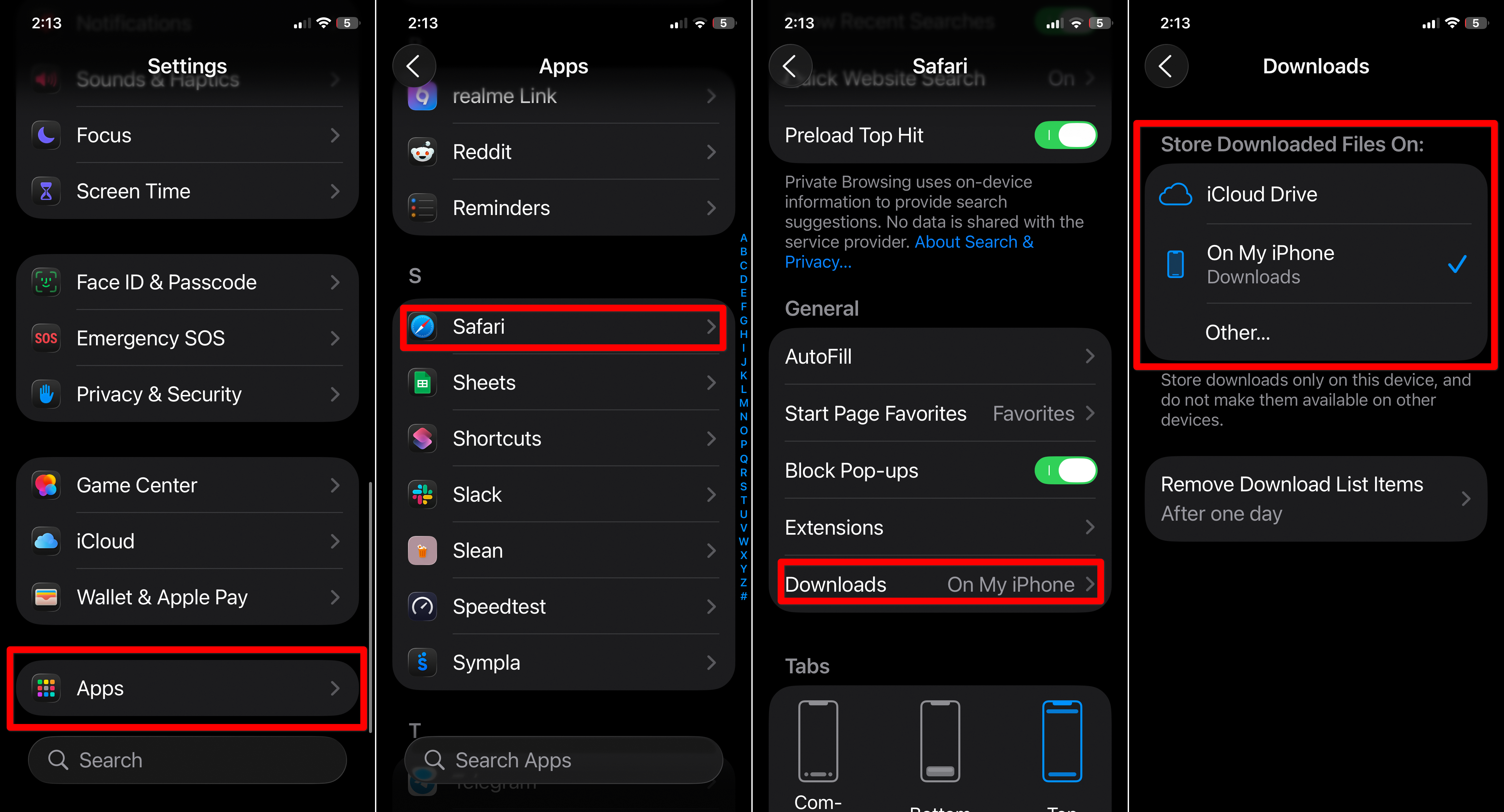
Summary
- Use the Files app to find Safari downloads and general files
- Check Recents, Downloads, and app-specific folders
- Look in Photos or Books for saved media
- Use Search for file names
- Don’t forget to adjust download settings in Safari
Conclusion
Finding downloaded files on your iPhone doesn’t have to feel confusing. Once you know where to look—whether it’s in the Downloads folder, a specific app folder, or a media app—you can easily access your saved content. Keep the Files app handy, and consider customizing your Safari settings for future downloads. With just a few taps, your iPhone becomes a much more organized place to manage your files.


Discussion