

Updating your iPhone (iOS) or iPad (iPadOS) is simple and gets you the newest features, better security, and fewer bugs, ensuring a seamless experience. Also, with regular updates, your device delivers a better performance!
So, let’s get to the steps to update iOS and iPadOS, on-device, via a PC, or through mass deployment.
How to update iOS or iPadOS?
 NOTE
NOTE
1. Wireless (Over the air) update on iPhone or iPad
Step 1: Prepare your device
- Back up your iPhone/iPad to iCloud or your computer first; it is a safe habit.
- Make sure your device is charged or plugged in, and connected to Wi Fi.
Step 2: Do the update
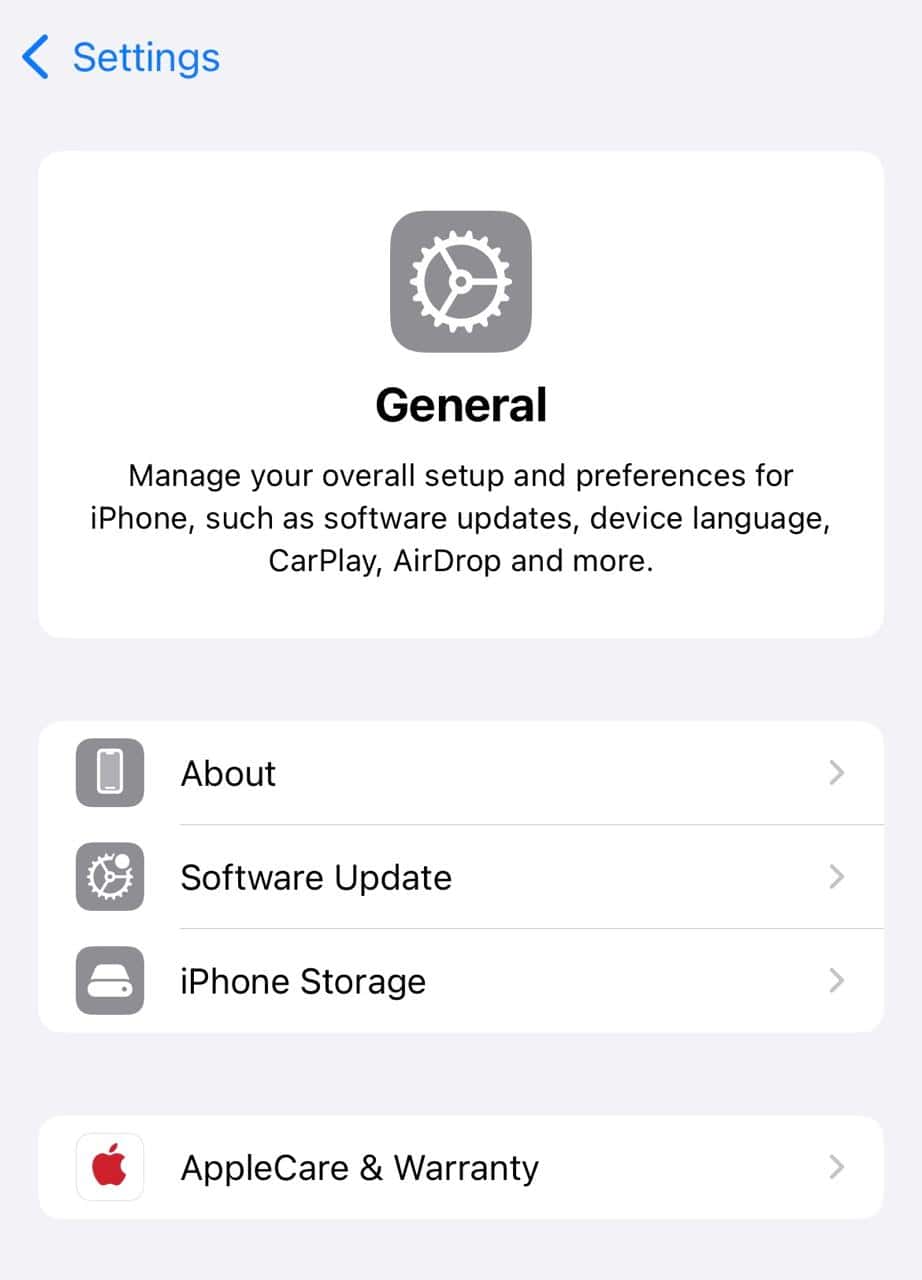
- Open Settings > General > Software Update.
- Let the device scan for updates. If an update appears, tap Download and Install or Update Now. Or if you want to install it at night when the device is not in use, tap on Update Tonight.
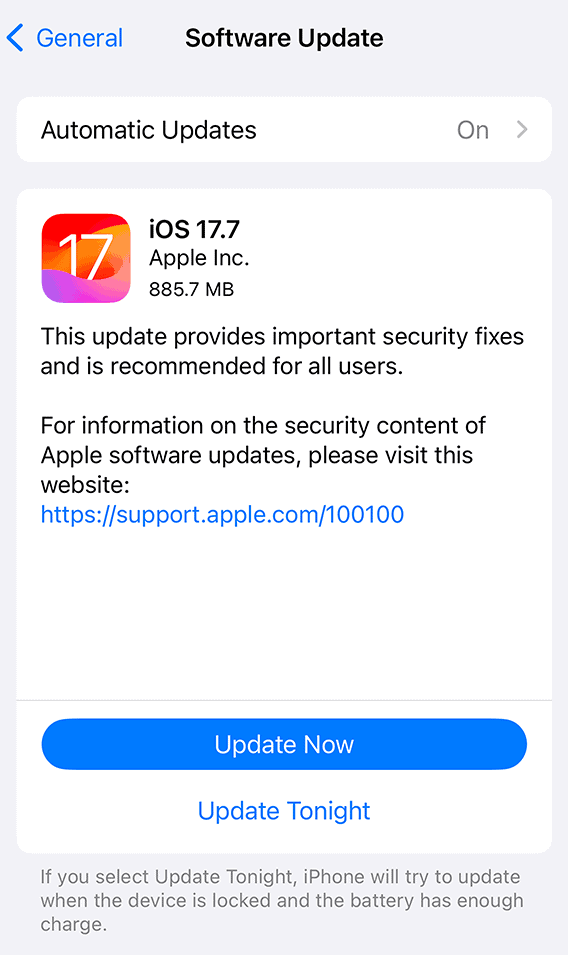
- Enter your passcode if asked and follow the prompts.


Step 3: Free up space if needed
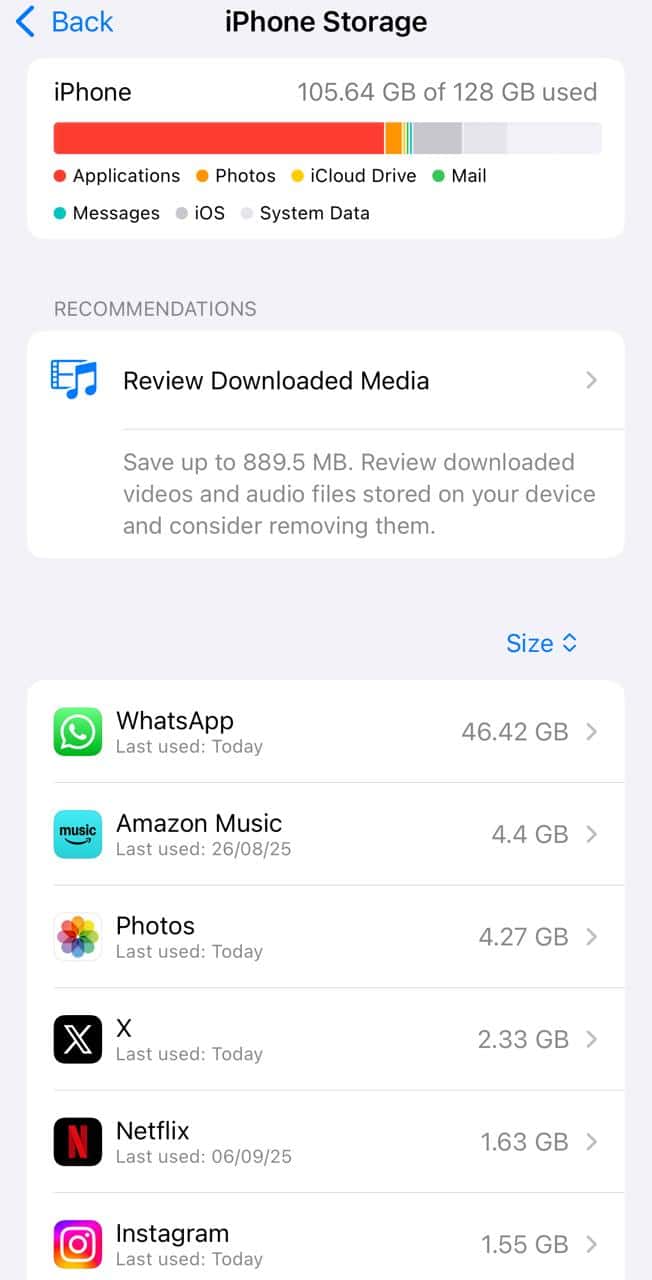
- If the update needs more space, iOS may suggest removing apps temporarily, and it will reinstall them later.
- You can also go to Settings > General > Storage and delete unused items manually.

Step 4: Automatic updates (set once, forget)
- In Settings > General > Software Update > Automatic Updates and enable iOS Updates under both download and install.
- Optionally, turn on Security Responses & System Files to get quick patches automatically.

You can similarly install the iOS 18 update on iPhone.
Don’t miss the best of The Mac Observer
Set us as a preferred source and our Apple reporting ranks higher in your Google Search results and Discover feed — one tap, no account changes.
2. Manual update via computer
Step 1: Connect to the computer
- Use a Mac with macOS Catalina or later, or a Windows PC with the latest iTunes.
- Plug your iDevice into the computer.
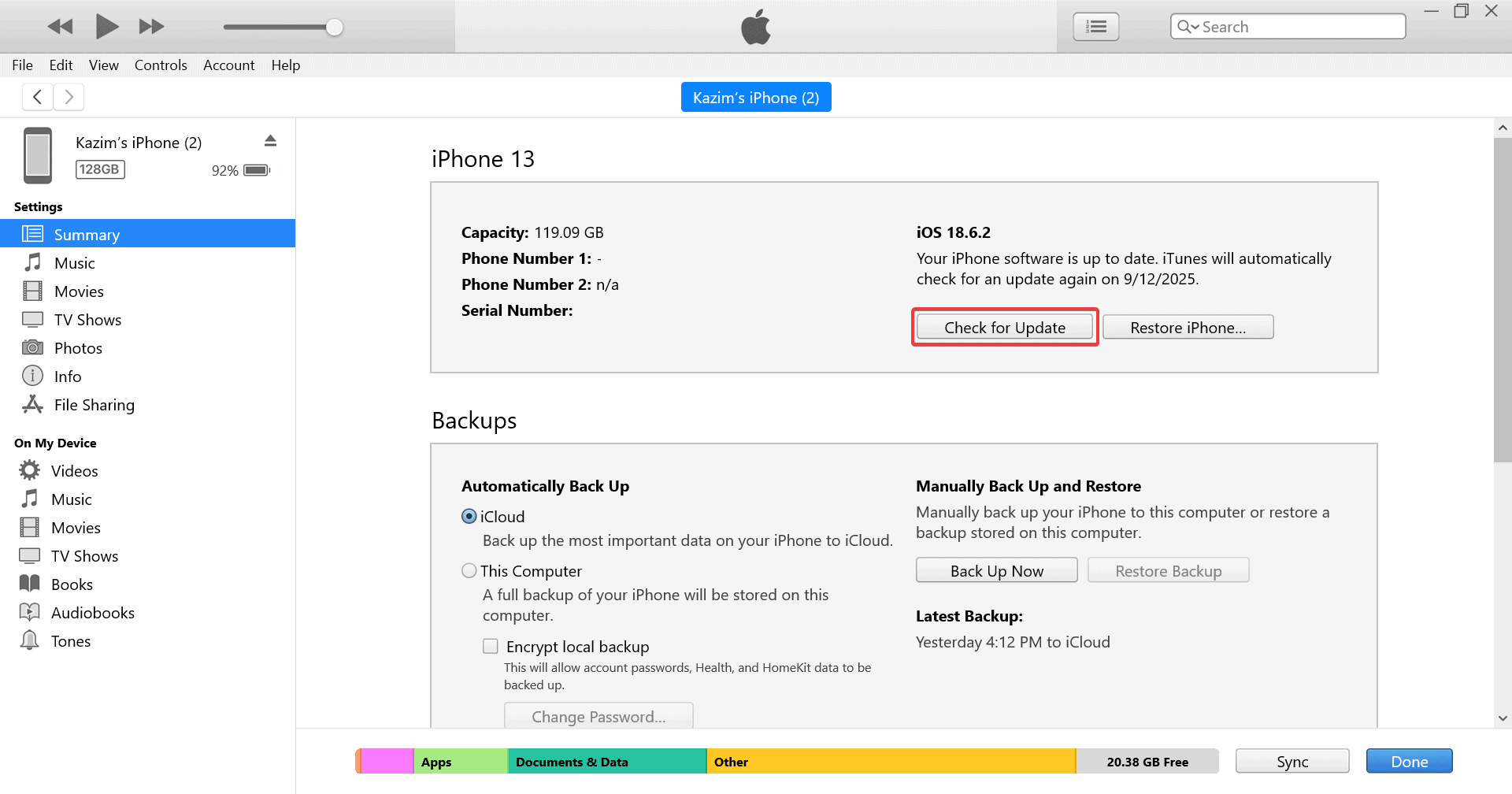
Step 2: Update from Finder or iTunes
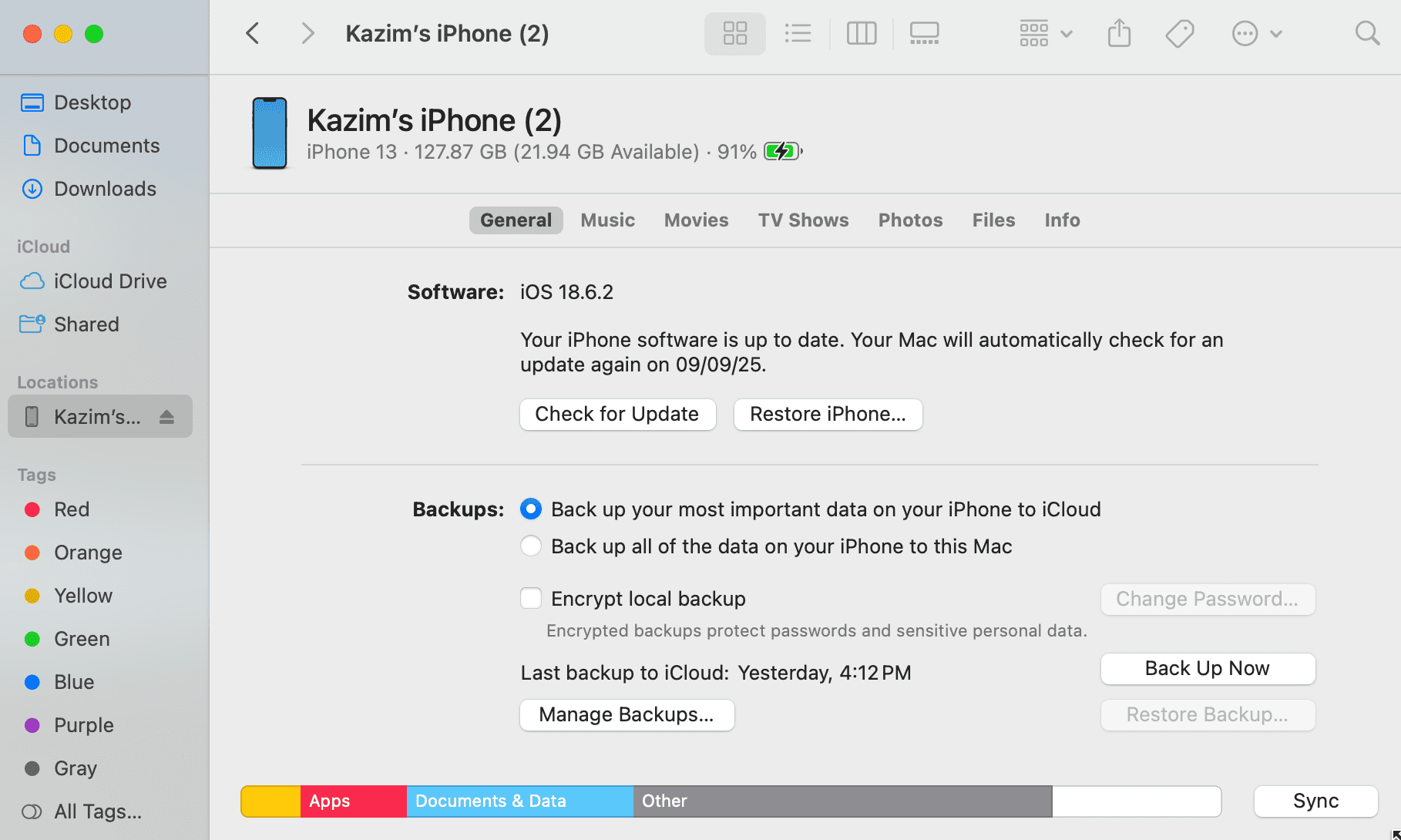
- Mac with Catalina or later: Open Finder, select your device in the sidebar, and click on Check for Update.
- Mac with Mojave or earlier or Windows: Open iTunes, click the iPad or iPhone icon, and click on Check for Update.


3. Advanced: MDM tools for organizations
- If you manage multiple devices, you can use Mobile Device Management tools to push iOS or iPadOS updates.
- You can schedule when updates install, delay visibility, or restrict manual updates using policies.
Tips
- Back up every time before updating. It is a small step that avoids big headaches.
- Keep your device plugged in and on a stable Wi Fi network for a smooth update.
- Turn on automatic updates so your device stays current without effort.
- If your device runs low on storage, delete unused apps, photos, or messages ahead of time.
Frequently Asked Questions
It might already have the latest version available for your device model. Older devices stop being supported at some point, and Apple only offers updates that the device can run.
No, it is strongly recommended to use Wi Fi because updates can be large. Mobile data may be too slow or expensive and could interrupt the process.
Your device may remove apps temporarily to make room. It will reinstall them automatically after. Or you can delete items manually in Settings > General > Storage.
Automatic updates are convenient and help you stay current without lifting a finger. Manual gives you control, especially if you prefer updating when you choose.
Summary
- Prefer to update over Wi Fi by going to Settings > General > Software Update.
- For extra convenience, enable Automatic Updates.
- Can’t do it on your device? Use Finder or iTunes on a computer.
- In organizations, use MDM tools to deploy updates efficiently.
Conclusion
Updating iOS or installing iPadOS does not have to feel intimidating. With a simple routine of backing up, connecting to Wi Fi, updating wirelessly, and enabling automatic updates, you stay safe, secure, and enjoy new features as soon as they arrive!


Discussion