

Knowing how to check the battery percentage on your Apple Watch helps you avoid sudden shutdowns and manage charging efficiently. Apple provides several ways to view battery levels, from quick access in the Control Center to detailed insights in the Settings app. You can also keep battery information visible at all times by adding a complication to your watch face or by using your paired iPhone’s Batteries widget.
Table of contents
Methods to See Battery Percentage on Apple Watch
Apple Watch offers four main methods to check the battery percentage. Each method varies in how much detail it provides and how quickly you can access it.
1. Control Center Battery Percentage
The Control Center is the fastest way to see your Apple Watch battery percentage.
Don’t miss the best of The Mac Observer
Set us as a preferred source and our Apple reporting ranks higher in your Google Search results and Discover feed — one tap, no account changes.
- From any watch face or app screen, press the Side Button to open the Control Center on newer models. On earlier models, swipe up from the bottom edge of the screen.
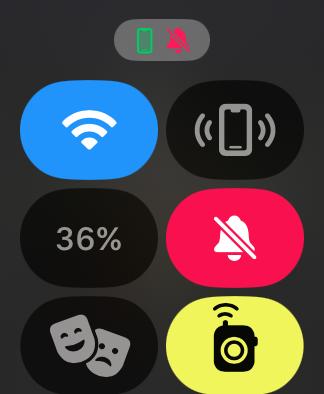
- Look at the top or top-left of the Control Center to view your battery percentage.
- Tap the percentage icon to expand it into a larger circular ring for a visual charge display.
- From this screen, you can also enable Low Power Mode to extend battery life.
- Close the Control Center by pressing the Side Button again or swiping it down.

Want your Apple Watch to last longer between charges? Here’s how to increase battery life on Apple Watch.
2. Watch Face Battery Complication
Adding a battery complication keeps the percentage visible on your watch face at all times.
- Firmly press on the watch face to enter customization mode.
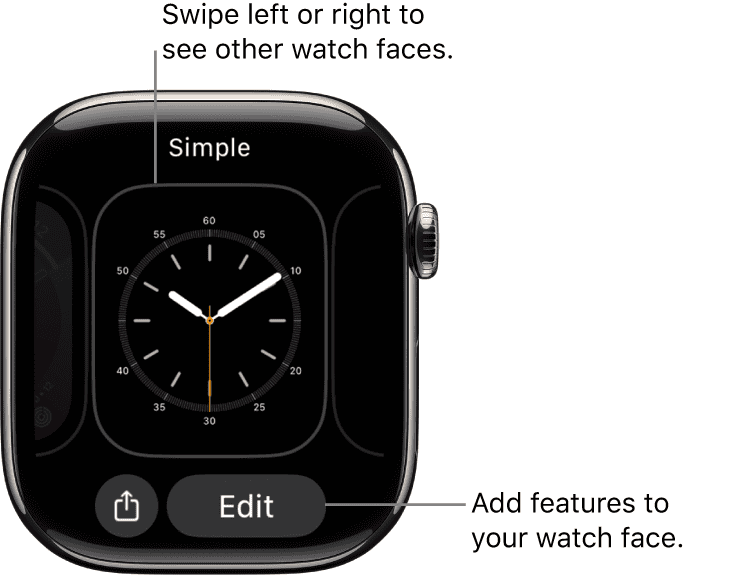
- Tap Edit and swipe to the Complications section.
- Select a complication slot on the watch face.
- Scroll through available complications and choose Battery.
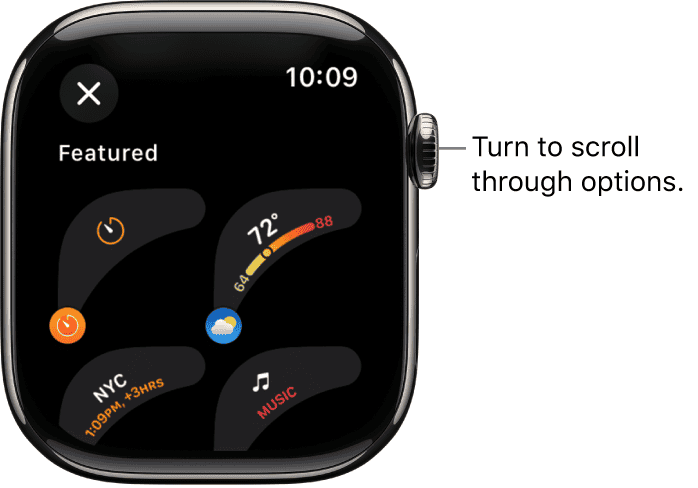
- Press the Digital Crown to save and exit. Your battery percentage will now appear directly on the watch face.


For a deeper look at your device’s condition, you can also check Apple Watch battery health.
3. Battery Info in the Settings App
The Settings app provides detailed insights into your Apple Watch battery status, including usage patterns and health information.
- Press the Digital Crown to open the App Library or Home screen.
- Tap the Settings app.
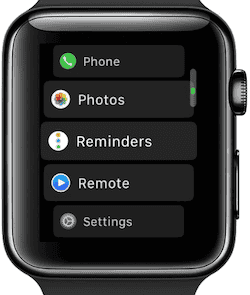
- Scroll down and select Battery.
- At the top, you’ll see the current percentage.
- Below, review usage graphs covering the last 24 hours or 10 days.
- Tap Battery Health to check your watch’s maximum capacity and service status.
- Enable Low Power Mode directly from this menu to conserve power.

If you’re new to watchOS, here’s a complete guide on how to use Apple Watch.
4. Using Your iPhone’s Batteries Widget
If your Apple Watch is paired with your iPhone, you can monitor its battery percentage from your phone.
- On your iPhone’s Home Screen, long-press a blank area until apps jiggle.
- Tap the + icon to open the widget gallery.
- Search for Batteries and select the widget.
- Choose a widget size (small, medium, or large) that shows device battery percentages.
- Tap Add Widget and place it on your Home Screen or Today View.

- The widget will now display your Apple Watch battery percentage alongside other connected devices.

Noticing faster drain than usual? Here’s what’s really killing Apple Watch battery and how to fix it.
Tips
- Add the battery complication to your most-used watch face for quick checks.
- Use Low Power Mode from Control Center or Settings to extend remaining charge.
- Regularly review Battery Health in Settings to know when your battery needs service.
- Keep your Apple Watch paired with your iPhone for easier monitoring via the Batteries widget.
FAQs
Yes. Every Apple Watch model supports checking battery percentage through Control Center and Settings. Some watch faces also support battery complications.
In the Control Center or Settings > Battery screen, tap the option to enable Low Power Mode. This reduces power consumption by limiting background activity.
Yes. Open Control Center on the Apple Watch and tap the battery icon. The expanded view shows both Apple Watch and iPhone battery levels.
Yes. When connected to the charger, the watch face displays a charging icon along with the current percentage.
Summary
- Swipe up or press the Side Button to open Control Center and view battery percentage.
- Add a Battery Complication to your watch face for quick access.
- Use the Settings app for detailed graphs and Battery Health.
- Check the iPhone’s Batteries widget for remote monitoring.
- Enable Low Power Mode to conserve energy when needed.
Conclusion
Apple Watch makes it simple to monitor battery percentage using different methods tailored to convenience and detail. The Control Center offers the fastest glance, complications keep it always visible, the Settings app provides comprehensive information, and the iPhone’s widget adds flexibility. Together, these options give you full control over your device’s battery management, helping you avoid sudden shutdowns and extend daily use.


Discussion