

If you’ve updated to iOS 26, you might have noticed something new in the Photos app and on your Lock Screen: Spatial Scenes. It’s Apple’s way of giving flat photos a 3D-like effect, making them shift and move as you tilt your iPhone. The result feels alive, almost like you’re looking into a scene instead of just at a picture. And the best part? You don’t need the latest iPhone 17 or Apple Intelligence to try it, Spatial Scenes work on iPhone 12 and newer.
Table of contents
What Are Spatial Scenes in iOS 26?
Apple has added a new trick to your iPhone with iOS 26: Spatial Scenes. Think of it as a way to give your old photos new life. Instead of staying flat and static, your pictures gain depth and motion, almost like you’re peeking into a moving diorama.
It works by creating a parallax effect, your photo’s subject appears closer, while the background shifts subtly when you tilt your iPhone. This isn’t the same as a spatial photo captured with newer hardware like the iPhone 16. Instead, it’s AI-powered and works with almost any photo in your library. The best part? You don’t need Apple Intelligence for this feature, iPhone 12 or newer models can use it.
Don’t miss the best of The Mac Observer
Set us as a preferred source and our Apple reporting ranks higher in your Google Search results and Discover feed — one tap, no account changes.
If you’ve already been exploring other new visual updates in iOS 26, like Liquid Glass, Spatial Scenes feels like a natural extension of Apple’s push to make the iPhone more dynamic and customizable.
How Does Spatial Scenes Work?
Spatial Scenes uses Apple’s on-device AI to:
- Analyze your photo: It separates the subject from the background.
- Build a depth map: This map tells your iPhone which parts should stay in the foreground and which should move subtly.
- Apply parallax: When you tilt or move your phone, the effect mimics how your eyes perceive real depth.
Unlike spatial video or spatial photos captured with the iPhone 16 Pro Max, this doesn’t require special lenses or sensors. Any still photo with a clear subject—like a person, pet, or building—can be turned into a 3D-like scene.
How to Use Spatial Scenes in the Photos App
- Open Photos on your iPhone running iOS 26.
- Pick an image with a clear subject.
- Look for the hexagon icon in the top-right corner.
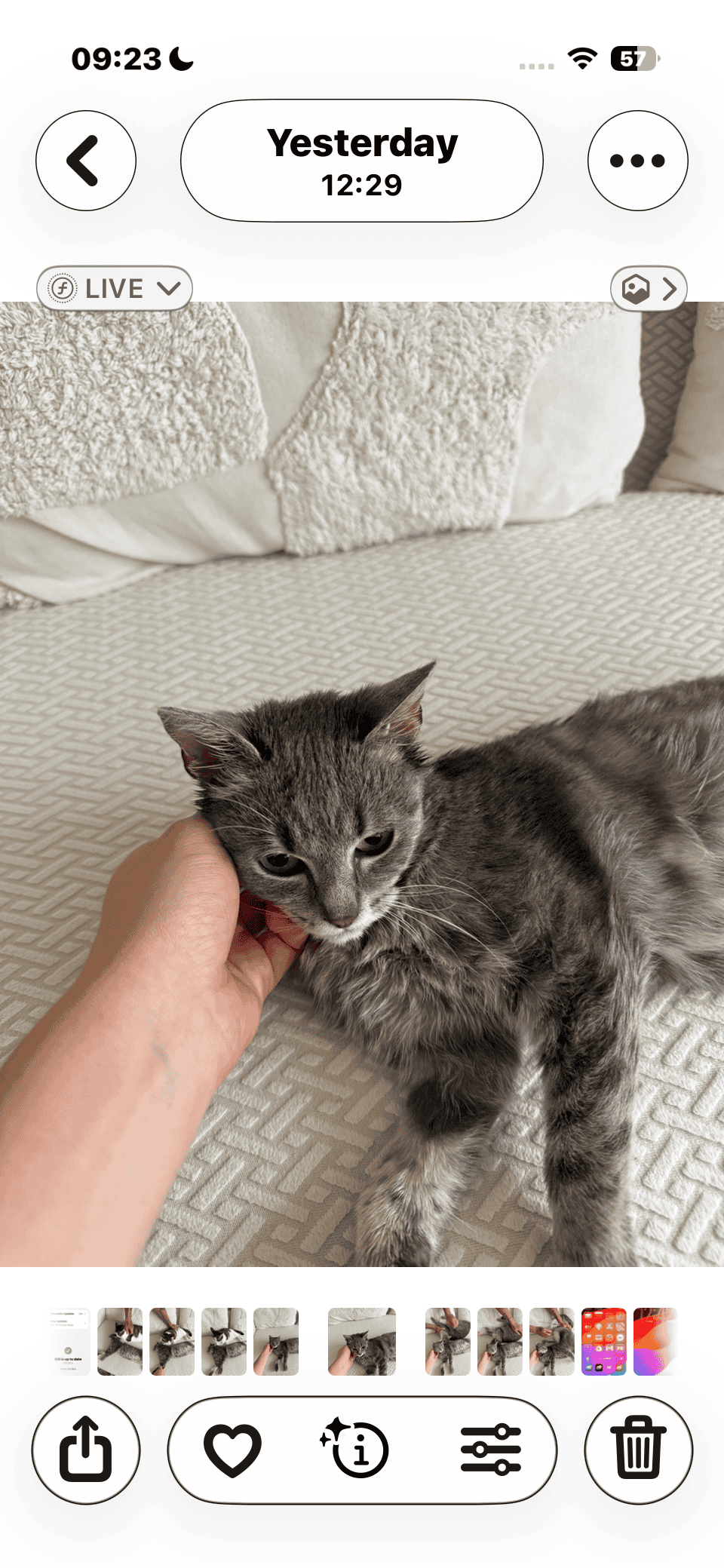
- Tap it to enable Spatial Scenes.
- Tilt or move your iPhone slightly to see the depth effect.

Pro tip: Portrait-style photos or images with strong foreground subjects work best.
How to Use Spatial Scenes on the Lock Screen
Apple didn’t stop with Photos. You can set Spatial Scenes as your wallpaper so your Lock Screen feels alive whenever you check your phone.
- Long-press your Lock Screen to enter customization.
- Tap the “+” to add a new wallpaper.
- iOS 26 will suggest compatible photos from your library.
- Pick a photo and toggle Spatial Scenes on the customization screen.
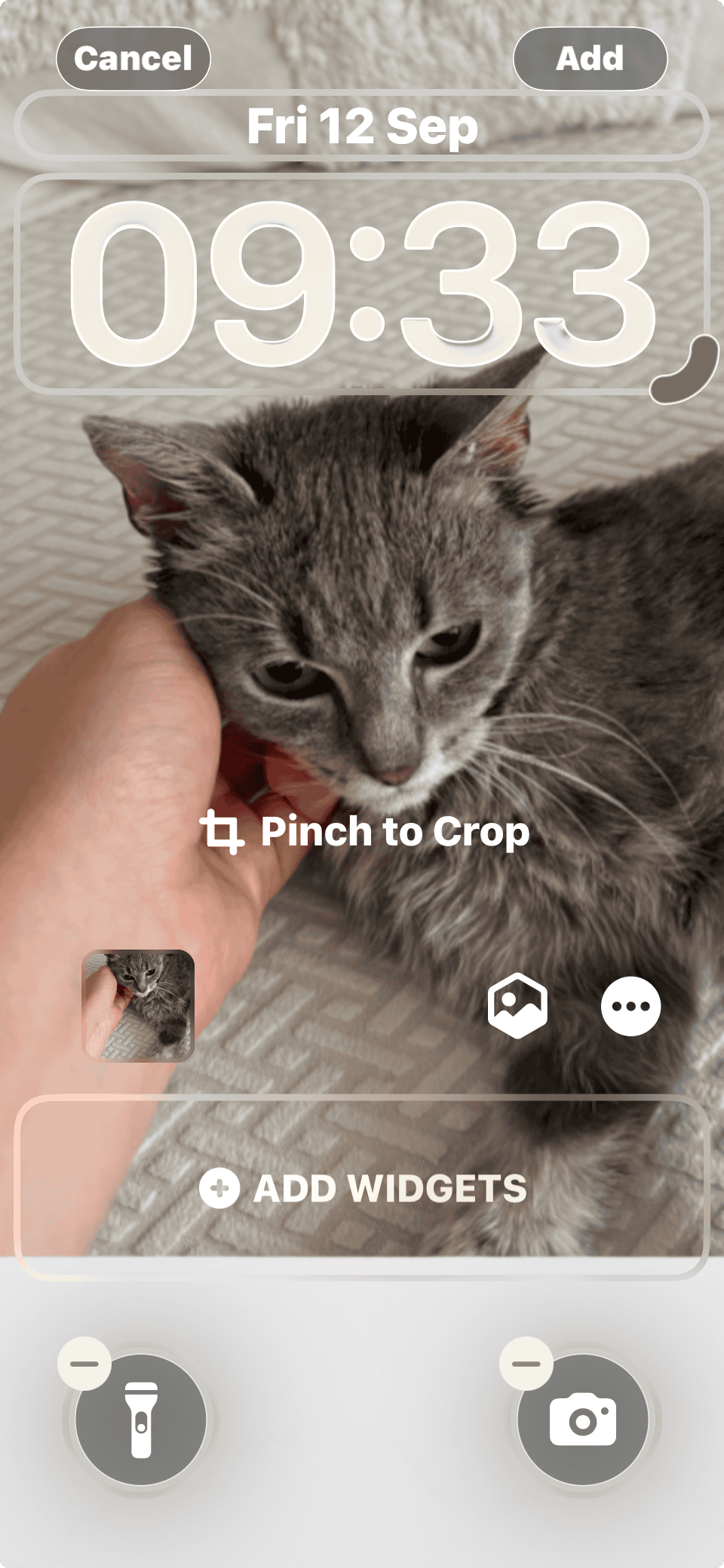
- Preview the effect, then tap Done.

You can combine this with other Lock Screen updates in iOS 26, like Adaptive Time and custom widgets, for a more personalized look.
Tips for Better Spatial Scenes
- Avoid blurry photos: The AI struggles with indistinct edges.
- Use strong subjects: People, pets, and buildings pop more than landscapes with uniform textures.
- Test it on the Lock Screen: Some photos look more impressive when combined with widgets and notifications.
- Keep it subtle: The effect is best with gentle movement, not aggressive shaking.
Devices That Support Spatial Scenes
Here’s a quick breakdown of device support:
| Feature | Supported Devices | Requires Apple Intelligence? |
|---|---|---|
| Spatial Scenes (Photos) | iPhone 12 and newer | No |
| Spatial Photos (capture) | iPhone 16 and newer | No |
| Spatial Scenes (Lock Screen) | iPhone 12 and newer | No |
Can You Turn Off Spatial Scenes?
Yes. Just tap the same hexagon icon in Photos or toggle off the option when customizing your Lock Screen. This reverts your picture back to a standard flat photo.
FAQs
Yes, but the effect stacks on top of the Live Photo motion. It may look busy, so test before setting it as wallpaper.
Minimal. The parallax effect uses sensors already active for other motion-based features.
You can share the photo, but the interactive 3D effect is only visible on devices running iOS 26.
Why Spatial Scenes Matter
Apple is making customization a bigger part of iOS. We’ve already seen that with customizable app icons and the new Messages backgrounds. Spatial Scenes fit right in by turning ordinary photos into immersive experiences.
If you’re planning to upgrade hardware this year, like the iPhone 17 lineup or even the ultra-thin iPhone Air, pairing those displays with Spatial Scenes could make your phone feel brand new.


You can’t save it share it. It only works in your iPhone or if you Airdrop to another iPhone user they can select it as well.
That’s just stoopid. What’s the point of having to feature if you can’t save the photo in 3-D form? That’s a rhetorical question. And thank you for saving me a lot of time pushing around for how to save the 3-D.
I am curious about the same thing. Once converted to spacial the options to save and share disappear. The only thing I can do is close out at which point the photo reverts to the original
Once you activate a Spacial Scene (and it does look interesting), how do you save it?
I am curious about this too.
I can’t seem to save or share. The options to do so are not available