

iOS 26 introduces Adaptive Time, a major upgrade to the iPhone Lock Screen experience. This feature, part of Apple’s new Liquid Glass design language, transforms the static clock into an intelligent, customizable element. It adapts to your wallpaper, font choices, and even your device’s environment. Instead of a fixed clock display, you now get a dynamic interface that resizes, repositions, and integrates seamlessly with wallpapers and widgets.
The system relies on advanced algorithms that analyze wallpaper composition and adjust the clock automatically. Along with this, iOS 26 adds spatial photo effects, creating depth and three-dimensional movement that respond to how you hold your iPhone. Together, these features mark a significant step in personalizing Lock Screen design while keeping it functional.
Table of contents
Methods: How to Use Adaptive Time on iOS 26
1. Resizing Lock Screen Clock with Adaptive Scaling
The standout feature of Adaptive Time is its ability to resize the Lock Screen clock. This allows you to create striking visual setups without losing readability.
Don’t miss the best of The Mac Observer
Set us as a preferred source and our Apple reporting ranks higher in your Google Search results and Discover feed — one tap, no account changes.
Steps for Basic Clock Resizing
- Wake your iPhone and stay on the Lock Screen.
- Press and hold the Lock Screen until customization options appear.
- Tap Customize to enter edit mode.
- Find the drag handle in the bottom-right corner of the clock.
- Drag downward to expand or upward to shrink the clock.
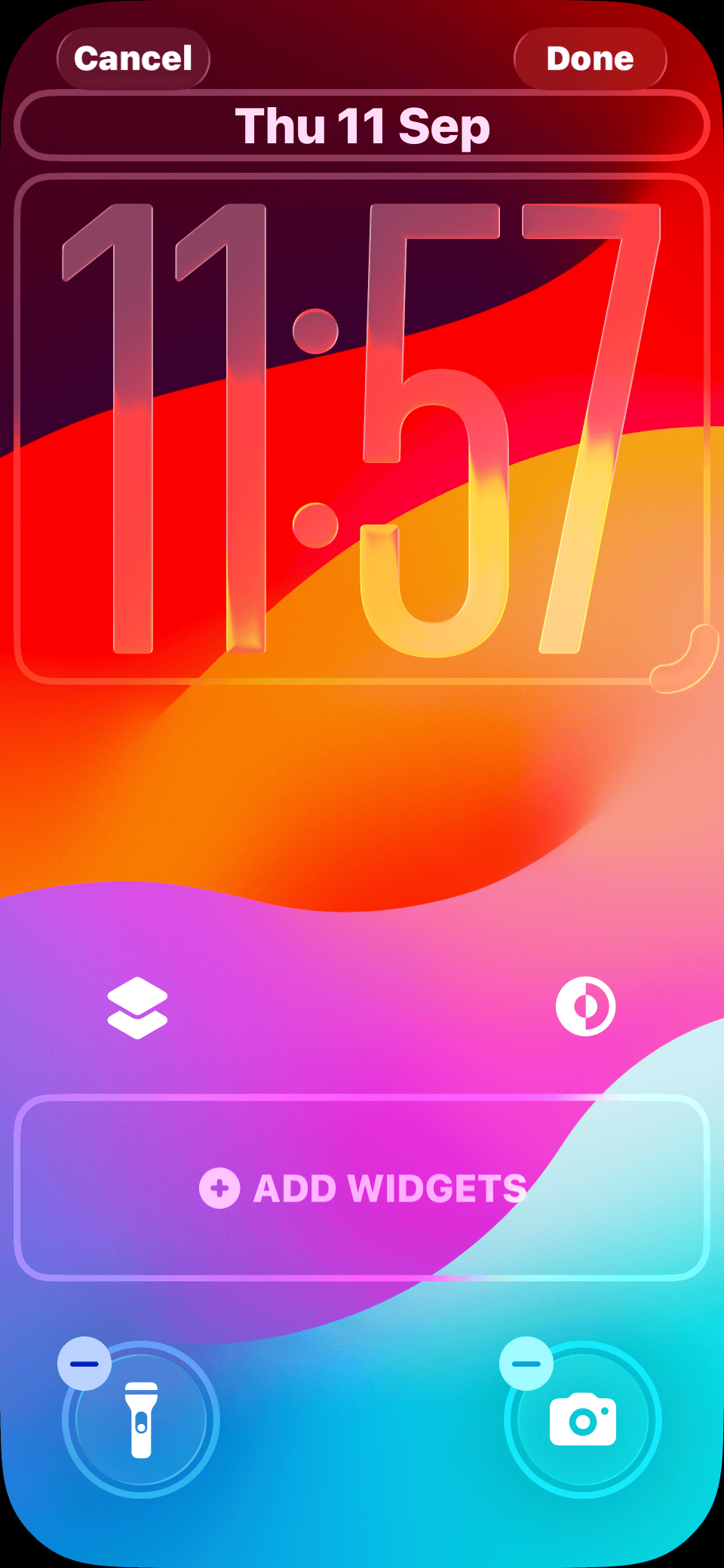
- Adjust until you’re satisfied. The clock can cover nearly half the screen height.
- Tap Done to save.

Steps for Font-Specific Resizing
- Enter Lock Screen customization.
- Tap the clock widget.
- Select the globe icon in the Font & Color panel.
- Choose Arabic, Western script.
- Pick the leftmost font (the only one supporting dynamic resizing).
- Adjust font color and thickness with sliders.
- Close the panel and resize with the drag handle.
- Tap Done to confirm.
See what else stands out in my hands-on look at favorite iOS 26 features.
2. Widget Positioning Adjustments
Widgets adjust automatically when you resize the clock, but you can fine-tune placement if elements overlap.
Steps for Managing Widget Positioning
- Enter Lock Screen customization mode.
- Resize the clock using the drag handle.
- Check widget positions. They will shift beneath the clock.
- If overlap occurs, manually drag widgets downward.
- Reposition widgets above flashlight and camera shortcuts.
- Save changes after verifying balance.
You can also refresh your look with the official iOS 26 wallpapers in 4K.
3. Enabling Spatial Scene Effects for 3D Wallpapers
Spatial Scene effects create layered depth so wallpapers react when you tilt the phone.
Steps for Basic Spatial Scene Setup
- Go to Settings > Wallpaper.
- Tap Add New Wallpaper.
- Select a photo with clear foreground and background separation.
- Position the image using pinch-to-zoom.
- Tap the hexagon-shaped Spatial Scene button.
- Let the system process the photo.
- Preview by tilting the device.
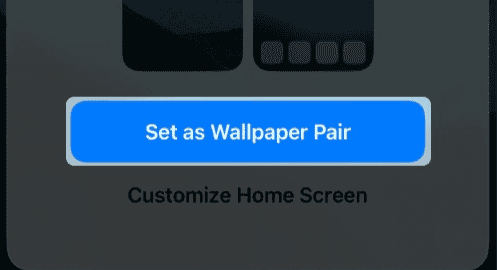
- Tap Add > Set as Wallpaper Pair.

Steps for Advanced Spatial Scene Configuration
- Long-press the Lock Screen and tap + to create a new setup.
- Choose Spatial Scene suggestions or Photo Shuffle.
- Use two-finger pinch gestures to adjust scale.
- Ensure the hexagon icon stays enabled.
- Move the device to test 3D responsiveness.
- Adjust Depth Effect in settings if the subject blocks clock visibility.
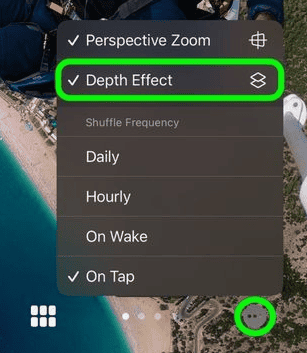
- Save the final configuration.

Curious how it stacks up? Here are the biggest changes between iOS 26 and iOS 18
4. Configuring Adaptive Power Mode Integration
Adaptive Power Mode supports Adaptive Time by balancing visual effects with battery efficiency.
Steps for Enabling Adaptive Power Mode
- Open Settings.
- Go to Battery.
- Tap Power Mode.
- Toggle on Adaptive Power.
- Enable Adaptive Power Notifications.
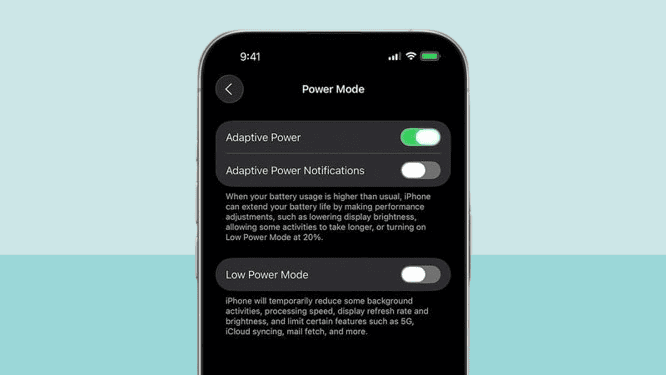
- Confirm your device supports it (iPhone 15 Pro or newer).
- Allow learning over several days for optimal adjustment.

I also tested iOS 26 performance on an older iPhone to see if features like Adaptive Time slow it down.
5. Liquid Glass Visual Effects Implementation
Liquid Glass complements Adaptive Time by giving clock elements a translucent, layered appearance.
Steps for Applying Liquid Glass Effects
- Enter Lock Screen customization.
- Tap the clock widget.
- Select the Glass option under colors.
- Choose from six glass-effect presets or make a custom tint.
- Adjust thickness and opacity using sliders.
- Enable tilt effects to add light reflections.
- Apply similar effects to widgets for a unified design.
- Save your changes.
For timing, Apple has confirmed the iOS 26 release date and Liquid Glass redesign.
Tips
- Wallpaper compatibility: Use images with clear subject separation.
- Performance: Enable Adaptive Power Mode for battery efficiency.
- Font limitation: Only the leftmost font supports resizing.
- Device movement: Tilt gently for the best Spatial Scene effect.
- Widget management: Manually reposition if overlap occurs.
- Battery: Large clock displays may use more power.
- Depth effect toggle: Disable if wallpaper subjects interfere with the clock.
- Multiple Lock Screens: Create different setups for Focus modes.
- Lighting conditions: Test glass effects in bright and dim light.
- Updates: Keep iOS 26 updated for refinements.
FAQs
iPhone 12 and newer support it. Advanced features like Adaptive Power Mode require iPhone 15 Pro or later.
A: Resizing only works with the leftmost font under Arabic/Western script. Ensure your wallpaper leaves space for the resize handle.
A: Yes, slightly. Enable Adaptive Power Mode to offset impact.
A: No. Only built-in fonts work with resizing.
A: Check compatibility, restart your device, and confirm the hexagon spatial icon is enabled.
A: Yes, but best results come from photos with clear depth separation.
A: It depends on usage and battery levels. Notifications will alert you.
A: Yes. Disable depth effects or reset the clock in customization.
Summary
- Adaptive Time makes the Lock Screen clock dynamic and responsive.
- Clock resizing works with specific fonts and drag-handle controls.
- Widgets adjust automatically but allow manual repositioning.
- Spatial Scene adds depth and motion to wallpapers.
- Adaptive Power Mode balances visuals with battery performance.
- Liquid Glass effects create translucent, reflective styling.
- Compatibility varies: advanced features need iPhone 15 Pro or newer.
- Users can create multiple adaptive setups for different Focus modes.
Check if your device supports Adaptive Time by reviewing the full iOS 26 compatibility list.
Conclusion
Adaptive Time in iOS 26 redefines how the iPhone Lock Screen works. What was once a static clock is now an adaptive system that blends personalization, usability, and visual depth. From resizing the clock and repositioning widgets to enabling immersive 3D wallpapers, the Lock Screen becomes more flexible than ever.
Apple integrates Liquid Glass effects and Adaptive Power Mode to ensure that style does not come at the cost of battery or performance. While some advanced features require newer hardware like the iPhone 15 Pro, even older models gain meaningful upgrades with this release.
As iOS 26 develops further, Adaptive Time is expected to evolve with refinements and more customization. It marks a shift toward Lock Screens that respond intelligently to your preferences and environment, setting a new standard for personalization in Apple’s ecosystem.


But it does not display seconds…
Very helpful for cooking, exercising, hobbies and tasks. Seriously missed opportunity.