

iCloud Drive syncs documents and app data seamlessly, but large files can consume cellular data quickly. Disabling cellular syncing restricts updates to Wi-Fi, which is perfect for capped plans. Let me show you how easy it is to disable iCloud Drive syncing when you’re using a cellular network.
Table of contents
Step-by-Step Guide to Turn Off iCloud Drive Syncing on Cellular
Before you proceed, be sure to update your iPhone to the latest version and that it’s connected to Wi-Fi for initial changes. Be sure to create a backup of your iPhone as well.
Afterward, follow the steps below:
Don’t miss the best of The Mac Observer
Set us as a preferred source and our Apple reporting ranks higher in your Google Search results and Discover feed — one tap, no account changes.
- Open Settings.
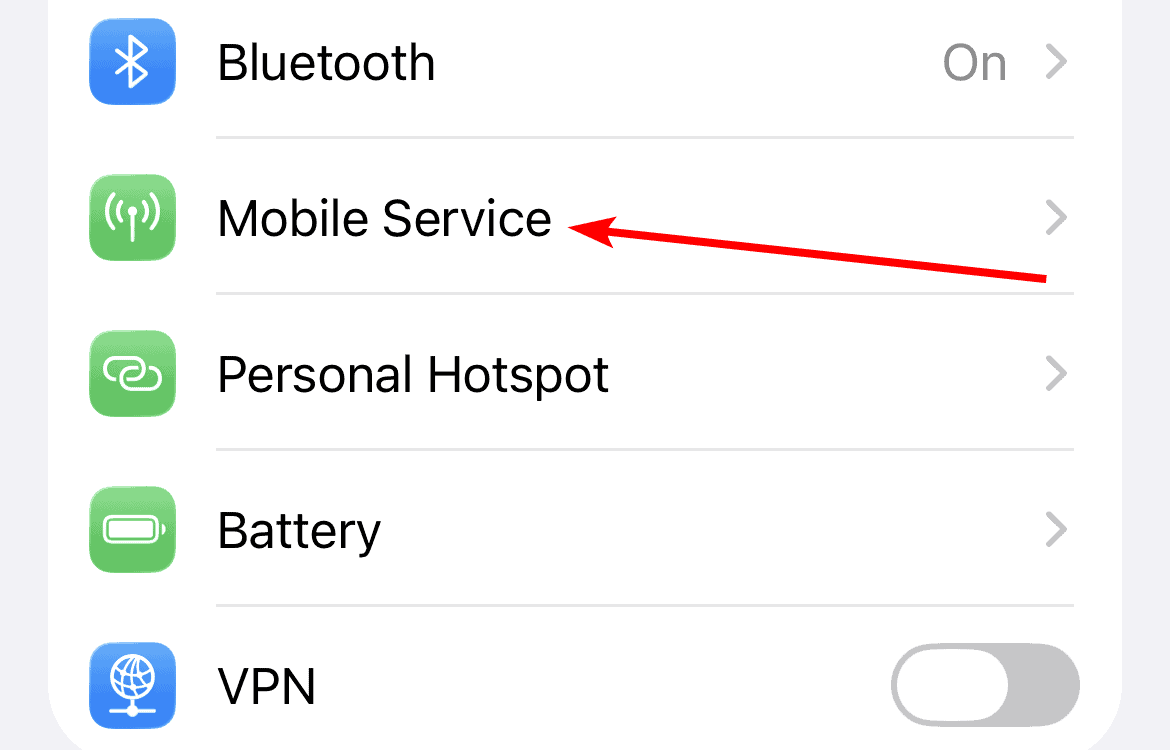
- Scroll to Cellular or Mobile Service in Settings.
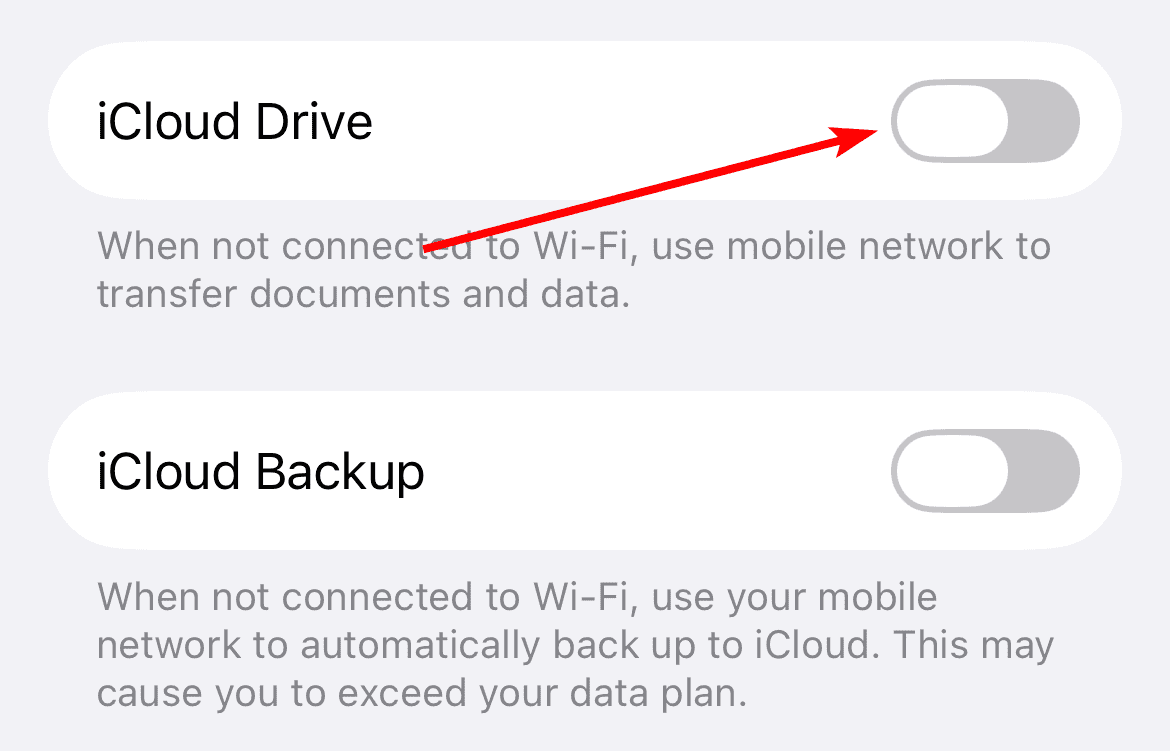
- Scroll down and toggle off iCloud Drive.


Additional Tips
Optimize data usage with these strategies:
- Sync on Wi-Fi: Connect to trusted networks for automatic updates.
- Clear Files: Delete large documents in the Files app.
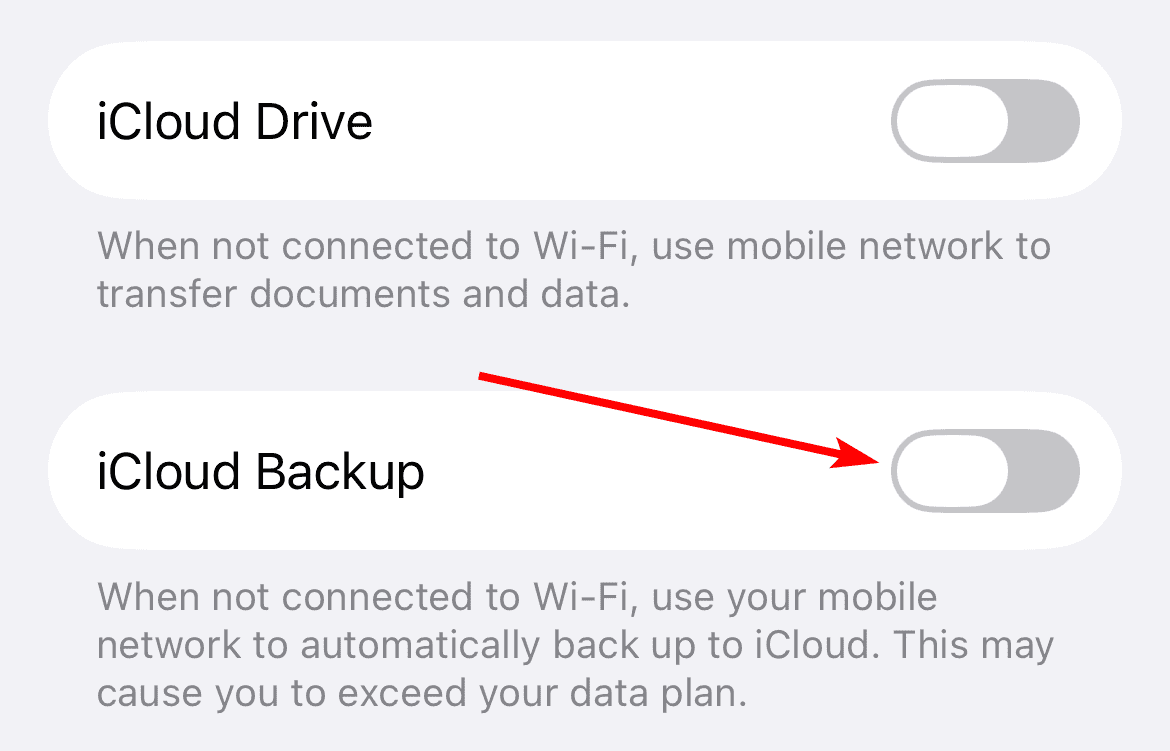
- Disable Backup: Turn off iCloud Backup over cellular in Settings > Cellular.

FAQ
No, files remain accessible offline; updates are only applied over Wi-Fi.
Yes, downloaded files work, but edits don’t sync until Wi-Fi.
Yes, for faster Wi-Fi speeds and lower latency.
Toggle it back on in the Cellular menu.
Yes, for compatible iPhones.
Don’t Lose Data Unnecessarily to iCloud Drive
Disabling iCloud Drive cellular syncing saves data and keeps your workflow efficient. Now you don’t have to pay more to your cellular provider because your data keeps running out. Also, if you find that iCloud Drive is taking up too much space, there are things you can do to manage iCloud storage before you’re forced to upgrade.


Discussion