

Sharing your Google Calendar on an iPhone is a practical way to stay organized and keep others informed about your schedule. Whether you’re coordinating with family, managing team meetings, or planning events, enabling calendar sharing ensures everyone is on the same page. I will walk you through the process of sharing your Google Calendar using your iPhone, along with helpful tips and troubleshooting resources.
Table of contents
Why Sharing Google Calendar on iPhone Matters
Google Calendar is widely used for personal and professional scheduling. When integrated with your iPhone, it allows seamless access to events and reminders across devices. Sharing your calendar helps reduce miscommunication and improve collaboration. It also makes it easier to manage overlapping schedules, especially when using the best calendar apps for your family.
Step-by-Step Guide to Share Google Calendar on iPhone
Enable Desktop Mode in Safari
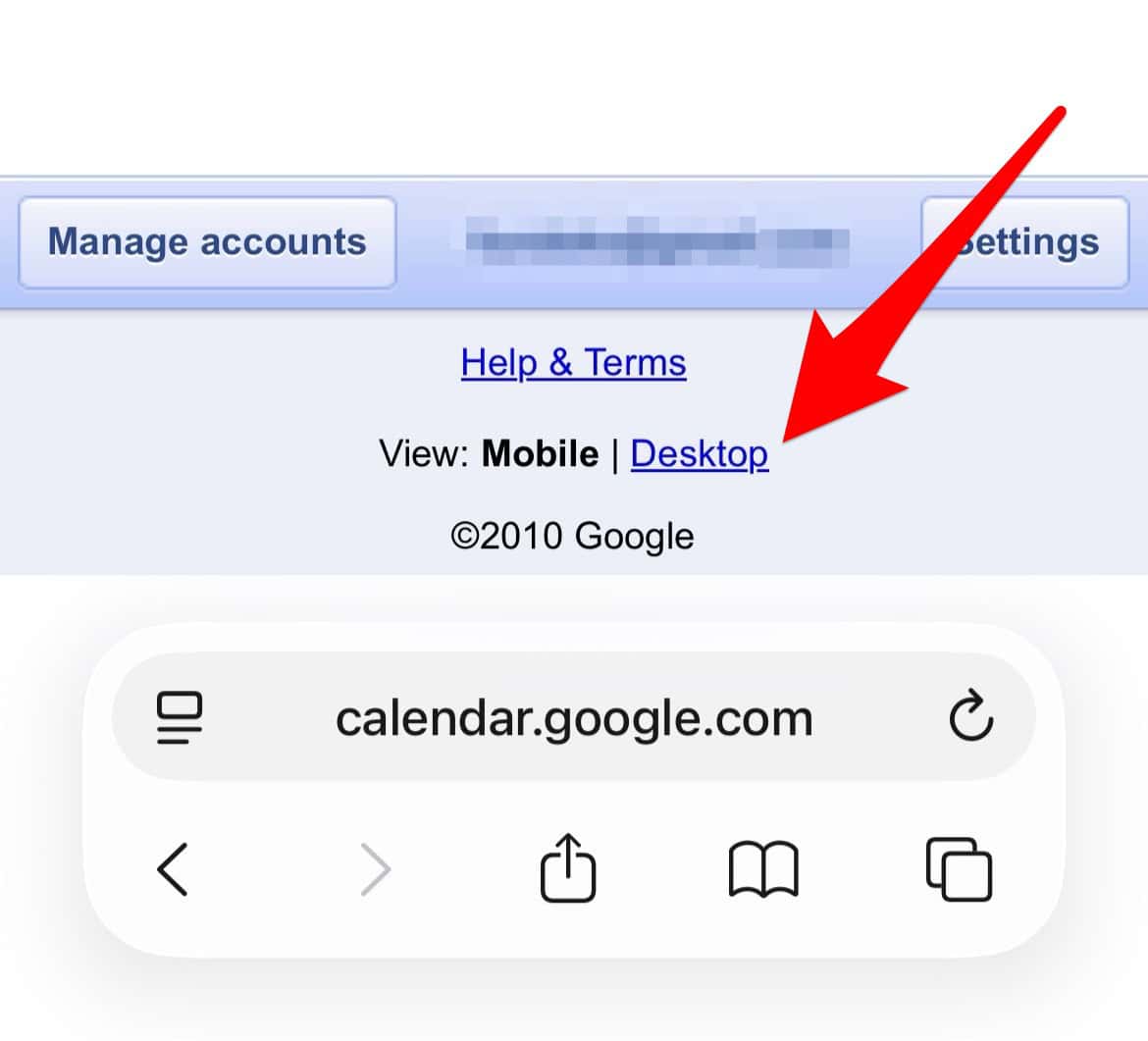
To share your Google Calendar, you must access the desktop version of the site from your iPhone.
Don’t miss the best of The Mac Observer
Set us as a preferred source and our Apple reporting ranks higher in your Google Search results and Discover feed — one tap, no account changes.
- Open Safari and go to calendar.google.com.
- Scroll to the bottom and tap Desktop to switch from mobile view.

Access Calendar Settings
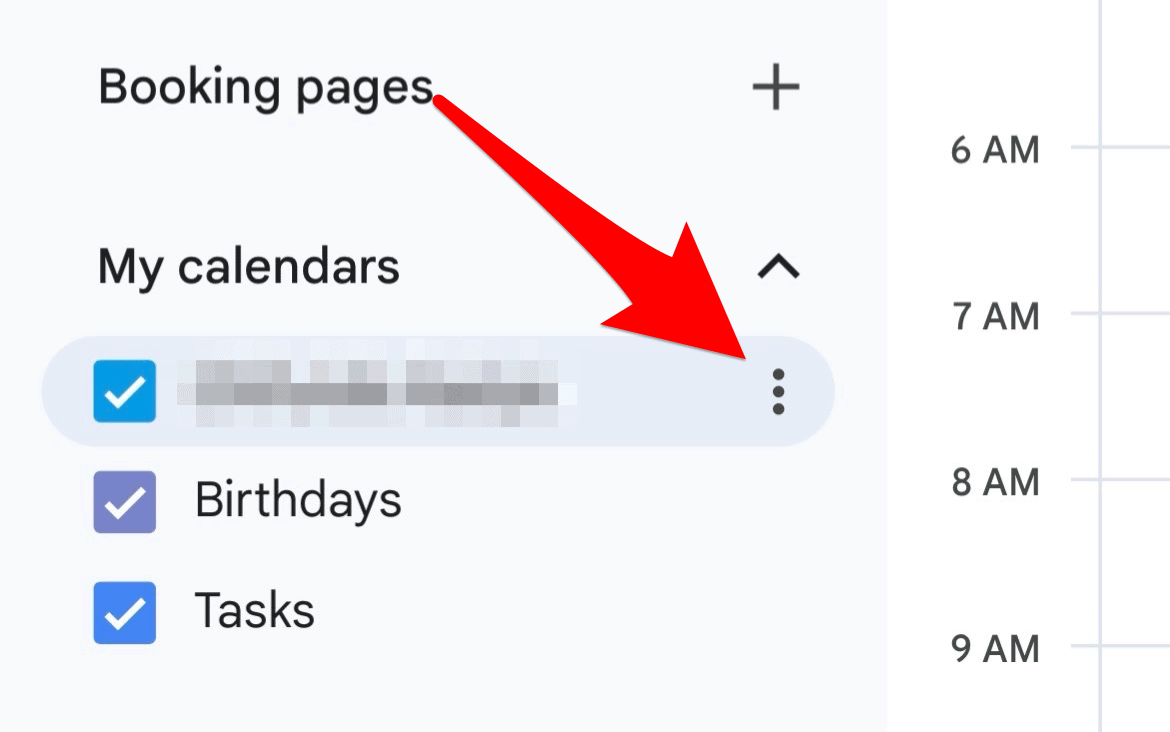
Once in desktop mode, locate the calendar you want to share.
- In the left panel under My Calendars, tap the three-dot icon next to the calendar name.
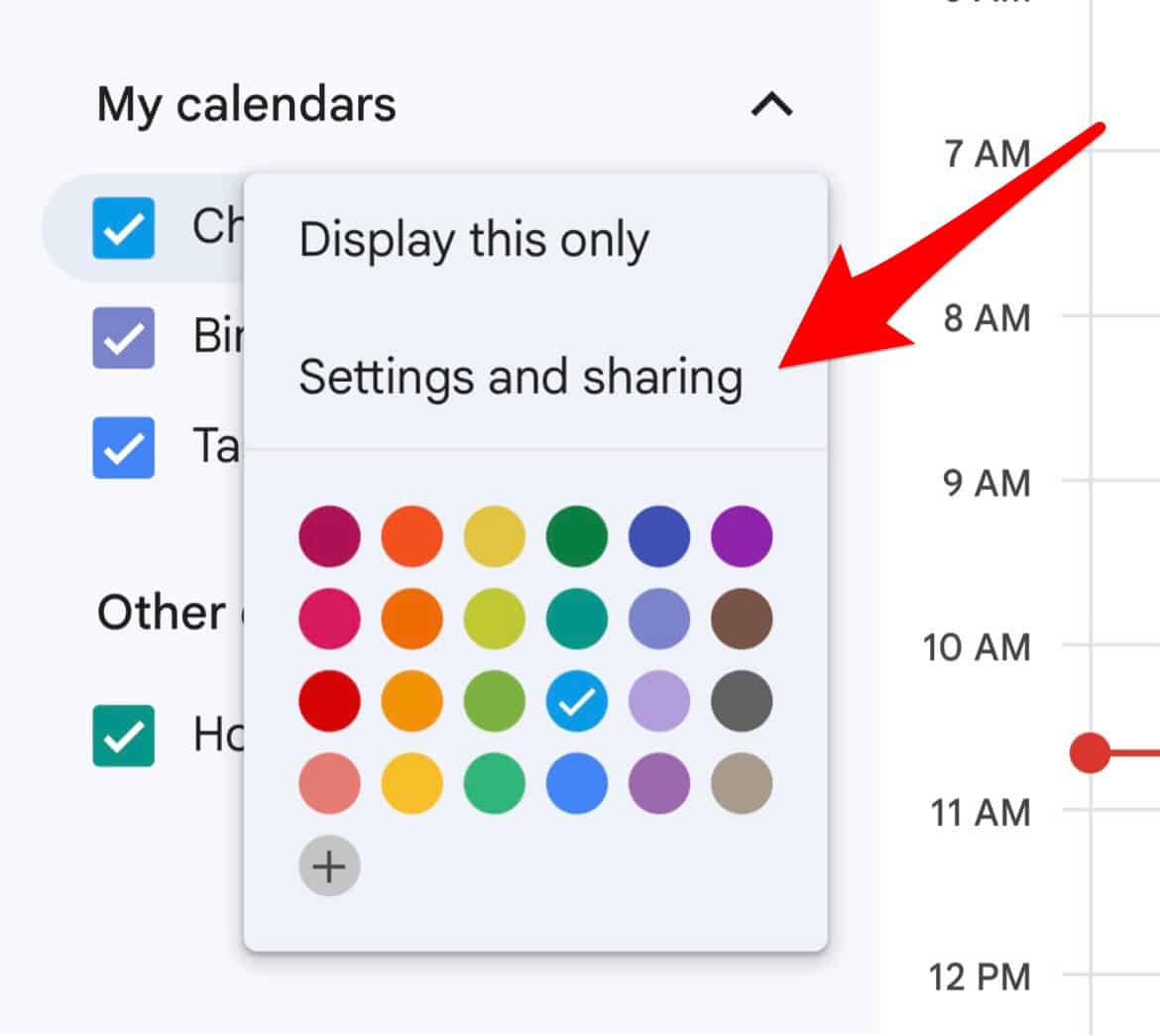
- Select Settings and Sharing.


Add People to Share With
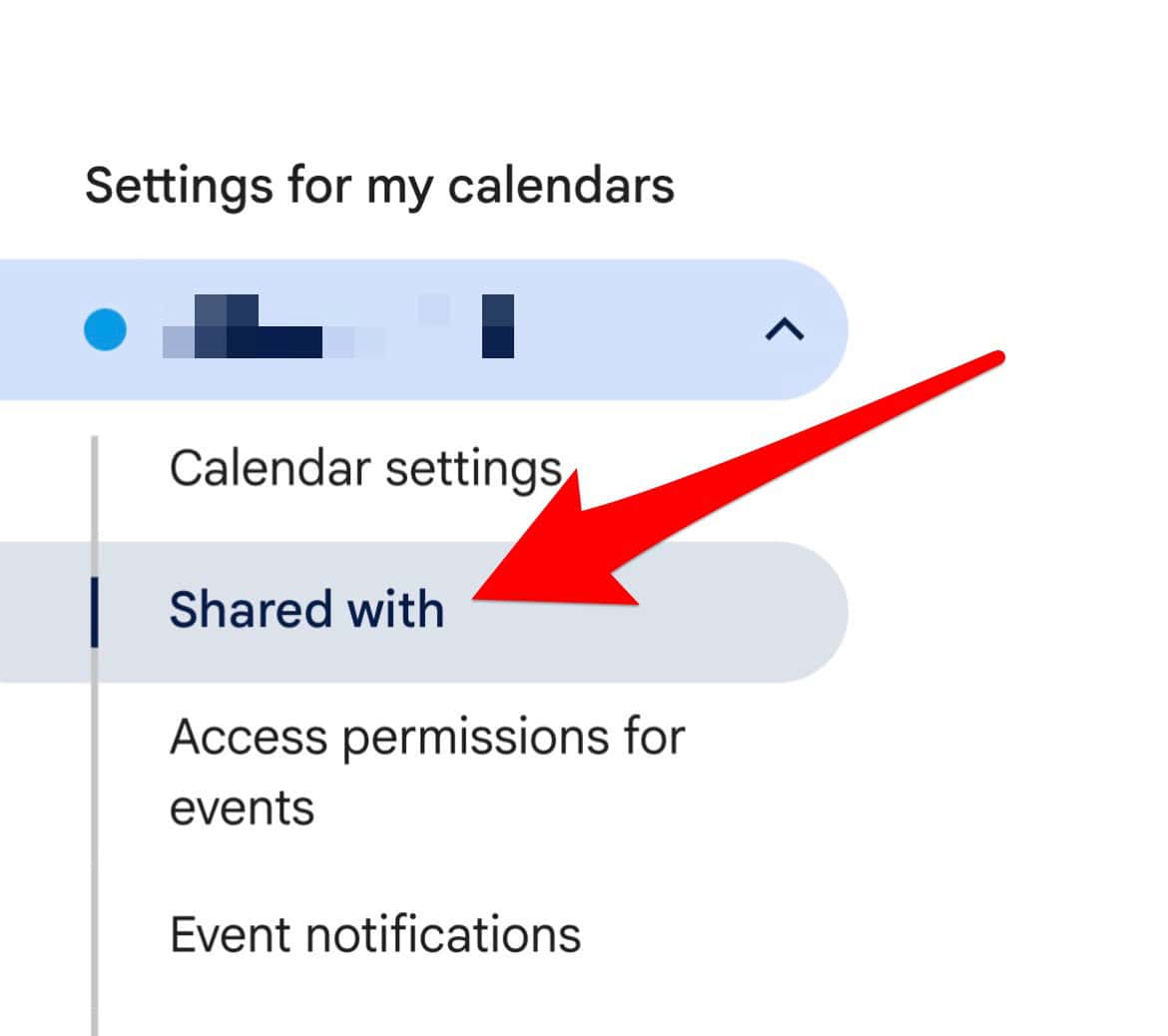
You can now choose who to share your calendar with and set permissions.
- Tap Share with in the left side menu.
- Tap Add people and groups.
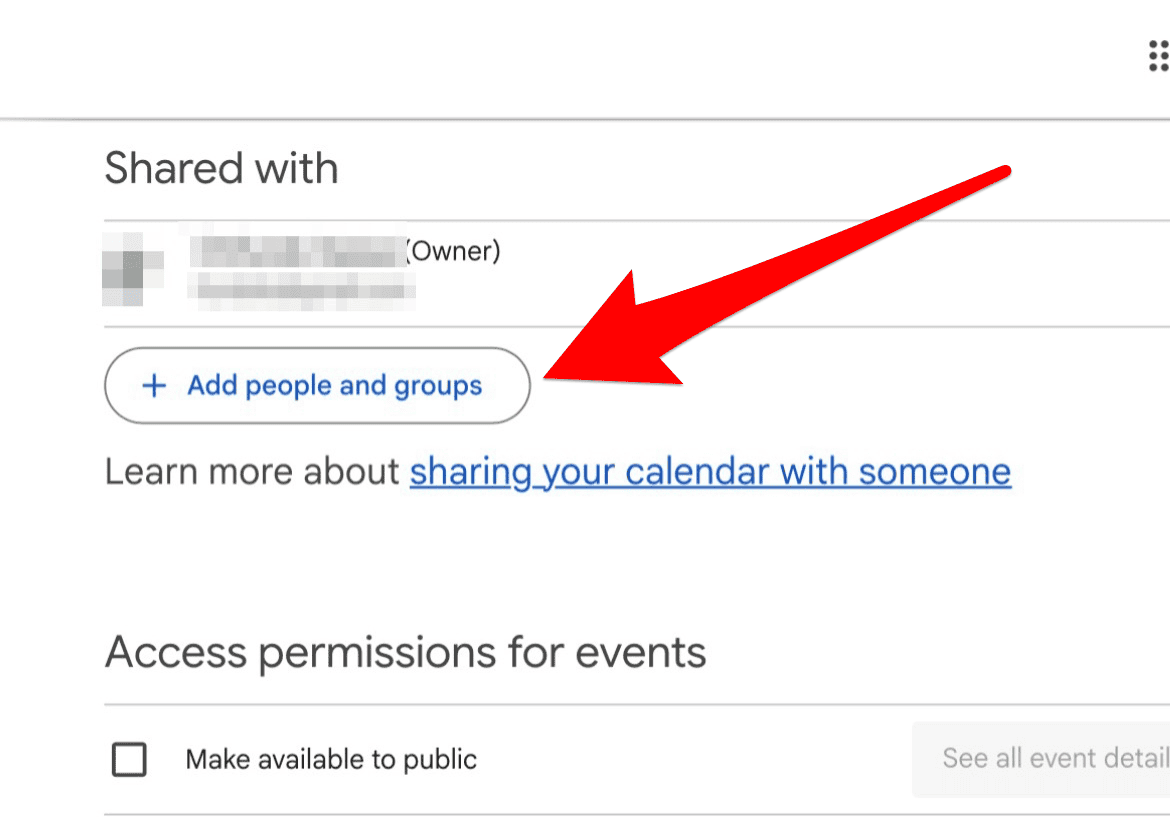
- Enter the email address of the person you want to share with.
- Choose permission level (e.g., view only or make changes).
- Tap Send to finalize sharing.


Sync with Apple Calendar (Optional)
If you prefer using the native iOS Calendar app, you can sync Apple Calendar with Google Calendar. This allows you to view and manage Google events directly from your iPhone’s built-in calendar.
Troubleshoot Sync Issues
If your calendar doesn’t appear or updates aren’t syncing, follow this guide to fix Calendar not syncing on iPhone. Common issues include incorrect account settings, disabled sync options, or outdated iOS versions.
FAQ
Yes, repeat the steps for each calendar you want to share.
Yes, sharing works best when recipients have a Google account to view or edit the calendar.
Absolutely. Go back to the calendar settings and remove the person from the sharing list.
Yes, you can access iCloud Calendar and Google Calendar on Android devices.
Keep Your Schedule Connected Across Devices
Sharing your Google Calendar on an iPhone is a simple way to streamline communication and stay organized. Whether you’re managing work deadlines or family events, calendar sharing ensures everyone is informed. For added flexibility, consider syncing your calendars across platforms using this guide to sync Apple Calendar with Google Calendar.


Discussion