

The latest macOS Tahoe 26 update has introduced a Bluetooth connectivity issue affecting third-party keyboards and mice at the login screen. Devices such as Logitech mice and NuPhy keyboards fail to connect during startup, but luckily, Apple’s Magic accessories remain unaffected. Based on user reports and testing, the following methods can help restore Bluetooth functionality for third-party devices before login.
Table of contents
Why Third-Party Bluetooth Devices Won’t Connect at Login
This can happen due to:
- FileVault encryption conflicts that prevent Bluetooth from initializing properly before login
- Driver loading issues where third-party device drivers won’t load until after authentication
- System cache corruption during or after the update
- Bluetooth module glitches that affect how non-Apple devices are recognized at startup
The issue appears on both Intel-based Macs (2020 iMac) and Apple Silicon models (M3 MacBook Pro, M3 iMac), suggesting it’s a software problem rather than hardware-specific. Third-party devices that require their own drivers won’t load until after login, while Apple’s peripherals are built into the system and initialize earlier in the boot process.
Don’t miss the best of The Mac Observer
Set us as a preferred source and our Apple reporting ranks higher in your Google Search results and Discover feed — one tap, no account changes.
How to Fix macOS Tahoe 26 Bluetooth Issue with Third-Party Devices
Follow these troubleshooting steps carefully. Each one addresses a different possible cause of the problem.
1. Use a 2.4GHz USB Dongle (Fastest Workaround)
This is the most reliable immediate fix and doesn’t require any system changes. Most third-party peripherals like Logitech devices come with 2.4GHz USB dongles as an alternative to Bluetooth.
- Locate the USB dongle that came with your keyboard or mouse.
- Plug the dongle into your Mac’s USB port.
- Switch your peripheral to 2.4GHz mode (usually a button or switch on the device).
- Log in to macOS.
- After logging in, you can switch back to Bluetooth if desired.
Alternative: Keep a wired USB keyboard or mouse available specifically for login purposes.
2. Disable FileVault (Temporary Solution)
Several users in Apple Forums have reported that disabling FileVault resolves the Bluetooth login issue. FileVault encryption appears to interfere with pre-login hardware access in macOS Tahoe 26.0.1.
Important: Disabling FileVault reduces your Mac’s security by removing disk encryption. Only use this solution temporarily, and consider re-enabling FileVault once Apple releases a fix.
- Log in to your Mac using a wired connection or USB dongle.
- Click the Apple menu > System Settings.
- Navigate to Privacy & Security.
- Scroll down and click FileVault.
- Click Turn Off.
- Enter your administrator password to confirm.
- Wait for the decryption process to complete (this may take several hours).
- Restart your Mac and test Bluetooth at the login screen.
Many affected users have identified FileVault as a contributing factor to this issue.
3. Reset the Bluetooth Module
Resetting the Bluetooth module forces macOS to reload its configuration files and reinitialize connections. Since the graphical option was removed in macOS Monterey, you’ll need to use Terminal.
- Click Launchpad > Applications > Utilities > Terminal.

- Type the following command and press Return:
sudo pkill bluetoothd
- Enter your administrator password when prompted.
- Restart your Mac.
This step helps when Bluetooth appears to be working but specific devices won’t connect. The process kills and restarts the Bluetooth daemon, clearing any stuck connection attempts.
4. Delete Bluetooth Preference Files
Corrupted Bluetooth preference files can disrupt the pairing between your devices. Deleting these files allows macOS to rebuild the cache with fresh settings.
- Open Finder.
- Click Go in the menu bar > Go to Folder.
- Type
/Library/Preferences/and press Return. - Locate the file named com.apple.Bluetooth.plist.
- Drag it to the Trash.
- Empty the Trash.
- Restart your Mac.
After restarting, macOS will automatically recreate the preference file with default settings. You’ll need to re-pair your Bluetooth devices.
5. Forget and Re-Pair Devices
If a device shows as “Not Connected” in the Bluetooth window, forgetting and re-pairing it can establish a fresh connection.
- Log in to your Mac using an alternative input method.
- Open System Settings > Bluetooth.
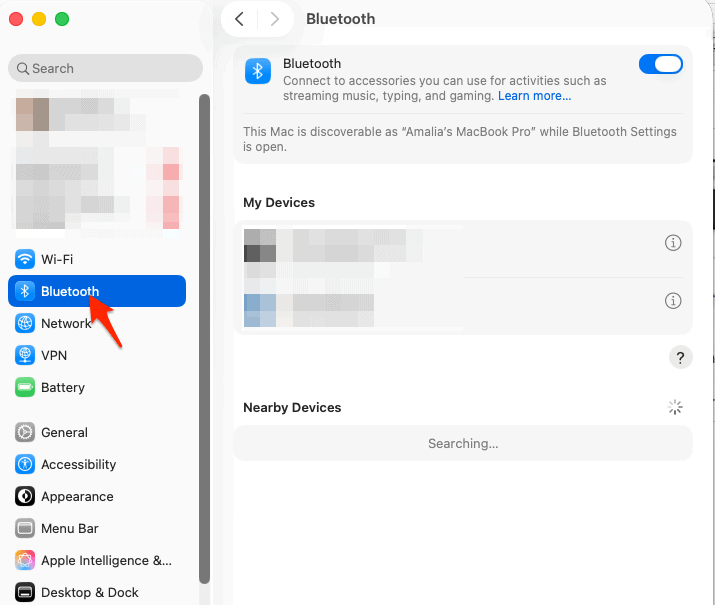
- Find your problematic device in the list.
- Click the i (information) button next to the device.
- Click Forget This Device.
- Confirm the action.
- Put your peripheral in pairing mode (usually by holding the Bluetooth button).
- Click Connect when the device appears in the Bluetooth menu.
- Restart your Mac to test if the issue persists.

6. Update Device Firmware
Outdated firmware can cause Bluetooth issues after a macOS update. Many peripheral manufacturers release firmware updates to improve compatibility with new operating systems.
- Visit your device manufacturer’s website (Logitech, Razer, NuPhy, etc.)
- Navigate to the support or downloads section.
- Search for your specific device model.
- Download any available firmware updates.
- Follow the manufacturer’s instructions to install the update.
- Restart both your peripheral and your Mac.
For Logitech devices: Download Logitech Options+ or Logitech G HUB software, which often includes automatic firmware updates.
7. Reset SMC and NVRAM (Intel Macs)
If you’re using an Intel-based Mac, resetting the System Management Controller (SMC) and NVRAM can help clear hidden settings that affect hardware behavior.
Reset SMC on Intel MacBook Pro:
- Shut down your Mac.
- Hold Shift + Control + Option on the left side and the Power button for 10 seconds.
- Release all keys, then boot normally.
Reset NVRAM:
- Shut down your Mac.
- Turn it on and immediately hold Command + Option + P + R.
- Keep holding until you hear the startup sound twice or see the Apple logo twice.
- Release the keys.
Note: Apple Silicon Macs don’t have the SMC, so this step only applies to Intel models.
8. Boot in Safe Mode
Booting into Safe Mode allows macOS to run only essential system processes, helping identify whether third-party software is causing the issue.
For Apple Silicon Macs:
- Shut down your Mac.
- Hold the power button until you see startup options.
- Select your startup disk while holding Shift, then click Continue in Safe Mode.


For Intel Macs:
- Turn on your Mac and hold the Shift key immediately.
- Release the key once you see the login screen.
Once logged in, use your Mac normally for a few minutes, then restart without Safe Mode. If the Bluetooth devices work fine afterward, a background app or startup process was likely the cause.
9. Reinstall macOS Tahoe 26
If none of the previous steps work, reinstalling macOS may be necessary. Sometimes, the update process leaves behind corrupted system files that interfere with key functions like Bluetooth.
- First, back up your data using Time Machine.
- Go to System Settings > General > Software Update.
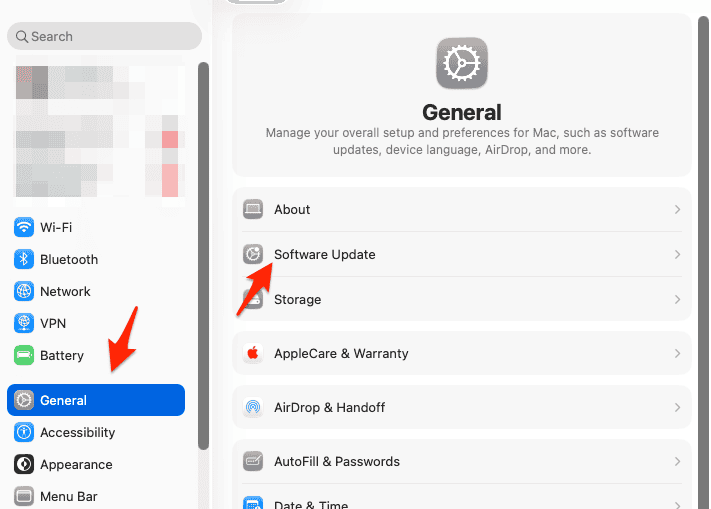
- Select Reinstall macOS Tahoe 26.

You can also perform a clean install if the issue persists, but only after backing up everything. A clean installation wipes any corrupted files or configurations that might be causing Bluetooth errors.
Tips to Prevent Future Bluetooth Issues
- Keep your macOS updated to the latest minor version (Apple often releases patches soon after major updates).
- Restart your Mac weekly to refresh system processes.
- Avoid overloading background tasks right after an update.
- Always have a backup wired keyboard and mouse available before major updates.
- Check that your third-party devices have the latest firmware before updating macOS.
Conclusion
The macOS Tahoe 26.0.1 Bluetooth login issue is a known software bug affecting third-party keyboards and mice. The most practical workaround is using your device’s 2.4GHz USB dongle for login, then switching to Bluetooth afterward. If you’re comfortable with the security implications, temporarily disabling FileVault has proven effective for many users.
Apple is expected to address this in an upcoming point release, so keep your system updated. In the meantime, keep a wired keyboard or USB dongle accessible, and consider filing feedback with Apple to help prioritize the fix.
FAQs
No. The issue occurs on both Intel and Apple Silicon Macs across different models, pointing to a software bug in macOS Tahoe 26.0.1 rather than hardware failure.
Third-party devices that use their own drivers won’t load until after login, while Apple’s peripherals are built into the system and initialize earlier in the boot process.
Based on past behavior and mounting user reports in Apple Forums, Apple is expected to address this in macOS 26.1 or a subsequent point release.
Disabling FileVault removes disk encryption, which means your data won’t be protected if your Mac is lost or stolen. Only disable it temporarily for testing, and re-enable it as soon as possible.
No. Once you successfully log in using an alternative method, Bluetooth typically reconnects and works normally for the remainder of your session. The issue specifically affects the pre-login state after a full shutdown or restart.
Yes. Submit feedback via Feedback Assistant or Apple’s Product Feedback page and mention the specific macOS Tahoe 26.0.1 Bluetooth issue with third-party devices at login. The more reports Apple receives, the faster they’ll prioritize a fix.


Discussion