

After upgrading to macOS Tahoe, some users have reported that Apple Music’s shuffle feature has stopped working correctly. The app may repeat the same songs, ignore your shuffle command, or fail to randomize playlists at all. This issue is often caused by syncing or playback glitches following the system update.
The good news is that you can fix it quickly with a few simple steps. Here’s how to get Apple Music shuffling again smoothly on macOS Tahoe.
Don’t miss the best of The Mac Observer
Set us as a preferred source and our Apple reporting ranks higher in your Google Search results and Discover feed — one tap, no account changes.
Table of contents
Common Causes
After updating to macOS Tahoe, Apple Music may stop shuffling songs due to a mix of syncing and playback-related issues. In most cases, the problem occurs because certain playback settings didn’t migrate correctly during the update, or because cached metadata within the Music app became corrupted. Some users have also experienced delays with iCloud Music Library, which can interfere with how playlists and playback preferences sync between devices.
Additionally, outdated background services or minor bugs in the new macOS build can disrupt Apple Music’s shuffle logic. Fortunately, these causes are software-related and can be fixed easily without reinstalling macOS or losing your library.
Fix Apple Music Song Shuffle Issues macOS Tahoe
1. Restart Apple Music and Your Mac
Restarting clears temporary playback processes and cached data that may prevent shuffle from working properly.
- Quit Apple Music completely.
- Open Activity Monitor, search for “Music,” and force quit any remaining processes.
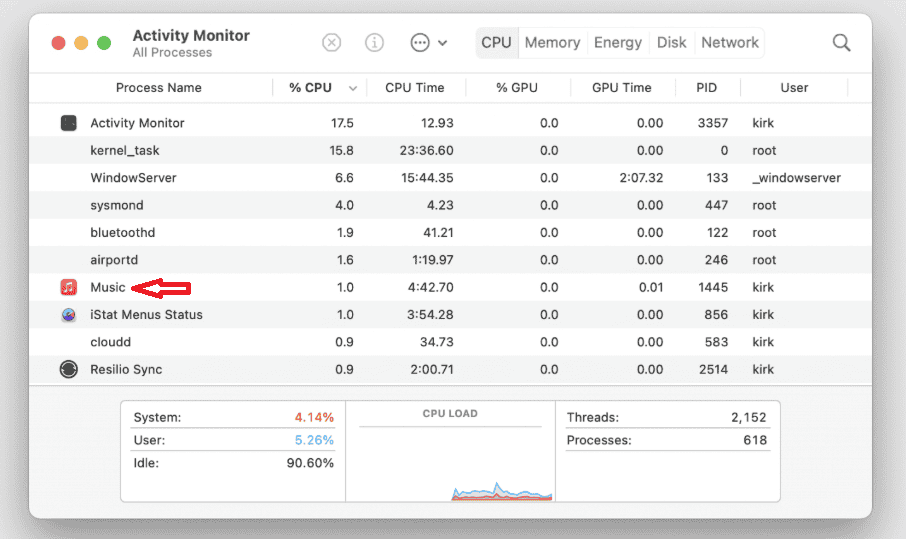
- Restart your Mac.
- Open Apple Music again and test shuffle playback.

This simple refresh fixes many minor issues that appear after a macOS update.
2. Reset Shuffle and Playback Settings
Shuffle can fail when playback preferences don’t sync correctly after upgrading to macOS Tahoe.
- Open Apple Music and play any playlist.
- Click the Shuffle icon to turn it Off, wait a few seconds, then turn it On again.
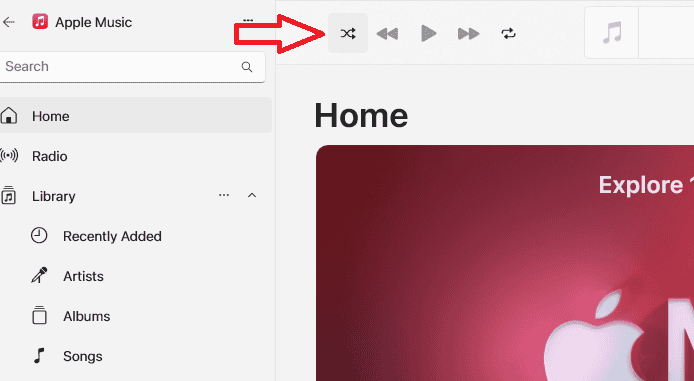
- In the top menu, go to Playback > Repeat and ensure repeat is set to Off.
- Test shuffle with another playlist to confirm it works.

Resetting these settings forces Apple Music to rebuild its playback logic and eliminates stuck shuffle states.
3. Sign Out and Back Into Apple Music
Re-signing into your Apple ID refreshes Apple Music’s connection to iCloud and can fix playback sync errors.
- Go to Music > Settings > General.
- Click Sign Out next to your Apple ID.
- Quit Apple Music.
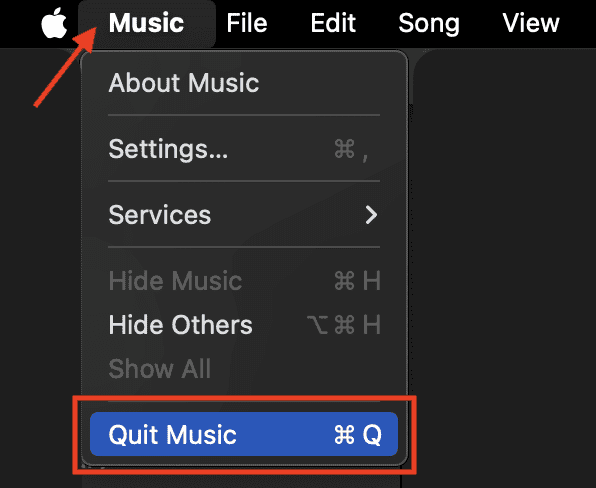
- Restart your Mac.
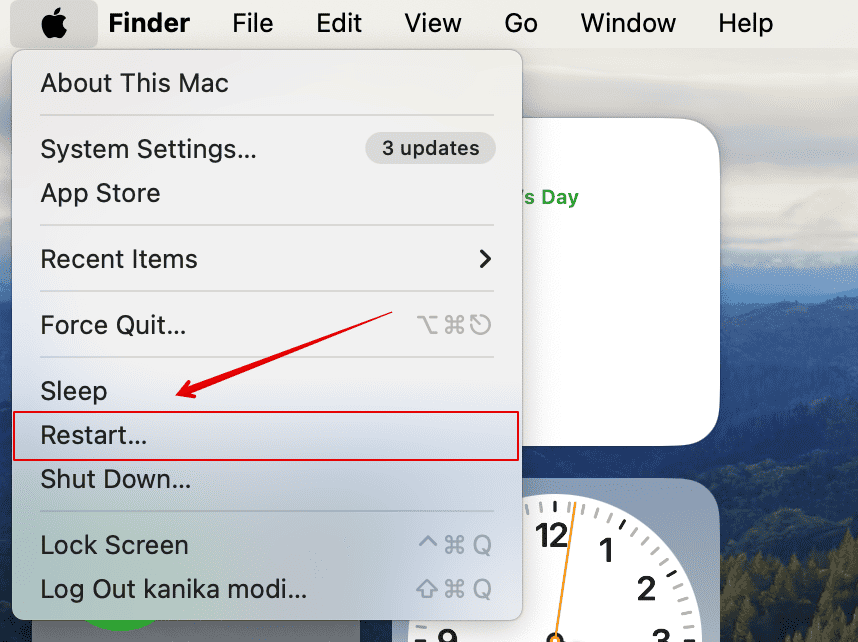
- Reopen Apple Music and sign back in with your Apple ID.


This process clears authentication errors that might be blocking shuffle or playlist syncing.
4. Rebuild Your Music Library
If shuffle still doesn’t work, your music library file may be partially corrupted. Rebuilding it resets the index without deleting your songs.
- Quit Apple Music.
- Open Finder and navigate to:
~/Music/Music Library.musiclibrary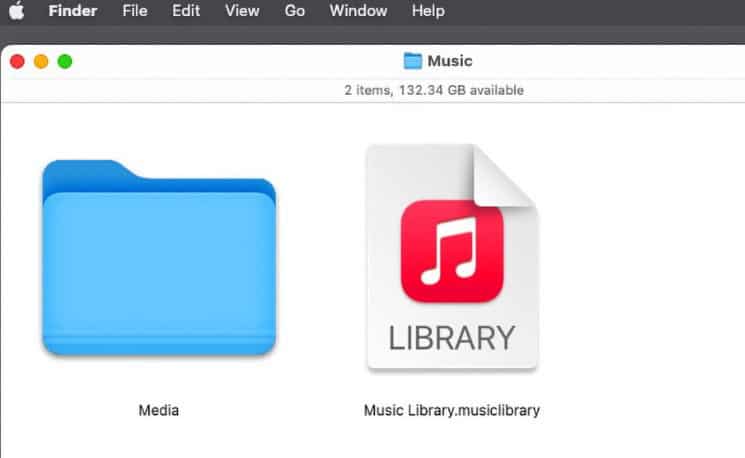
- Move the file to your Desktop as a backup.
- Reopen Apple Music — a new library file will generate automatically.
- Wait for your playlists and library to sync back from iCloud.

This method helps Apple Music start fresh with clean library data, which often restores shuffle functionality.
5. Check iCloud Music Library Sync
A delayed or incomplete sync can cause Apple Music to use outdated playback data.
- Open Music > Settings > General.
- Verify that Sync Library is enabled.
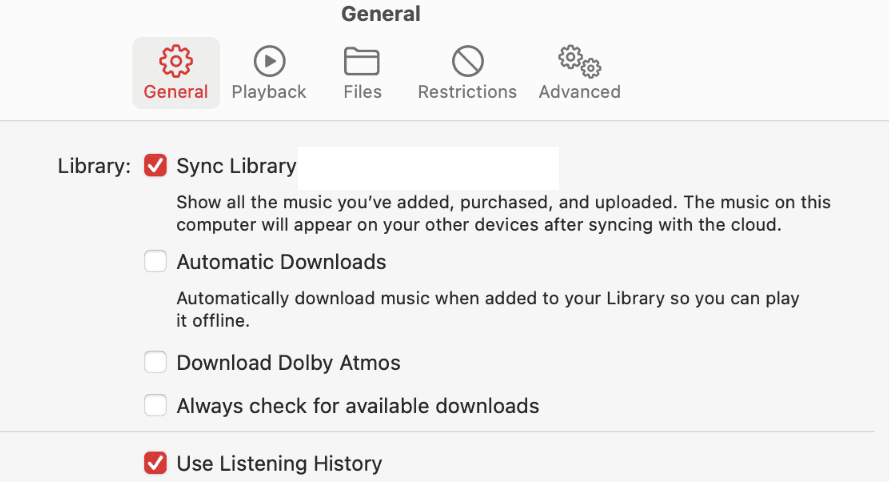
- If it’s already on, toggle it Off, wait 30 seconds, and toggle it On again.
- Allow time for your songs and playlists to re-sync before testing shuffle.

Refreshing your sync ensures Apple Music uses the latest metadata and playlist structure across devices.
6. Update macOS and Apple Music
Apple frequently releases minor macOS updates to fix app bugs, including Music playback issues.
- Go to System Settings > General > Software Update.
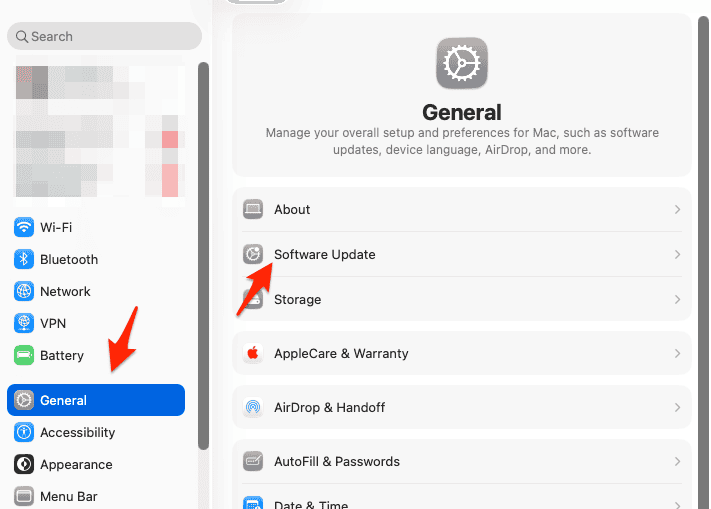
- Install any available macOS updates (for example, macOS Tahoe 14.1.1 or 14.2).
- Restart your Mac once the update is complete.
- Open Apple Music and check if shuffle works again.

If you’re already up to date, consider reinstalling Apple Music via the App Store. You can also review macOS Tahoe installation fixes, which address several post-update bugs related to system-level apps.
Tips to Prevent Shuffle Issues
To keep Apple Music running smoothly after updates:
- Always update macOS and Apple Music to the latest versions.
- Restart the Music app periodically to refresh background processes.
- Avoid force-quitting Apple Music mid-playback.
- Back up your library data regularly.
- Keep your internet connection stable when syncing via iCloud.
These simple habits can prevent playback errors and maintain system stability. For related troubleshooting, see how to fix Touch ID not working on macOS Tahoe.
Conclusion
If Apple Music stops shuffling songs after updating to macOS Tahoe, it’s likely due to temporary playback or sync errors. Restarting the app, resetting shuffle settings, or rebuilding your music library usually resolves the issue.
Keep your macOS and Apple Music app updated to ensure long-term stability, as Apple often releases small patches to fix Music-related bugs. Once repaired, shuffle should return to normal, letting you enjoy your playlists randomly, just as intended.
If you’re experiencing other post-update issues, you may also want to read how to fix macOS Tahoe battery drain or Touch Bar not working in macOS Tahoe for related troubleshooting steps.
FAQs
This usually happens because of corrupted playback data or an incomplete iCloud Music sync during the update.
No. It only creates a fresh index — your actual music remains safe in iCloud or your local storage.
Mostly yes. Shuffle issues have been more common after major updates like Tahoe, but Apple typically resolves them in minor releases.
Yes. The fixes above preserve playlists and music data.
Wait for the next macOS Tahoe patch or contact Apple Support. Persistent shuffle bugs are often resolved through future updates.


![Fix “macOS Cannot Verify That This App is Free from Malware” [2026]](https://www.macobserver.com/wp-content/uploads/2025/05/MacBook-displaying-multiple-macOS-Gatekeeper-icons-under-a-red-X-surrounded-by-Gatekeeper-dialogs-over-the-default-macOS-Sequoia-wallpaper.webp)

I don’t use iCloud for Music. Waste of money.