

After updating to macOS Tahoe 26, some MacBook Pro users have found their Touch Bar unresponsive, flickering, or disappearing entirely. The issue appears on both Intel-based and Apple Silicon models that still feature the Touch Bar. In most cases, this problem isn’t caused by hardware failure — it’s a software conflict or process glitch that came up after the update.
After extensive research, I’ve found multiple ways to help you fix your Touch Bar using simple, safe methods that restore it to normal operation. So, follow the steps listed below one by one to fix the Touch Bar problems.
Table of contents
Common Reasons Why the Touch Bar Stops Working
After the macOS Tahoe 26 update, users have reported that the Touch Bar either freezes, becomes blank, or fails to appear entirely. This can happen due to:
Don’t miss the best of The Mac Observer
Set us as a preferred source and our Apple reporting ranks higher in your Google Search results and Discover feed — one tap, no account changes.
- Software conflicts from third-party apps that interfere with macOS services.
- System cache corruption during or after the update.
- Outdated settings or background services that fail to reload after reboot.
- NVRAM or SMC misconfigurations on Intel models.
- New OS bugs affecting Touch Bar processes like ControlStrip or TouchBarServer.
The good news? Most of these problems can be fixed at home without professional help.
How to Fix Touch Bar Not Working on macOS Tahoe 26
Follow these troubleshooting steps carefully. Each one addresses a different possible cause of the problem.
1: Restart Your Mac
It might sound simple, but restarting your Mac clears temporary caches and reinitializes system processes that power the Touch Bar.
- Click the Apple menu at the top-left corner.
- Select Restart and wait for your Mac to power back on.
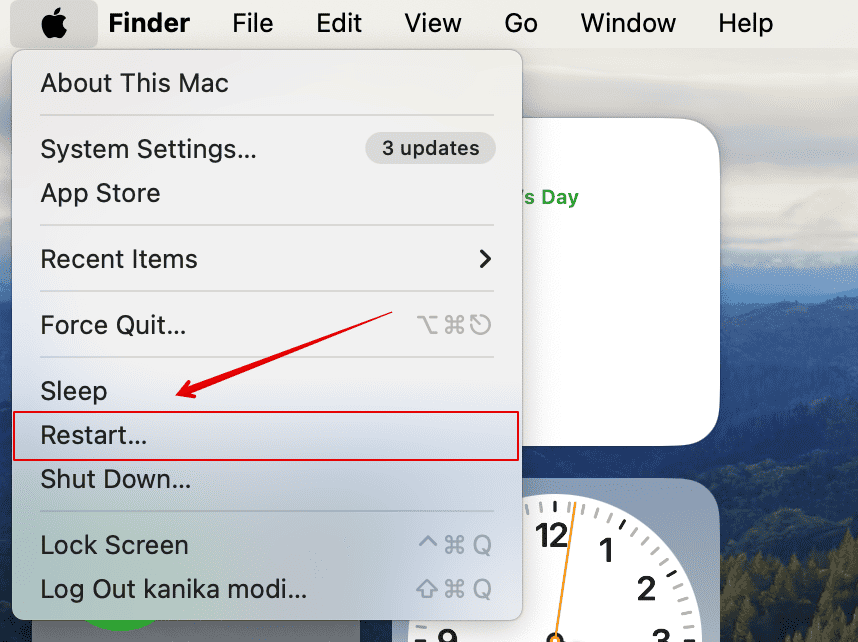
- Once it boots up, give the Touch Bar a few seconds to reload.

If it still doesn’t respond, perform a forced restart by holding the Power button until your Mac shuts off, then power it on again. This clears deeper memory conflicts that might not resolve with a normal restart.
2: Relaunch Touch Bar Processes
Sometimes, the Touch Bar doesn’t work because the background processes controlling it crash or fail to start. You can manually restart them.
- Open Terminal from Applications → Utilities.
- Type the following commands, pressing Return after each:
sudo pkill TouchBarServer
sudo killall ControlStrip - Enter your Mac password if prompted.
- The Touch Bar should disappear for a moment, then automatically reload.
Alternatively, you can use Activity Monitor:
- Search for “TouchBarServer” and “ControlStrip”.
- Quit both processes, and they’ll restart instantly.
This step helps when only part of your Touch Bar works — such as when volume or brightness controls are visible but unresponsive.
3: Boot in Safe Mode
Booting into Safe Mode allows macOS to run only essential system processes, helping identify whether third-party software is causing the issue.
- Apple Silicon Macs:
- Shut down your Mac.
- Hold the power button until you see startup options.
- Select your startup disk while holding Shift, then click Continue in Safe Mode.

- Shut down your Mac.
- Intel Macs:
- Turn on your Mac and hold the Shift key immediately.
- Release the key once you see the login screen.
- Turn on your Mac and hold the Shift key immediately.

Once logged in, use your Mac normally for a few minutes, then restart without Safe Mode. If the Touch Bar works fine afterward, a background app or startup process was likely the cause.
4: Reset SMC and NVRAM
Resetting the System Management Controller (SMC) and NVRAM can help clear hidden settings that affect power and hardware behavior — including the Touch Bar.
For Intel Macs:
- Shut down your Mac completely.
- Press and hold Option + Command + P + R for about 20 seconds.
- Release the keys after you see the Apple logo appear twice.
This resets hardware-related settings without deleting your data.
If you’re unsure how to reset the SMC, visit Apple’s official support page for model-specific instructions. Note that Apple Silicon Macs do not have a traditional SMC — restarting usually performs the same function.
5: Reinstall macOS
If none of the previous steps work, reinstalling macOS may be necessary. Sometimes, the update process leaves behind corrupted system files that interfere with key functions like the Touch Bar.
- First, back up your data using Time Machine.
- Go to System Settings → General → Software Update.

- Select Reinstall macOS Tahoe 26.

You can also perform a clean install if the issue persists, but only after backing up everything. A clean installation wipes any corrupted files or configurations that might be causing Touch Bar errors.
Tips to Avoid Touch Bar Problems
- Keep your macOS updated to the latest minor version (Apple often releases patches soon after major updates).
- Restart your Mac weekly to refresh system processes.
- Avoid overloading background tasks right after an update.
- Check Keyboard Settings → Touch Bar Options to confirm it’s set to show controls or function keys.
- Always use official Apple accessories for stable USB and power connections.
Conclusion
If your Touch Bar stopped working after the macOS Tahoe 26 (reviews) update, it’s most likely due to a temporary software issue. In most cases, restarting your Mac or relaunching Touch Bar processes resolves the problem quickly.
If you’ve tried all the steps and nothing works, reinstalling macOS or contacting Apple Support is the safest next move. Apple is expected to roll out an update soon to address Touch Bar issues reported after the Tahoe release.
FAQs
It usually happens because the Touch Bar background service failed to reload after updating. Restarting or relaunching the process generally fixes it.
Not usually. Most users report that their Touch Bar returns to normal once system processes are restarted or caches are cleared.
Hold down the Fn or Globe key to use standard function keys instead of the Touch Bar.
No, it only resets system-level preferences such as sound, brightness, and display configurations.
Yes. Based on past updates, Apple typically addresses Touch Bar and UI issues in the next macOS point release.


Discussion