
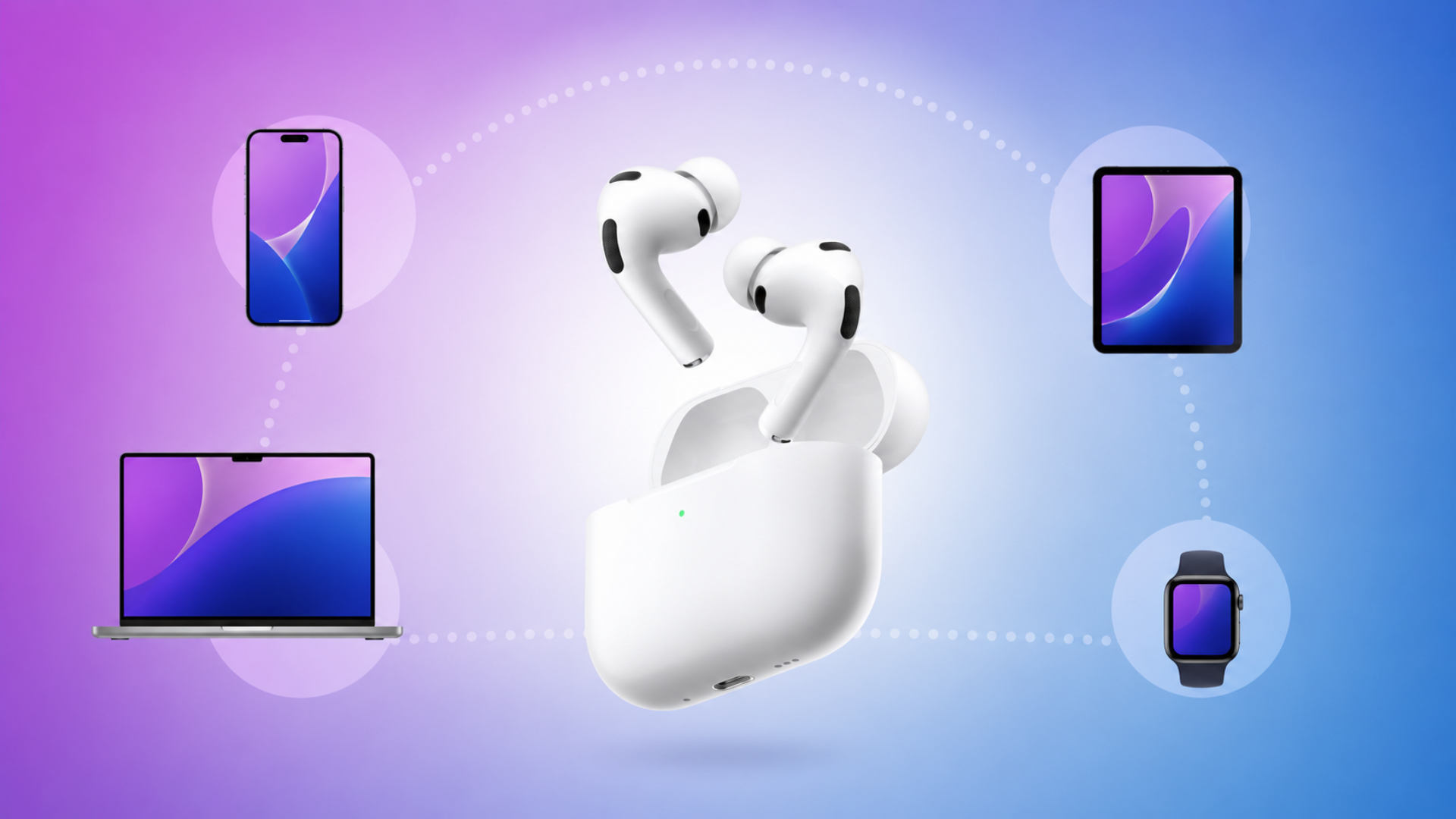
AirPods Pro 3 are built to work seamlessly with Apple devices, but they can also connect to Android phones, Windows PCs, gaming consoles, and other Bluetooth-enabled devices. If you’re wondering how to pair AirPods, the process is quick and straightforward once you know the correct steps.
Apple introduced a new pairing method for AirPods Pro 3. Unlike older AirPods models that relied on a physical setup button, AirPods Pro 3 use a front-case gesture to enter pairing mode. This change applies whether you’re connecting them to an iPhone, Android phone, Mac, or another Bluetooth device.
In this guide, we’ll cover every major pairing method and explain what to do if your AirPods don’t connect properly.
Don’t miss the best of The Mac Observer
Set us as a preferred source and our Apple reporting ranks higher in your Google Search results and Discover feed — one tap, no account changes.
Table of contents
- How to Pair AirPods Pro 3 With an iPhone
- How to Pair AirPods Pro 3 Manually
- How to Pair AirPods Pro 3 With Android Phones
- How to Pair AirPods Pro 3 With a Windows PC
- How to Pair AirPods Pro 3 With a Mac
- How to Pair AirPods Pro 3 With Other Bluetooth Devices
- Troubleshooting: If AirPods Pro 3 Won’t Pair
- FAQs
- Summary
- Conclusion
How to Pair AirPods Pro 3 With an iPhone
If you use an iPhone, pairing AirPods Pro 3 is usually automatic.
Simply open the charging case near your iPhone and follow the on-screen prompts. Once connected, your AirPods will automatically sync with other Apple devices signed in to the same Apple Account.
- Unlock your iPhone and go to the Home Screen.
- Place both AirPods inside the charging case.
- Open the charging case near your iPhone.
- Wait for the setup animation to appear.
- Tap Connect.
- Follow any additional on-screen instructions.
- Tap Done when setup is complete.
How to Pair AirPods Pro 3 Manually
Sometimes the automatic setup screen does not appear. In that case, you can manually place AirPods Pro 3 into pairing mode.
This method works for iPhones, iPads, Macs, Android phones, Windows PCs, smart TVs, and most Bluetooth-enabled devices.
- Put both AirPods inside the charging case.
- Open the case lid.
- Hold the case near the device you want to connect.
- Double-tap the front of the charging case.
- Wait until the status light flashes white.
- Open Bluetooth settings on your device.
- Select AirPods Pro 3 from the list of available devices.
- Wait for the connection confirmation.
Once the white light starts flashing, your AirPods are discoverable and ready to pair.
How to Pair AirPods Pro 3 With Android Phones
AirPods Pro 3 work like standard Bluetooth earbuds on Android devices.
You’ll still be able to listen to music, watch videos, and make calls. However, some Apple-exclusive features such as automatic device switching and certain ecosystem integrations may not be available.
- Open Settings on your Android phone.
- Tap Bluetooth.
- Turn Bluetooth on.
- Place your AirPods inside the charging case.
- Open the case lid.
- Double-tap the front of the case until the white light flashes.
- Look for AirPods Pro 3 in the Bluetooth device list.
- Tap the AirPods name to connect.
How to Pair AirPods Pro 3 With a Windows PC
You can also use AirPods Pro 3 with Windows laptops and desktop computers.
- Open Settings on your Windows PC.
- Navigate to Bluetooth & Devices.
- Turn Bluetooth on.
- Place the AirPods inside the charging case.
- Open the case.
- Double-tap the front of the case until the status light flashes white.
- Click Add Device on Windows.
- Choose Bluetooth.
- Select AirPods Pro 3 from the list.
- Wait for Windows to complete the pairing process.
How to Pair AirPods Pro 3 With a Mac
If your AirPods don’t automatically appear on your Mac, you can connect them manually.
- Open System Settings on your Mac.
- Click Bluetooth.
- Turn Bluetooth on.
- Place the AirPods in their charging case.
- Open the case lid.
- Double-tap the front of the case until the status light flashes white.
- Look for AirPods Pro 3 under Nearby Devices.
- Click Connect.
How to Pair AirPods Pro 3 With Other Bluetooth Devices
AirPods Pro 3 can connect to many other Bluetooth-enabled products, including:
- Smart TVs
- Gaming consoles with Bluetooth support
- Tablets
- Streaming devices
- Bluetooth audio transmitters
- Media players
Steps
- Open the Bluetooth settings on the device.
- Put AirPods Pro 3 into pairing mode.
- Wait for the flashing white light.
- Select AirPods Pro 3 from the available devices list.
- Confirm the connection.
Troubleshooting: If AirPods Pro 3 Won’t Pair
If pairing fails, try these fixes before resetting your AirPods.
- Make sure both AirPods are inside the case.
- Check that the AirPods have sufficient battery charge.
- Verify Bluetooth is enabled on the device.
- Close the case lid for 15 seconds and reopen it.
- Try entering pairing mode again by double-tapping the front of the case.
- Update your device to the latest software version.
- Reset the AirPods if the issue continues.
FAQs
Open the charging case with the AirPods inside and double-tap the front of the case until the status light flashes white.
Yes. AirPods Pro 3 work with Android devices through Bluetooth just like regular wireless earbuds.
Make sure the AirPods are in pairing mode and that the status light is flashing white. Also verify Bluetooth is enabled on the device you’re trying to connect.
Yes. AirPods Pro 3 support standard Bluetooth connections and can pair with Windows PCs and laptops.
No. AirPods Pro 3 use a new front-case gesture. You enter pairing mode by double-tapping the front of the charging case until the status light flashes white.
Summary
- AirPods Pro 3 support iPhone, Android, Mac, Windows, and other Bluetooth devices.
- Automatic pairing works best with Apple devices.
- Manual pairing requires opening the case and double-tapping the front until the white light flashes.
- Android and Windows users can connect through Bluetooth settings.
- Most audio and calling functions work on non-Apple devices.
- If pairing fails, check Bluetooth, battery level, and pairing mode before resetting the AirPods.
Conclusion
Knowing how to pair AirPods Pro 3 is useful whether you’re using an iPhone, Android device, Mac, Windows PC, or another Bluetooth gadget. Apple’s new pairing system replaces the traditional setup button with a simple double-tap gesture on the front of the charging case, making the process faster and more consistent across devices. Once paired, AirPods Pro 3 can deliver wireless audio and calling support on nearly any modern Bluetooth-enabled device.




Discussion