

Encountering an “Authentication Failed” error in the iPhone Mail app can prevent you from sending or receiving email, indicating the app cannot verify your credentials with the mail server. The root cause is typically an incorrect password, outdated server settings, or a required security measure like two-factor authentication. Fortunately, most authentication errors are simple to resolve with a few targeted steps that restore your connection.
Table of contents
Essential Troubleshooting for iPhone Mail Credentials
1. Check Your Mail Account Password
The most frequent cause of an authentication failure is simply using an incorrect password on your iPhone. If you recently changed your password on another device, you must update it in the Mail settings immediately.
Even a minor typo can trigger this error, so double-check that the password entered matches your current email account password exactly.
Don’t miss the best of The Mac Observer
Set us as a preferred source and our Apple reporting ranks higher in your Google Search results and Discover feed — one tap, no account changes.
- Go to Settings > Apps > Mail > Mail Accounts.
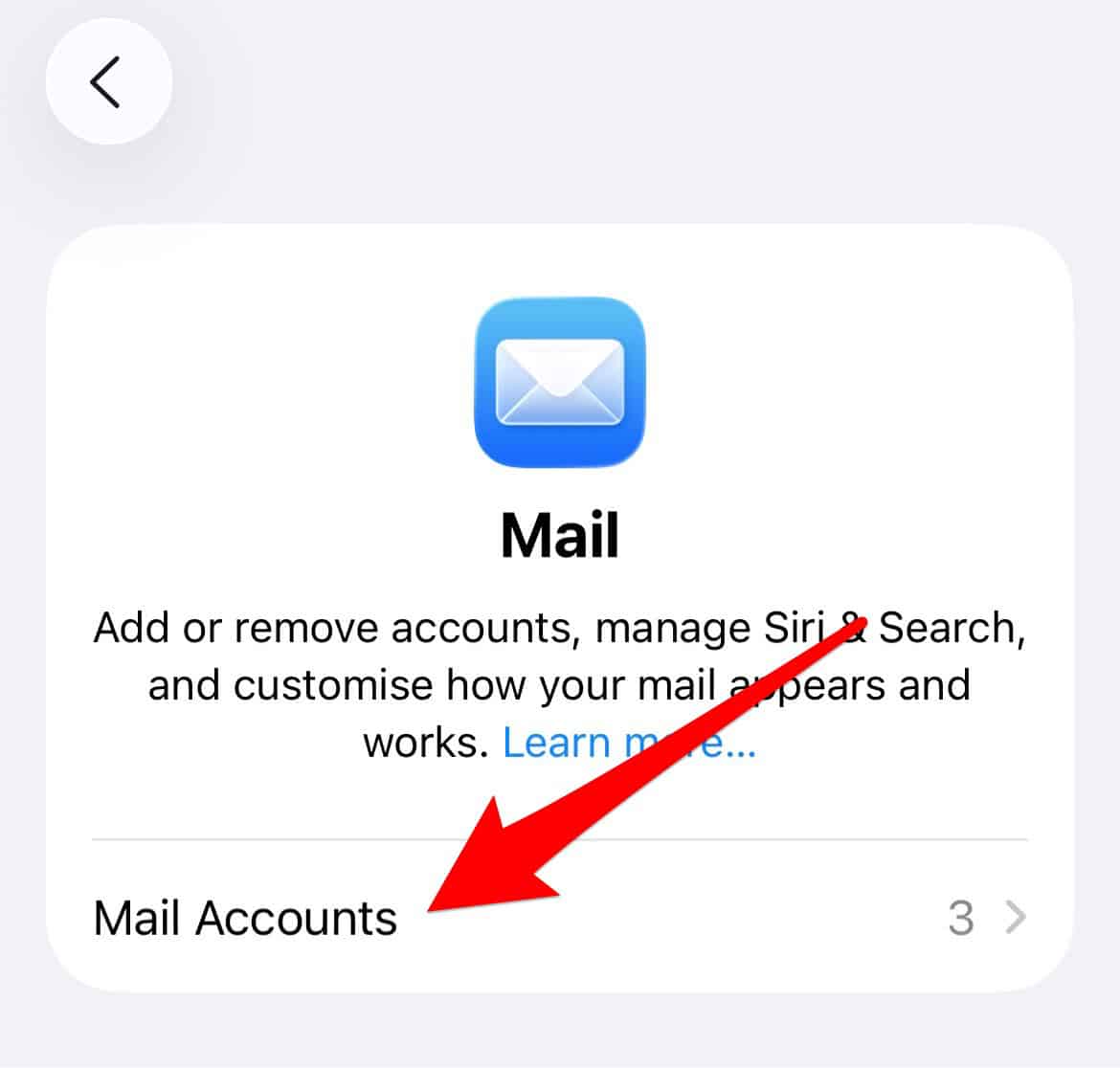
- Select the affected account.
- Tap Account, enter the correct password.
- Save changes and let Mail re-authenticate.

2. Generate an App-Specific Password
Many providers, like Google and Yahoo, require an app-specific password if you use two-factor authentication (2FA). The standard password will not work for third-party mail clients like the iPhone Mail app, necessitating this extra security step to comply with modern security standards.
- Log in to your email provider’s security settings.
- Locate App Passwords or Security.
- Generate a password for your iPhone Mail app.
- Enter it in place of your regular password in Mail settings.
3. Verify Incoming and Outgoing Server Settings
An authentication error can sometimes arise if the server names, ports, or SSL requirements are incorrect for your provider. These settings are often specific, and providers occasionally update them, requiring a manual check.
If you find your Apple Mail app not updating new messages, incorrect server information is a likely cause, even if the error message is vague.
- Go to Settings > Apps > Mail > Mail Accounts.
- Select the affected account.
- Tap Account Settings.
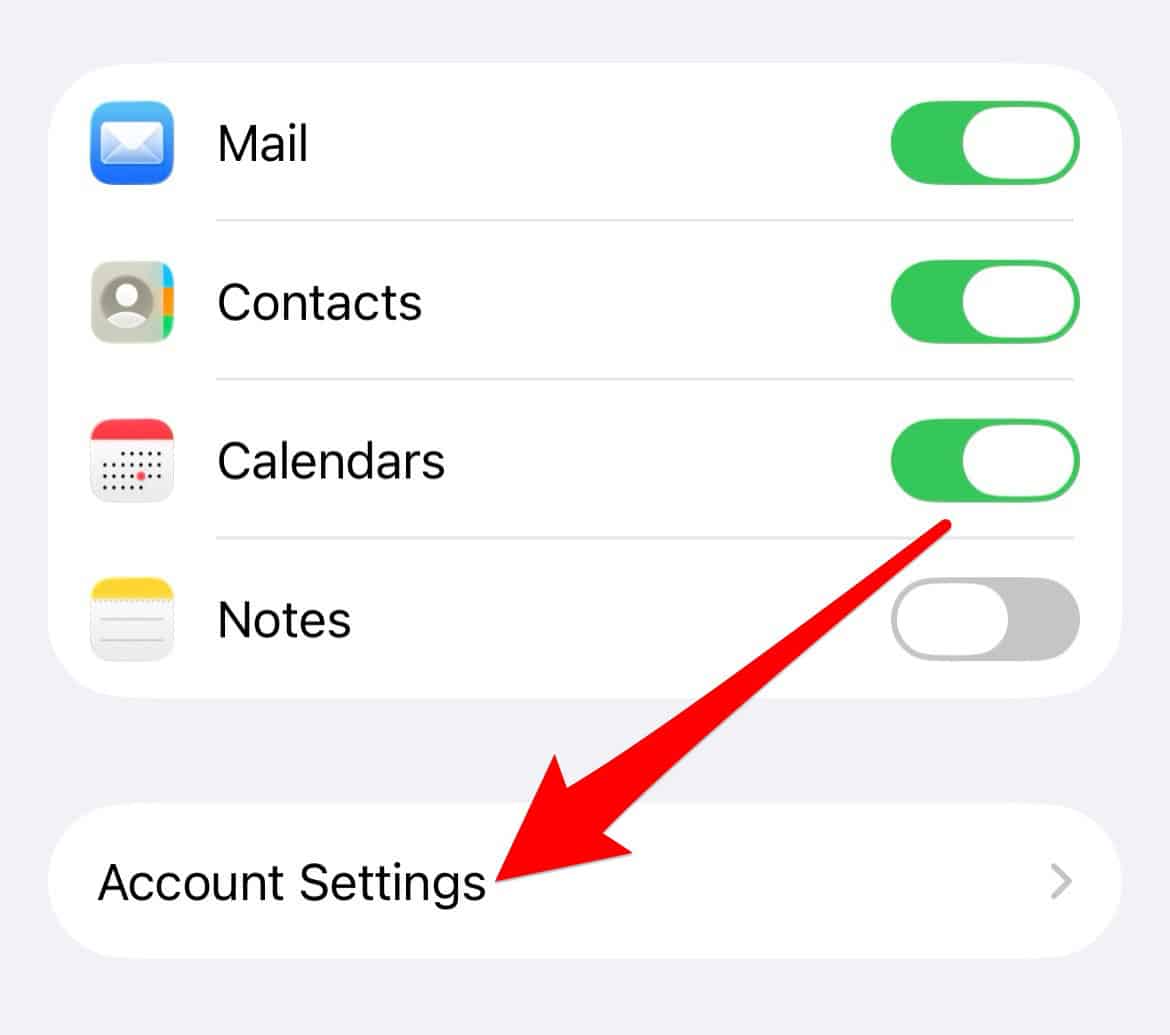
- Review Incoming and Outgoing Mail Server settings.
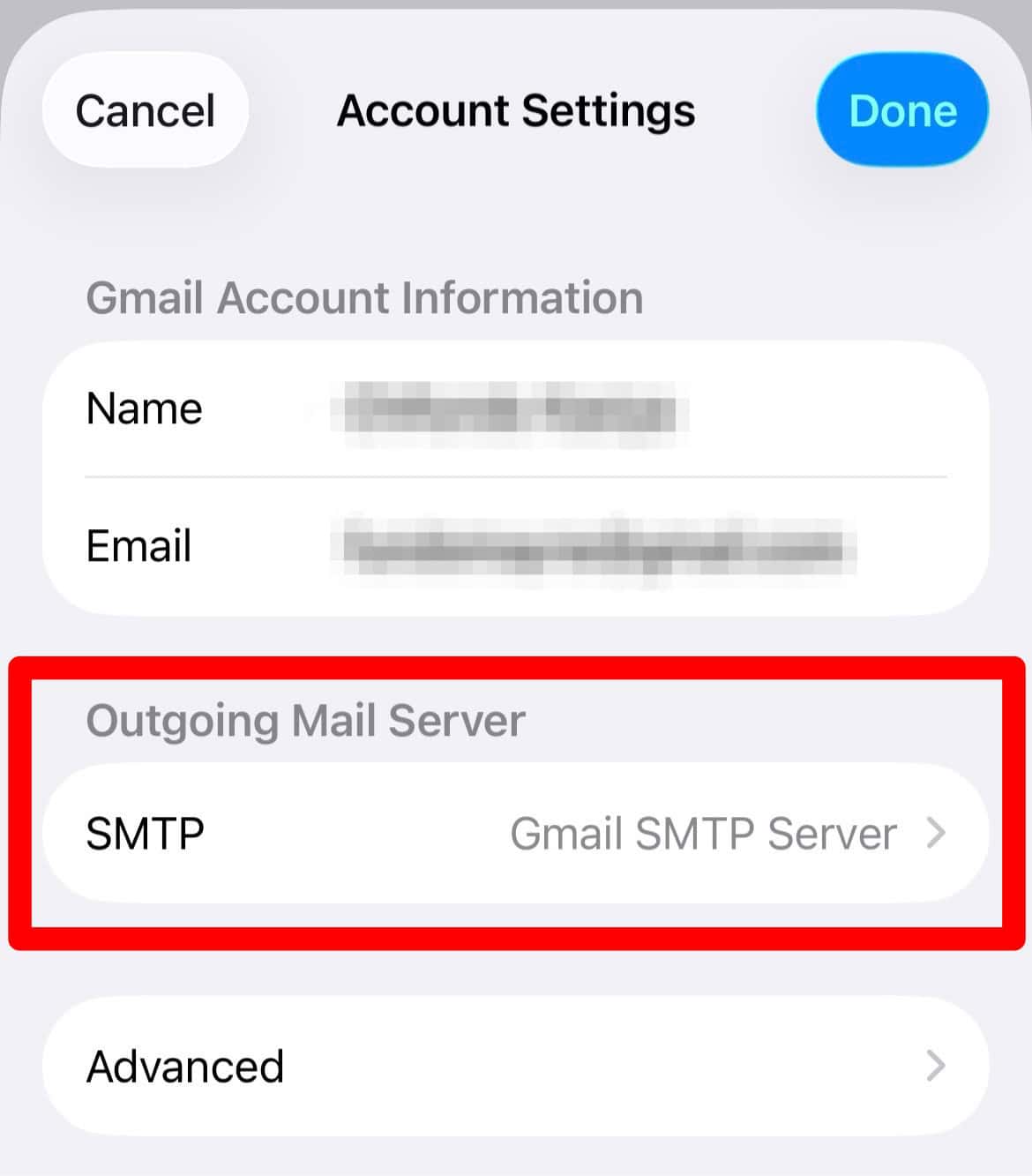
- Confirm host names, usernames, and passwords match your provider’s latest recommendations.


4. Remove and Re-add the Mail Account
If checking the settings does not fix the issue, a corrupt configuration profile could be the culprit. Deleting and then re-adding the account forces the iPhone to download a fresh set of configuration parameters from the mail service, effectively wiping any stored bad data.
- Go to Settings > Apps > Mail > Mail Accounts.
- Select the account and tap Delete Account.
- Confirm your decision by tapping Delete from My iPhone in the prompt.
- Re-add the account and see if that fixes the issue.
5. Check Mailbox Sync and Fetch Settings
While not directly an authentication fix, incorrect fetch settings can sometimes appear as a sync or authentication problem, especially if the device isn’t allowed to connect frequently enough. This step ensures timely communication with the mail server, which is crucial if you are also dealing with iPhone Mail notification issues that signal poor connectivity.
Also, ensure you are not struggling with not getting emails on your iPhone generally.
- Go to Settings > Apps > Mail Accounts > Fetch New Data.
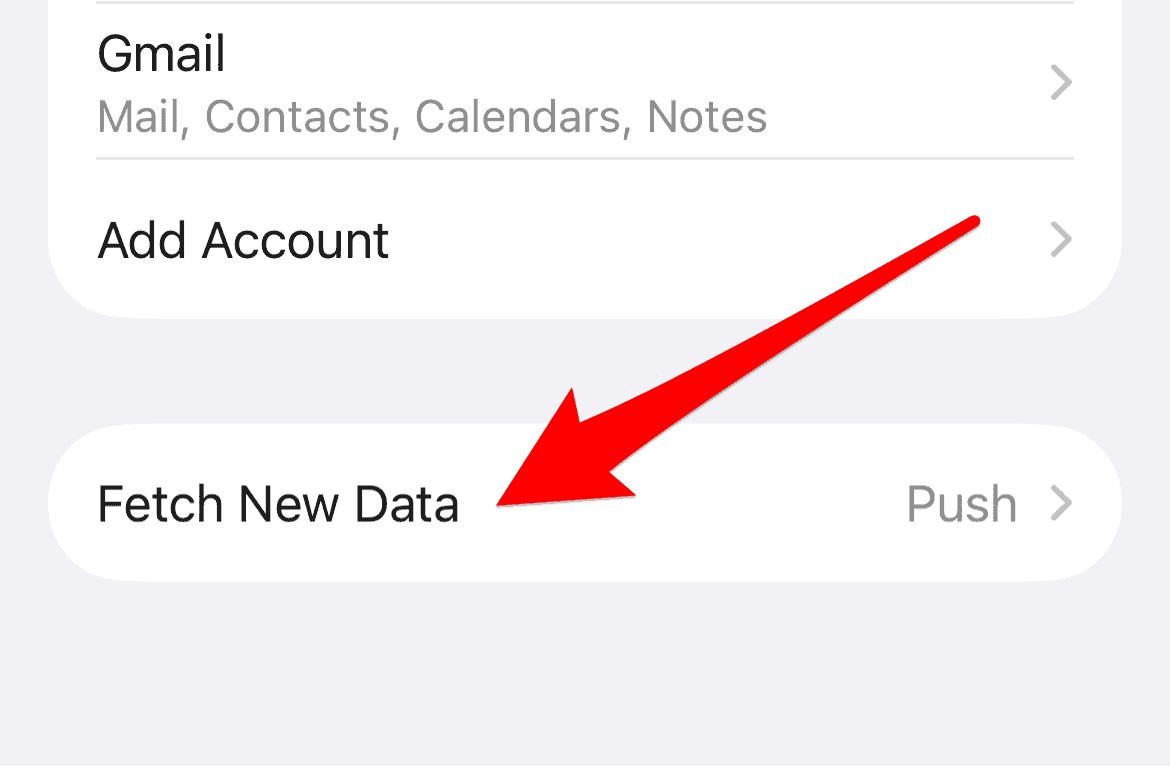
- Ensure Push is enabled for accounts that support it, or set a reasonable Fetch interval (e.g., Every 30 Minutes).

FAQ
Mail authentication failure often follows security updates because your mail provider may have enforced a stricter security protocol, such as two-factor authentication, which requires you to use an app-specific password instead of your standard login password for third-party apps.
Resetting network settings can resolve underlying connectivity issues that prevent your iPhone from reaching the mail server, which can sometimes manifest as an authentication failure. It is a good secondary troubleshooting step after verifying your credentials.
Resolving Recurring iPhone Mail Login Errors
Authentication issues in the iPhone Mail app are almost always tied to a mismatch between the credentials stored on your device and those required by your mail server. By systematically checking your password, utilizing app-specific passwords where necessary, and ensuring server settings are up to date, you can restore full functionality. Addressing these security checkpoints is key to reliable email access. For comprehensive help beyond authentication, see our guide on how to fix the Mail app showing unread emails on iPhone.


Thanks. It worked
I cannot get or send messages on my phone e-mail. It says server code authenticationfailed – invalid credentials.
Thank you! Your instructions help me get back on email on phone. Thanks!
Your instructions worked perfectly! My Yahoo mail is now working. Thank you very much.