

Some iPhone users using the iOS 26 version have reported on Apple support forums that their alarms no longer play through the built-in speakers. Instead, the sound is routed to connected earphones or AirPods, making it much quieter and easier to miss. This issue is problematic for anyone who depends on their iPhone alarm to wake up on time.
Multiple members have pointed out a few reliable fixes that ensure the alarm rings through the iPhone’s main speaker. Here’s a closer look at what causes the problem and the most effective ways to resolve it.
Table of contents
Why the Alarm Plays Through Earphones
When Bluetooth earphones or AirPods remain connected, iOS automatically routes audio to them, even for alarms. So, if your earphones are connected overnight, the iPhone assumes you want sound to play through them.
This issue has been mentioned in reports of iOS 26 bugs and fixes, and it often appears after a major system update. Sometimes, resetting a few audio settings can resolve it permanently.
Fix Alarm Problems iOS 26
1: Disconnect Bluetooth or Wired Earphones
Start by disconnecting all connected audio devices. This ensures the iPhone alarm uses the built-in speakers.
- Open Control Center.
- Tap the Bluetooth icon to check for connected devices.
- Disconnect or remove your AirPods or headphones.
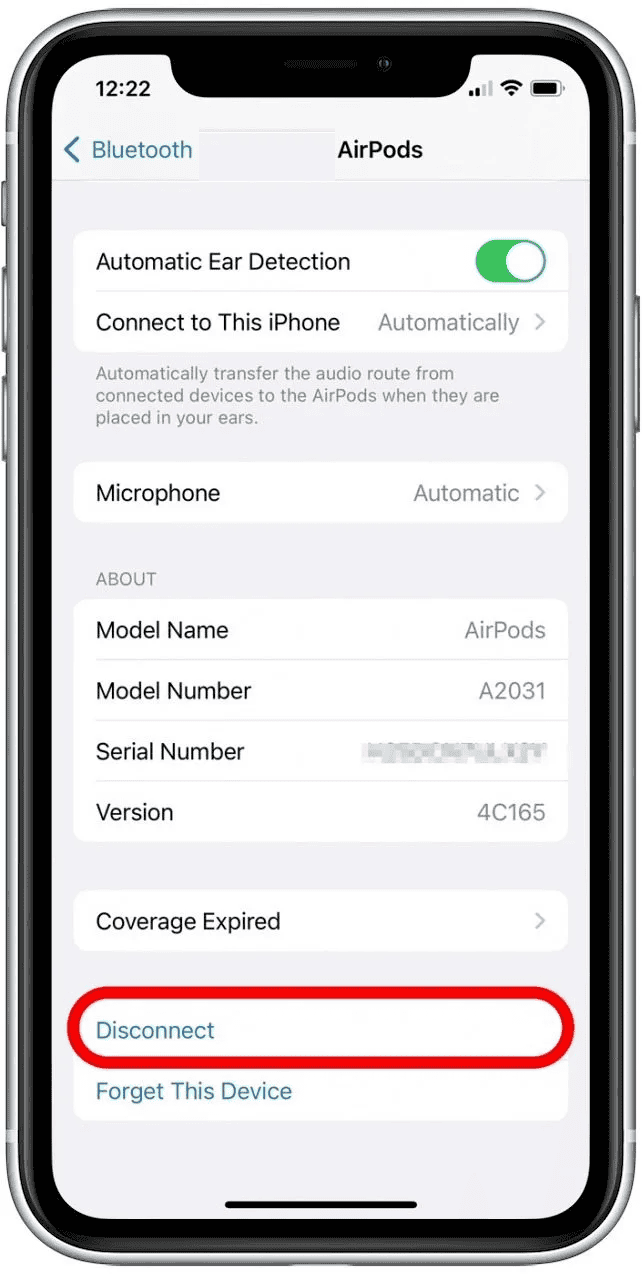
- If using wired earphones, unplug them.

Once disconnected, set a test alarm to confirm that it rings through the iPhone speaker.
2: Turn Off Bluetooth Before Sleeping
If your AirPods reconnect automatically overnight, disable Bluetooth temporarily.
- Go to Settings > Bluetooth.
- Toggle Bluetooth off before sleeping.
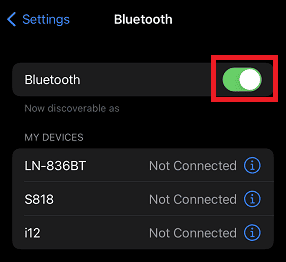

This forces your iPhone to use the built-in speakers for alarms. You can turn Bluetooth back on in the morning.
3: Check Alarm Sound Settings
Sometimes, a quiet or missing alarm tone makes it seem like it’s not playing correctly.
- Open the Clock app and tap Edit next to your alarm.
- Select Sound and pick a loud, clear tone.
- Avoid “None” or custom tones that might not sync.
- Tap Save to apply changes.
If your alarm tone is missing or not playing downloaded songs, then here’s how to fix the problem where the alarm clock is not playing downloaded songs.
4: Restart the iPhone
Restarting clears temporary bugs that may affect audio routing.
- Hold the Side button and the Volume button together.

- Slide to power off.
- Wait a few seconds, then press the Side button to turn it on again.
After restarting, set a quick alarm to see if it now rings through the speaker.
5: Update to the Latest iOS 26 Version
Apple often fixes small system bugs with follow-up updates.
- Go to Settings > General > Software Update.
- Tap Download and Install if an update is available.
You can also read about other iOS 26-related alarm problems in our how to fix the iPhone alarm bug guide.
6: Reset Sound & Haptics Settings
If alarms still route through earphones, resetting your sound settings can help.
- Go to Settings > Sounds & Haptics.
- Turn the Ringer and Alerts volume to maximum.
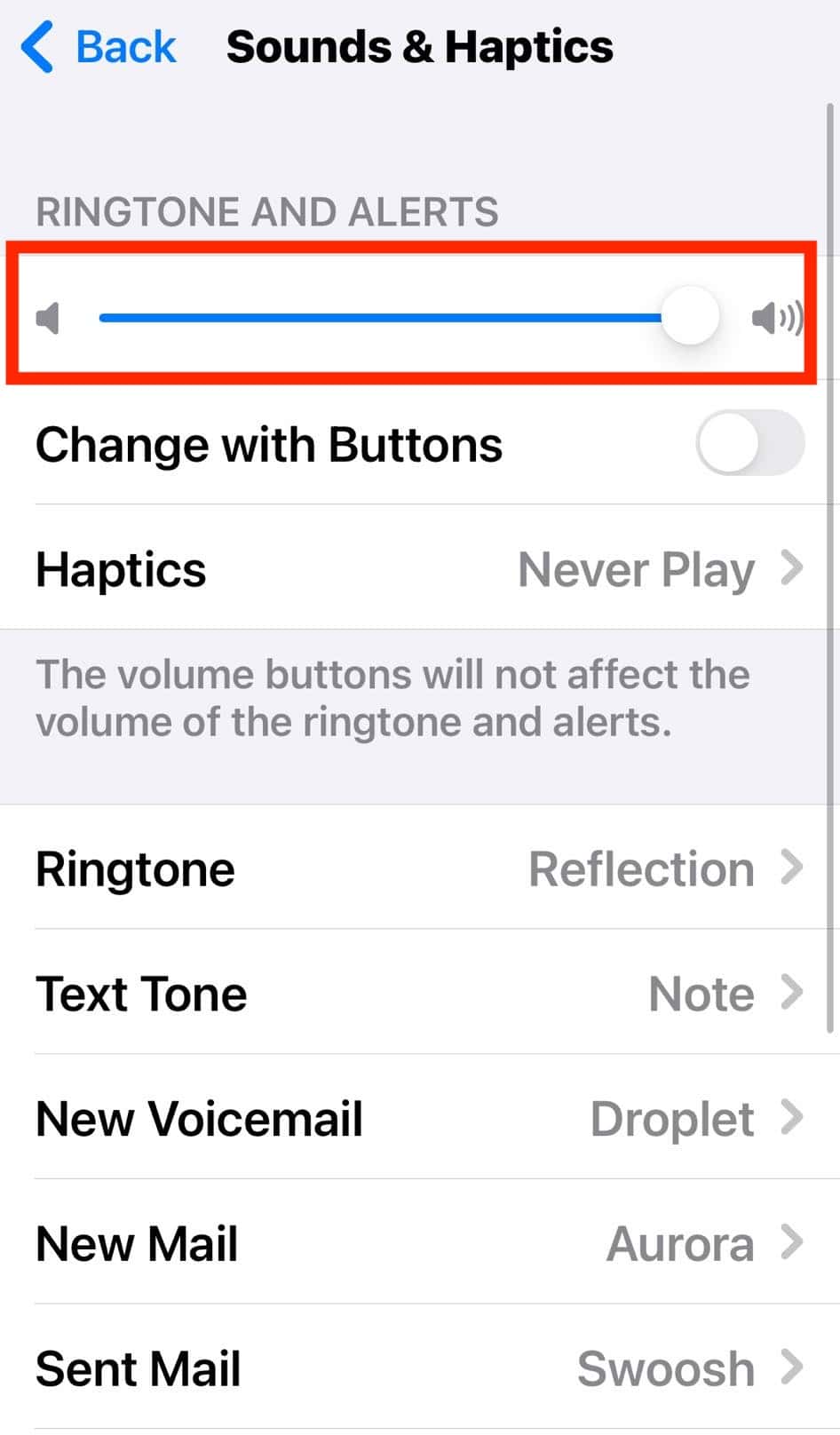
- Turn off Change with Buttons for consistent sound levels.

This ensures alarms always play at the set volume, even if you adjust your phone volume later.
7: Use a Default Ringtone for Alarm
Using a song or custom track for your alarm tone may trigger the bug where sound is sent to the earphones. Change the tone to a standard ringtone to avoid the issue.
- In the Clock app, edit your alarm and select a built-in ringtone under Sound.
- Avoid selecting songs from Apple Music or downloads for the alarm tone.
This simple switch has helped users regain correct speaker output.
Tips to Avoid the Issue
- Disconnect Bluetooth devices before sleeping.
- Keep Do Not Disturb or Focus modes turned off for alarms.
- Avoid using AirPods or Bluetooth speakers overnight.
- Regularly update iOS for stability fixes.
- Test your alarm volume occasionally to make sure it’s loud enough.
FAQs
Because iOS automatically routes audio to the last connected output, like AirPods or Bluetooth headphones.
No. iOS can only send audio to one output at a time.
No. Your alarm will still work normally and ring through the phone speaker.
Try resetting your sound settings or reinstalling the Clock app. You can also check Apple’s support page for additional troubleshooting.

![How to Clear Cache on iPhone [Safari & Apps]](https://www.macobserver.com/wp-content/uploads/2025/08/how-to-clear-cache-on-iPhone.webp)


