
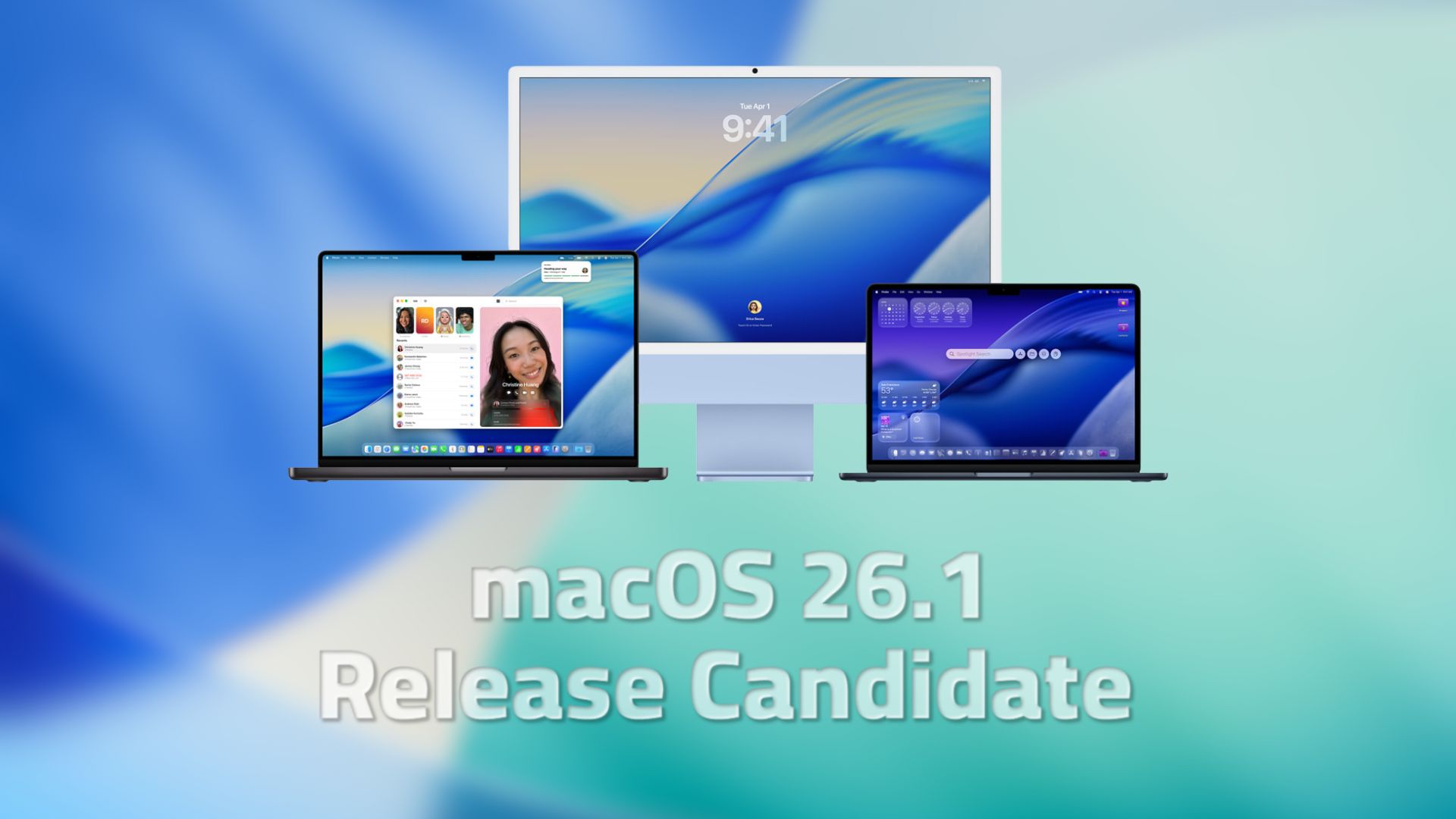
Apple released the macOS 26.1 Release Candidate to developers and the public beta channel ahead of the wider rollout. The update focuses on visual control, small design fixes, and groundwork for upcoming AI features.
You can now adjust Liquid Glass. A new toggle lets you keep the clear look or switch to Tinted, which raises opacity and contrast for better legibility. You will find it in System Settings under Display and Brightness.
Apple also refreshed system artwork. The Macintosh HD icon gets another revision after feedback on the first macOS 26 version. The Apple TV icon has been updated as well.
Don’t miss the best of The Mac Observer
Set us as a preferred source and our Apple reporting ranks higher in your Google Search results and Discover feed — one tap, no account changes.
AI groundwork and hardware clues
Under the hood, Apple prepared parts of the system for MCP support, which allows apps and agents to work with the system context in a more direct way. References in earlier 26.1 betas pointed to this integration.
Code strings in 26.1 betas also reference a second-generation Pro Display XDR with a built-in camera and a Desk View feature. That points to Center Stage-style framing on an external display. Apple has not announced this hardware.
What else to watch
The Tinted Liquid Glass option appears across Apple’s platforms, which keeps visual consistency for people using multiple devices.
Apple continues to tweak icons and material effects as feedback comes in. Expect more polish as the public release nears.
How to install macOS Tahoe 26.1 RC
- Back up your Mac.
- Open System Settings.
- Go to General > Software Update.
- Click the i button next to Beta Updates.
- Choose macOS Developer Tahoe Beta from the top-right dropdown.
- Click Done, then install the update.
We will keep testing the RC and report any notable changes we find.


Discussion