
Syncing means transferring music, podcasts, or other media between your computer and your device. Although Apple now treats iPods as largely obsolete or vintage, you can still sync an iPod to iTunes or Finder with the right steps. The method depends on whether you use a Windows PC, a macOS version that still uses iTunes, or a newer macOS version that uses Finder.
Table of Contents
Solutions
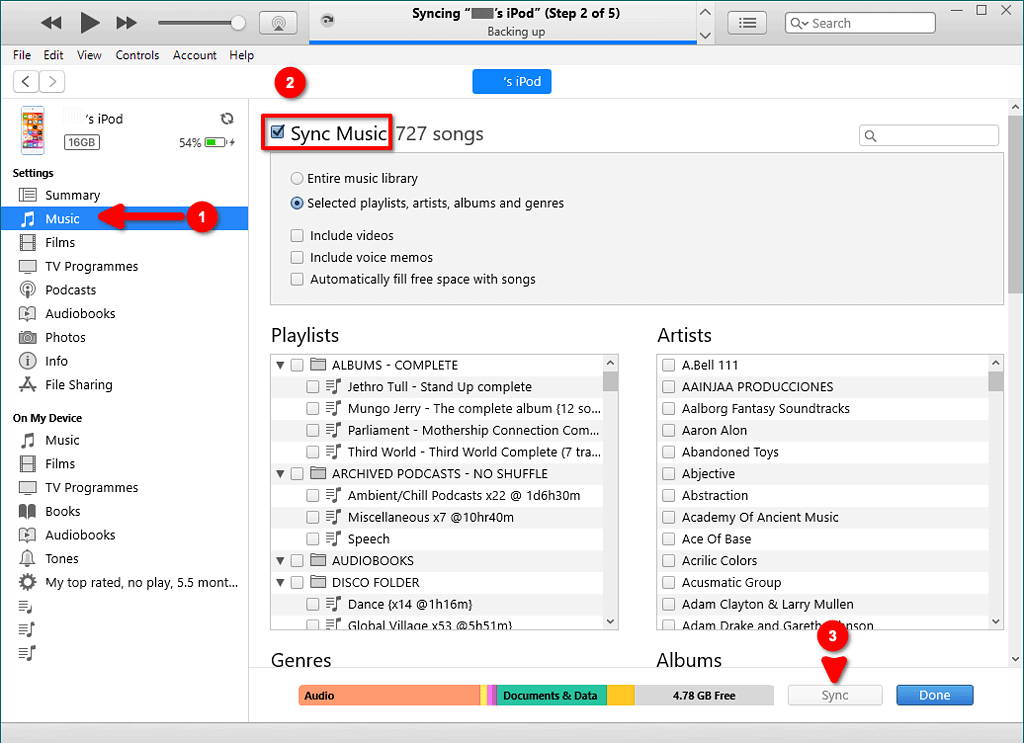
Sync iPod using iTunes on Windows
Time needed: 15 minutes
- Connect your iPod to your computer using a USB or USB-C cable.
- Open the iTunes app on your Windows PC.
- Click the device icon near the top left of the iTunes window.
- In the sidebar under Settings, select the type of content you want to sync (for example, Music).
- Check the Sync box, choose the items you want, then click Apply.
- When you’re ready, click Sync. Your content transfers to your device.
Sync iPod using iTunes on older macOS versions
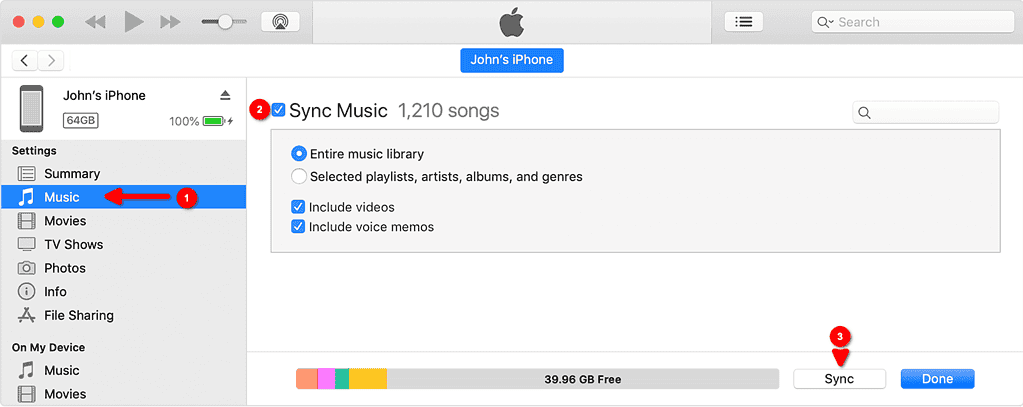
- On a Mac running macOS Mojave or earlier, open iTunes.
- Connect your iPod via cable and click the device icon.
- In the sidebar, pick the content type to sync, tick the Sync box, then click Apply.
- Wait for the sync to finish, then safely eject your device.
Sync iPod using Finder on newer macOS versions
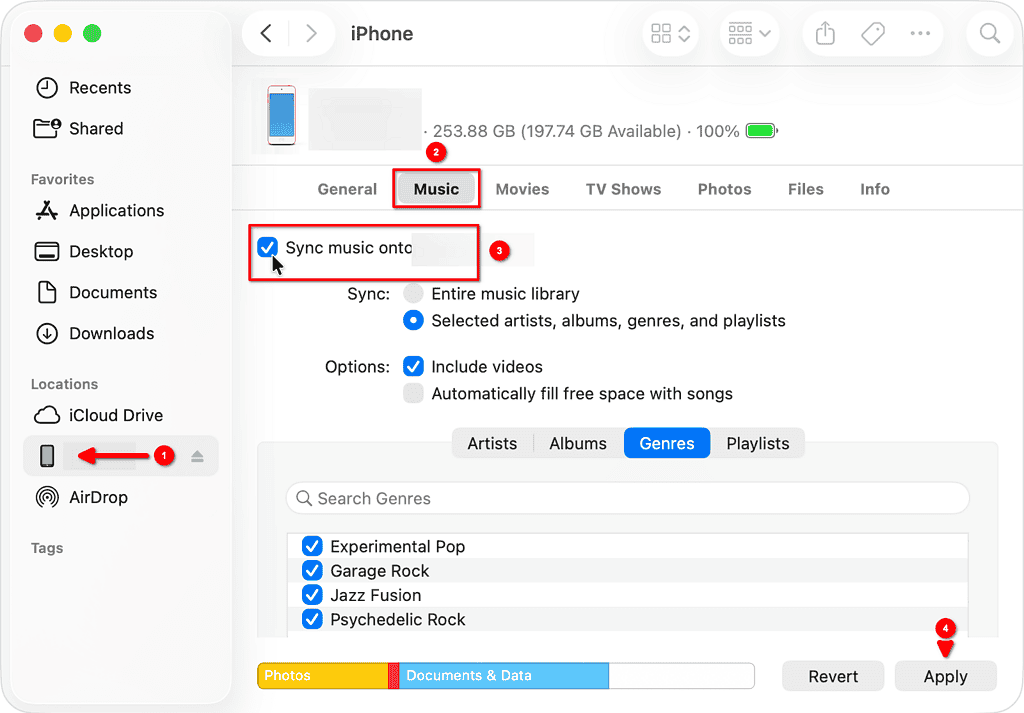
- On a Mac running macOS Catalina or later, open Finder.
- Connect your iPod using a USB or USB-C cable.
- In Finder‘s sidebar, select your iPod when it appears.
- At the top, choose the type of content you want to sync (for example, Music or Books).
- Tick the Sync checkbox, click Apply, and if needed click Sync.
- Eject your iPod after the transfer completes.
Tips and Troubleshooting
- If your iPod does not appear in iTunes or Finder, try a different USB cable or port. Confirm the device is unlocked and you tapped Trust on the iPod when prompted.
- If iTunes shows the iPod is linked to another library, you may need to Remove and Sync, which erases content and replaces it with the current library.
- On newer macOS versions if Finder shows only Notes or Contacts but no Music tab, your device may be too old or partially unsupported.
FAQ
Yes. In iTunes on Windows or in Finder on Mac, you can enable Wi-Fi syncing so that your iPod syncs when it connects to power and same network.
Most classic, nano, shuffle, and touch iPods can still sync using iTunes or Finder. But Apple considers iPods obsolete or vintage, so some newer OS versions may drop support.
If you switch the iPod to a new computer or library, iTunes or Finder may ask to erase and sync. Back up your content before proceeding.
Summary
- Choose Windows PC (use iTunes), older Mac (use iTunes), or newer Mac (use Finder).
- Connect the iPod via cable, open iTunes or Finder, select your device.
- In sidebar pick content type, tick Sync, click Apply, then Sync.
- Eject the iPod safely, and verify the content appears.
- Use troubleshooting tips if the device is not recognized or sync fails.
Even though iPods are seen as vintage by Apple, you can still sync an iPod to iTunes or Finder. Follow the right steps for your OS and enjoy your music collection on the go.
Don’t miss the best of The Mac Observer
Set us as a preferred source and our Apple reporting ranks higher in your Google Search results and Discover feed — one tap, no account changes.

Discussion