

Many parents allow children to use iPhones or iPads for learning, games, and entertainment. However, unrestricted volume levels can harm a child’s hearing over time or cause unnecessary distractions. Apple includes built-in tools to limit maximum volume and control how loud the sound can get through headphones or speakers. Here’s how to use them!
Table of contents
Why Restrict Volume Control on iPhone or iPad for Kids
Children are more sensitive to loud sounds than adults, and prolonged exposure to high audio levels can affect their hearing. Setting a safe maximum volume helps prevent potential ear damage while ensuring kids still enjoy media safely.
Limiting volume also prevents children from turning the sound up too high in public spaces or classrooms. Parents who have already set up an iPad for a child can take this extra step to make the experience safer and more controlled.
Don’t miss the best of The Mac Observer
Set us as a preferred source and our Apple reporting ranks higher in your Google Search results and Discover feed — one tap, no account changes.
For those deciding which device suits their family, this round-up of the best iPads for kids offers detailed recommendations for different age groups and use cases.
Here’s How to Restrict Volume Control for Kids
1. Set a Maximum Volume Limit
The simplest way to limit how loud an iPhone or iPad can get is by setting a maximum headphone volume.
- Open Settings on the device.
- Scroll down and tap Sounds & Haptics (on iPhone) or Sounds (on iPad).
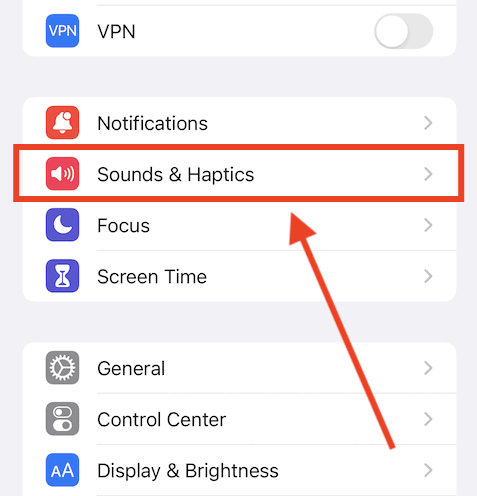
- Select Headphone Safety.
- Turn on Reduce Loud Sounds.
- Adjust the slider to set a safe decibel limit, such as 90 dB or lower.
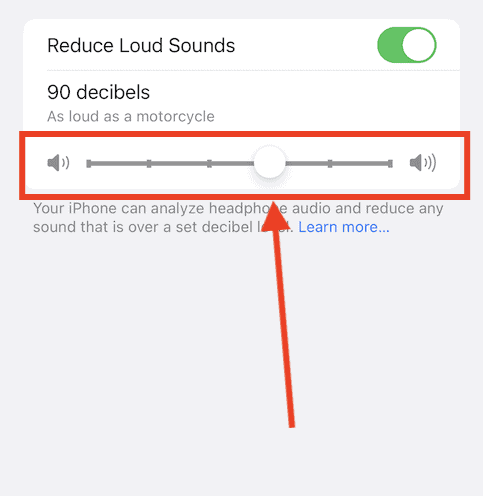


This ensures that even when the child increases the volume manually, the device won’t exceed the set level.
For a more detailed explanation of audio safety, read how to set maximum volume control on iPhone and iPad.
2. Restrict Volume Changes with Screen Time
To stop kids from changing these settings, Screen Time can be used to restrict access to volume controls.
- Go to Settings > Screen Time.
- Tap Turn On Screen Time if it’s not already enabled.
- Select Use Screen Time Passcode and set a secure code.
- Tap Content & Privacy Restrictions and toggle it on.
- Go to Reduce Loud Sounds.
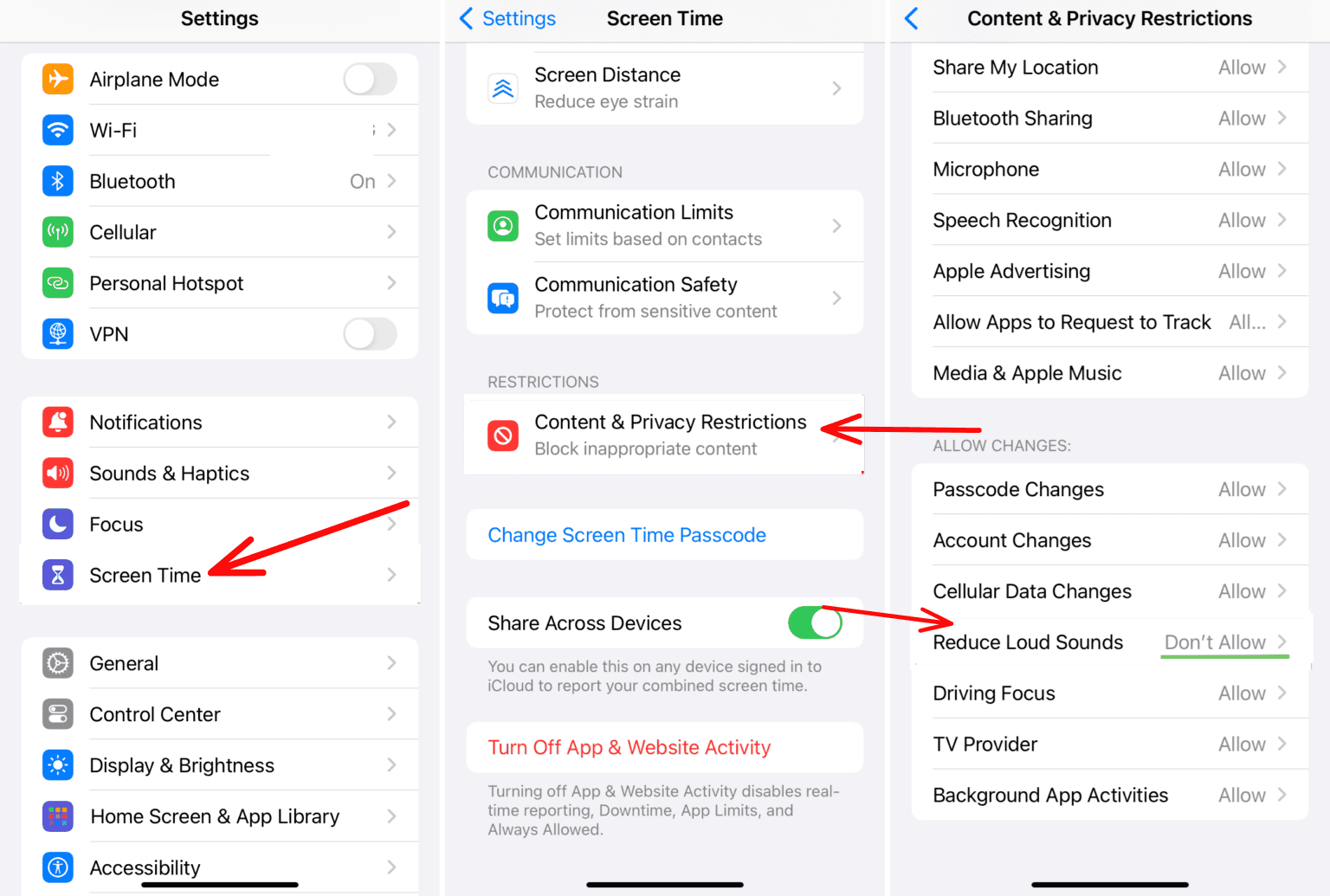
- Then select Don’t Allow Changes.

Once locked, the child cannot modify the sound limit without entering the Screen Time passcode.
Parents can also explore Apple’s broader protection tools using child safety features on iPhone and iPad, which include content filters and communication limits.
3. Using Guided Access to Restrict Volume on iPhone or iPad
Guided Access is a built-in iOS feature that locks the device to a single app and limits access to buttons, gestures, or areas of the screen. It’s designed primarily for focus and accessibility, but can also prevent children from changing volume or leaving a specific app.
While Guided Access doesn’t directly limit the maximum volume, it can disable hardware buttons, including the physical volume controls. This means once you set an appropriate sound level, your child won’t be able to change it using the volume buttons during Guided Access mode.
- Open Settings on your iPhone or iPad.
- Go to Accessibility.
- Scroll down and tap Guided Access under General.
- Turn Guided Access on.
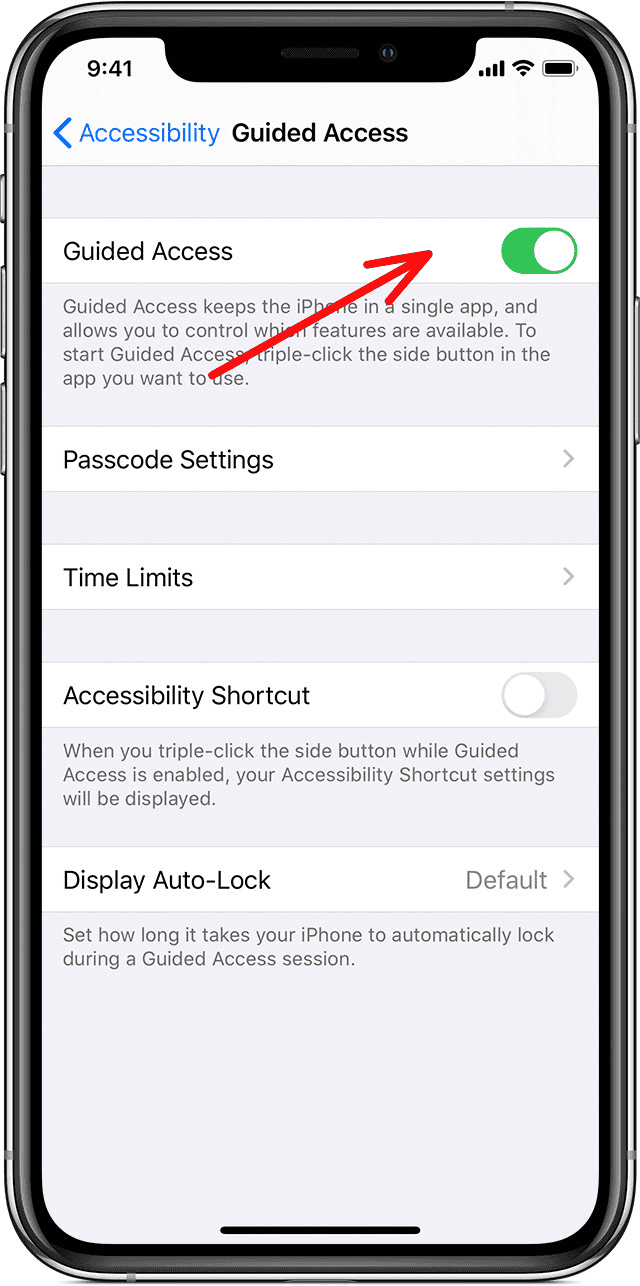
- Tap Passcode Settings to set a Guided Access Passcode (so only you can exit the mode).
- Open the app your child will use (for example, YouTube Kids or Apple Music).
- Triple-press the Side or Home button to start Guided Access.
- Tap Options at the bottom-left corner.
- Turn off Volume Buttons to disable volume adjustments.
- Tap Start to begin the session.
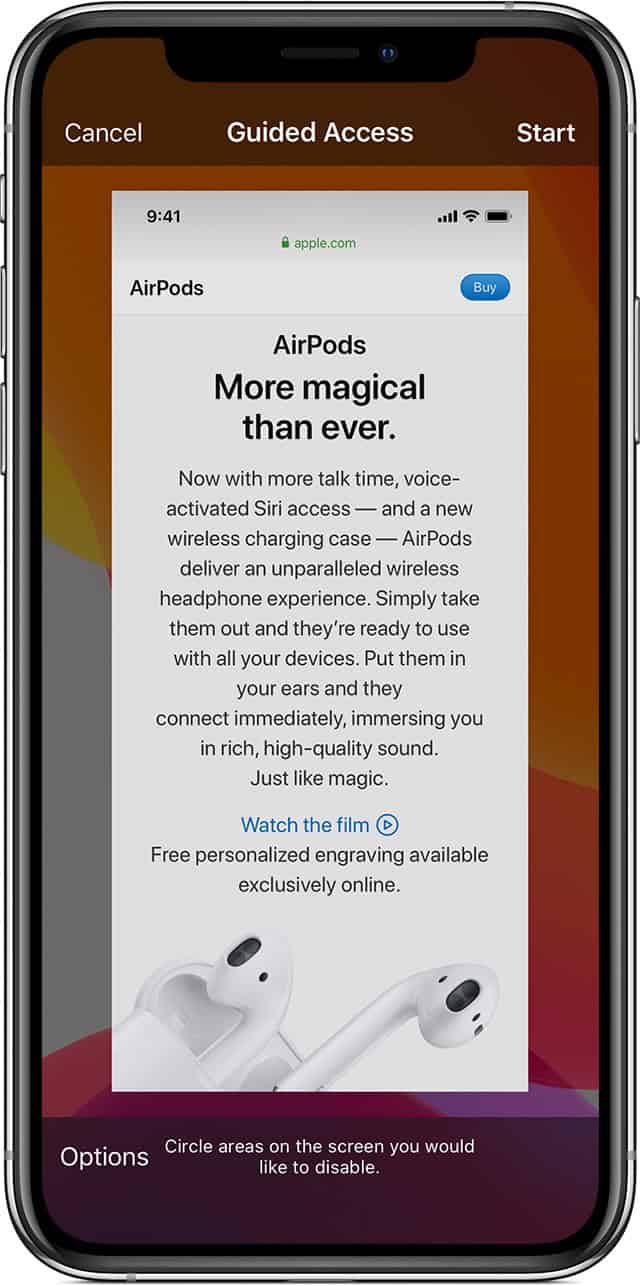


Now, the volume stays fixed at the level you set before enabling Guided Access. Kids can still adjust in-app controls (if available), but the hardware buttons won’t work.
To end the session, triple-press the Side or Home button, enter the passcode, and tap End.
Additional Tips to Restrict Volume Control
- Choose child-friendly headphones with built-in volume limiters.
- Use Screen Time to block access to music and media apps during certain hours.
- Monitor listening habits regularly in Health > Hearing to view average volume exposure.
- Encourage breaks from headphones to protect hearing.
- Keep device software updated for the latest safety improvements.
- If multiple devices are used, apply the same settings across each one for consistency.
Final Words
Limiting volume on an iPhone or iPad is a simple but effective way to protect children’s hearing and promote healthy device habits. By combining Apple’s headphone safety tools and Screen Time restrictions, parents can ensure kids enjoy entertainment without overexposure to loud sounds.
FAQs
Yes. The volume limit applies to both wired and wireless headphones connected to the iPhone or iPad.
Yes. Once a volume limit is set, it applies across music, games, videos, and streaming apps.
Not if Screen Time restrictions and a passcode are in place.
Yes. Headphone Notifications alert users when they exceed recommended volume limits over time.
Yes. Parents can manage their child’s iPhone or iPad settings remotely through Family Sharing and Screen Time.


Discussion