

Apple Mail allows users to manage multiple email accounts in one place. However, when you are in a hurry, you can easily use the wrong email account than intended to send an email. Setting a default send account ensures all new emails go through the correct address automatically.
This feature works on both iPhone and Mac, and it can be customized for each device based on your preferred account setup. So, in this post, we’ll show you how to set a default send account in Apple Mail.
Table of contents
Here’s How to Set the Default Send Account in Apple Mail
Apple Mail lets users choose which email address is used by default when sending messages. Once set, this account will automatically appear in the “From” field for all new emails. You can also override this default manually for individual messages if needed.
Don’t miss the best of The Mac Observer
Set us as a preferred source and our Apple reporting ranks higher in your Google Search results and Discover feed — one tap, no account changes.
1. Set Default Send Account on iPhone or iPad
- Open the Settings app.
- Scroll down and tap Mail.
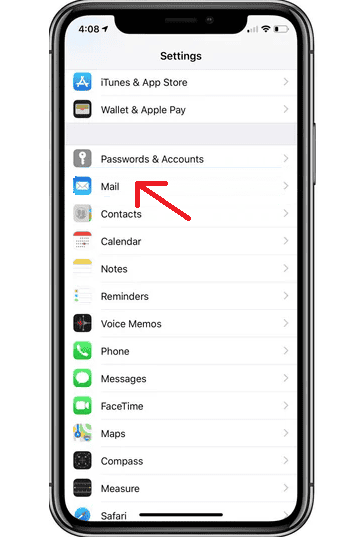
- Under the Composing section, tap Default Account.
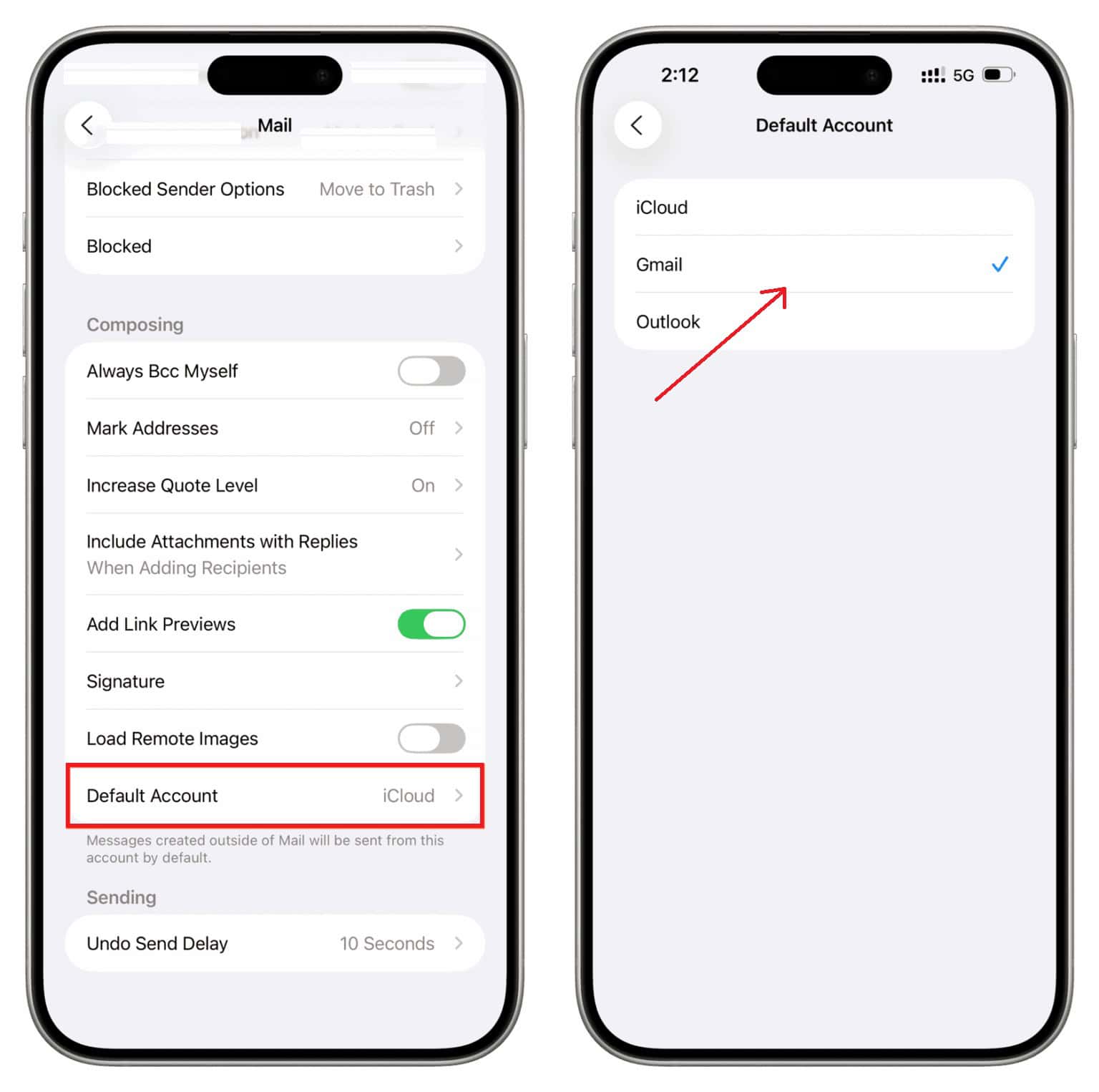
- Choose the account you want Apple Mail to use when sending new messages.
- The selected account will now appear as the default for all new emails.


Note: This setting only applies to new emails you start manually. If you reply or forward an email, Mail will automatically use the account that received the original message.
2. Set Default Send Account on Mac
- Open the Mail app.
- From the top menu, click Mail > Settings (or Preferences on older macOS versions).
- Select the Composing tab.
- Find the option labeled Send new messages from:
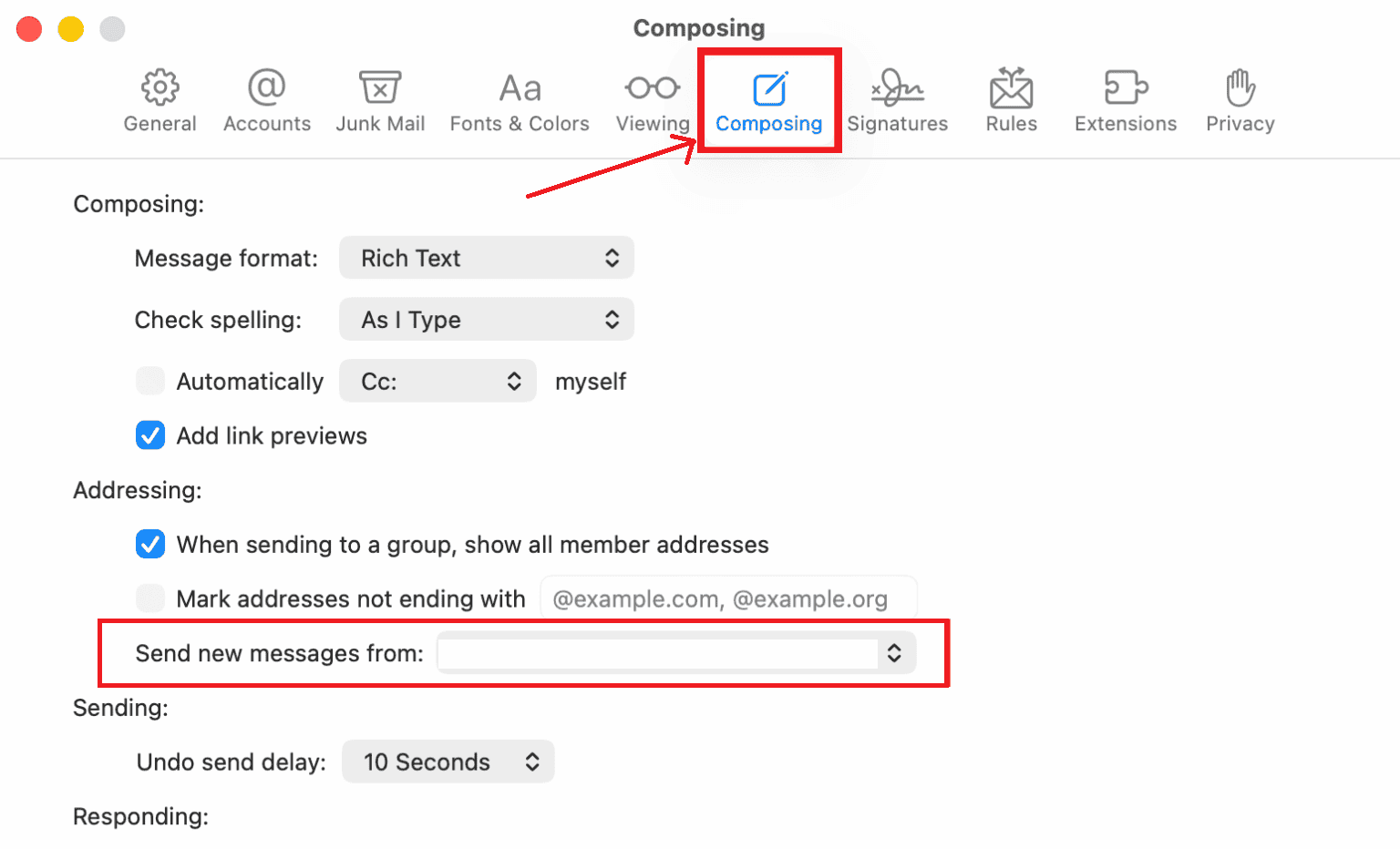
- Choose one of the following:
- Account of selected mailbox (Mail will use the account currently active in the sidebar).
- Default Account (you can select one account to always use).
- Account of selected mailbox (Mail will use the account currently active in the sidebar).
- Select your preferred email account from the dropdown list.
- Close the settings window to save changes.

Tip: This feature is helpful for users with both work and personal accounts to avoid sending messages from the wrong address.
3. Change Send Account While Composing an Email
Apple Mail also allows manual selection of the “From” address for specific messages.
On iPhone or iPad:
- Tap the From field while composing.
- A list of all configured accounts will appear.
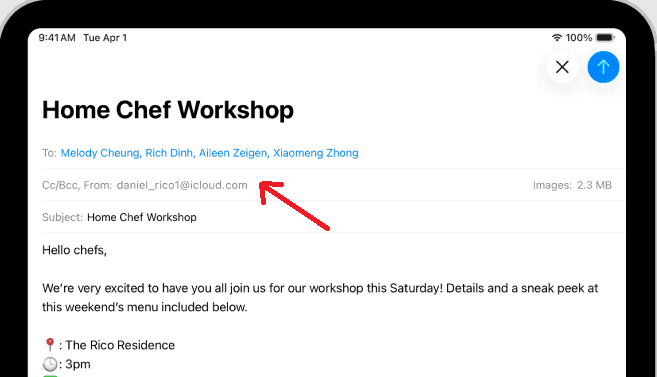
- Choose the email address you want to use for that message.

On Mac:
- In the new message window, click the From dropdown menu.
- Select another email address if you need to send from a different account.
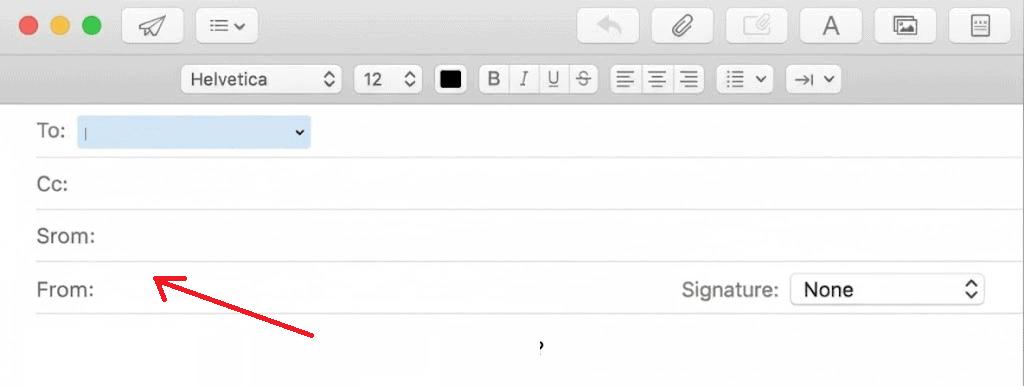

This flexibility ensures users can switch accounts as needed without changing the default setting.
Tips for Managing Multiple Accounts in Apple Mail
- Keep work and personal accounts labeled clearly for quick selection.
- Use separate signatures for different accounts to avoid confusion.
- Make sure all accounts are synced properly.
- If email delivery issues occur after macOS updates, check what to do if email is not working after macOS Tahoe.
- Review category settings on iPhone or Mac.
Managing Apple Mail the Smart Way
Setting a default send account in Apple Mail helps maintain consistency and prevents mix-ups when managing multiple inboxes. Once configured, every new message starts with the right sender address, saving time and reducing errors. For more helpful tips, explore the Apple Mail section on Mac Observer for additional tutorials and troubleshooting resources.
FAQs
No, the default account must be set individually on each device.
Yes, on Mac, you can choose “Account of selected mailbox” to make the current folder’s account the sender automatically.
Replies always use the account that received the original message, regardless of your default account.
Apple Mail will automatically assign another active account as the default until you select a new one.


Discussion