

If your iPad started dragging its feet after installing iPadOS 26, you’re not alone. Many users have noticed slower app launches, delayed responses, and even charging hiccups since updating. iPadOS 26 brings plenty of new features, but like most major updates, it can also surface old bugs, leftover system clutter, or settings that quietly pull down performance. Let’s look at why your iPad might feel slower than usual — and the exact steps you can take to speed it up again.
Why Your iPad Feels Sluggish After the iPadOS 26 Update
Here’s the thing: when your iPad slows down after a system update, it’s usually not one single cause. It’s often a mix of software and background processes trying to recalibrate.
1. Software bugs
New iPadOS releases sometimes bring minor glitches that can affect app responsiveness or system speed. Apple tends to patch these quickly, but in the meantime, you might notice lagging apps or frozen screens.
2. Too many background apps
If you’ve had multiple apps open since the update, they could be eating up memory and CPU in the background. Even when you’re not using them, they refresh content and keep background processes alive.
3. Storage overload
When your iPad’s storage is nearly full, performance dips hard. iPadOS relies on free space to manage temporary files and cache. Once storage gets tight, everything — from app switching to file saving — takes longer.
4. Battery and thermal conditions
iPads throttle performance when the battery is degraded or the device overheats. If your iPad gets warm often, or the battery health is low, that could explain slower response times.
7 Practical Ways to Fix a Slow iPad on iPadOS 26
Now that you know the main culprits, let’s fix them. These methods are straightforward and safe — no deep system tinkering required.
1. Close Background Apps
Too many apps running in the background can quietly drain your iPad’s resources. To shut them down:
- Swipe up from the bottom of the screen to the center and pause.
- Swipe up on each app preview to close it.
Only do this for apps that are frozen or clearly slowing things down. iPadOS is good at managing memory on its own, so constantly force-quitting everything can actually make it slower to reopen apps later.
2. Restart or Force Restart Your iPad
A restart clears out temporary system clutter and refreshes processes.
- To restart: Press and hold the top button (and volume button if you don’t have a Home button) until the power slider appears. Slide to power off, wait a few seconds, then power back on.
- To force restart: Quickly press and release Volume Up, then Volume Down, then press and hold the top button until you see the Apple logo.
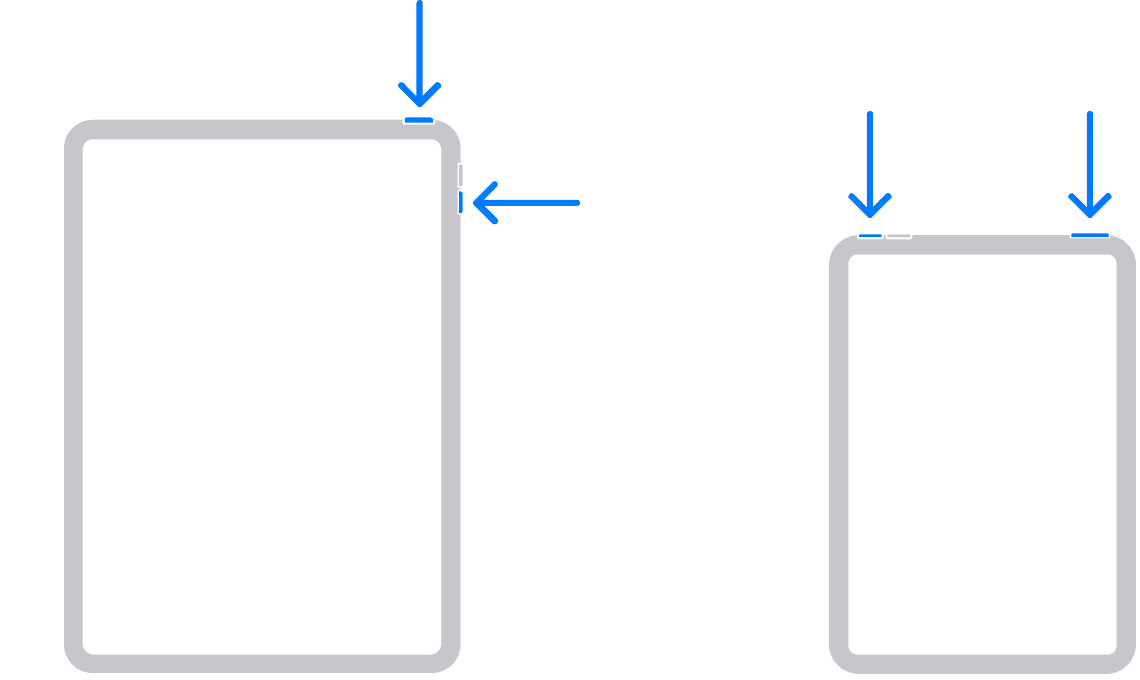

If your iPad is completely frozen, a force restart usually gets things moving again.
3. Free Up Storage Space
iPads slow down when storage drops below a gigabyte of free space. To check:
- Go to Settings > General > iPad Storage.

- You’ll see a list of apps sorted by size. Tap an app to offload or delete it.

Offloading keeps your app data but removes the app itself. If you don’t use the app at all, delete it entirely. Videos, screenshots, and large message attachments are also common storage hogs — clear them out if possible.
4. Disable Background App Refresh
Background App Refresh lets apps check for updates even when you’re not using them. It’s handy but drains both performance and battery life.
- Go to Settings > General > Background App Refresh and turn it off entirely or limit it to Wi-Fi only.
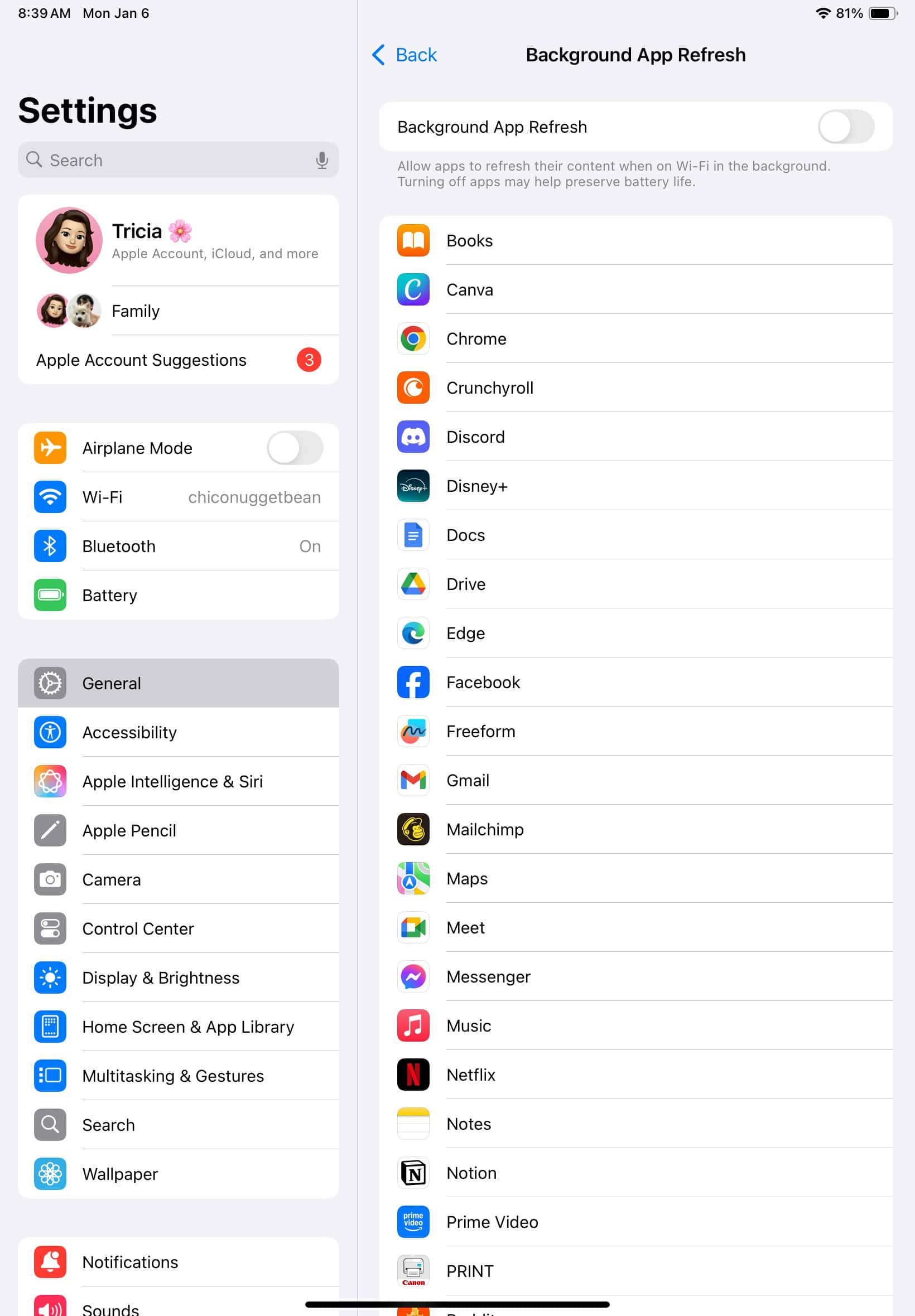

You’ll notice an immediate improvement, especially on older iPads.
5. Reduce Motion and Transparency
Fancy animations look great, but they can slow down older devices. You can simplify visuals without making your iPad feel dull.
- Go to Settings > Accessibility > Motion and turn on Reduce Motion.
- Then head to Settings > Accessibility > Display & Text Size and enable Reduce Transparency.
This small tweak can make transitions feel faster and smoother.
6. Check Battery Health and Temperature
If your iPad gets unusually hot or drains quickly, performance throttling could be the reason. Move it out of direct sunlight, unplug it if it’s overheating while charging, and give it time to cool down.
For iPhones, you can check Battery Health directly in Settings, but for iPads, you’ll need third-party tools or Apple Support diagnostics. If the battery is aging, a replacement might restore lost speed.
7. Update iPadOS
Sometimes the lag isn’t your fault — it’s a bug that Apple has already fixed in a minor update. Go to Settings > General > Software Update to see if an update is available.
Bonus Tip: Charging Slow After Update?
If your iPad is taking forever to charge, it might be a power issue rather than a software one. Try:
- Using the original Apple power adapter and cable.
- Plugging into a different outlet or USB port.
- Avoiding low-quality third-party chargers.
Low voltage or poor cable quality can make charging painfully slow, especially after a big software update that’s still syncing background data.
Final Thoughts
Your iPad slowing down after an iPadOS 26 update doesn’t mean it’s broken or too old. Most of the time, it’s just adjusting to new system processes, managing fresh data, or running low on space. The fixes above can bring it back to normal within minutes.
If you’ve tried everything and your iPad still struggles, it could be time for a deeper software repair or, in rare cases, a battery replacement. But for most people, closing background apps, freeing up space, and keeping iPadOS up to date will solve the issue.
A faster iPad is often just a few smart tweaks away.


I am on 26.5 and have recently been having problems – in particular when using Notability or Preview and working with the Apple Pencil. Sometimes when I want to start for the day, all apps start, but are frozen. Any ideas on this would be appreciated!
UGH! It’s completely mucked up my IPAD, HATE IT, DONT UPDATE!!!
The fastest fix for me for the extreme lag in opening and then using apps under iPadOS 26 was turning off the multi-window functionality (i.e., “windowed apps”). Turn it off under Settings, General, Multitasking & Gestures.
Thanks, my gen 2 iPad Pro is really struggling even on 26.2. Reduce transparency and motion helped a lot so thank you. It’s a shame they’re still releasing software which essentially makes you upgrade because your old machine just doesn’t have the power to run it.
I just upgraded to 26.3 and it seems to have fixed all issues related to 26.2.1