

If you’re wondering how to bring your favorite memories to your wrist, Apple Watch makes it easy to sync and view photos directly from your iPhone. The setup takes just a minute, and once synced, you can browse or even turn a photo into a custom watch face, no phone needed.
Table of contents
How photo syncing actually works
Your Apple Watch doesn’t store your entire photo library. It keeps a compressed version of a specific album from your iPhone, usually Favorites by default, or whichever one you choose. The syncing happens automatically when the watch is charging and near your iPhone via Bluetooth or Wi-Fi.
According to Apple’s official support guide, only one album can be synced to the Apple Watch at a time, and the total photo limit depends on your model and available storage.
Don’t miss the best of The Mac Observer
Set us as a preferred source and our Apple reporting ranks higher in your Google Search results and Discover feed — one tap, no account changes.
The Photos app on Apple Watch mirrors that selected album, and the synced images stay available even when you leave your iPhone behind. For storage efficiency, Apple limits synced photos to around 500, depending on your watch model.
You can think of it as similar to syncing media from your phone to a Mac, like when transferring images through AirDrop or Finder; the idea is the same, controlled syncing between Apple devices.
How to sync photos from iPhone to Apple Watch
Here’s how to get the photos you want onto your watch:
- Open the Watch app on your iPhone.
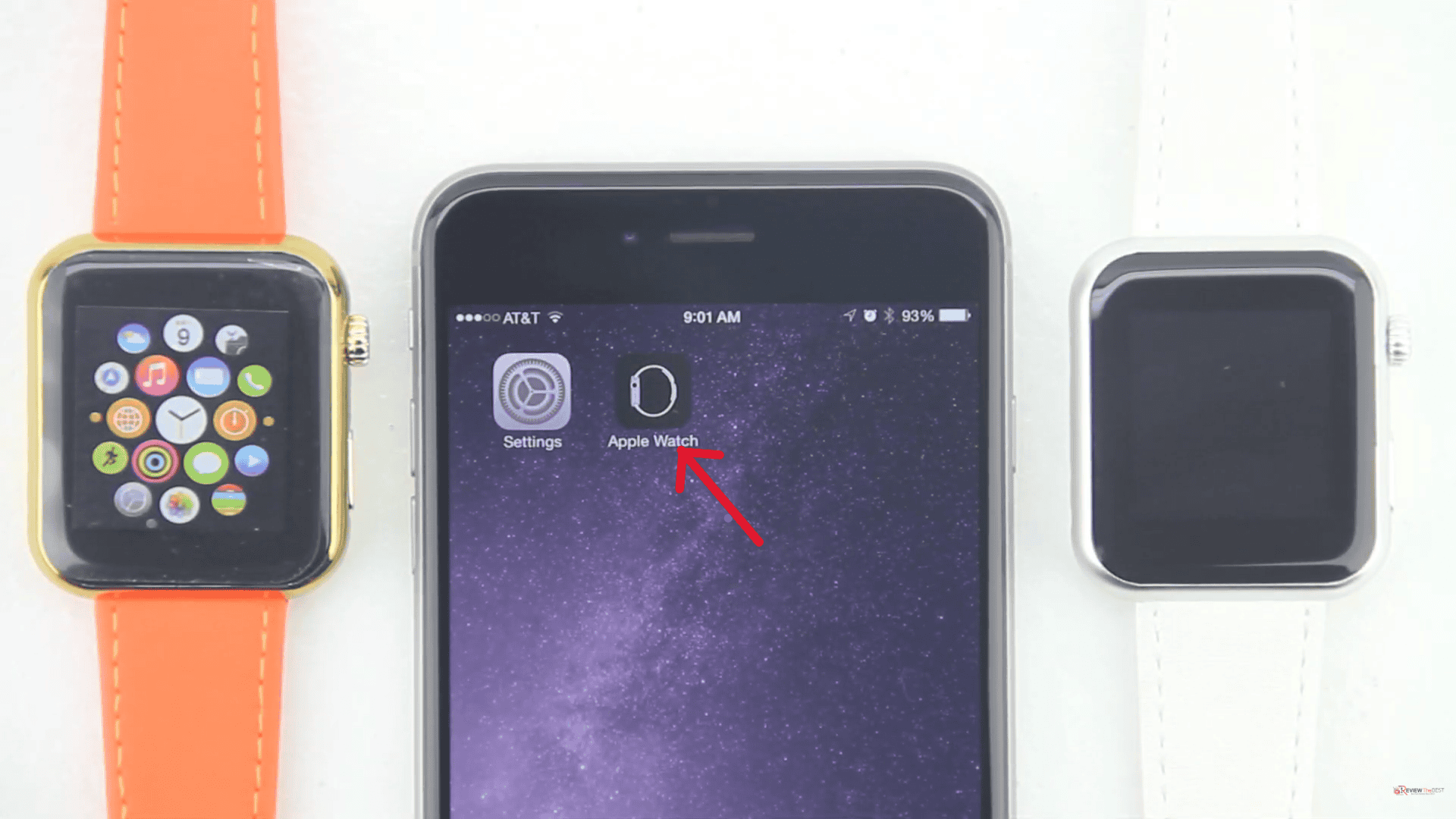
- Tap My Watch, then scroll down and select Photos.
- Under Sync Album, choose the album you’d like to display.
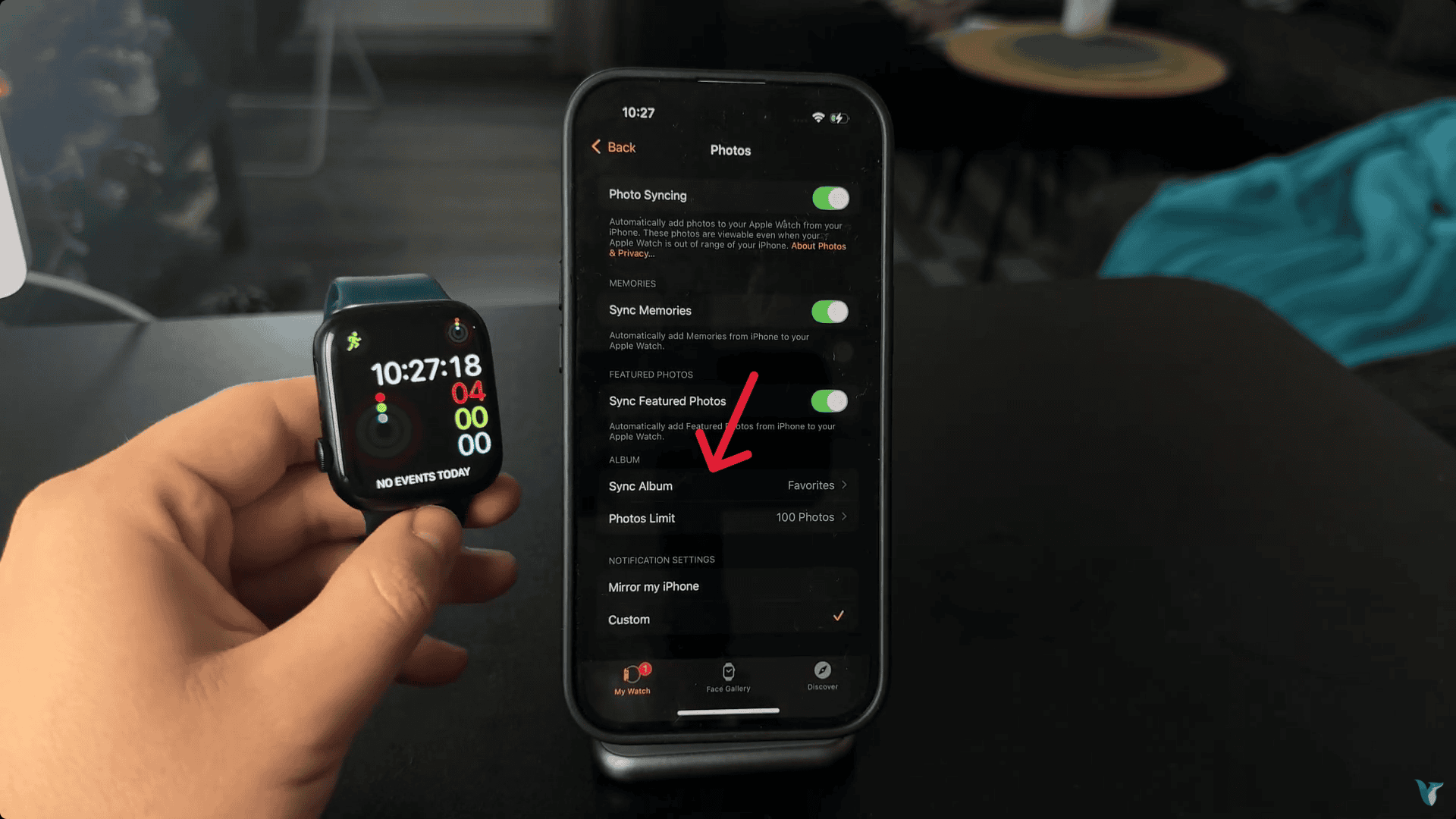
- Tap Photos Limit to decide how many images to keep on your watch.
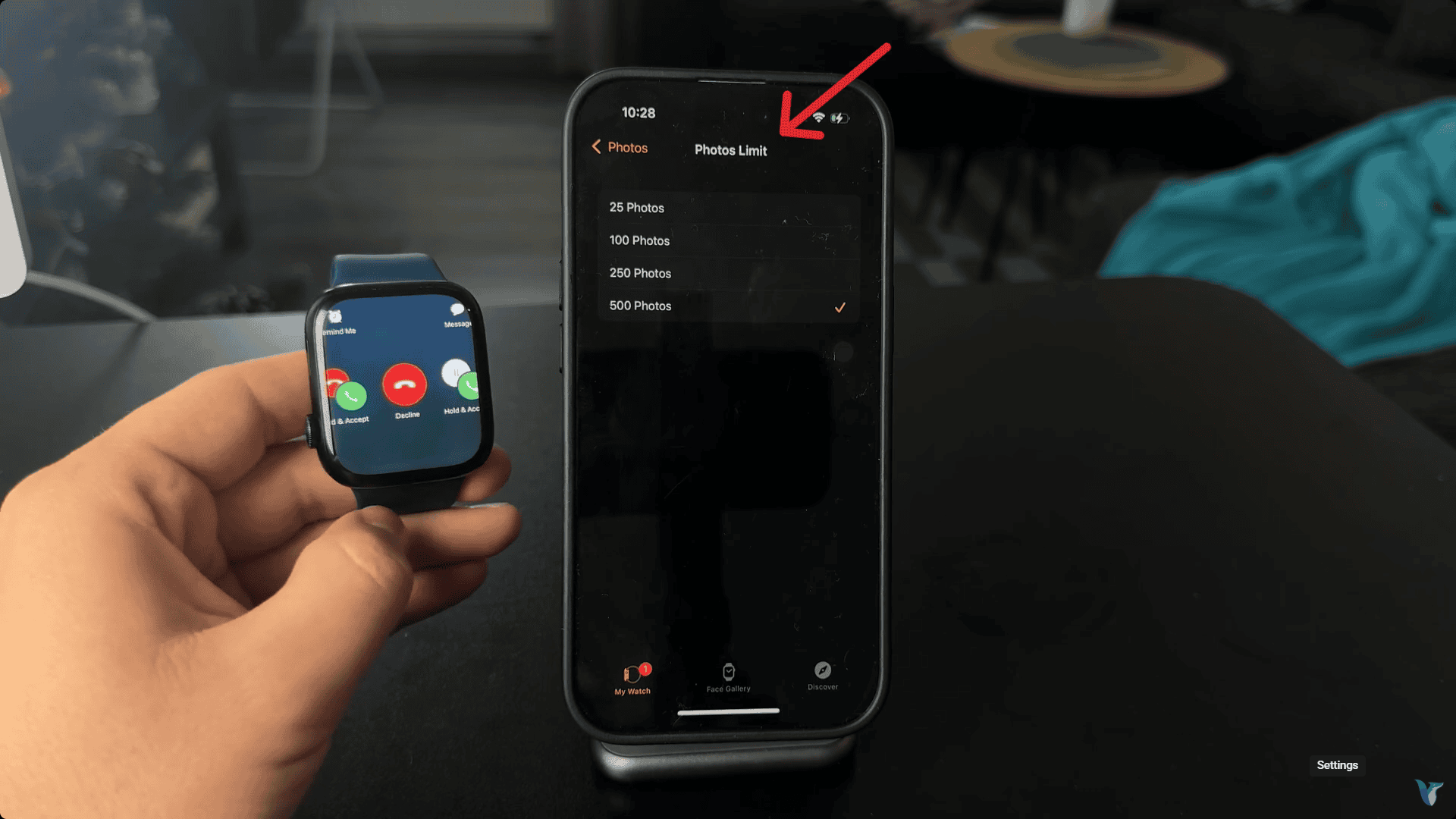
- Place your Apple Watch on its charger and keep it close to your iPhone until syncing finishes.


Once done, your chosen album appears instantly in the Photos app. You can change the album anytime; new images will replace the old ones after syncing.
If you recently rearranged or created albums, double-check the sync settings in the Watch app to avoid confusion. It works much like verifying connected devices when setting up an Apple Magic Mouse; a quick check ensures everything talks to each other properly.
How to view photos on your Apple Watch
To open your synced album:
- Press the Digital Crown to open the app grid or list.

- Tap Photos.
- Swipe or use the Digital Crown to scroll through your album.
- Tap a photo to open it in full-screen mode.
- Turn the crown to zoom in, or double-tap to toggle between fit-to-screen and fill.

To turn a photo into a watch face:
- While viewing an image, tap the Share icon, then choose Create Watch Face → Photos Face.
You can also do this directly from the iPhone’s Photos app, where the “Create Watch Face” option appears under the share menu.
If your photos aren’t showing up
If the album doesn’t appear on your watch:
- Check the connection. Make sure your watch and iPhone are paired and on the same Wi-Fi network.
- Revisit the album settings. Go to the Watch app → Photos → Sync Album, then toggle it off and back on.
- Restart both devices. Many users on Apple Support Community report that a simple restart fixes stalled syncs.
- Manage storage. Reduce the photo limit if your watch storage is full.
- Update watchOS and iOS. Keeping both current ensures photo syncing runs smoothly.
If you’ve recently reset network settings on your iPhone, like when troubleshooting connectivity issues covered in fixing Bluetooth problems on iPhone, you may need to resync albums once more.
Tips for a better viewing experience
- Choose bright, high-contrast images; Apple Watch displays them best.
- Use the square-crop option when editing photos on iPhone for a better on-wrist fit.
- Avoid syncing large panorama shots; they’re truncated on the small screen.
- If you use iCloud Shared Albums, remember that Apple Watch syncs only local albums, not cloud-shared ones.
Final Thoughts
Once you’ve synced your chosen album, your Apple Watch becomes more personal than ever. You can glance at memories, use photos as watch faces, and keep your favorite moments literally on hand, no iPhone required.
It’s one of those subtle Apple touches that feels effortless once set up. The next time you’re customizing your watch face or showing a quick picture to a friend, you’ll appreciate how tightly the watch and iPhone work together.
If your photos ever stop updating, a quick check of your sync settings or re-pairing your devices usually gets things back on track.


Discussion