

Owning an iPhone and a Windows PC used to feel like living in two separate worlds. You’d take a photo on your phone, then go through hoops to move it to your laptop. You’d write a note on your iPhone, but couldn’t open it on Windows without hunting down a workaround. The Apple–Microsoft divide used to be real — and pretty frustrating.
The good news is that those walls are finally coming down. Over the past few years, both companies (and a few smart third-party developers) have built tools that actually let iPhones and Windows PCs work together. You can sync messages, manage photos, take calls, and even use your iPhone as a webcam — all from your computer.
Here’s a look at the best iPhone apps for PC users who want their devices to play nice together.
Don’t miss the best of The Mac Observer
Set us as a preferred source and our Apple reporting ranks higher in your Google Search results and Discover feed — one tap, no account changes.
Table of contents
- 1. Intel Unison – The All-in-One Connector
- 2. Microsoft Phone Link – Stay Connected from Your Desktop
- 3. iCloud for Windows – Access Your Apple Life on PC
- 4. iTunes – Still Essential After All These Years
- 5. Camo – Turn Your iPhone into a Pro Webcam
- 6. Snapdrop – The Simplest Way to Transfer Files
- 7. OneDrive – Your Cloud Bridge
- 8. Microsoft Office and OneNote – Work That Travels with You
- 9. Skype – The Universal Communicator
- 10. Remote Desktop – Control Your PC from Your iPhone
- The Bottom Line
1. Intel Unison – The All-in-One Connector
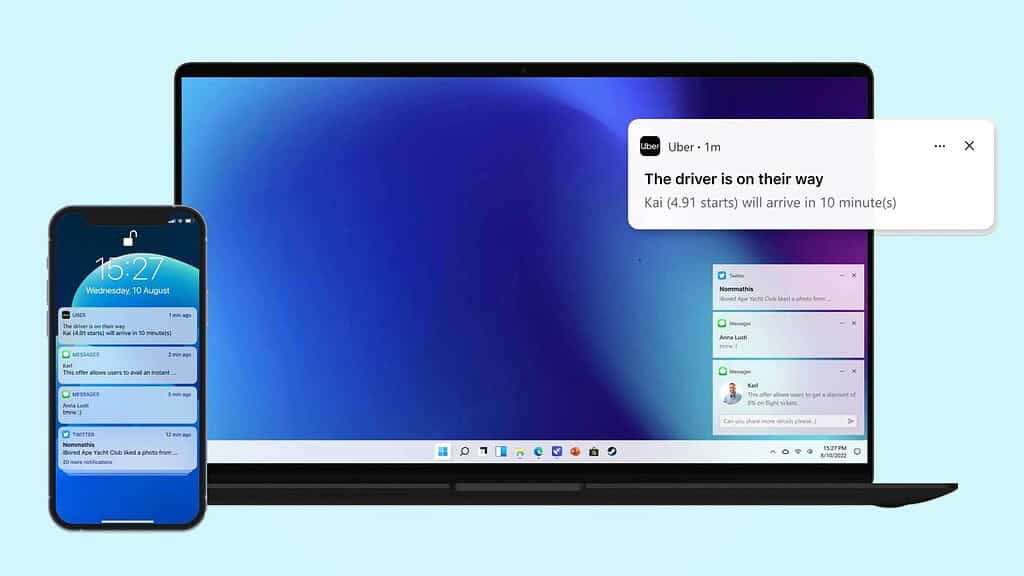
Let’s start with the big one: Intel Unison. This app bridges your iPhone and Windows PC better than almost anything else out there. Once you install Unison on both devices and pair them via QR code, you can share photos, videos, and files effortlessly.
But it doesn’t stop there. You can also receive notifications, respond to texts, and even take phone calls directly from your computer. No cables, no complicated setups — just sync and go.
Unison is especially handy if you’re tired of emailing yourself photos or digging through cloud folders. It turns your PC into an actual extension of your iPhone.
2. Microsoft Phone Link – Stay Connected from Your Desktop
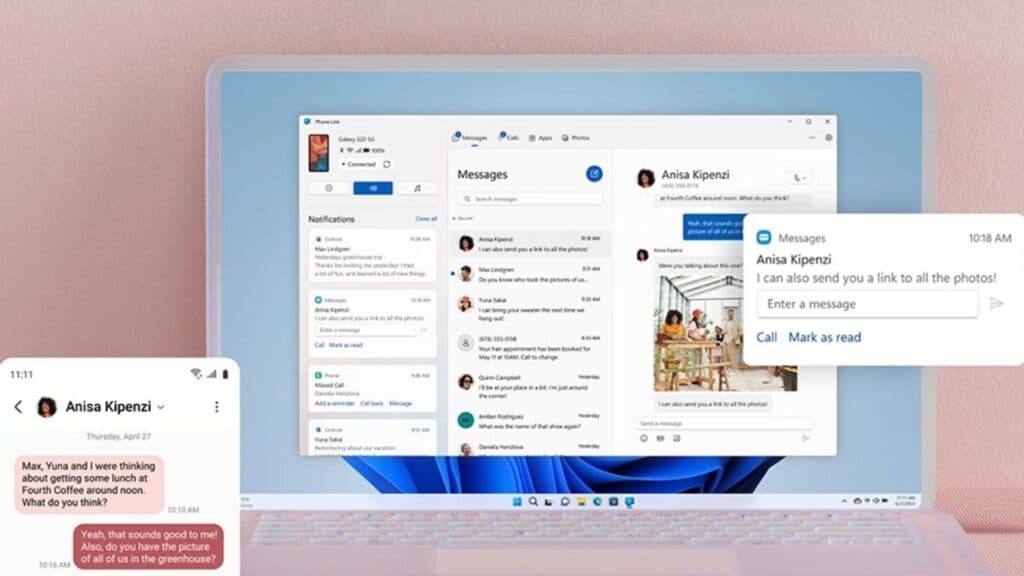
Microsoft Phone Link (formerly “Your Phone”) is another must-have if you want your iPhone and PC to feel like part of the same ecosystem. Originally built for Android, it now supports iPhones too.
Once connected via Bluetooth, you can manage messages, calls, and notifications without ever touching your phone. The integration isn’t as deep as it is with Android, but it’s improving fast.
Here’s the thing: Phone Link comes pre-installed on most Windows 11 systems. You just need the Link to Windows app on your iPhone to get started. It’s simple, reliable, and free.
3. iCloud for Windows – Access Your Apple Life on PC
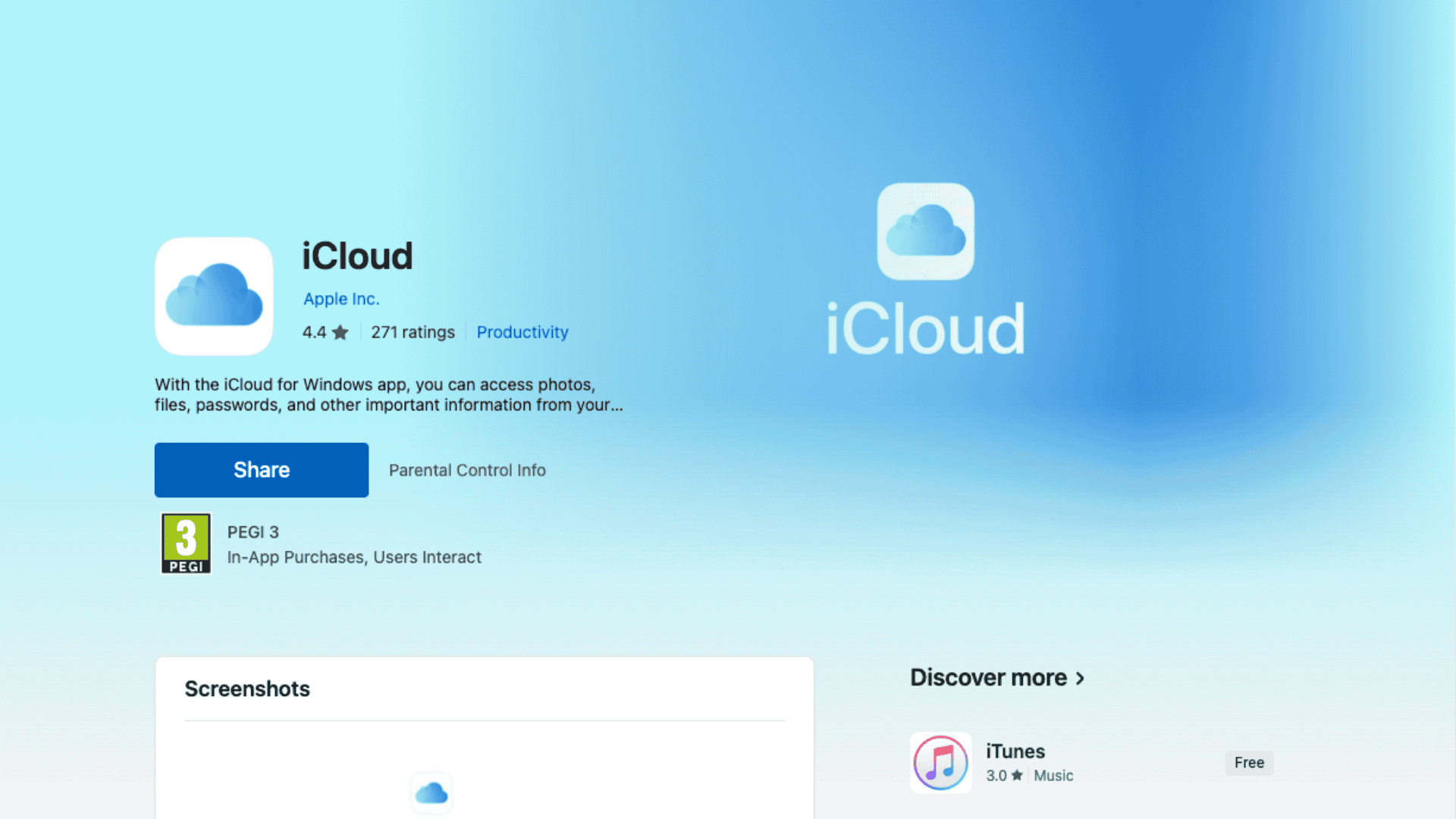
iCloud isn’t just for Macs. The Windows version lets you access your photos, files, passwords, and contacts right from your PC. Once you sign in with your Apple ID, your iCloud Drive appears in File Explorer just like another folder.
That means you can drag and drop files, manage backups, or view photos without juggling USB cables or external drives. If you already use iCloud storage for your iPhone, this app makes it effortless to sync your digital life between devices.
You can also sync Safari bookmarks with Edge or Chrome, so you don’t lose your place when switching devices.
4. iTunes – Still Essential After All These Years
Yes, iTunes is old-school — but it’s still one of the most useful apps for iPhone users with PCs. It’s your one-stop shop for syncing music, movies, and podcasts between devices.
It also doubles as a powerful backup tool. You can save your iPhone data locally to your PC, which is a nice safety net if you ever lose your phone or run out of iCloud space.
If you subscribe to Apple Music, iTunes is where your playlists live. You can even rent or buy movies and watch them on your PC. For all the cloud syncing and automation we have now, iTunes remains a reliable classic that just works.
5. Camo – Turn Your iPhone into a Pro Webcam
If you spend half your day in meetings or online calls, Camo is a game-changer. It turns your iPhone into a high-quality webcam for your Windows PC. The difference in image quality is night and day — even the best built-in laptop webcams don’t come close to what an iPhone can capture.
Setting it up is simple. Install the app on your phone and computer, connect them via cable or QR code, and select Camo as your camera in Zoom, Teams, or Google Meet.
You can adjust framing, lighting, and even background blur from your PC. The free version works great, but the Pro upgrade unlocks advanced controls if you want that extra polish.
6. Snapdrop – The Simplest Way to Transfer Files
Sometimes you just want to move a photo or document from your iPhone to your PC without logging into anything. That’s where Snapdrop comes in.
It’s not an app, technically — it’s a web-based service that mimics AirDrop for cross-platform transfers. Open snapdrop.net on both your iPhone and PC (make sure they’re on the same Wi-Fi), and your devices will see each other instantly.
Send files back and forth with one tap. No accounts, no installations, no nonsense. It’s fast, private, and perfect for quick transfers.
7. OneDrive – Your Cloud Bridge
If you’re deep in the Microsoft ecosystem, OneDrive is your best friend. It’s already built into Windows, and the iPhone app syncs your photos, videos, and files to your Microsoft account automatically.
You can take a photo on your iPhone, and it’ll show up in your PC’s OneDrive folder almost instantly. It’s also great for collaboration — you can share files or edit Office documents across devices without touching email attachments.
If you use Office 365, OneDrive integration makes this combo even more powerful.
8. Microsoft Office and OneNote – Work That Travels with You
Microsoft’s Office apps for iPhone — Word, Excel, and PowerPoint — are surprisingly capable. They sync smoothly with your Microsoft account, so anything you edit on your phone is instantly available on your PC.
OneNote deserves a special mention here. It’s a gem for jotting down ideas, lists, or reminders. You can snap a photo of a receipt or write a grocery list on your phone and see it appear instantly on your Windows machine.
For students, professionals, or anyone who lives in notes and documents, these apps make cross-device work feel almost effortless.
9. Skype – The Universal Communicator
Yes, Skype is still around — and for good reason. It’s one of the few apps that works equally well on Windows, macOS, Android, and iOS.
It’s ideal if you want to keep your calls and chats consistent across devices. You can start a call on your PC and switch to your iPhone mid-conversation without missing a beat.
If you have Skype credit or use Microsoft 365, you can even call landlines directly from the app. It’s not flashy, but it’s dependable, and sometimes that’s exactly what you need.
10. Remote Desktop – Control Your PC from Your iPhone
Here’s one for the power users. Microsoft’s Remote Desktop app lets you access and control your PC from your iPhone as if you were sitting right in front of it.
It’s incredibly useful if you need to check files, manage servers, or use software that doesn’t exist on iOS. The interface takes a little getting used to — the iPhone screen is small, after all — but once you get the hang of it, it’s a surprisingly powerful tool.
If you use Windows 10 or 11 Pro, setup is straightforward. Just enable remote access in system settings and connect through the app.
The Bottom Line
Using an iPhone with a Windows PC doesn’t have to feel like juggling two rival gadgets anymore. Between Apple’s own tools and Microsoft’s growing compatibility efforts, the experience is smoother than it’s ever been.
Here’s how to think about it: Intel Unison and Phone Link handle your everyday syncs and notifications. iCloud and OneDrive keep your files organized. Camo makes your iPhone’s camera useful on your PC. And Snapdrop ties it all together for those quick, no-hassle transfers.
The platforms may come from different worlds, but with the right apps, your iPhone and Windows PC can finally work as one.




Discussion