

FaceTime is an essential communication tool for Apple users, but seeing the frustrating “Waiting for Activation” message can halt your plans. This issue typically arises when your iPhone or iPad is having trouble connecting with Apple’s activation servers to link your device to your phone number or Apple ID. Fortunately, there are several simple and effective troubleshooting steps you can take to quickly resolve the delay and start making video calls with friends and family.
Table of contents
Resolving Common FaceTime Activation Issues
Activation errors are frequently caused by simple configuration mistakes or temporary network problems. Addressing these fundamental areas first will usually clear the activation hold without needing complex fixes.
1. Confirm Your Apple ID Credentials
Sometimes, simply signing out of FaceTime and signing back in can clear a temporary authentication glitch causing the activation hold.1 This forces your device to reestablish a connection with the server, often resolving the ‘Waiting for Activation’ status.
Don’t miss the best of The Mac Observer
Set us as a preferred source and our Apple reporting ranks higher in your Google Search results and Discover feed — one tap, no account changes.
- Go to Settings > Apps > FaceTime.

- Tap your Apple ID, then select Sign Out.
- Restart your iPhone or iPad.
- Return to Settings > FaceTime and sign back in using your Apple ID and password.

2. Verify Date and Time Settings
Activation requires your device’s date and time to be perfectly synchronized with Apple’s servers. If your device’s clock is incorrect, the server will reject the connection attempt. Make sure your device is set to update this information automatically to prevent authentication failures.
- Navigate to Settings > General > Date & Time.
- Ensure the Set Automatically toggle is turned on.
3. Check Your Internet Connection and Mobile Plan
FaceTime activation requires a stable Wi-Fi or cellular data connection, and sometimes the activation process involves sending a hidden international SMS. You must ensure you have adequate cellular service and that international SMS is not blocked by your carrier. A poor connection can simply time out the activation attempt.
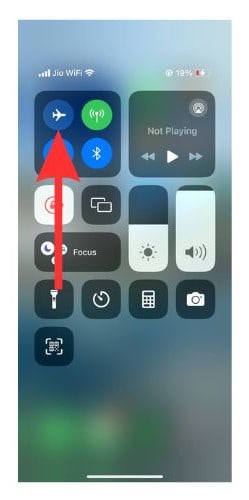
- Toggle Airplane Mode on for a few seconds, then turn it off.
- Try connecting to a different, stable Wi-Fi network.
- If using a phone number, confirm with your carrier that you can send and receive SMS messages.

4. Ensure iMessage and FaceTime are Enabled
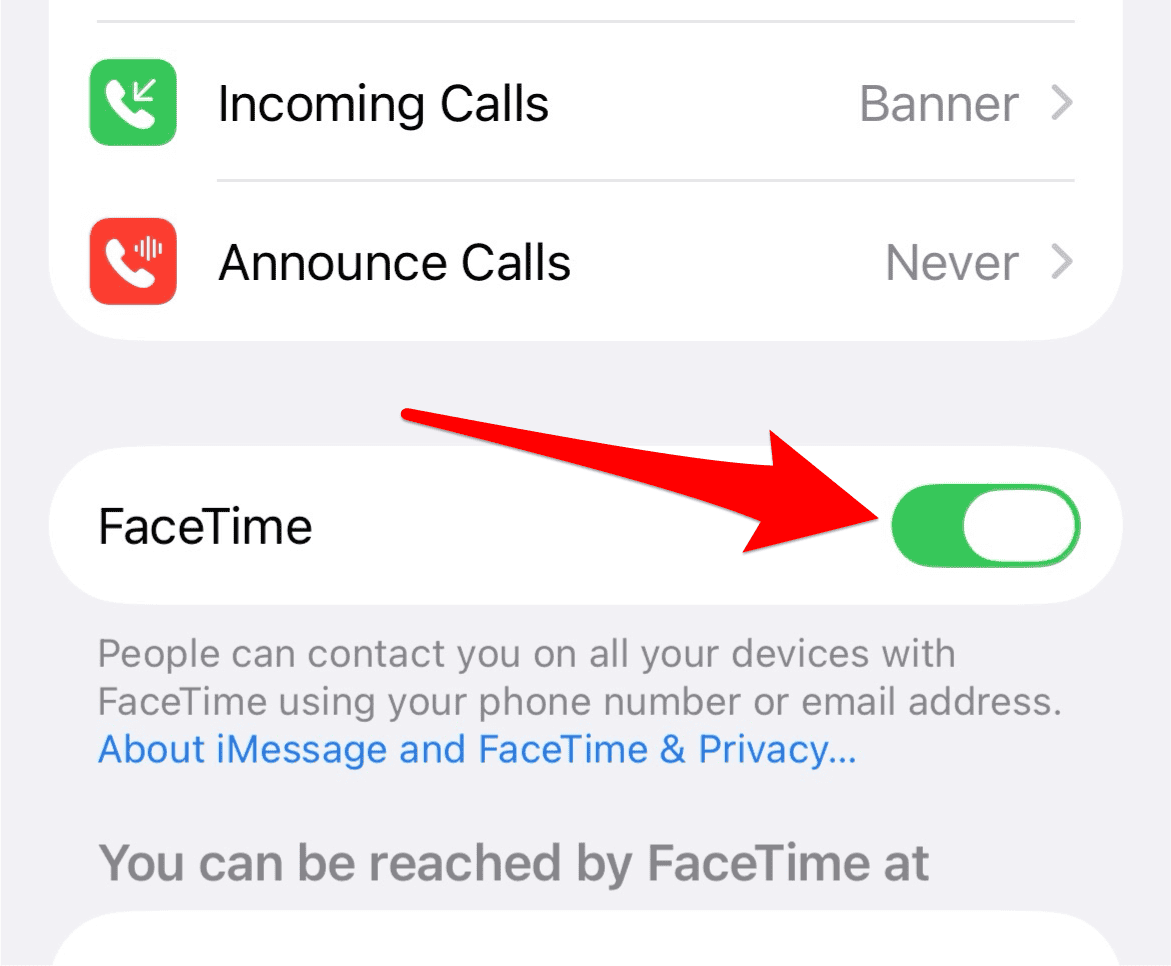
The two services are closely related in the activation process, especially when using a phone number. Sometimes, toggling both services off and on can refresh the connection and prompt a successful activation. This is a common solution when basic fixes fail, providing a clean slate for the connection. For a full understanding of the app, you may want to review FaceTime’s essential guide for beginners.
- Go to Settings > Apps > Messages and toggle iMessage off.
- Go to Settings > Apps > FaceTime and toggle FaceTime off.
- Wait five minutes.
- Turn both services back on.

5. Perform a Quick Restart
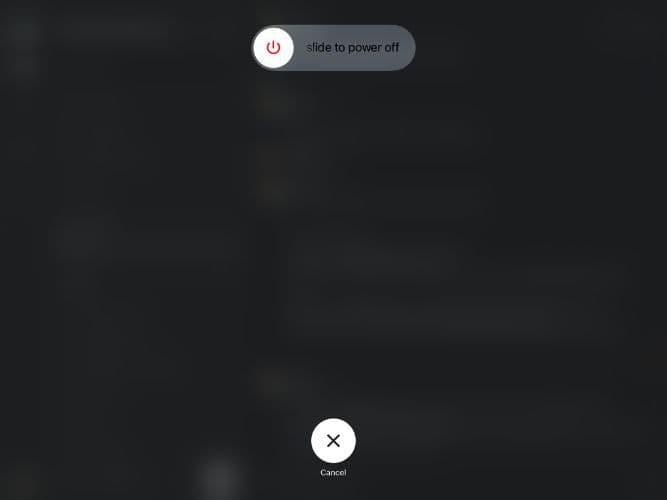
The simple act of restarting your iPhone or iPad can clear cached data and resolve minor software conflicts that are preventing successful activation. A fresh boot allows the operating system to try the activation process again without interference from background apps or temporary bugs. If you prefer to temporarily disable the service entirely, you can learn how to turn off FaceTime on iPhone for troubleshooting.
- Completely turn off your device.
- Wait about one minute.
- Turn the device back on and check the FaceTime status.

6. Reset Network Settings
If all else fails, a network settings reset can clear corrupted data that might be hindering activation. This action clears all saved Wi-Fi passwords and cellular data settings, so be sure to have your passwords ready. You can also explore steps to fix FaceTime not working for more complex connection issues.
- Go to Settings > General > Transfer or Reset iPhone (or iPad).

- Tap Reset > Reset Network Settings.

FAQ
Activation usually takes only a few minutes, but it can take up to 24 hours if Apple’s servers are extremely busy or if you are waiting for an international SMS confirmation from your carrier to process.2
Yes, FaceTime can be activated and used solely with your Apple ID and a connected email address. This is the only option available for Wi-Fi only devices like the iPad.
Maximizing Your Video Communication Experience
The “Waiting for Activation” error is nearly always a temporary glitch related to connectivity, credentials, or local device settings. By systematically checking your Apple ID, connection, and time settings, you can almost always get past the delay quickly. Once activated, you can explore the service’s great communication capabilities, including all its latest features that enhance your video calling sessions.


Discussion