

The Liquid Glass effect gives your interface a modern look. It adds a translucent aesthetic to the Dock, folders, and Control Center. When the effect fails, it looks gray or solid instead of transparent. This failure usually means an accessibility setting conflict is present. Luckily, you can take several simple steps to restore the glassy appearance.
Table of contents
Restoring Visual Clarity: Essential Fixes
1. Reset Display Accessibility Options
Many readability settings accidentally disable the Liquid Glass effect. Therefore, start by ensuring key display adjustments are switched off. This is often the fastest fix after a system update. Moreover, this adjustment might help you make iOS 26 less animated too.
- Open Settings, then tap Accessibility.
- Next, navigate to Display & Text Size.
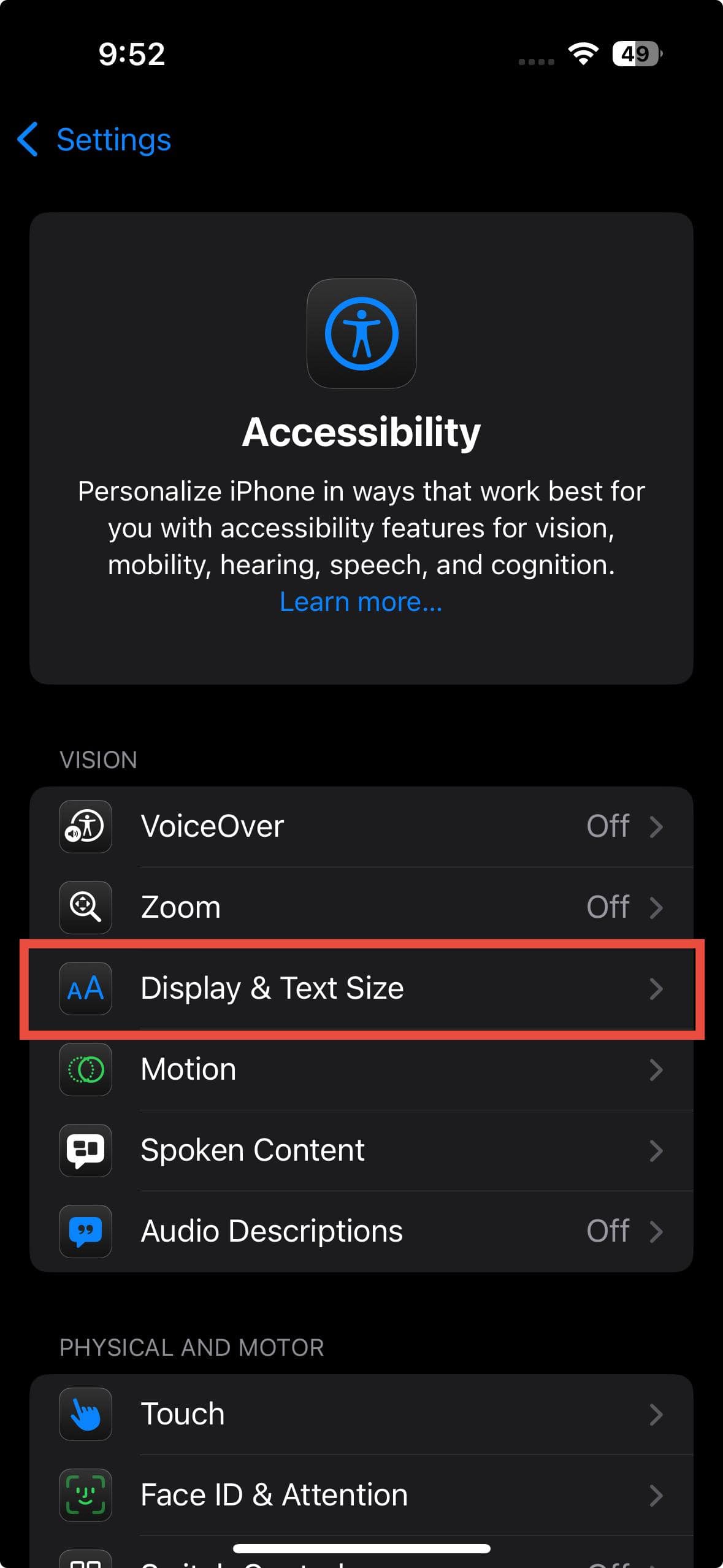
- Check that Reduce Transparency is OFF.
- Confirm that Increase Contrast is OFF.
- Check the Reduce White Point setting. An update may have flipped this setting. Try turning it off if it is enabled.
- If the problem continues, return to Accessibility. Then, select Motion. Finally, ensure Reduce Motion is also OFF.

2. Adjust Per-App Settings for the Home Screen
Custom settings sometimes override system defaults for the Home Screen. This is a frequent oversight. You must access “Per-App Settings” to fix this problem. Clear or reset any customizations applied there. This targeted fix specifically addresses the primary interface elements. Furthermore, if you decide against the effect, learn how to remove Liquid Glass from your iPhone entirely.
- Open Settings, scroll down, and select Accessibility.
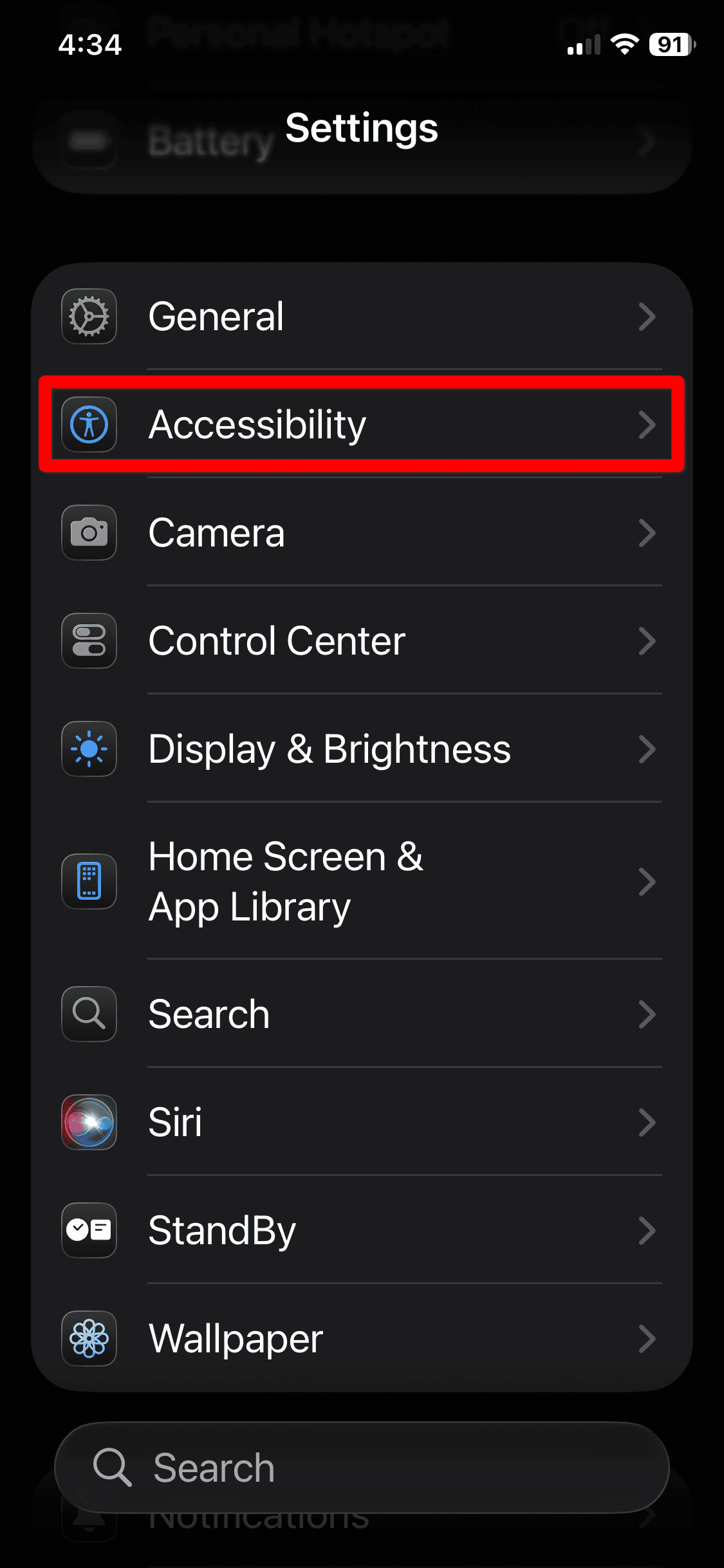
- Scroll to the very bottom.
- Tap on Per-App Settings.
- Tap Home Screen & App Library. Tap Add App to include it if it’s missing.
- Inside this menu, ensure all options are set to Default. Alternatively, make sure they are OFF. Specifically, disable Bold Text, Reduce Transparency, Increase Contrast, Reduce Motion, and Smart Invert.

3. Perform a System-Level Force Restart
Visual elements might fail to load right after a major software update. Cached system data often causes this issue. A standard restart is not enough to clear these conflicts. Conversely, a Force Restart provides a deeper system reboot. This action often fixes persistent graphical glitches. You can learn more about Liquid Glass features in our comprehensive guide.
- Press and quickly release the Volume Up button.
- Press and quickly release the Volume Down button.
- Then, press and hold the Side Power button.
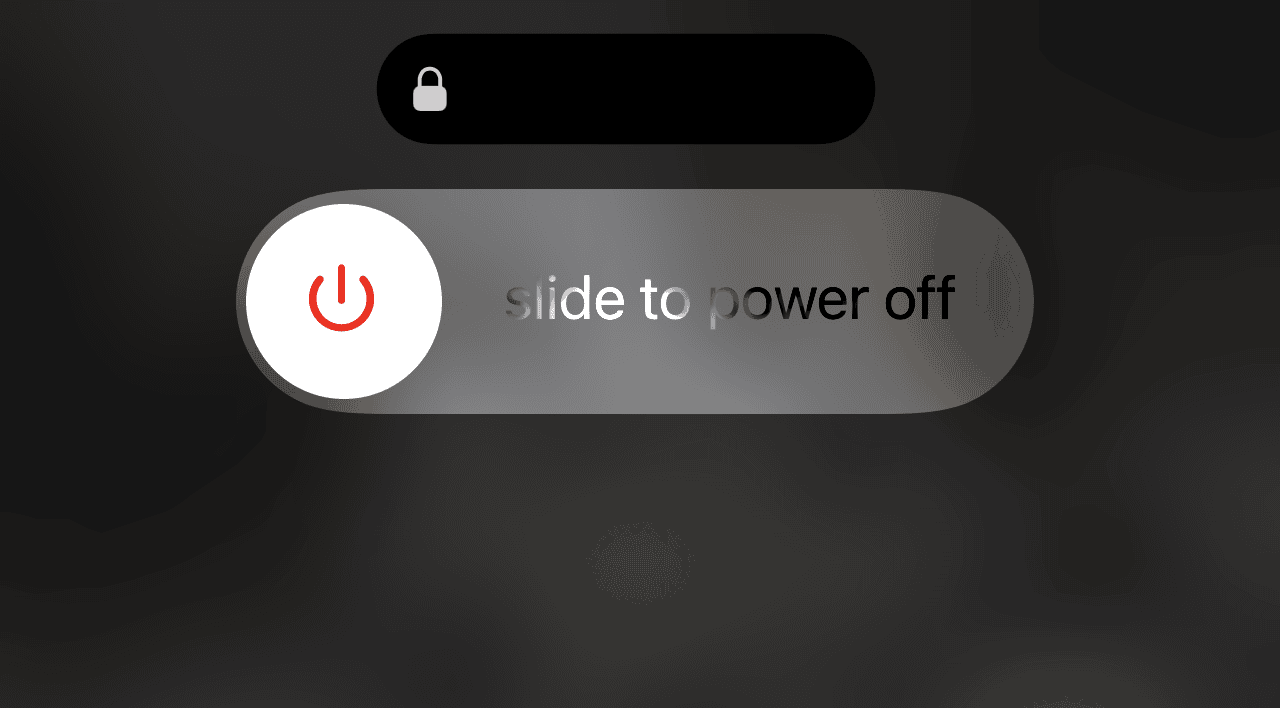
- Keep holding the Side Power button past the “slide to power off” screen.
- Release the button only when the Apple logo appears. This means the system reset is complete.

4. Verify Wallpaper and App Icon Selection
Sometimes the wallpaper customization causes this issue. The problem may be a setting, not a bug. If you use a dark wallpaper, the “Clear” icon option might adopt that dark color. This makes the transparency difficult to detect. This step helps rule out color settings.
- Go to Settings > Wallpaper.
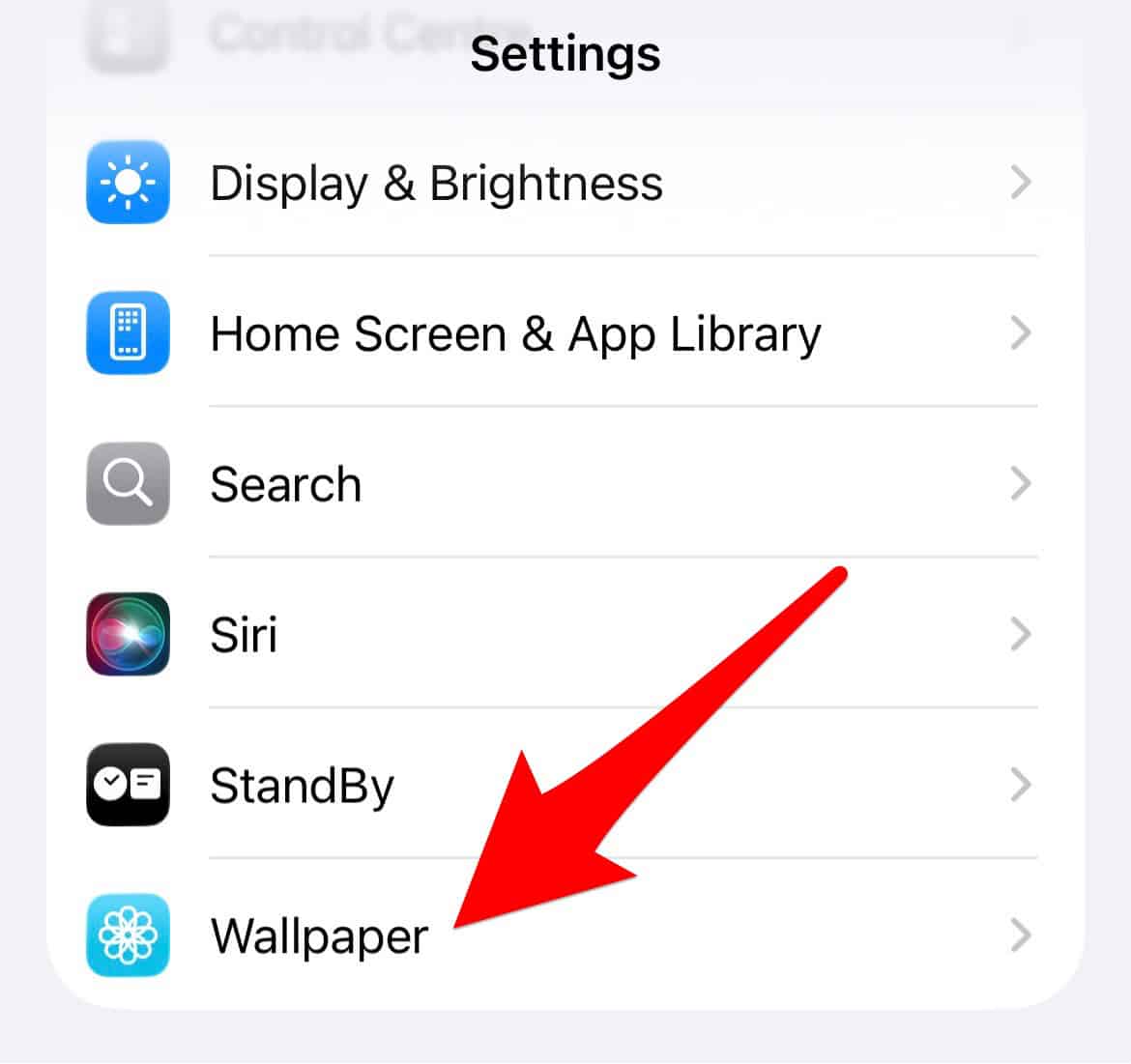
- Tap Customize on your Home Screen.
- Check the tint option for the app icons. It is usually labeled “Clear” or “Tint.”
- Try selecting the Default option if your background is dark.

5. Check for Latest Software Updates
The initial version you installed may have a known bug. The Liquid Glass effect might have broken right after the iOS update. Therefore, check if a minor point release is available. Apple often releases quick fixes for major visual flaws. Installing the newest version might resolve the issue automatically.
- Go to Settings > General.
- Tap Software Update.
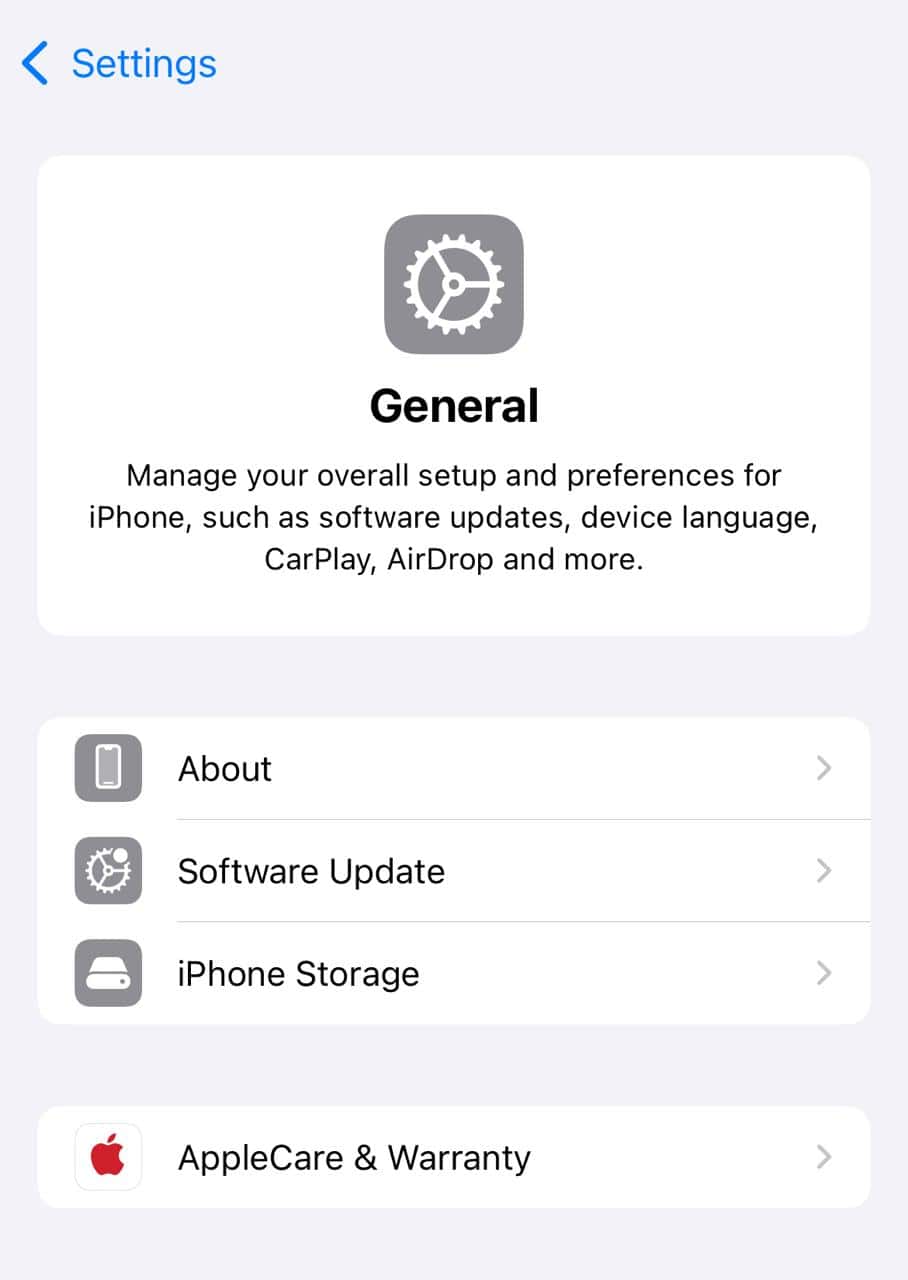
- If an update is ready, download and install it immediately.

FAQ
The visual effect is translucent, not completely transparent. It subtly blurs the background instead. If it looks solid gray, you probably have Reduce Transparency enabled. Enabling Increase Contrast also forces solid backgrounds. This improves readability. Additionally, your wallpaper setting can affect the tint. Selecting “Clear” for app tinting might make it look dark.
These issues often start as post-update bugs. A future software release may stabilize the feature. However, conflicts come from user-enabled accessibility settings. These settings often remain after the update. Therefore, you usually must perform a manual configuration check.
Ensuring Seamless Visual Performance
Experiencing issues with visual enhancements is common after an OS update. Nevertheless, checking core Accessibility settings fixes the issue quickly. Focus on display options and Home Screen customizations. This eliminates conflicts preventing the translucent look. Smooth display features let you enjoy the full range of visual styling. Moreover, maintaining optimal system performance helps with related problems, such as addressing iOS 26.1 battery drain.


