

Starting a YouTube channel requires reliable video recording tools. Many creators begin with free options. These tools capture screen activity and webcam feeds. Furthermore, they record microphone audio effectively. You must select the right free Mac screen recording software. This choice is essential for producing polished content. These accessible tools offer powerful features for all new creators.
Table of contents
Essential Free Tools for Mac YouTube Creators
1. OBS Studio

OBS Studio (Open Broadcaster Software) is powerful and free. This application is also open-source. Professional streamers and creators widely use it. Beginners may find the interface complex. However, OBS offers deep customization options. Users can layer multiple video sources easily. You can add graphics and webcam feeds into sophisticated scenes. Its robust macOS capture feature ensures high quality. Moreover, it records without watermarks or time limits. Therefore, it is ideal for serious content production.
2. QuickTime Player

Every Mac includes QuickTime Player for free. This tool provides a straightforward solution for basic recording. QuickTime seamlessly captures the entire screen or a specific area. It includes simple trimming tools. This lets you quickly tidy up your clip edges. However, QuickTime struggles with system audio capture. It primarily records only microphone input. For quick, no-fuss capture, it remains a common choice. Experienced creators often need more powerful audio solutions.
Don’t miss the best of The Mac Observer
Set us as a preferred source and our Apple reporting ranks higher in your Google Search results and Discover feed — one tap, no account changes.
3. macOS Screenshot Utility

The native Screenshot utility offers the easiest Mac screen recording. This option avoids relying solely on the QuickTime interface. Access it instantly by pressing Shift+Command+5. The tool presents an intuitive control bar. This bar allows immediate selection of the recording area. It also lets you choose the save location. This simplifies the capture process dramatically. Therefore, it provides a hassle-free method to easily screen record on Mac without QuickTime Player.
4. ActivePresenter

ActivePresenter offers a comprehensive free license. It is an eLearning authoring solution. This tool suits tutorials particularly well. It organizes recordings into a slide format automatically. Furthermore, the free version includes robust editing capabilities. Users can cut, split, or blur sensitive areas. Importantly, it records without adding a restrictive watermark. Consequently, this tool is a valuable asset. It helps create detailed training videos for your channel.
5. ScreenPal
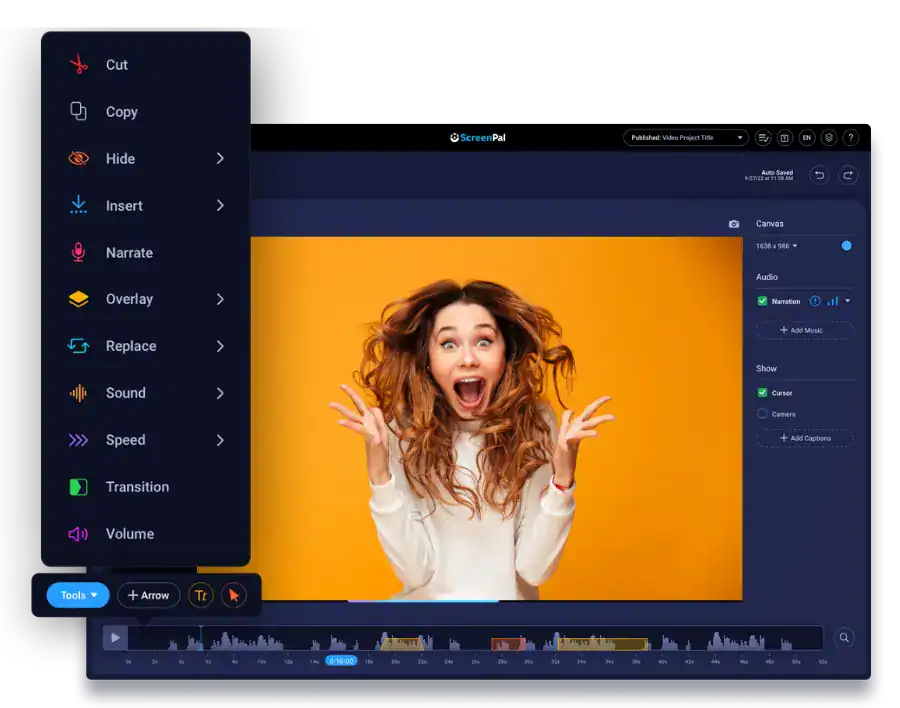
ScreenPal was previously known as Screencast O Matic. It specializes in quick captures and integrated annotation. The free version allows screen area recording. It also supports webcam and microphone narration. Its primary strength lies in immediate editing functions. This enables swift cropping or adding basic visual notes. For example, you can quickly add arrows or text. This makes it perfect for educators needing fast explanations. In addition, you can explore other great clipping software for Mac as well.
FAQ
Native Mac utilities capture external audio only. This is done via your microphone. You need to record sounds playing directly from your computer. Game audio or application sounds require third-party apps. OBS Studio manages this with extra setup. Alternatively, creators use virtual audio driver software. Examples include BlackHole or Loopback. Therefore, you should find the best screen recorders with internal audio for Mac if this specialized functionality is crucial for your content.
QuickTime defaults to the MOV file format. However, MP4 is generally the best format for YouTube. MP4 offers efficient compression using the H.264 codec. If your free tool exports MOV natively, consider editing. You can use iMovie to re-export the final cut. Exporting as MP4 optimizes the video quality. Furthermore, it improves YouTube’s processing speed significantly.
The built-in Mac tools do not add watermarks. OBS Studio is open-source and provides clean output. Free licenses for ActivePresenter and ScreenPal also avoid watermarks. These tools deliver unbranded video output. However, some other trial versions may impose a watermark. They might also limit your recording time. Consequently, always check the free-tier restrictions carefully.
Maximizing Mac Video Production
Selecting the ideal software depends entirely on your YouTube goals. For professional, highly produced content, OBS Studio is best. It offers unmatched features, despite its learning curve. Conversely, if simplicity and speed are your priorities, use the built-in macOS tools. They are readily available and integrated into your system. Always consider system audio capture needs. Furthermore, review integrated editing features carefully. Check out this guide on the QuickTime Player screen recording Mac process.


Discussion