

Your Apple Watch usually keeps perfect time without any effort from you. It pulls the correct time zone and clock settings from your iPhone and adjusts itself automatically. But there are moments when you want more control. Maybe you prefer a 24-hour clock. Maybe you like your watch running a few minutes fast so you’re never late. Whatever your reason, the controls you need are there. You just have to know where to look.
Table of contents
How to switch your Apple Watch to 24 hour time
If you prefer military time or just want a cleaner clock, the change happens on your iPhone.
- Open the Watch app
- Tap Clock
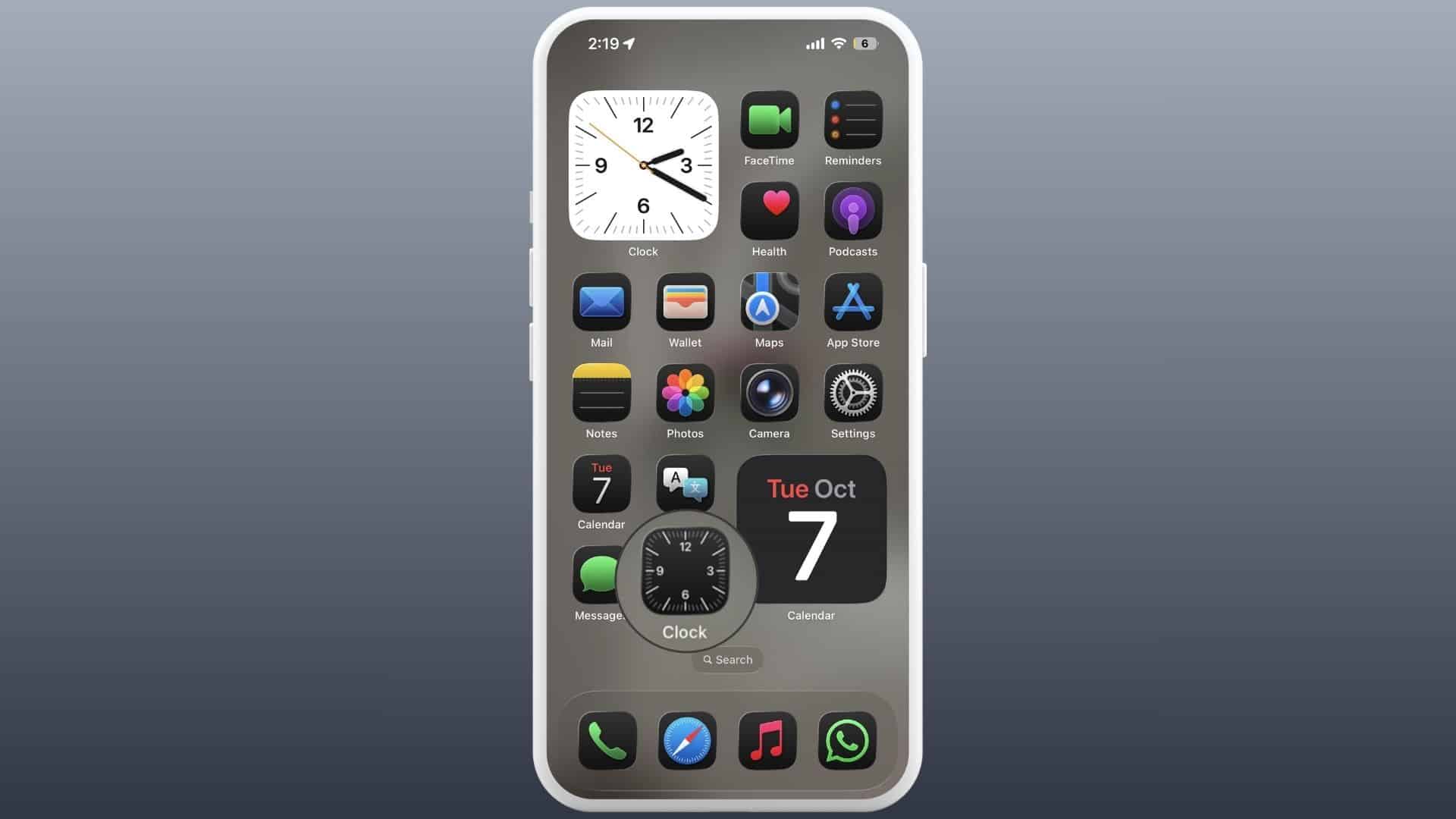
- Turn on 24 Hour Time

The change appears instantly on the watch face as long as your watch and iPhone are paired.
Don’t miss the best of The Mac Observer
Set us as a preferred source and our Apple reporting ranks higher in your Google Search results and Discover feed — one tap, no account changes.
How to set your watch face ahead of the real time
Here’s the thing. Apple won’t let you change the actual system time on your Apple Watch. That keeps alarms, reminders, and time zones accurate. But the company gives you a clever workaround. You can set the displayed time ahead while everything else runs normally behind the scenes.
On your Apple Watch:
- Open Settings
- Tap Clock
- Tap +0 min
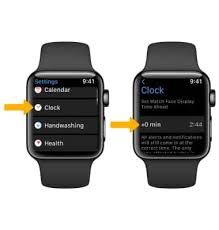
- Turn the Digital Crown to choose how many minutes ahead you want
- Tap Done

You can bump the time up by as much as 59 minutes. Alarms, notifications, and timers still use the real time. Only the watch face shifts forward. It’s a simple trick for chronic early birds.
If your watch is showing the wrong time
If your Apple Watch is off, the problem usually starts on your iPhone. The watch mirrors your iPhone’s time settings, so fix the phone and the watch follows.
Make sure your iPhone is set to update time automatically:
- Open Settings
- Go to General
- Tap Date and Time
- Turn on Set Automatically
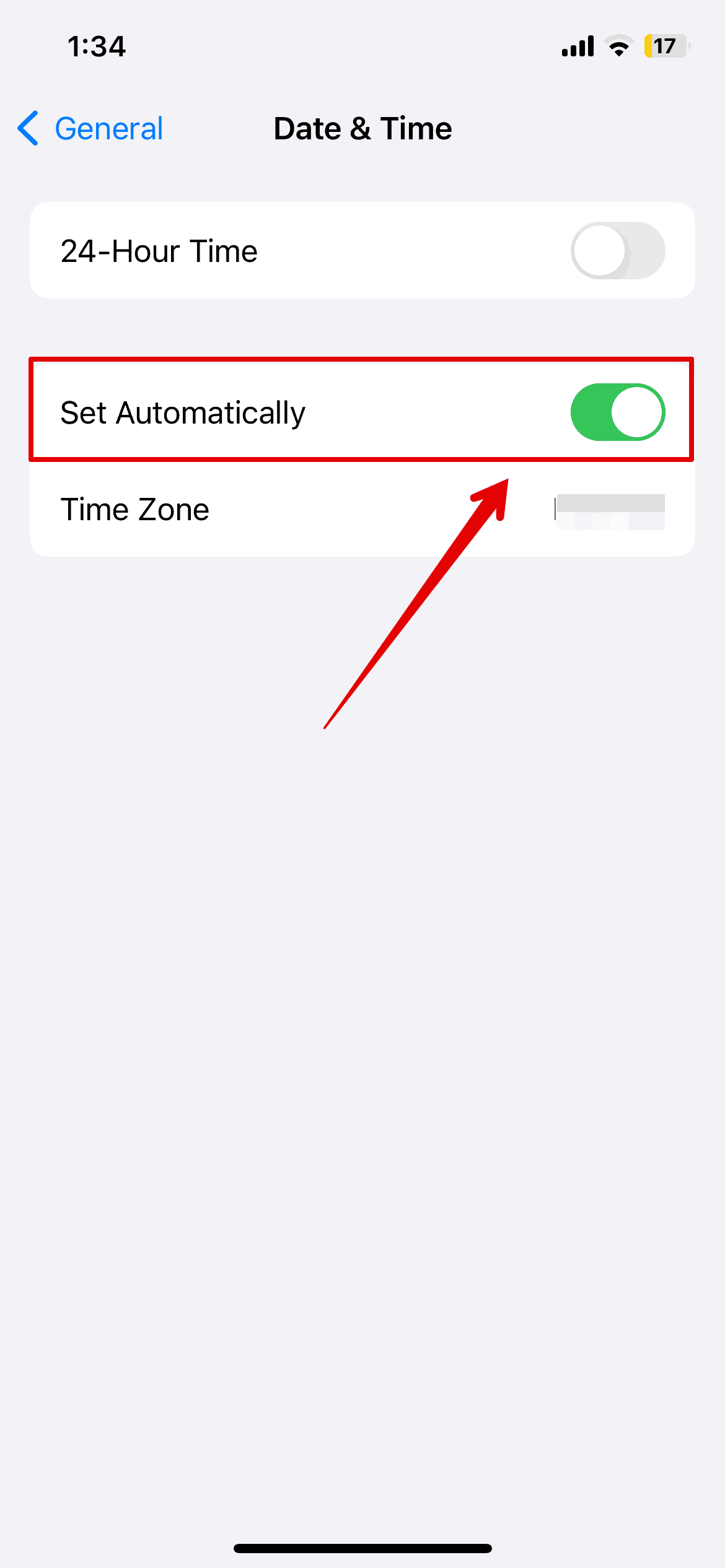

This uses your location to keep the time zone accurate. If the option is grayed out, a Screen Time passcode or a work profile might be restricting changes.
Also, make sure Location Services are turned on for setting time zones:
Settings > Privacy and Security > Location Services > System Services > toggle on Setting Time Zone.
If you still see the wrong time, restart both devices. It’s boring, but it works more often than not.
When you need to set time manually
There are rare cases where automatic time doesn’t work. Maybe your carrier restricts it, or you’re using the device without internet access. If that happens:
On iPhone:
- Go to Settings
- Tap General
- Tap Date and Time

- Turn off Set Automatically
- Adjust the date, time, or time zone manually

Your Apple Watch will follow whatever your iPhone is set to.
The bottom line
Your Apple Watch is built to keep accurate time without your help, but Apple still gives you the flexibility to tweak how that time appears. Whether you want a 24 hour format or prefer running a few minutes ahead, the controls are simple. Once your iPhone is set correctly, the watch stays synced and you’re good to go.


Discussion