

If your PicsArt subscription cancellation fails with “Cannot Connect”, you’re not alone. Many users encounter this error when attempting to cancel their subscription through the app, even when their internet connection is functioning properly. In most cases, the problem isn’t your network; it’s how PicsArt subscriptions are managed.
This guide explains why the error appears and how to cancel your PicsArt subscription successfully without risking another charge.
Table of contents
- Why PicsArt Shows “Cannot Connect” During Cancellation
- Check Where Your PicsArt Subscription Was Purchased
- Cancel PicsArt Subscription on iPhone or iPad
- Cancel PicsArt Subscription on Android
- Cancel PicsArt Subscription From the Website
- What to Do If Cancellation Still Doesn’t Go Through
- What Happens After You Cancel
- When You Should Contact Support
- Final Takeaway
Why PicsArt Shows “Cannot Connect” During Cancellation

When a PicsArt subscription cancellation fails with “Cannot Connect”, the issue is usually related to billing control rather than connectivity. Common reasons include:
Don’t miss the best of The Mac Observer
Set us as a preferred source and our Apple reporting ranks higher in your Google Search results and Discover feed — one tap, no account changes.
- The subscription is managed by the Apple App Store or Google Play, not PicsArt
- Temporary account sync or server issues
- An outdated app version
- Being logged into the wrong PicsArt account
- Cached session errors, especially on Android
Because of this, canceling directly inside the PicsArt app often doesn’t work.
Check Where Your PicsArt Subscription Was Purchased
Before taking any steps, confirm where you originally subscribed:
- iPhone or iPad users → Subscription is handled by Apple
- Android users → Subscription is handled by Google Play
- Website subscribers → Managed through PicsArt’s account settings
If the subscription is store-managed, cancellation inside the PicsArt app will fail even if the option is visible.
Cancel PicsArt Subscription on iPhone or iPad
If the PicsArt subscription cancellation fails with “Cannot Connect” on iOS, you need to cancel it through Apple instead. Apple controls all in-app subscriptions, which is why this method works even when the app doesn’t.
You can follow the same steps used to cancel subscriptions on iPhone:
- Open Settings
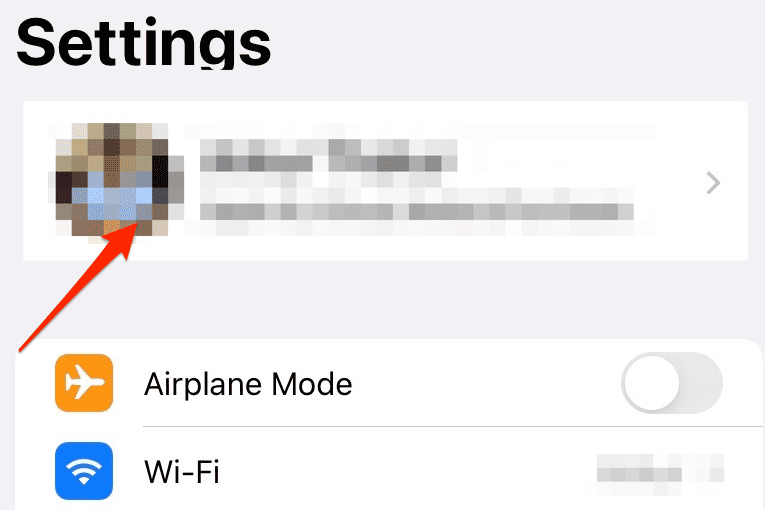
- Tap your Apple ID
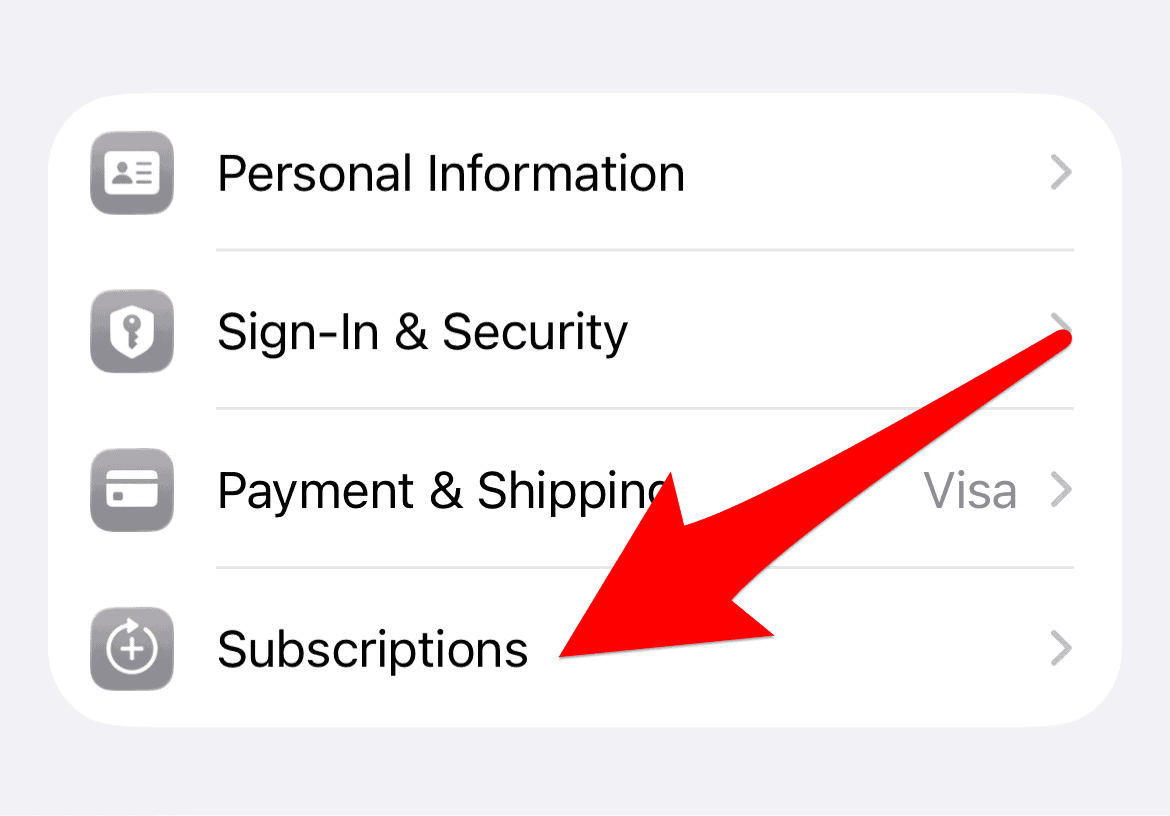
- Select Subscriptions
- Tap PicsArt
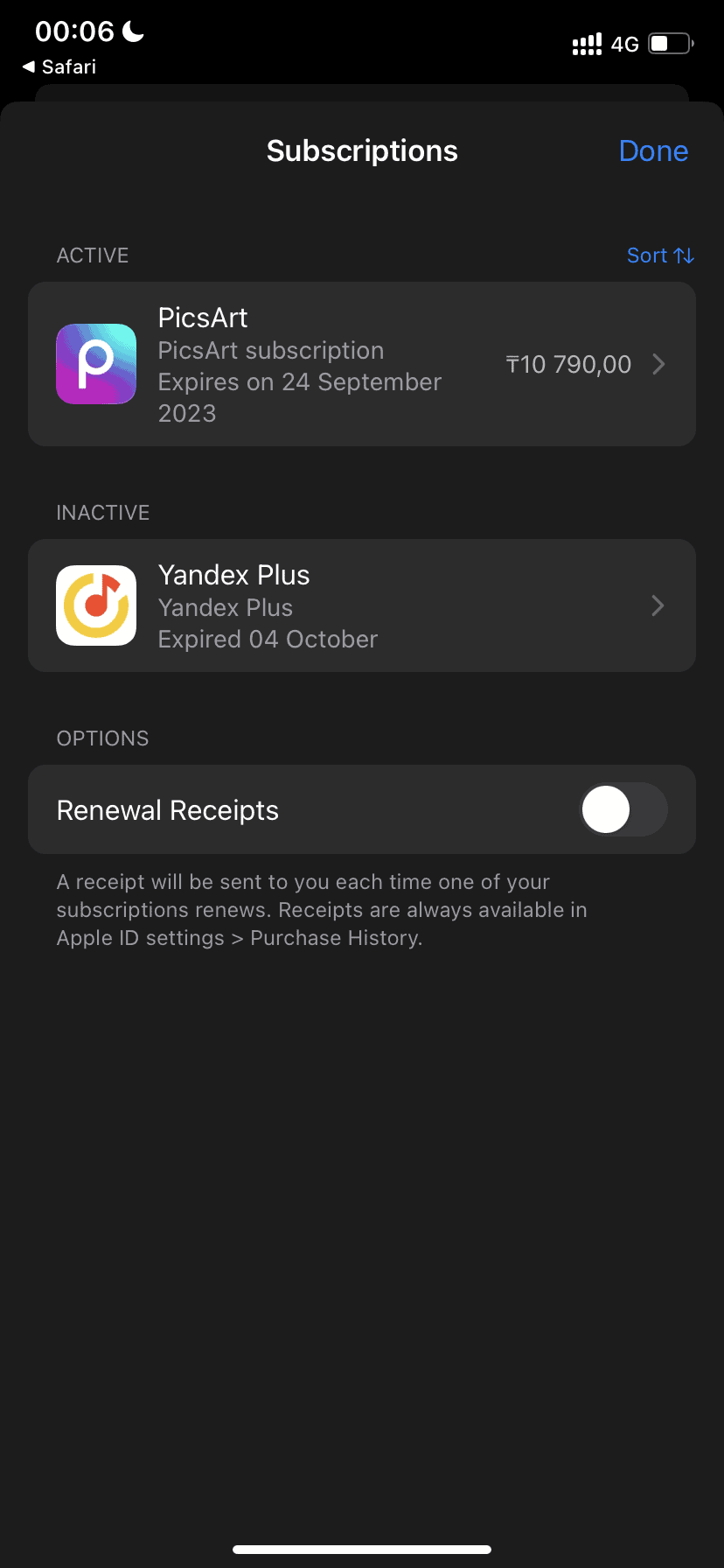
- Choose Cancel Subscription


Apple also explains this process in its official guide on how to cancel a subscription through Apple.
Cancel PicsArt Subscription on Android
For Android users, Google Play manages billing, not PicsArt itself. If the cancellation fails in the app, cancel directly through Google Play:
- Open the Google Play Store
- Tap your profile icon
- Go to Payments & subscriptions
- Select Subscriptions
- Tap PicsArt
- Choose Cancel subscription
Google outlines the same steps in its help documentation for how to cancel a Google Play subscription.
Cancel PicsArt Subscription From the Website
If you subscribed directly through PicsArt’s website:
- Visit picsart.com
- Log in to your account
- Open Account Settings
- Select Subscriptions
- Click Cancel plan
If you see loading errors or connection issues on the site, try switching browsers or logging in using a private window.
What to Do If Cancellation Still Doesn’t Go Through
If your PicsArt subscription cancellation fails with “Cannot Connect” even after using the correct platform, try these quick fixes:
- Update the PicsArt app to the latest version
- Log out and log back into your account
- On Android, clear the app cache
- Make sure you’re using the same Apple ID or Google account that made the purchase
Issues like app sync failures are similar to other App Store problems, such as when users need to fix App Store apps not updating.
What Happens After You Cancel
Once canceled:
- Your subscription stays active until the end of the billing cycle
- You won’t be charged again
- Premium features stop after the renewal date
If you still see a charge, it usually means the cancellation happened after the renewal cutoff.
When You Should Contact Support
Contact support only if:
- You canceled through Apple or Google, but still see active billing
- You were charged after a confirmed cancellation
- Your account shows no subscription, but payments continue
For App Store or Google Play subscriptions, platform support is often faster than contacting PicsArt directly.
Final Takeaway
When a PicsArt subscription cancellation fails with “Cannot Connect”, the error is misleading. In most cases, the fix is simple: cancel the subscription through the platform that manages your payment, not the PicsArt app itself.
Using the correct method avoids repeat charges and resolves the issue without unnecessary troubleshooting.




Discussion