

If you’re wondering how to add a live “2026 Countdown” widget to your Lock Screen, the good news is that iOS makes this possible using built-in Lock Screen widgets or third-party countdown apps. Once set up, your iPhone can show a real-time countdown to New Year 2026 every time you wake the screen.
This guide walks through the simplest ways to add a live 2026 countdown and explains what works best depending on the iOS version you’re using.
Table of contents
How Lock Screen Widgets Work on iPhone

Image Source: App Store
Don’t miss the best of The Mac Observer
Set us as a preferred source and our Apple reporting ranks higher in your Google Search results and Discover feed — one tap, no account changes.
Apple’s Lock Screen widgets update in real time and are designed to show glanceable information like weather, battery status, or countdowns. With recent iOS versions, you can place widgets directly below the clock and have them update automatically throughout the day.
Apple has expanded Lock Screen customization significantly in recent iOS versions, especially with changes introduced in iOS 26, which are explained in detail in our guide on the new Lock Screen in iOS 26.
Add a Live “2026 Countdown” Using a Countdown App
The easiest way to add a live “2026 Countdown” widget to your Lock Screen is by using a dedicated countdown app. These apps are designed to track specific dates and display a continuously updating timer.
One popular option is the Countdown+ app, which supports Lock Screen widgets and live countdowns.
How to Set It Up
- Install and open the countdown app

- Create a new event for January 1, 2026
- Save the event and enable Lock Screen widgets
- Lock your phone and long-press the Lock Screen
- Tap Customize → Lock Screen
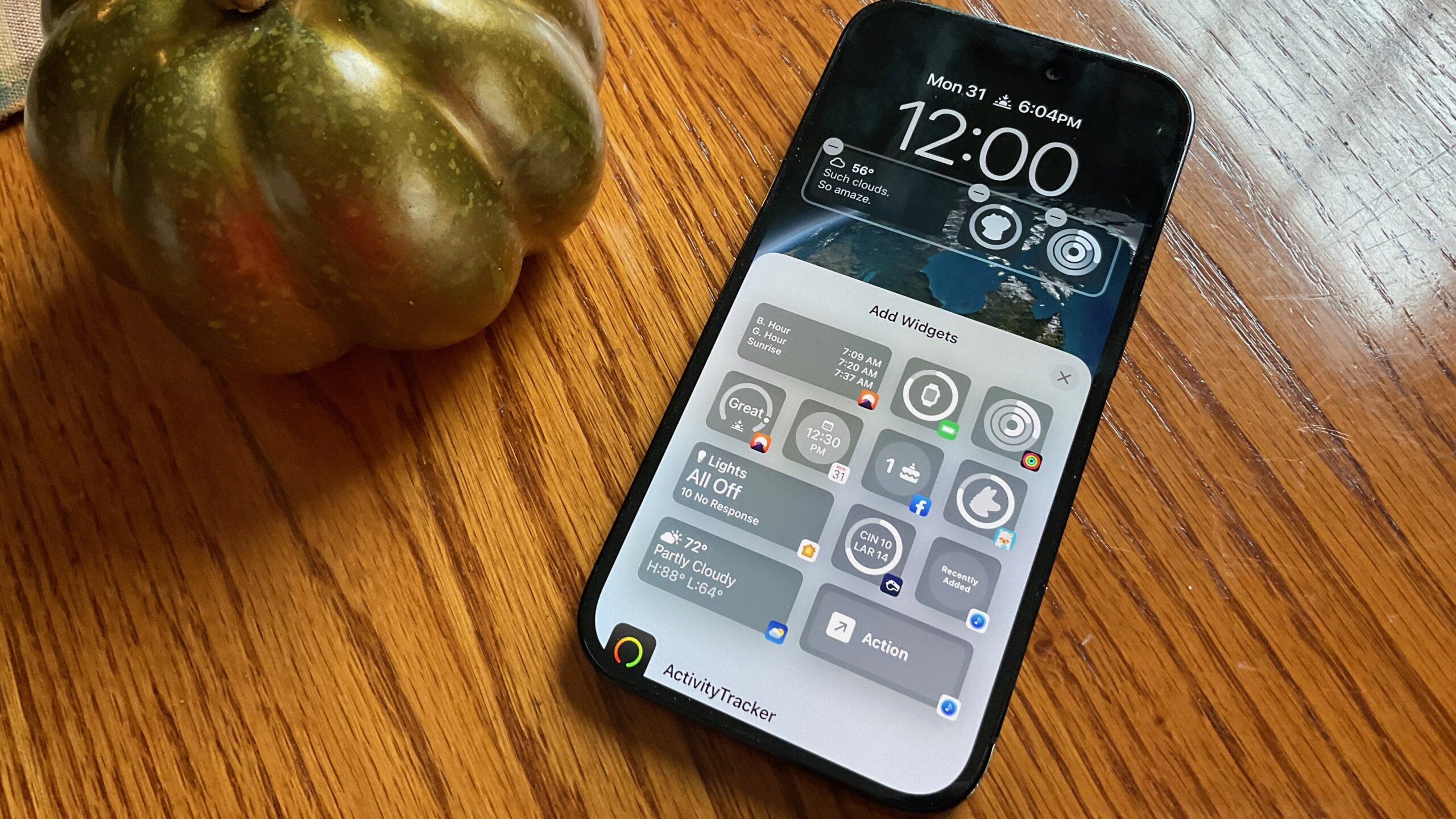
- Add the countdown widget below the clock


Once added, the widget updates automatically without opening the app.
Add the Countdown Widget to Your Lock Screen

Image Source: App Store
If you’re not sure how to place widgets on the Lock Screen, the process is similar for all supported apps. You can follow the same steps used to customize your iPhone Lock Screen and swap widgets in or out anytime.
The widget will remain visible until you remove it or change Lock Screen layouts.
Can You Add a 2026 Countdown Without an App?
At the moment, Apple doesn’t offer a built-in countdown widget for future years like 2026. While Calendar events can show reminders, they don’t display a live countdown timer on the Lock Screen.
That’s why third-party solutions are currently the only reliable way to show a live countdown ticking down to New Year 2026.
Other Countdown Widget Options
If you want to compare alternatives, there are several apps that focus specifically on countdown tracking. MacObserver has previously covered how to add countdown widgets on your iPhone, including options that work on both the Home Screen and Lock Screen.
Different apps offer:
- Multiple countdowns
- Custom labels and colors
- Home Screen + Lock Screen support
Troubleshooting: Countdown Widget Not Updating
If your live “2026 Countdown” widget doesn’t refresh:
- Make sure Background App Refresh is enabled
- Check that the app has notification permissions
- Restart your iPhone after adding the widget
- Remove and re-add the widget
Live widgets rely on system permissions to update correctly.
Final Takeaway
If you want a live timer on your phone, learning how to add a live “2026 Countdown” widget to your Lock Screen comes down to using a reliable countdown app and placing its widget in your Lock Screen layout. Apple’s customization tools make setup quick, and once added, the countdown updates automatically every time you check your phone.


Discussion