

The Lock Screen is the first thing you see on your iPhone, and in iOS 26 Apple has redesigned it from the ground up. The update makes it not just prettier but also smarter, more personal, and easier to use. From the new Liquid Glass style to flexible widget placement, there’s a lot to explore. Let’s walk through what’s new and how you can make the Lock Screen truly yours.
Table of contents
Before You Start
Make sure you’re ready before diving in:
- Update to iOS 26 (Settings > General > Software Update).
- Charge your iPhone to at least 50%.
- Back up your data in iCloud or Finder, especially if you’re coming from a beta (you can downgrade to iOS 18 if needed).
- Have a wallpaper handy, or download the new iPhone 17 and iPhone Air wallpapers to try the full effect.
What’s New in the iOS 26 Lock Screen
- Liquid Glass Design
Icons, widgets, and notifications now float on translucent panels. This Liquid Glass style makes text easier to read without blocking your wallpaper. - Smarter Clock Placement
The time automatically shifts so it doesn’t cover faces or main subjects in your background photo.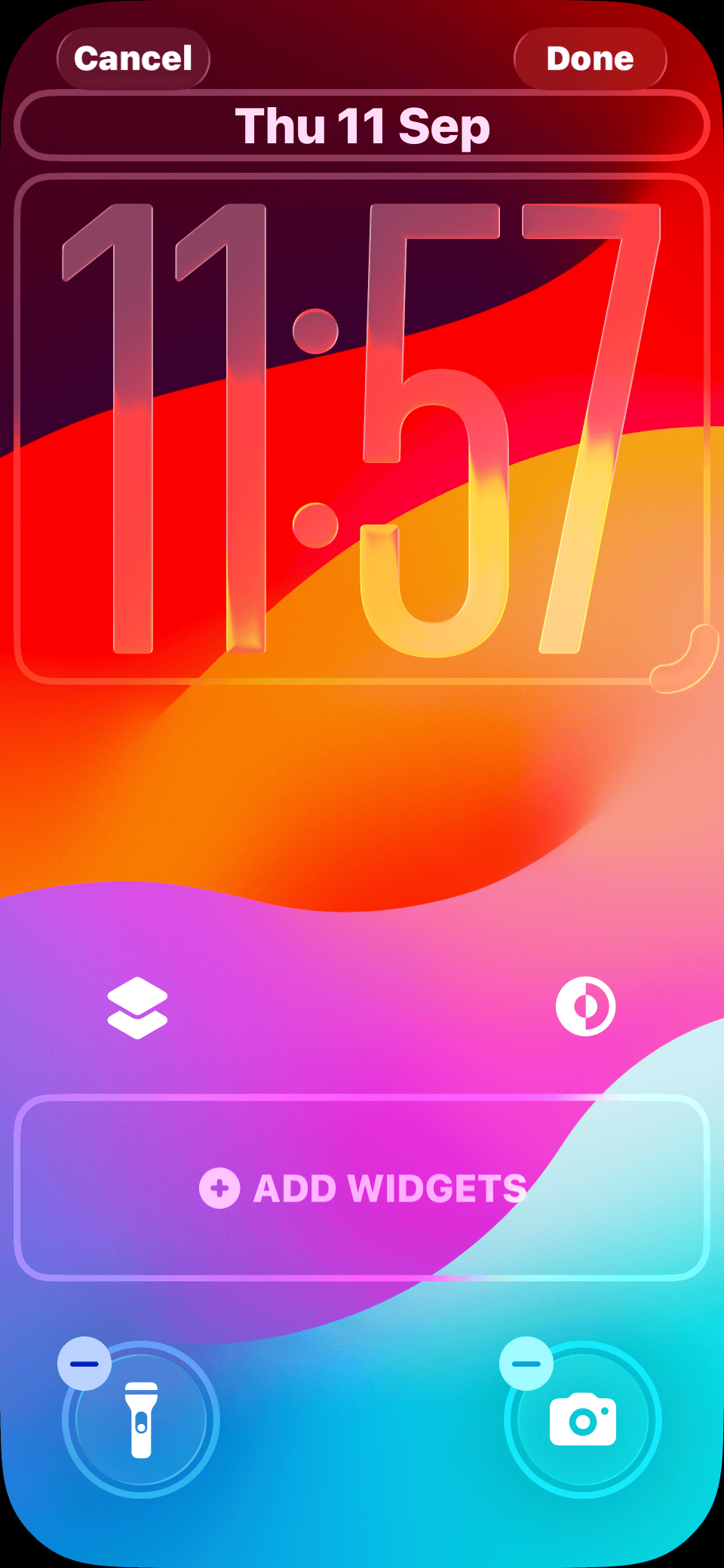
- Spatial Wallpapers
iOS 26 detects depth in your images, adding a parallax effect when you tilt your phone. Perfect with photos from the iPhone 17 camera upgrades. - Widget Flexibility
Add widgets above or below the clock. iOS 26 auto-adjusts layout so nothing blocks your wallpaper. - Refined Notifications
You can choose list view, stacked cards, or a simple count. Notifications now blend naturally into the Lock Screen style.

How to Customize the Lock Screen in iOS 26
- Enter Edit Mode
Long-press your Lock Screen and tap Customize or Add New.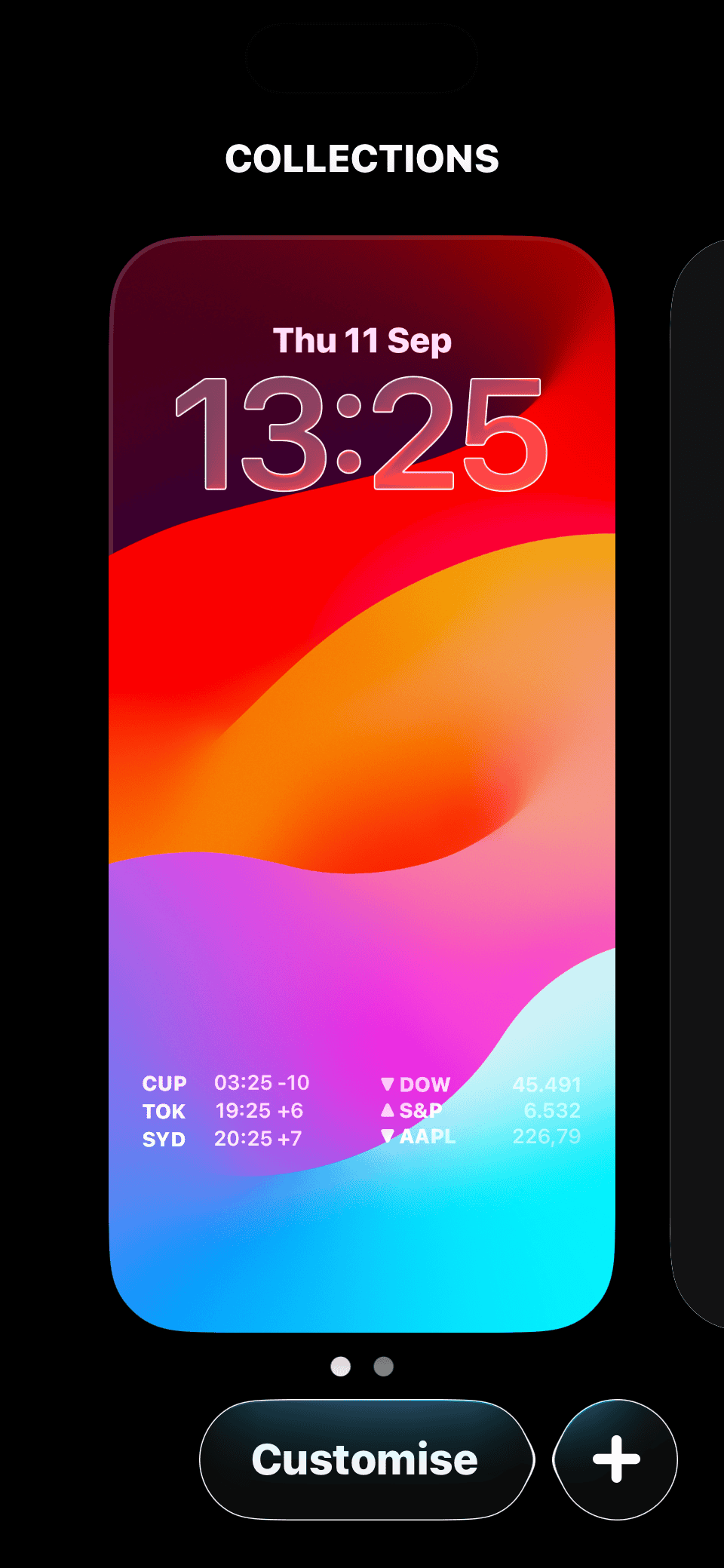
- Choose a Wallpaper
Pick from Apple’s defaults or your own. The new color-matched wallpapers sync beautifully with the iPhone 17 color lineup. - Adjust the Clock Style
Tap the clock to change fonts and colors. “Glass” mode gives the new translucent look, while “Solid” is higher contrast. - Add Widgets
Tap the widget areas to add Weather, Calendar, Fitness, or Live Activities.
- Set Notification Style
Go to Settings > Notifications and pick List, Stack, or Count. - Match Your Home Screen
When you save, you’ll be asked if you want the Home Screen wallpaper to match. Choosing yes keeps everything cohesive.


Tips for the Best Setup
- Use portrait photos to unlock depth effects around faces.
- Pair the Lock Screen with a Focus Mode for context-aware widgets.
- If you bought an iPhone 17 Pro Max with 2TB storage, high-res wallpapers will look stunning here.
- If you don’t like the changes, remember you can downgrade iOS 26 while Apple is still signing older versions.
Comparison Table: Lock Screen in iOS 18 vs iOS 26
| Feature | iOS 25 | iOS 26 |
|---|---|---|
| Liquid Glass style | ✗ | ✓ |
| Spatial wallpapers | ✗ | ✓ |
| Smart clock placement | ✗ | ✓ |
| Flexible widgets | Limited | Expanded |
| Notification styles | Basic | List, Stack, Count |
FAQs
Yes. If your iPhone supports iOS 26, you’ll get all the Lock Screen features, not just the newest models like the iPhone 17.
Yes. Live Activities now look cleaner and adapt better to your wallpaper.
You can tone it down by switching the clock style to “Solid” and using simple wallpapers.
Don’t miss the best of The Mac Observer
Set us as a preferred source and our Apple reporting ranks higher in your Google Search results and Discover feed — one tap, no account changes.
Summary: Steps to Customize the Lock Screen
- Long-press the Lock Screen → Customize.
- Choose wallpaper → Enable depth or spatial effects.
- Edit clock style → Pick font and color.
- Add widgets above/below clock.
- Adjust notification style in Settings.
- Save → Match Home Screen wallpaper if you like.
Conclusion
The Lock Screen in iOS 26 is more than a facelift, it’s a smarter, more flexible entry point to your iPhone. With Liquid Glass, dynamic wallpapers, and widgets that fit your lifestyle, it ties your phone’s design and function together in a way that feels new. And if you’re pairing it with the iPhone 17 lineup, the experience only gets better.


Does anyone know how to change the date form? The date has truncated words instead of the date listed in long form, and I cannot figure out how to change it.
On iOS 26, the Lock Screen date format itself can’t be manually switched between short and long forms as it’s automatic. Truncated words usually happen because of text size, font choice, or screen width. Try long-pressing the Lock Screen > Customize > Lock Screen, then change the clock font/style or reduce Text Size (Settings > Display & Brightness > Text Size). Also double-check Settings > General > Language & Region, since some languages/regions use shorter date strings by default.
The liquid effect of the background on notifications (emails, texts, etc) makes it difficult to read the text because it has little contrast with the wallpaper. It would be better if there was an option to go back to the older version