

Many people think Apple Music is locked strictly within the “walled garden” of iPhones and Macs. That is simply not true. Apple actually builds a fantastic app for Android users. In fact, if you look at the good, the bad, and the ugly of Apple Music on Android, you will see that the Android version often gets features, like Crossfade, before the iPhone version does!
If you want to access Apple’s massive library of 100 million songs on your Samsung, Pixel, or Motorola, it is incredibly easy to set up. Here is how to get started.
Table of contents
What You Need to Use Apple Music on Android
To get this running, you do not need much hardware.
Don’t miss the best of The Mac Observer
Set us as a preferred source and our Apple reporting ranks higher in your Google Search results and Discover feed — one tap, no account changes.
- An Android Device: It needs to be running Android 5.0 (Lollipop) or later.
- An Apple Account: You do not need an Apple device to have one. You can create it directly inside the app.
- Storage Space: Streaming is fine, but if you plan to save high-quality tracks, ensure you have plenty of free space on your phone or SD card.
Here’s How to Use Apple Music on Android
1. Download and Sign In
The first step is getting the app on your device.
- Open the Google Play Store.
- Search for Apple Music and tap Install.
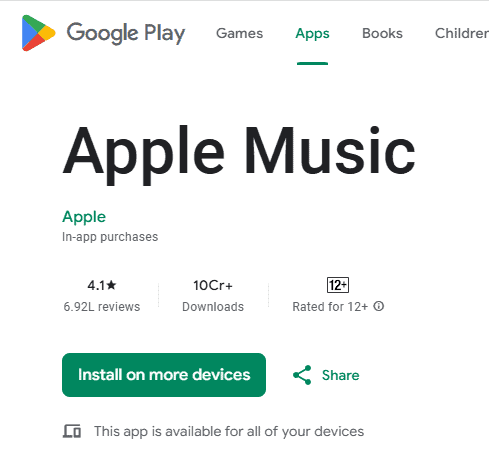
- Open the app. You will see a welcome screen.
- Tap Sign In if you already have an Apple Account. If not, tap the option to create a new one.

2. Navigate and Build Your Library
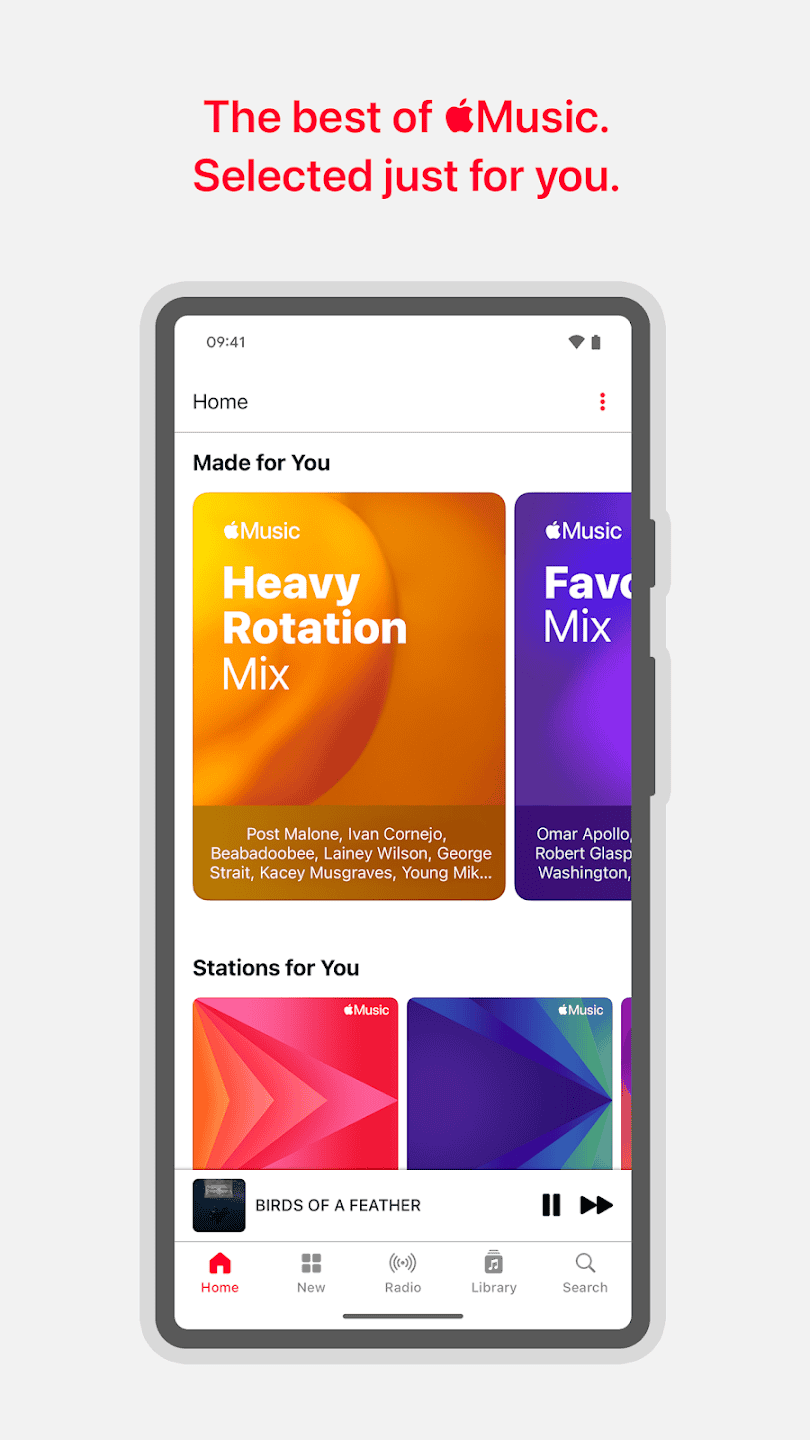
Once you are in, the layout is very clean. It is split into four main tabs at the bottom: Home, Browse, Radio, and Library.
The Library is where your personal collection lives. To make the most of the app, you should start adding songs immediately. It is a simple process, but mastering how to add to your Apple Music library ensures you never lose track of a great album you discovered in the Browse tab.
3. Download Music for Offline Listening
One of the best features is saving data by downloading tracks. This allows you to listen to your favorites on an airplane or in a subway tunnel without using mobile data.
- Find a song, album, or playlist you like.
- Tap the Download button (it looks like a downward arrow).
- Once the arrow turns into a checkmark, that music is saved.

For a more detailed walkthrough on managing storage and removing old downloads, check out our full guide on how to download music on Apple Music.
4. Customize Audio Settings
The Android app allows you to tweak how your music sounds.
- Tap the three dots in the top-right corner of the app.
- Select Settings.
- Scroll down to Audio. Here you can enable Lossless Audio for higher quality sound.
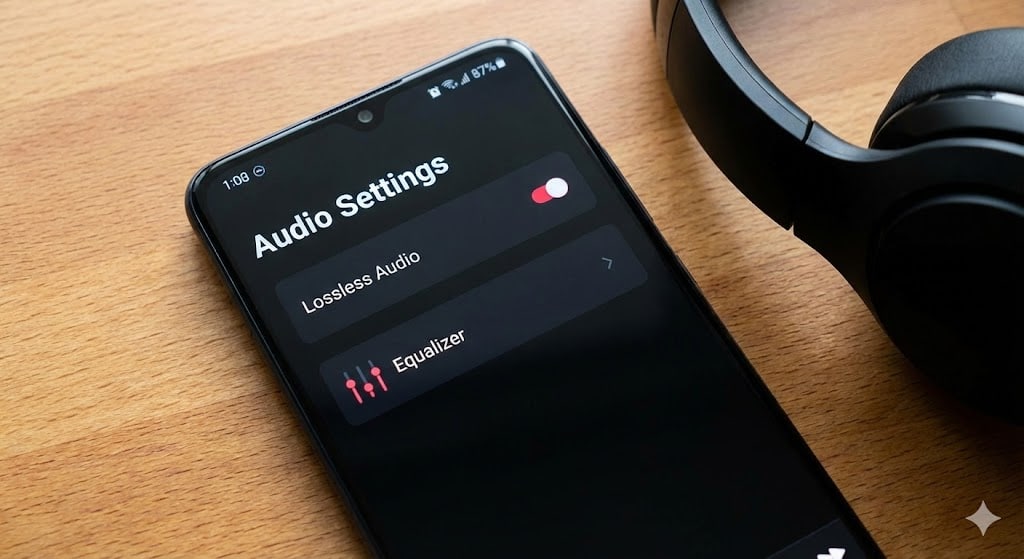
- You can also adjust the Equalizer (EQ) to boost bass or vocals depending on your headphones.

Additional Tips
- Use Chromecast: Unlike the iPhone version, the Android app has a “Cast” button built right in. You can beam your music directly to a Google Nest speaker or a TV.
- Save to SD Card: If your phone has a memory card slot, you can change the download location in Settings. This is a lifesaver if your phone’s internal storage is full.
- Troubleshooting: Sometimes the app might stall or refuse to play songs. If you run into technical glitches, read our guide on what to do if Apple Music is not loading to get the tunes back on track.
Final Thoughts
Apple Music on Android is not a second-class citizen. It is a robust, full-featured streaming service that rivals Spotify. With features like lossless audio included in the base price and excellent Chromecast support, it is a brilliant choice for any music lover, regardless of the phone in their pocket.
FAQs
No, it is a paid subscription service. However, new users usually get a one-month free trial to test it out.
Not natively. You will need a third-party app like SongShift or TuneMyMusic to move your library over.
Streaming high-quality audio uses power, but it is generally comparable to other music apps. Downloading songs for offline play saves significant battery life.


Discussion