
Many iPhone users have updated to iOS 26 and asked the same question. Portrait Mode is still on the iPhone, but Apple changed how you find it. In iOS 26, the Camera app design is simpler. It shows only Photo and Video modes at first. If you don’t know where Portrait Mode went, it can look missing. But it’s there. You just need to know where and how to access it.
This article explains how to locate Portrait Mode in iOS 26. You will also learn how to use it, edit photos taken with Portrait Mode, and what to do if it seems hard to find.
How iOS 26 Changed the Camera App
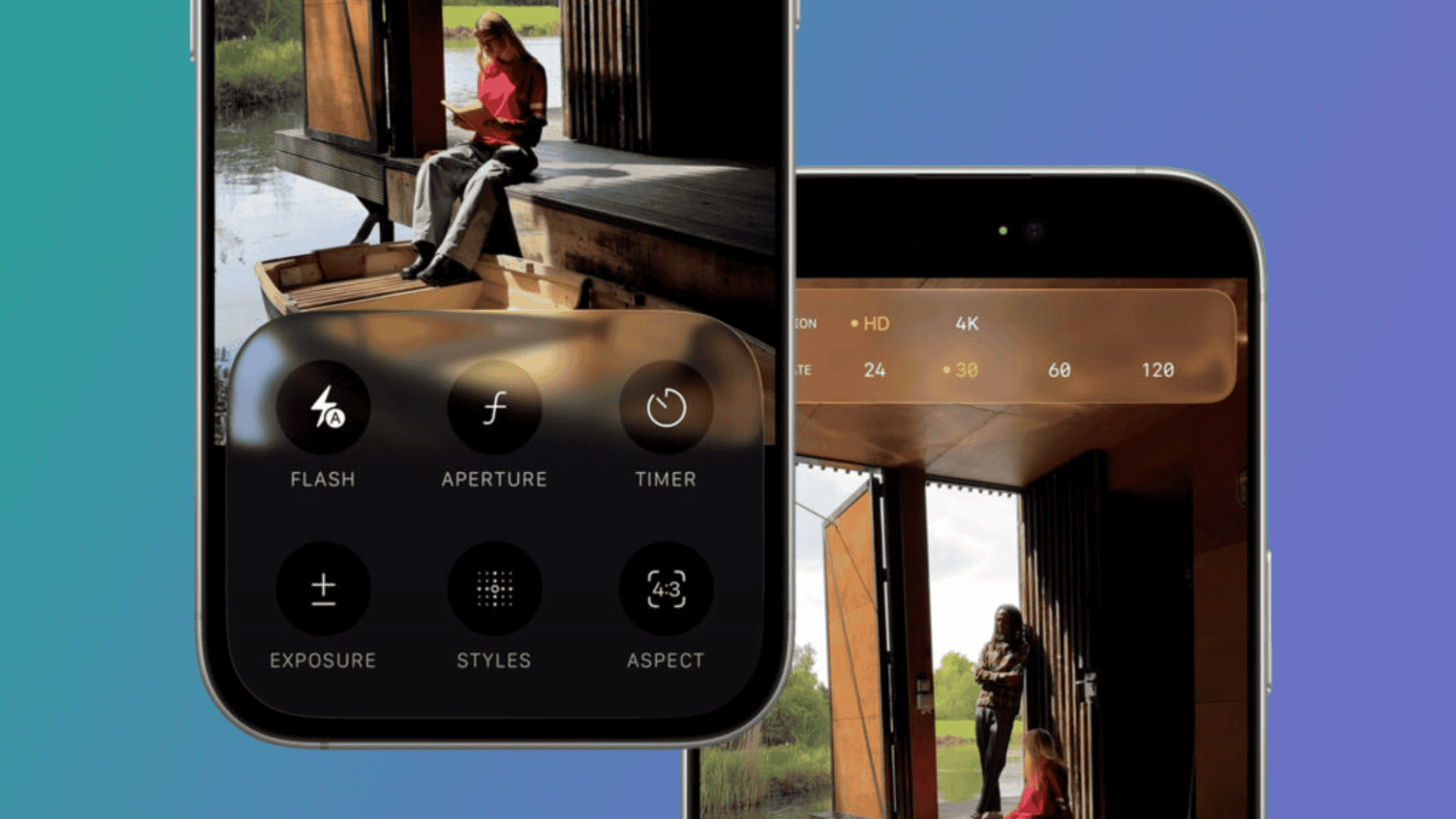
iOS 26 redesigns the Camera app. The bottom bar shows only two main options by default:
Don’t miss the best of The Mac Observer
Set us as a preferred source and our Apple reporting ranks higher in your Google Search results and Discover feed — one tap, no account changes.
- Photo
- Video
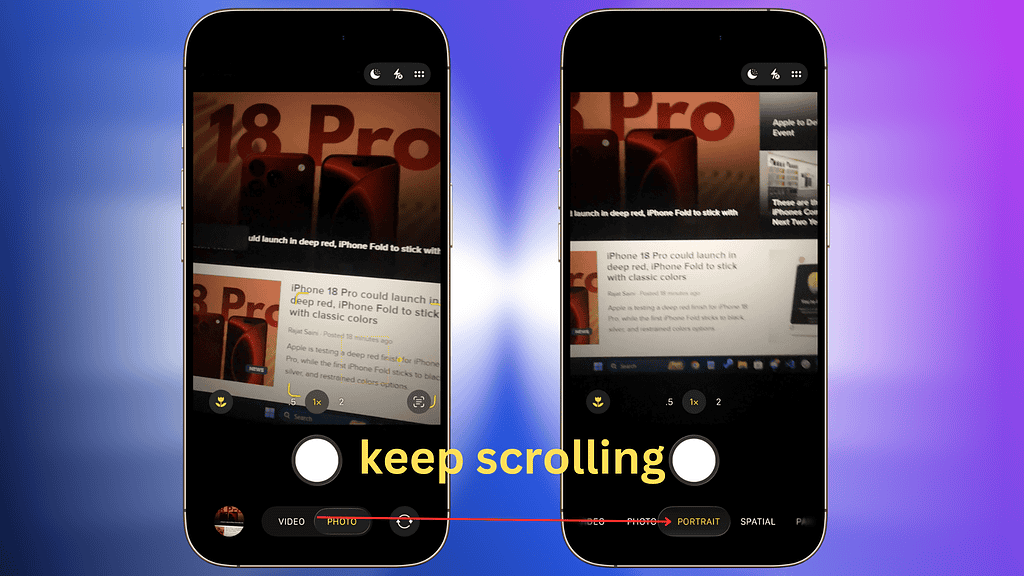
Other camera modes like Portrait, Panorama, Slo-Mo, and Time-Lapse are hidden behind swipe gestures. Apple did this to reduce clutter on the screen. You must swipe left or right on the mode selector to reveal these extra modes.
This new layout means Portrait Mode is no longer a visible button until you reveal it by swiping.
Portrait Mode in iOS 26
Portrait Mode lets you take photos with a depth-of-field effect. The subject stays in focus while the background gets blurred. You can also adjust lighting effects and background blur after taking the photo.
Finding Portrait Mode (Camera App)
Swipe left or right on the mode selector until Portrait appears.
Use Portrait Mode
- Open the Camera app
- Look at the bottom of the screen
- Swipe left on the mode menu until you see Portrait
- Frame your subject
- Tap the shutter button to capture
This works on any iPhone model that supports Portrait Mode and iOS 26.
Finding Portrait Mode (Alternative View)
Sometimes the mode changes fast. You can also tap near where Photo/Video appear and then drag left or right. That reveals hidden modes including Portrait.
Access Hidden Modes
- Open Camera
- Tap the Photo/Video label at the bottom
- Drag left to see Portrait
- Select Portrait and shoot
Editing Portrait Mode Photos
You can adjust depth and lighting after you take the photo.
Steps to Edit Portrait Photos
- Open Photos app
- Tap the Portrait photo
- Tap Edit
- Use the Depth Control slider
- Change lighting effects if available
- Tap Done when finished
Editing lets you soften or intensify background blur and choose lighting like Studio Light or Stage Light.
Why Users Can’t Find Portrait Mode
Many users think Portrait Mode disappeared after iOS 26. That’s because the Camera app hides extra modes behind swipe gestures and shows only Photo and Video at first. If you don’t swipe, you won’t see Portrait. This redesign aims for simplicity, but it can confuse people who expected visible buttons.
FAQs
Do all iPhones with iOS 26 support Portrait Mode?
Most models that supported Portrait before continue to support it in iOS 26. Some very old iPhones that can’t run iOS 26 won’t have it.
Can you edit Portrait blur after taking the photo?
Yes, open the shot in Photos, tap Edit, and adjust the Depth Control slider.
Is Portrait Mode exactly the same in iOS 26 as before?
Functionally yes, but Apple changed how you find it in the Camera app interface.
Summary
- iOS 26’s Camera app shows only Photo and Video at first.
- Portrait Mode is hidden and found by swiping left or right.
- You can also tap the Photo/Video label and drag to reveal modes.
- After shooting, edit Portrait blur and lighting in Photos.
- The change is a UI redesign, not a removal of Portrait Mode.
Conclusion
You can still use Portrait Mode in iOS 26. Apple moved it behind a simpler camera interface and hidden it until you swipe or drag the mode selector. Once you know where to look, you can take and edit Portrait photos just like before. The mode works on most iPhones that support iOS 26 and keeps the depth effect and lighting controls you expect.



Discussion