
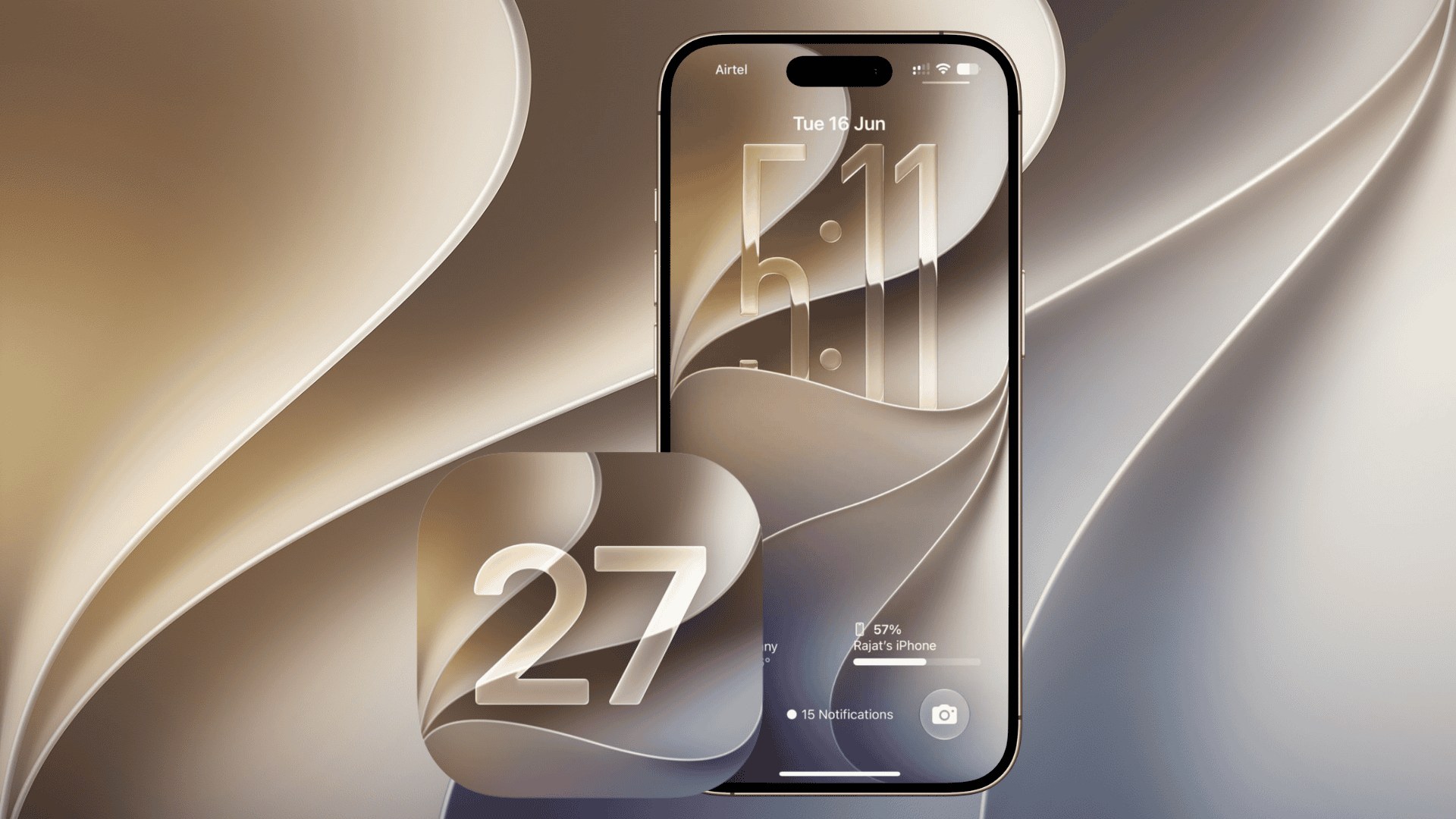
Apple has introduced several new Lock Screen customization features in iOS 27, giving iPhone users more control over wallpapers, clock placement, transparency, and media playback controls. The update also brings Apple Intelligence into the wallpaper editor, allowing users to generate custom backgrounds and expand existing photos without manually cropping them.
Alongside these additions, iOS 27 retains useful options for spatial wallpapers, widgets, and shortcuts. Here are seven ways to customize your iPhone Lock Screen, including the settings and steps needed to use each feature.
1. Extend Your Lock Screen Wallpaper Using AI
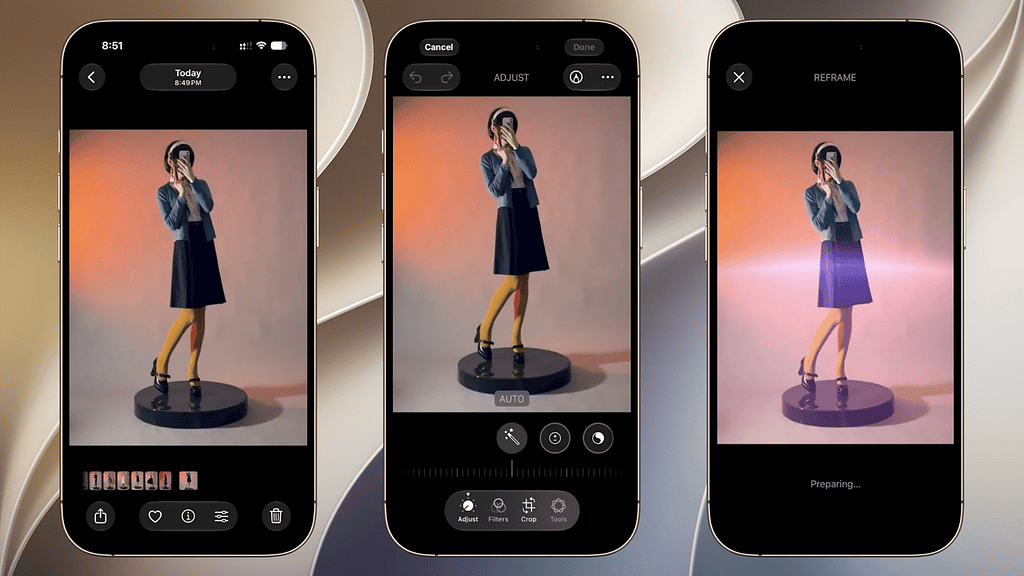
One of the most useful additions in iOS 27 is Extend, an Apple Intelligence feature that automatically expands photos to fit your iPhone’s display. It works particularly well with landscape photos, tightly cropped portraits, and images that leave unwanted gaps around the edges.
Don’t miss the best of The Mac Observer
Set us as a preferred source and our Apple reporting ranks higher in your Google Search results and Discover feed — one tap, no account changes.
Instead of stretching the original image, Extend generates additional background details that match the surrounding scene, preserving the main subject while filling the available space.
To use Extend on your Lock Screen:
- Open Settings > Wallpaper and tap Add New Wallpaper.
- Select Photos and choose an image.
- Position or resize the photo to fit your screen.
- If iOS detects a framing issue, select the suggested Extend option.
- Review the generated wallpaper and tap Add to save it.
Extend requires a compatible Apple Intelligence device, and its results depend on the original image.
2. Generate Custom Wallpapers With Image Playground
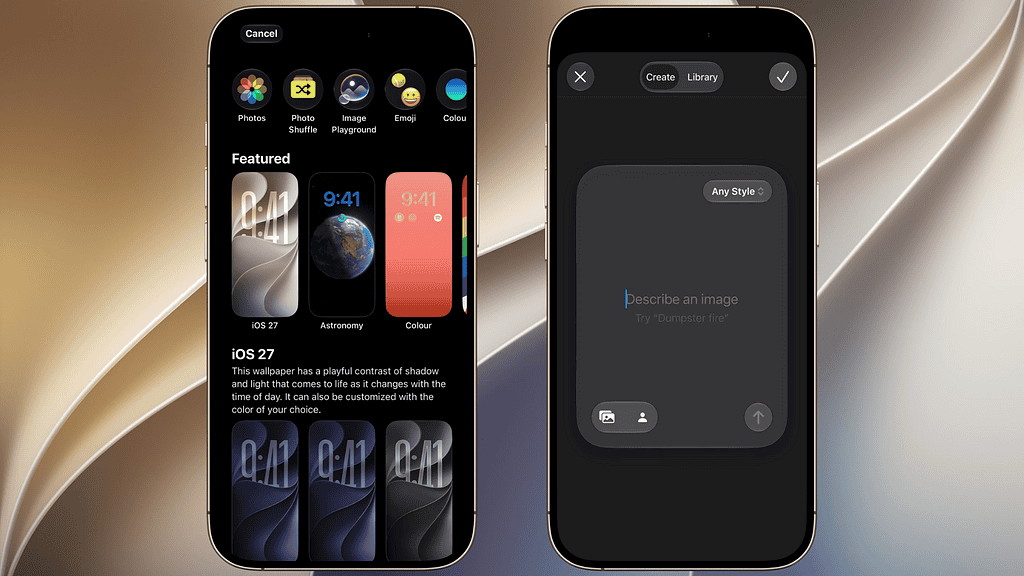
iOS 27 integrates Image Playground into the wallpaper picker, allowing users to create personalized backgrounds using simple text descriptions.
You can describe a landscape, abstract pattern, or illustration and let Apple Intelligence generate an image. The feature also supports creative styles and can use existing photos as inspiration.
Here’s how to create an AI wallpaper:
- Open Settings > Wallpaper > Add New Wallpaper.
- Select Image Playground from the wallpaper gallery.
- Enter a description of the wallpaper you want.
- Choose an available image style or use a photo as inspiration.
- Select your preferred result and apply it to your Lock Screen.
You can also access the wallpaper gallery by touching and holding your existing Lock Screen. For additional controls and supported features, see our guide to using Image Playground on iPhone.
3. Move the Lock Screen Clock to the Top

Apple introduced a larger, adjustable Lock Screen clock in iOS 26, but iOS 27 adds the option to make it significantly smaller.
The new compact layout moves the time into the top row alongside the date, leaving more of your wallpaper visible. This works particularly well with portraits or images where the large clock overlaps the main subject.
To enable the compact clock:
- Touch and hold your Lock Screen.
- Tap Customize and select Lock Screen.
- Tap the clock to open the Font & Color panel.
- Select the new compact clock icon in the upper-right corner.
- Tap Done to save your changes.
You can switch back to the standard clock layout whenever you prefer.
4. Remove the Now Playing Widget Without Stopping Music
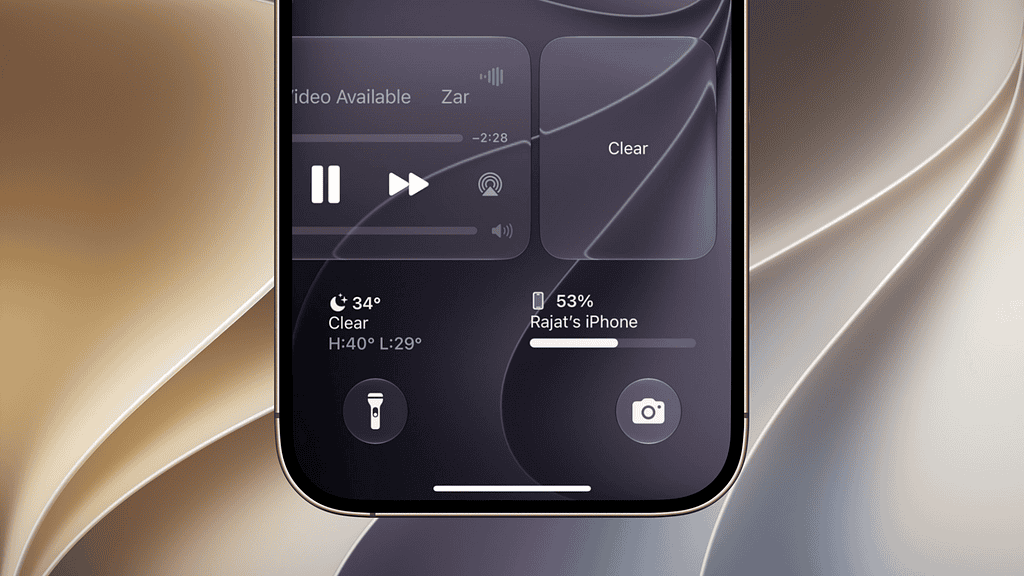
Previously, the Now Playing panel remained visible on the Lock Screen whenever music or other audio was playing, taking up valuable space and sometimes causing accidental taps.
With iOS 27, you can temporarily dismiss the media playback panel while keeping your audio running.
To hide the Now Playing widget:
- Start playing music, a podcast, or another audio source.
- Lock your iPhone to display the Now Playing controls.
- Swipe left across the media playback controls to dismiss the panel.
- Continue listening without the large player occupying your Lock Screen.
Playback continues after dismissal, and you can still manage audio through the relevant app or Control Center.
5. Adjust Liquid Glass Transparency

iOS 27 introduces a new slider for adjusting the appearance of Liquid Glass across the system, including elements that appear on the Lock Screen.
The setting lets users choose between a clearer interface that reveals more of the wallpaper and a more tinted appearance that improves visibility against detailed backgrounds.
To adjust Liquid Glass:
- Open Settings > Appearance.
- Select Liquid Glass.
- Drag the slider left for greater transparency or right for more tint.
- Check your Lock Screen to see how the new appearance looks.
The adjustment applies throughout iOS rather than exclusively to the Lock Screen. If the slider is unavailable, check whether Reduce Transparency or Increase Contrast is enabled under Accessibility settings.
6. Add a Spatial Effect to Your Lock Screen Photos
Apple’s spatial wallpaper feature adds depth to supported photos, creating a three-dimensional appearance when you move your iPhone. The effect is especially noticeable in images with a clearly separated foreground subject and background.
Although spatial wallpapers arrived before iOS 27, they remain one of the most effective ways to personalize the Lock Screen.
To create a spatial wallpaper:
- Open Settings > Wallpaper > Add New Wallpaper.
- Choose a photo that supports spatial effects.
- Tap the Spatial Scene control if available.
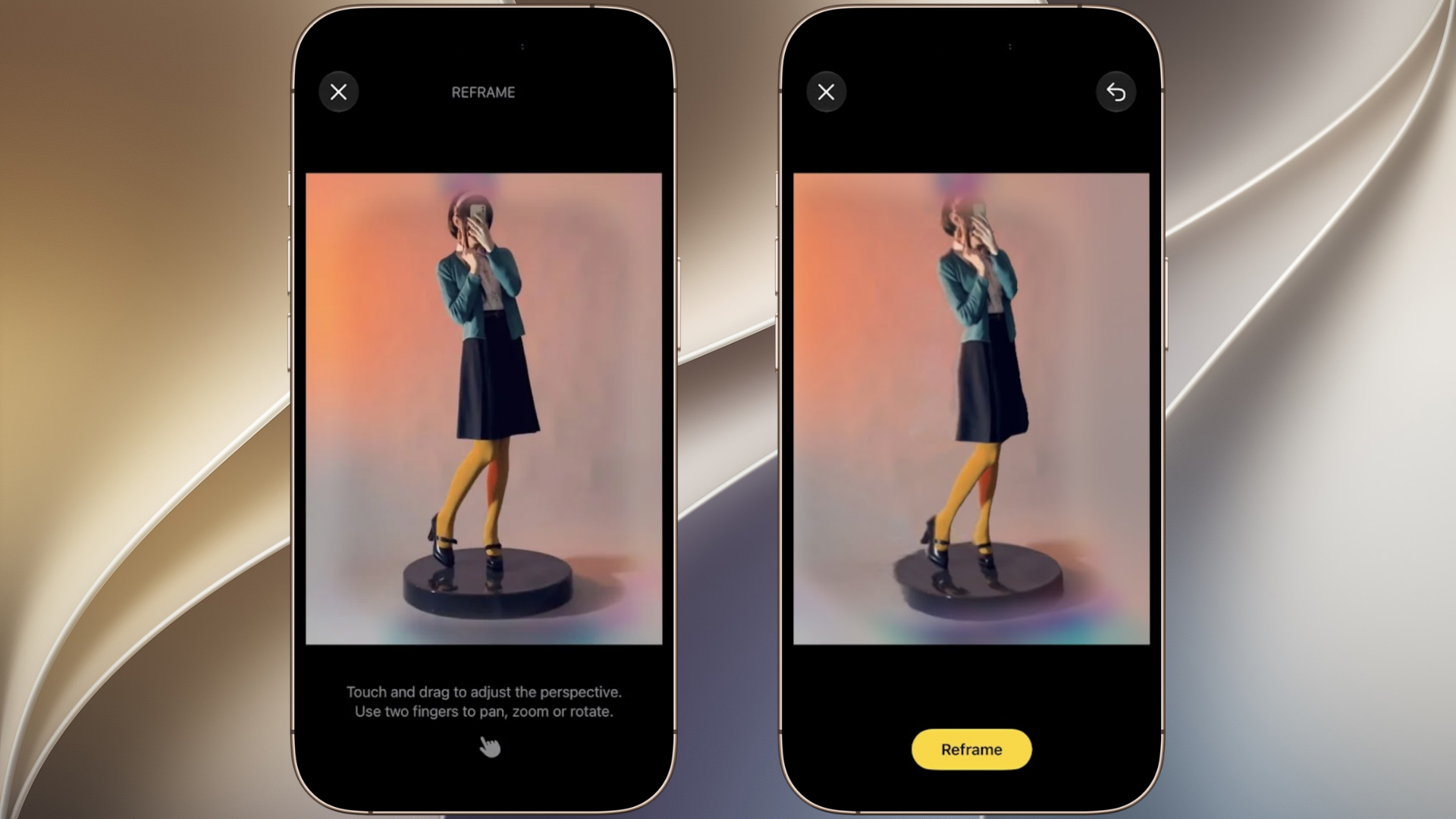
- Preview the effect and adjust the photo’s position.
- Tap Add to apply the wallpaper.
Spatial scenes require an iPhone 12 or later and a suitable photo. You can also experiment with Depth Effect to create a layered appearance around the clock.
7. Customize Widgets and Lock Screen Shortcuts

Widgets and shortcut controls give you quick access to frequently used information and actions directly from your Lock Screen. You can display weather conditions, upcoming calendar events, battery levels, and other supported information without opening an app.
You can also replace the default flashlight and camera controls with options such as Timer or Voice Memos.
To customize your Lock Screen controls:
- Touch and hold the Lock Screen and select Customize.
- Tap Lock Screen to open the editor.
- Select Add Widgets or tap an existing widget to change it.
- Tap the minus button beside a bottom control to remove it.
- Tap the plus button to choose a replacement control.
- Select Done to save your layout.
These customization options predate iOS 27, but they work alongside the new clock and wallpaper features. For more details, see our complete iOS 27 Lock Screen customization guide.
Which iOS 27 Lock Screen Features Should You Try First?
The compact clock and dismissible Now Playing widget offer immediate improvements for users who prefer a cleaner Lock Screen. Meanwhile, Extend and Image Playground provide more creative flexibility, especially when existing photos do not fit the display properly.
If you haven’t installed iOS 27, open Settings > General > Software Update to check availability. Keep in mind that AI-powered wallpaper features require an Apple Intelligence-compatible iPhone, while spatial effects and other customization options have their own device requirements.
Which of these Lock Screen features have you tried on your iPhone? Let us know your experience in the comments.
Discussion