
Apple has introduced more than 35 new and improved Shortcuts actions with iOS 27, alongside new automation triggers, smarter Apple Intelligence models, and a redesigned shortcut editor. You can now build shortcuts using simple descriptions, process incoming notifications, extract information from screenshots, and retrieve real-time information from the web.
The iOS 27.2 update expands these capabilities with additional automation triggers and improvements to existing actions. Whether you use Shortcuts for productivity, managing files, or automating everyday tasks, here are eight new features worth trying on your iPhone.
1. Create Shortcuts Using Apple Intelligence
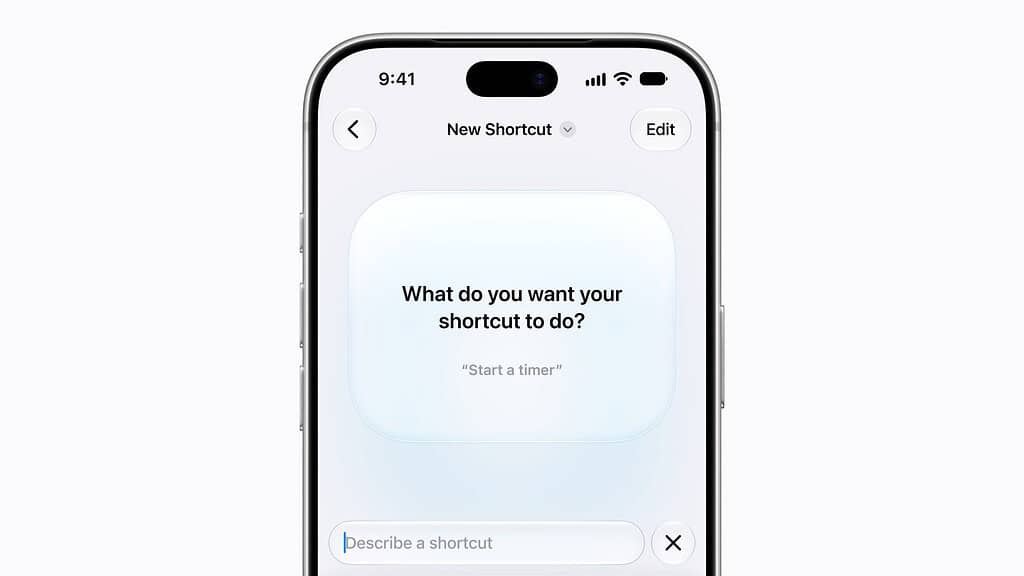
One of the biggest additions to Shortcuts in iOS 27 is the ability to generate entire workflows using natural language. You can describe what you want your iPhone to accomplish, and Apple Intelligence selects and arranges the necessary actions.
Don’t miss the best of The Mac Observer
Set us as a preferred source and our Apple reporting ranks higher in your Google Search results and Discover feed — one tap, no account changes.
For example, you can ask Shortcuts to check your calendar, retrieve the weather forecast, and prepare a morning briefing containing your upcoming appointments and reminders.
Here’s how to create a shortcut by describing it:
- Open Shortcuts and tap the + button.
- Enter your request under Describe a Shortcut.
- Generate the shortcut and review the suggested actions.
- Make any necessary adjustments and save it.
You can also manually modify generated workflows, giving you control over individual actions, variables, and conditions.
2. Automate Tasks Based on App Notifications
The new Notification trigger allows your iPhone to initiate workflows when it receives a notification from a specific app. You can also filter notifications based on their title, subtitle, or message content.
This opens up several practical automation possibilities:
- Record delivery notifications in a dedicated note.
- Create reminders when selected apps send important alerts.
- Organize payment notifications into an expense log.
- Process work-related notifications through custom workflows.
Open a shortcut, select Edit > Automation, choose Notification, and configure the application and relevant filters.
Apple’s automation trigger documentation explains the available filtering options. Some actions may still require confirmation or additional permissions.
3. Search the Web Using Apple Intelligence
Apple has upgraded the existing Use Model action with improved AI models and access to current information from the internet.
Previously, AI-powered shortcuts primarily worked with information supplied through their input and the capabilities of the selected model. Web access allows workflows to retrieve current information and incorporate it into subsequent actions.
For instance, you can build a morning news briefing that searches for recent technology announcements, summarizes the findings, and saves the results in Apple Notes.
Apple’s guide to intelligent Shortcuts actions also explains how model inputs can incorporate photos, reminders, calendar events, and outputs from other actions.
However, certain cloud-based models are subject to Apple Intelligence usage limits, which is worth considering when building frequently running automations.
4. Automatically Process Screenshots
The Screenshot automation trigger lets your iPhone perform actions whenever you save a screenshot to Photos, Files, or the clipboard.
Apple has also improved the Extract Text From Image action, which can now recognize tables and lists. Combining these features allows you to convert screenshots containing receipts, schedules, or written information into more useful formats.
For example, you can create a workflow that extracts text from a screenshot, uses Apple Intelligence to organize the information, and adds the result to a dedicated note.
This is particularly useful for students collecting study materials and professionals who regularly capture information from documents or websites.
5. Save Data Between Shortcut Runs
The new Shortcuts Storage actions introduce persistent data storage, allowing workflows to retrieve previously saved information when they run again.
Apple provides four dedicated actions:
- Get Stored Content
- Store Content
- Delete Stored Content
- Add Item to List
You can use these actions to build habit trackers, maintain expense records, count completed tasks, or remember preferences without creating a separate file-based storage system.
For example, a daily water intake shortcut can retrieve your previous total, add the latest entry, and store the updated value for the next time you run it.
6. Trigger Automations When Connecting a Keyboard
If you regularly connect an external keyboard to your iPhone or iPad, iOS 27 and iPadOS 27 introduce automation triggers for keyboard connections and disconnections.
You can configure your device to activate a Work Focus, open your preferred writing application, adjust screen brightness, or prepare other productivity settings when you connect a keyboard.
A separate disconnection automation can restore your regular settings once you finish working, making it easier to switch between work and personal use.
7. Create and Organize Markdown Notes
Apple Notes gains improved integration with Shortcuts through updated Create Note and Append Text to Note actions, both of which now support Markdown.
You can also insert content before or after a specific section within an existing note, which helps maintain organized documents through recurring automations.
For instance, a weekly productivity shortcut can collect completed reminders, organize them under Markdown headings, and append the results to your existing progress journal.
You can combine these actions with Apple Intelligence and the improved screenshot processing tools to build automated research journals or structured meeting summaries.
8. Build Smarter Conditional Automations
Apple has updated the If action with support for Otherwise If, allowing you to evaluate multiple conditions within a single conditional structure.
Previously, more complex workflows often required several nested If actions, which made longer shortcuts difficult to maintain.
A battery management shortcut, for example, can enable Low Power Mode below 20%, reduce brightness below 40%, and maintain normal settings above that threshold.
According to Apple’s official Shortcuts release notes, iOS 27 also integrates automation triggers directly into shortcuts and introduces automation syncing across devices, making complex workflows easier to manage.
Which iPhones Support the New iOS 27 Shortcuts Features?
Most non-AI actions and automation improvements are available on compatible iPhones running iOS 27. However, natural language shortcut generation and Apple Intelligence-powered actions require an iPhone 15 Pro, iPhone 15 Pro Max, or a newer Apple Intelligence-compatible iPhone.
For the latest improvements, including expanded web search language support and additional automation options, make sure your iPhone runs iOS 27.2 or later.




Discussion