

If you keep losing the Apple TV remote, your Apple Watch can step in and do the job without missing a beat. The watchOS Remote app turns your watch into a full-featured controller that handles navigation, volume, playback, and even Siri. The setup is quick, the learning curve is tiny, and once you try it, you’ll probably stop digging through couch cushions for the real remote.
Table of contents
Pairing Your Apple Watch With Apple TV

Here’s the thing. Your watch and your Apple TV need to be on the same network, which usually means making sure your iPhone has joined that Wi-Fi first. Once that’s sorted, the pairing takes less than a minute.
- Open the Remote app on your Apple Watch.
- If your Apple TV appears in the list, tap it. If not, tap Add.
- A passcode pops up on your Apple TV.
- Enter that passcode on your watch.
Once you see the pairing icon next to the Apple TV name, your watch is officially in charge.
Don’t miss the best of The Mac Observer
Set us as a preferred source and our Apple reporting ranks higher in your Google Search results and Discover feed — one tap, no account changes.
Using Your Watch as a Remote
Now the fun part. Make sure your Apple TV is awake, then open the Remote app again. You’ll see your Apple TV listed. Tap it and you’re in.
Here’s what you can do from your wrist:
- Swipe in any direction to move through menus.
- Tap to select whatever’s highlighted.
- Tap the back button to return to the previous screen.
- Tap the home button to go straight to the main menu.
- Tap Play to pause or resume whatever you’re watching.
- Turn the Digital Crown to raise or lower volume.
- Tap More Options to mute and unmute audio, toggle captions, or power the Apple TV on or off.
It feels natural after one or two tries. And you don’t even need to look at your watch to adjust volume. Just twist the Digital Crown like you normally would.
Using Siri to Jump Into a Show
If you’d rather skip the swiping, you can talk your way in.
- Open the Remote app.
- Press and hold the Digital Crown until you see the listening indicator.
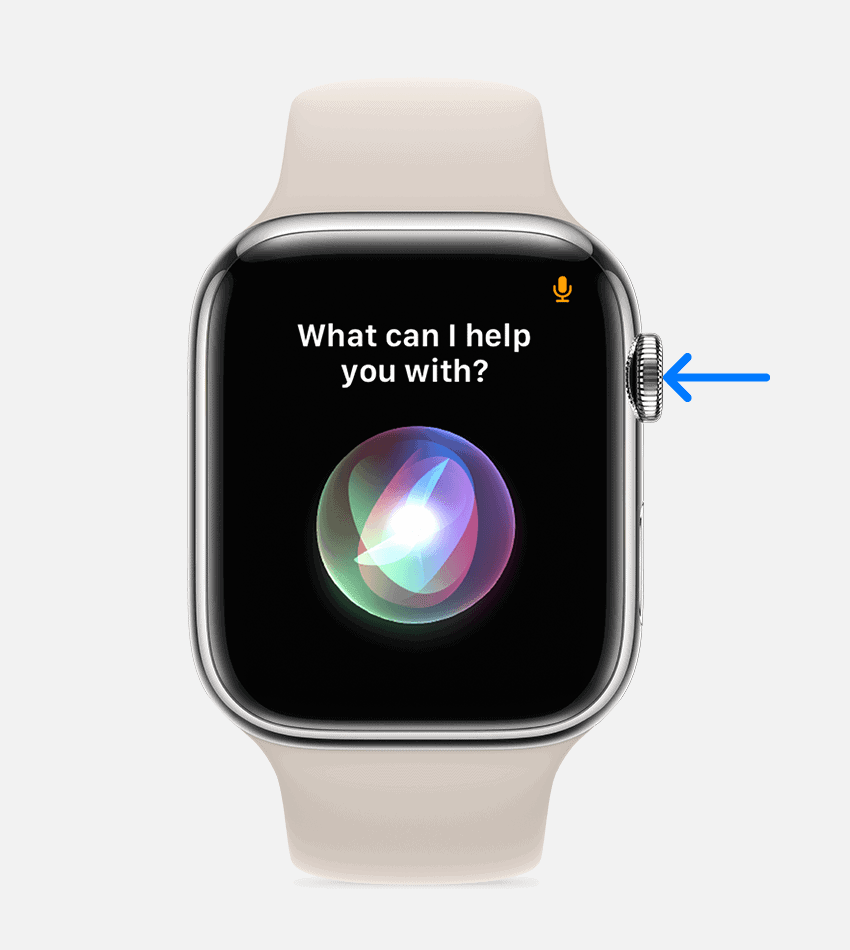
- Say what you want to play.

Your Apple TV will pull it up, hands-free.
Controlling Apple TV Through Now Playing

When something is already playing, the Now Playing app on your watch also gives you quick access to controls. Tap the Now Playing icon at the top of your screen to jump in. You can play, pause, or skip forward and backward without opening the full Remote app.
Why It’s Worth Setting Up
Once you connect your Apple Watch to your Apple TV, you basically gain a remote that never slips between cushions or needs charging. It’s always right there on your wrist. And because watchOS now mirrors nearly every essential Apple TV command, you won’t feel like you’re using a watered-down version.
If you want a dead-simple way to control your Apple TV without chasing a tiny remote around the house, this is it.


Discussion